1. Introduction
Thank you for choosing the suevery AMD Ryzen5 5600GT Gaming PC. This high-performance desktop computer is designed to provide a seamless experience for gaming, e-learning, video and audio streaming, home entertainment, business office tasks, video conferencing, photo and video editing, and daily trading. This manual provides essential information for setting up, operating, maintaining, and troubleshooting your new PC to ensure optimal performance and longevity.

Image 1: Front view of the suevery AMD Ryzen5 5600GT Gaming PC, showcasing its transparent side panel and vibrant RGB fans.
2. Safety Information
Please read and follow these safety guidelines carefully to prevent damage to your PC and ensure personal safety:
- Power Supply: Use only the power supply unit provided with your PC. Ensure the power outlet is properly grounded.
- Ventilation: Do not block any ventilation openings. Maintain adequate space around the PC for proper airflow to prevent overheating.
- Liquid and Moisture: Keep the PC away from liquids, moisture, and extreme temperatures. Do not operate the PC with wet hands.
- Placement: Place the PC on a stable, flat surface. Avoid placing it near heat sources or in direct sunlight.
- Servicing: Do not attempt to service the PC yourself. Refer all servicing to qualified service personnel. Opening the PC case may void your warranty.
- Cleaning: Disconnect the power cord before cleaning. Use a soft, dry cloth. Do not use liquid or aerosol cleaners.
3. Package Contents
Upon unpacking, please verify that all the following items are included:
- suevery AMD Ryzen5 5600GT Gaming PC (Model: SUSU-V900W)
- Power Cable
- Documentation (Quick Start Guide, Warranty Card)
- RGB Lighting (Integrated feature)
If any items are missing or damaged, please contact your retailer or suevery customer support immediately.
4. Setup Guide
Follow these steps to set up your suevery Gaming PC:
- Unpack the PC: Carefully remove the PC from its packaging. Retain all packaging materials for future transport or servicing.
- Connect Peripherals:
- Monitor: Connect your monitor to the PC using an HDMI or VGA cable. The PC features one HDMI port and one VGA port.
- Keyboard and Mouse: Connect your keyboard and mouse to the available USB ports. The PC has 4 USB 2.0 ports and 2 USB 3.0 ports.
- Other Devices: Connect any other peripherals such as speakers, headphones, or external drives.
- Connect to Power: Plug the power cable into the PC's power input and then into a grounded electrical outlet.
- Network Connection: The PC supports Wi-Fi 802.11ax for wireless internet connectivity. An Ethernet port is also available for a wired connection.

Image 2: Rear panel of the PC, illustrating the available USB, HDMI, VGA, and audio ports for connecting peripherals.

Image 3: Diagram detailing the PC's dimensions and the location of front and rear USB ports, along with signal interfaces.
5. Operating Instructions
This section outlines the basic operation of your suevery Gaming PC.
5.1 Powering On/Off
- To Power On: Press the power button located on the front of the PC. The system will boot up, and the operating system (Windows) will load.
- To Power Off: It is recommended to shut down the PC through the operating system's shutdown procedure (Start Menu > Power > Shut down). Avoid direct power disconnection unless absolutely necessary.
5.2 System Features
- Processor: Equipped with an AMD Ryzen5-5600GT 6-core, 12-thread processor (3.6GHz base, up to 4.6GHz Turbo) for efficient multitasking and gaming.
- Memory: 16GB of high-speed DDR4 RAM at 3200MHz ensures smooth performance across multiple applications and demanding games.
- Storage: A 512GB NVMe SSD provides ultra-fast boot times, rapid application loading, and ample storage for your files and games.
- Graphics: Integrated AMD Radeon RX Vega7 Graphics (1.9G) supports popular games and provides clear visuals for 1080P gaming and 4K content streaming.
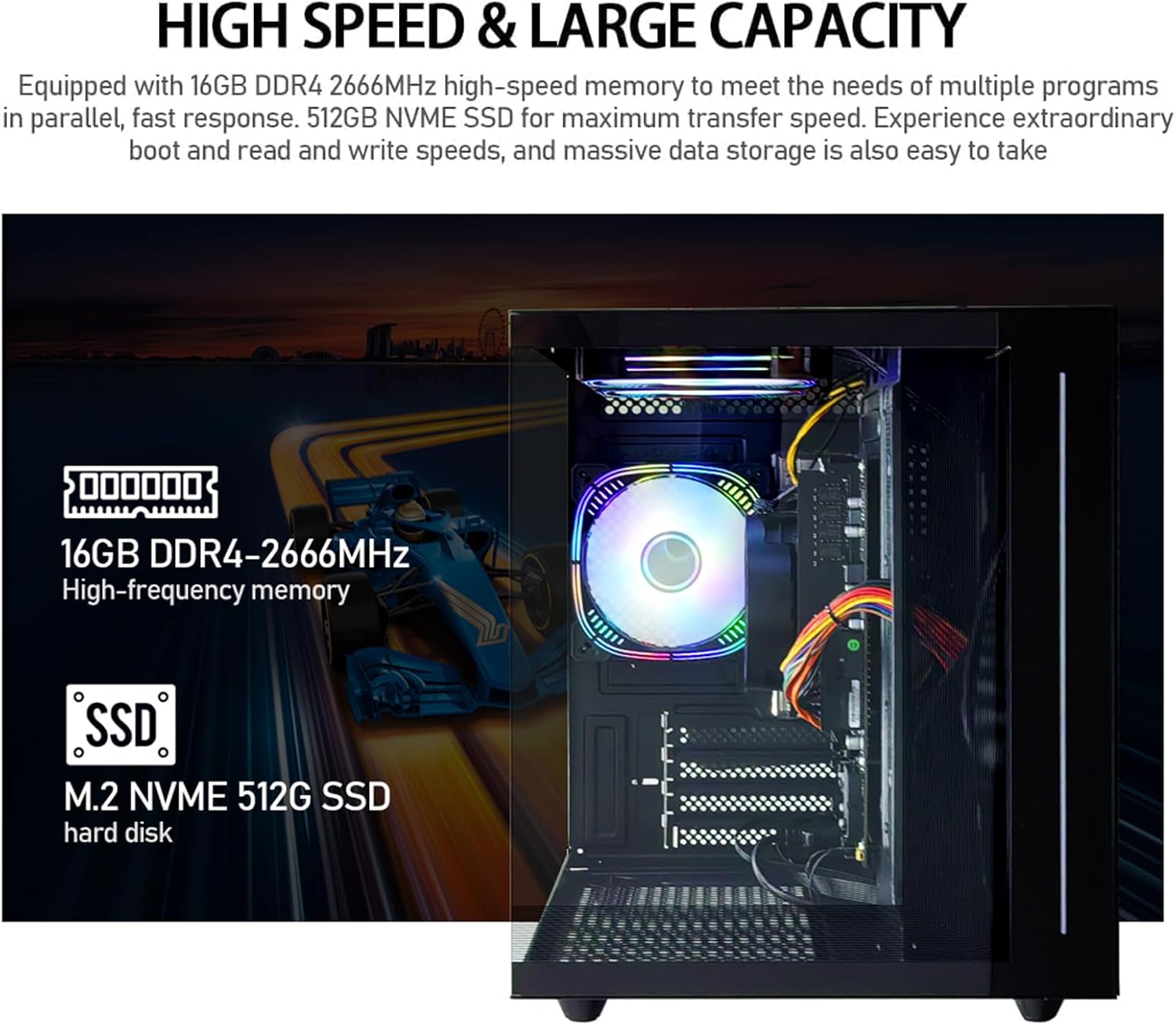
Image 4: Internal view of the PC, emphasizing the 16GB DDR4 high-frequency memory and the M.2 NVMe 512GB SSD for high-speed data transfer.

Image 5: Visual representation of the AMD Radeon Vega Graphics 7 capabilities, suitable for esports games, video clips, graphic design, and corporate office tasks.
6. Maintenance
Proper maintenance ensures the longevity and performance of your PC.
6.1 Cleaning
- Exterior: Use a soft, lint-free cloth to wipe the exterior surfaces. For stubborn marks, slightly dampen the cloth with water.
- Ventilation: Regularly check and clean the ventilation grilles to prevent dust buildup, which can impede airflow and cause overheating. Use compressed air to gently clear dust from fan blades and vents.
6.2 Ventilation and Cooling
The PC is equipped with three built-in 120mm chassis fans for rapid heat dissipation and cooling, ensuring stable performance during intensive use. Ensure these fans are not obstructed.

Image 6: Illustration of the PC's cooling system, highlighting the RGB-enabled fans designed for rapid and silent heat dissipation.
6.3 Software Updates
Keep your operating system, drivers, and applications updated to ensure security, stability, and optimal performance. Windows updates are managed through the operating system settings.
7. Troubleshooting
This section provides solutions to common issues you might encounter.
- No Power:
- Ensure the power cable is securely connected to both the PC and the electrical outlet.
- Verify the power outlet is functional by plugging in another device.
- Check the power switch on the back of the PC (if present) is in the 'On' position.
- No Display on Monitor:
- Confirm the monitor is powered on and correctly connected to the PC's HDMI or VGA port.
- Ensure the correct input source is selected on your monitor.
- Try connecting the monitor to a different port if available, or test with another monitor.
- System is Slow or Unresponsive:
- Close unnecessary applications running in the background.
- Check for sufficient free space on your SSD.
- Run a virus scan to check for malware.
- Ensure your operating system and drivers are up to date.
- No Internet Connection:
- For Wi-Fi, ensure the Wi-Fi adapter is enabled and you are connected to the correct network with the correct password.
- For wired connection, ensure the Ethernet cable is securely connected to both the PC and the router/modem.
- Restart your router/modem.
If you encounter issues not covered here, or if the problem persists, please contact suevery customer support.
8. Specifications
| Component | Specification |
|---|---|
| Model Number | SUSU-V900W |
| Processor | AMD Ryzen5-5600GT (6 Cores, 12 Threads, 3.6GHz up to 4.6GHz Turbo) |
| Processor Socket | Socket AM4 |
| RAM | 16GB DDR4 3200MHz (Max. 32GB) |
| Storage | 512GB NVMe SSD (PCIE x 4 interface) |
| Graphics | Integrated AMD Radeon RX Vega 7 Graphics (1.9G) |
| Operating System | Windows |
| Wireless Connectivity | Wi-Fi 802.11ax |
| USB 2.0 Ports | 4 |
| USB 3.0 Ports | 2 |
| HDMI Ports | 1 |
| VGA Ports | 1 |
| Chassis Fans | 3 x 120mm (Built-in) |
| Dimensions (L x W x H) | 39.62 x 35.81 x 33.27 cm |
| Weight | 6.89 kg |
9. Warranty and Support
Your suevery AMD Ryzen5 5600GT Gaming PC comes with a standard manufacturer's warranty. Please refer to the warranty card included in your package for specific terms and conditions, including warranty duration and coverage details.
For technical support, service inquiries, or to report any issues, please contact suevery customer support through the contact information provided on your warranty card or the official suevery website. Please have your model number (SUSU-V900W) and purchase details ready when contacting support.
