1. Product Overview
The UGREEN 4K DisplayPort to HDMI Adapter facilitates the connection of a DisplayPort-enabled source device to an HDMI-enabled display. This adapter supports high-resolution video and audio transmission, making it suitable for various applications including home entertainment, office work, and gaming.
Key features include:
- High Resolution Support: Streams video at 4K@30Hz, 2K@60Hz, and 1080P@120Hz.
- Audio Sync: Provides clear, high-quality sound alongside video.
- Unidirectional Transmission: Designed to transfer signals exclusively from DisplayPort source to HDMI display.
- Durable Construction: Features a slim, lightweight aluminum housing for heat dissipation and a braided cable for flexibility and longevity.
- Plug and Play: Requires no additional drivers for operation.

Image 1: Two UGREEN 4K DisplayPort to HDMI Adapters.
2. Specifications
| Item Model Number | 65982 |
| Brand | UGREEN |
| Connector Type | DisplayPort (Male) to HDMI (Female) |
| Max Resolution | 4K@30Hz, 2K@60Hz, 1080P@120Hz |
| Supported Technologies | DisplayPort 1.2, HDCP 1.4, HDMI 1.4, HDR |
| Color | Grey |
| Material | Aluminum housing, Nylon braided cable, Tinned copper conductors |
| Dimensions | 5.79 x 3.98 x 0.75 inches |
| Weight | 3.17 ounces |
3. Setup Instructions
Follow these steps to connect your DisplayPort source device to an HDMI display:
- Step 1: Connect the Adapter to the Source Device. Plug the DisplayPort male end of the UGREEN adapter into the DisplayPort output on your PC, laptop, or graphics card. This effectively converts the DisplayPort output into an HDMI port.
- Step 2: Connect the HDMI Cable. Insert your HDMI cable (not included) into the HDMI female port of the UGREEN adapter.
- Step 3: Connect to Display. Plug the other end of your HDMI cable into the HDMI input on your monitor, projector, or HDTV.
- Step 4: Configure Display Settings. Once connected, your display should automatically detect the signal. If not, you may need to manually select the correct HDMI input on your display or adjust display settings within your operating system (e.g., Windows Display Settings, macOS System Preferences).
Note: This adapter is unidirectional. It only transfers signals from a DisplayPort source to an HDMI display. It cannot convert HDMI to DisplayPort.
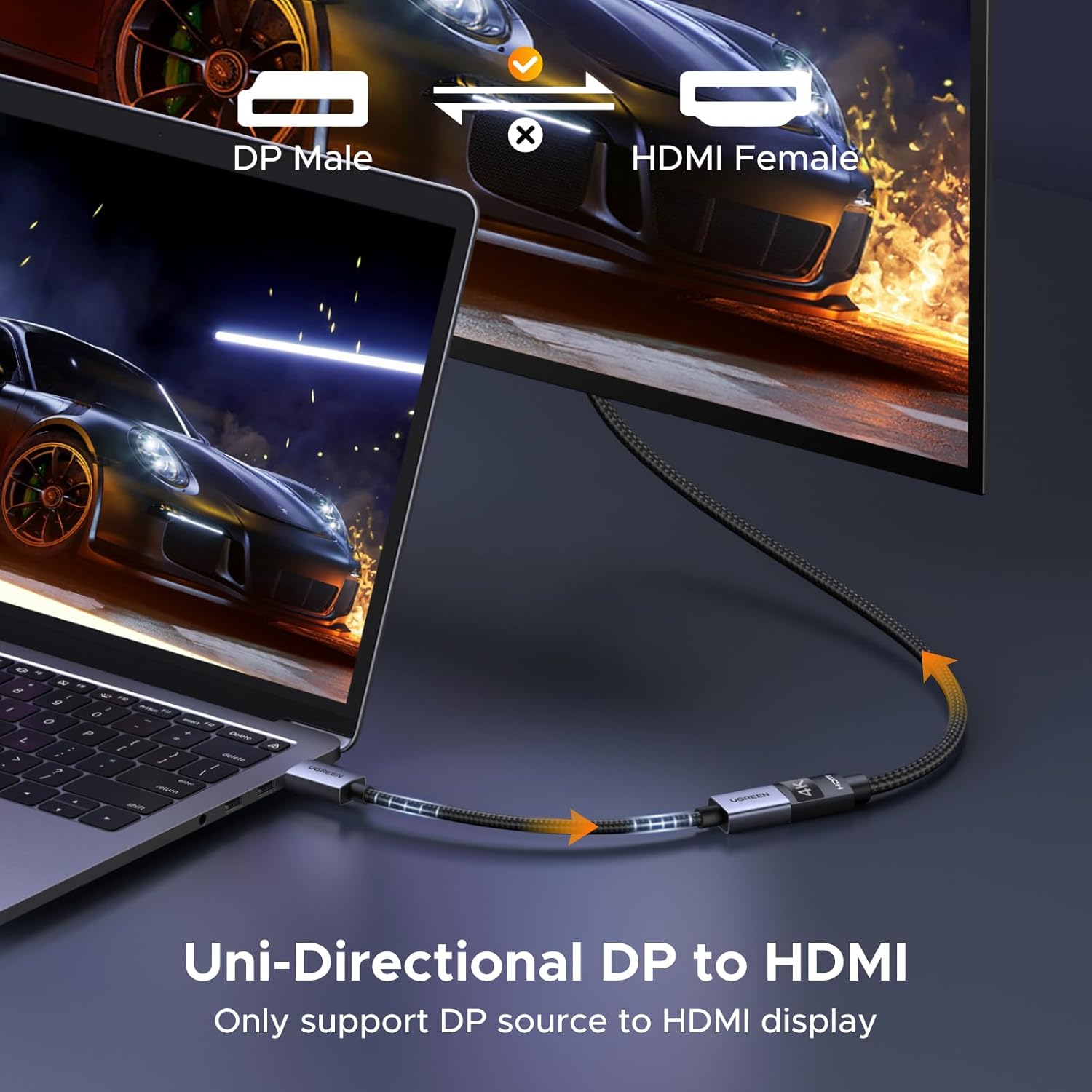
Image 2: Unidirectional connection from DisplayPort source to HDMI display.

Image 3: Step-by-step connection process.
4. Operating Modes
The adapter supports both mirror and extended display modes, allowing you to optimize your workspace or viewing experience.
- Mirror Mode: Duplicates your primary screen onto the connected HDMI display. This is useful for presentations or sharing content.
- Extended Mode: Extends your desktop across multiple displays, providing more screen real estate for multitasking.
To switch between display modes, use your operating system's display settings:
- Windows: Press Windows key + P and select your desired display mode (Duplicate, Extend, Second screen only).
- macOS: Go to System Settings > Displays to arrange or mirror displays.

Image 4: Extended and Mirror Display Modes.

Image 5: Supported Resolutions for Visual Output.
5. Compatibility
The UGREEN DisplayPort to HDMI Adapter is designed for broad compatibility with various devices. Please review the compatibility information below:
Compatible Devices (DisplayPort Source):
- Desktop PCs with DisplayPort output
- Laptops with DisplayPort output
- Graphics cards (e.g., AMD, NVIDIA RTX 30/40, RX 6000/7000 series)
- Workstations (e.g., ThinkPad T14 Gen 4)
Compatible Displays (HDMI Destination):
- HDTVs
- Monitors
- Projectors
- VR headsets with HDMI input
Incompatible Source Devices:
This adapter is not compatible with devices that have an HDMI output as their source, such as:
- MacBook (HDMI output)
- PlayStation (PS5/PS4)
- Nintendo Switch
- Xbox consoles
- GoPro cameras
- Docking Stations with HDMI output

Image 6: Universal Compatibility Chart.
6. Care and Maintenance
To ensure the longevity and optimal performance of your UGREEN DisplayPort to HDMI Adapter, follow these care guidelines:
- Handle with Care: Avoid excessive bending or twisting of the cable, especially near the connectors. The braided sheath provides flexibility, but extreme force can cause internal damage.
- Protect Ports: The adapter helps protect your original DisplayPort from wear and tear due to repeated plugging. However, ensure gentle insertion and removal of the adapter and HDMI cable.
- Storage: Store the adapter in a cool, dry place away from direct sunlight and extreme temperatures when not in use.
- Cleaning: Use a soft, dry cloth to clean the adapter. Avoid liquid cleaners or abrasive materials.
- Heat Dissipation: The aluminum housing is designed for efficient heat dissipation. Ensure the adapter is not covered or placed in an enclosed space during operation to allow for proper airflow.

Image 7: Durable Construction Features.
7. Troubleshooting
If you encounter issues with your UGREEN DisplayPort to HDMI Adapter, consider the following troubleshooting steps:
No Signal or Blank Screen:
- Check Connections: Ensure both the DisplayPort end of the adapter and the HDMI cable are securely plugged into their respective ports.
- Verify Unidirectional Flow: Confirm that the signal is flowing from a DisplayPort source to an HDMI display. This adapter does not support HDMI to DisplayPort conversion.
- Select Correct Input: On your display, ensure the correct HDMI input source is selected.
- Test with Another Cable/Display: If possible, try a different HDMI cable or connect to another HDMI display to rule out issues with other components.
- Update Graphics Drivers: Ensure your computer's graphics drivers are up to date.
Flickering or Unstable Image:
- Reduce Resolution/Refresh Rate: Lower the display resolution or refresh rate in your computer's display settings to see if stability improves.
- Check Cable Length: Very long HDMI cables can sometimes lead to signal degradation. Ensure your HDMI cable is of appropriate length and quality for the resolution being transmitted.
No Audio:
- Select Audio Output: In your computer's sound settings, ensure the HDMI display is selected as the default audio output device.
- Check Display Audio: Verify that the connected display's volume is not muted or set too low.
8. Warranty and Support
For information regarding product warranty, returns, or technical support, please refer to the official UGREEN website or contact UGREEN customer service directly. Specific warranty terms and support channels may vary by region and purchase location.
Please retain your proof of purchase for any warranty claims.


