1. Introduction
The Alacrity Industrial-Grade Wireless 2-in-1 Barcode Scanner with Screen and Dock (Model NA-2023-Base) is designed for efficient and reliable barcode scanning in various environments, including retail, warehouses, and logistics. This device offers dual connectivity modes (Bluetooth and 433MHz wireless) and features a built-in screen for real-time data display. Its robust design ensures durability and consistent performance in demanding industrial settings.
Key features include:
- Dual-Mode Versatility: Functions as a handheld scanner and integrates with a dock featuring a screen, allowing seamless switching between mobile and stationary scanning.
- Long-Range Connectivity: Utilizes 433MHz wireless technology for a range of up to 1500 meters (4900 feet) and Bluetooth for shorter distances (up to 15 meters/49 feet).
- High-Speed Scanning: Equipped with an advanced laser engine for rapid and accurate decoding of 1D and 2D barcodes, even in challenging conditions.
- Rugged and Reliable: Engineered for industrial use with a durable build and a long-lasting 2600mAh battery.
- Smart Display Dock: The integrated screen on the scanner displays real-time scanning data, connection status, and battery level. The dock provides convenient charging and storage.
2. Package Contents
Before setup, please verify that all items are present in the package:
- Alacrity Barcode Scanner
- Charging Base / Dock with Built-in 433MHz Receiver
- USB Cable
- Instruction Manual

Figure 2.1: Package Contents. The image displays the scanner, charging base, USB cable, and instruction manual.
3. Setup
3.1 Charging the Scanner
The scanner is equipped with a 2600mAh Lithium Polymer battery. For optimal performance, fully charge the scanner before first use.
- Connect the USB cable to the charging base and then to a power source (e.g., computer USB port or USB wall adapter).
- Place the scanner into the charging base. Ensure it is seated correctly.
- The charging LED on the base will indicate charging status. A full charge typically takes approximately 4-5 hours.
Figure 3.1: Charging the Scanner. The scanner is shown in its charging base, connected to a power source.
3.2 Connecting the Scanner
The scanner supports two primary connection modes: 433MHz wireless via the charging base and Bluetooth.
3.2.1 433MHz Wireless Connection (via Charging Base)
This mode provides a long-range connection, ideal for large warehouses or outdoor environments.
- Connect the charging base to your computer using the provided USB cable. The base acts as the 433MHz receiver.
- Ensure the scanner is powered on.
- The scanner should automatically attempt to pair with the base. If not, refer to the troubleshooting section or scan the pairing barcode (usually found in the printed manual) to initiate pairing.
- Once connected, the scanner's screen will display the connection status. The effective range is up to 1000m (3280ft) outdoors and 15m (49ft) indoors.
3.2.2 Bluetooth Connection
This mode is suitable for connecting directly to Bluetooth-enabled devices like laptops, tablets, or smartphones.
- Ensure the scanner is powered on.
- Activate Bluetooth on your host device (computer, tablet, etc.).
- Scan the Bluetooth pairing barcode (typically found in the printed manual or on the scanner's screen via settings).
- On your host device, search for available Bluetooth devices and select the Alacrity scanner.
- Confirm the pairing. The scanner's screen will update to show Bluetooth connection status. The effective range is up to 15m (49ft).
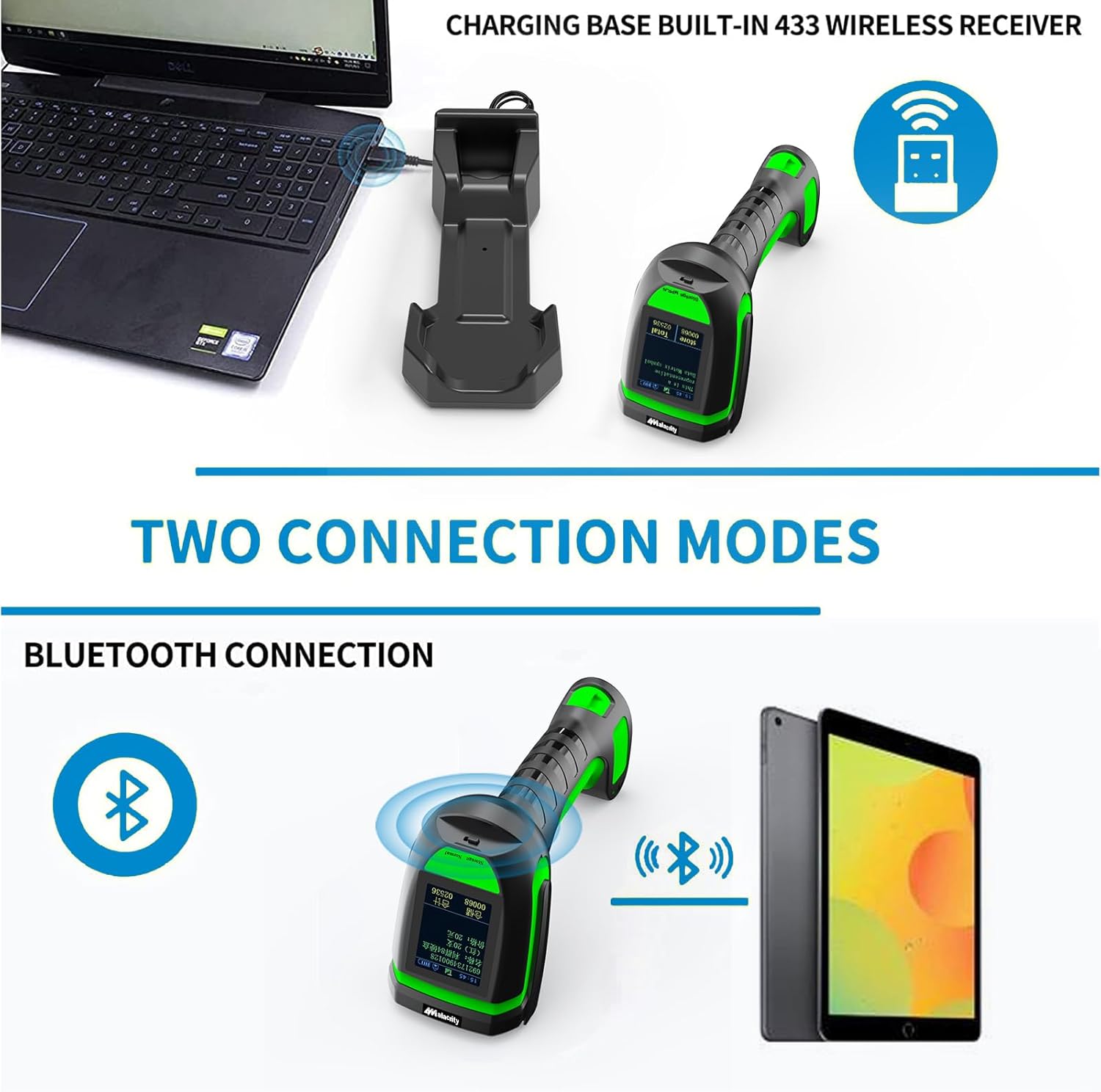
Figure 3.2: Two Connection Modes. The image shows the scanner connecting via 433MHz to a laptop through its base, and via Bluetooth to a tablet.
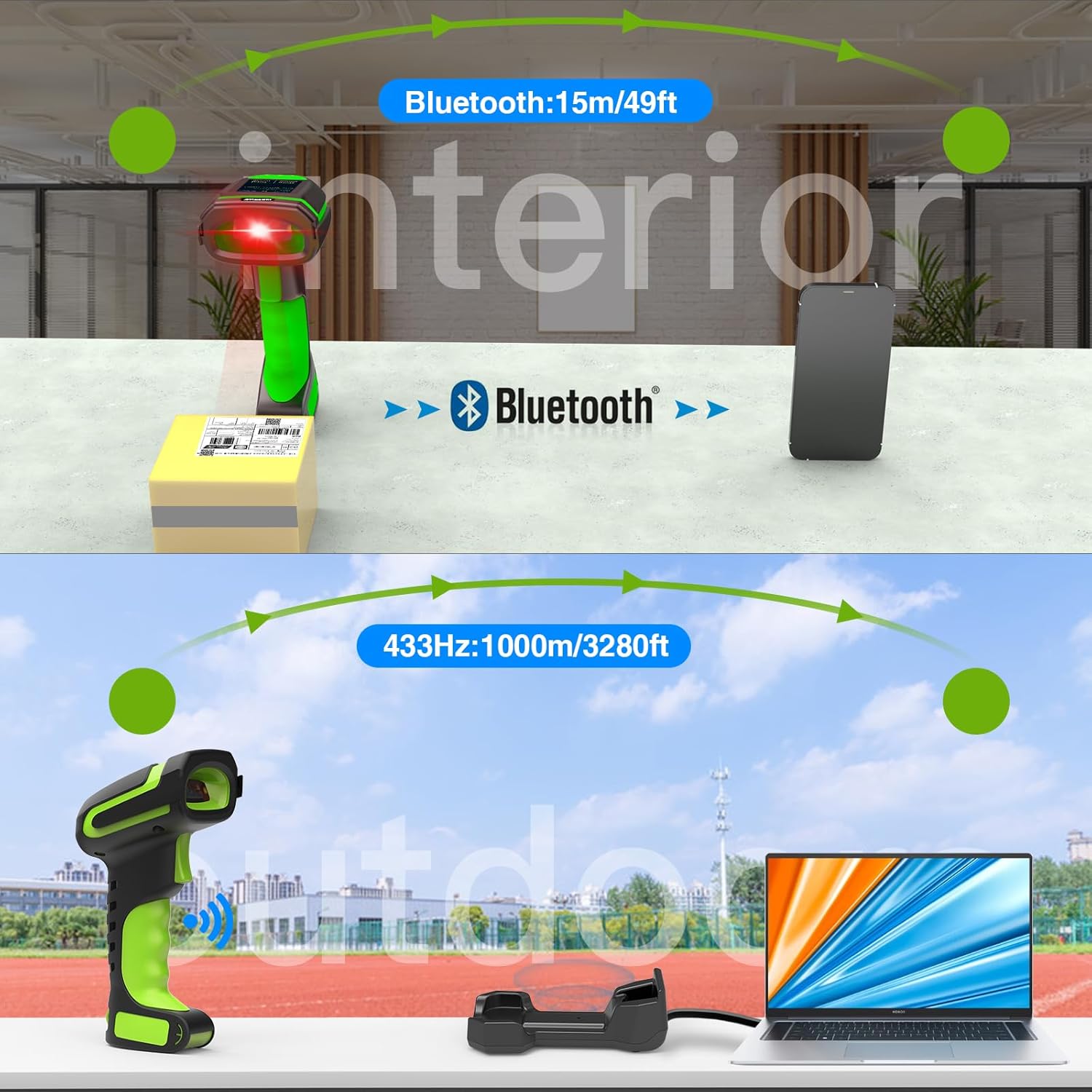
Figure 3.3: Wireless Range Comparison. This image illustrates the typical operational ranges for Bluetooth and 433MHz connections.
4. Operating Instructions
4.1 Scanning Barcodes
The scanner is capable of reading various 1D and 2D barcode types.
- Point the scanner's window at the barcode you wish to scan.
- Press the trigger button. A red aiming light will appear, followed by a green light upon successful scan.
- The decoded barcode data will be transmitted to your connected device and displayed on the scanner's screen.
Supported Barcode Types:
- 1D Codes: EAN, UPC, DataBar, Interleaved 2 of 5, Matrix 2 of 5, Industrial 2 of 5, etc.
- 2D Codes: QR Code, DataMatrix, PDF 417, Aztec, etc.
The scanner can recognize 1D/2D codes on PCB boards and in challenging lighting conditions.
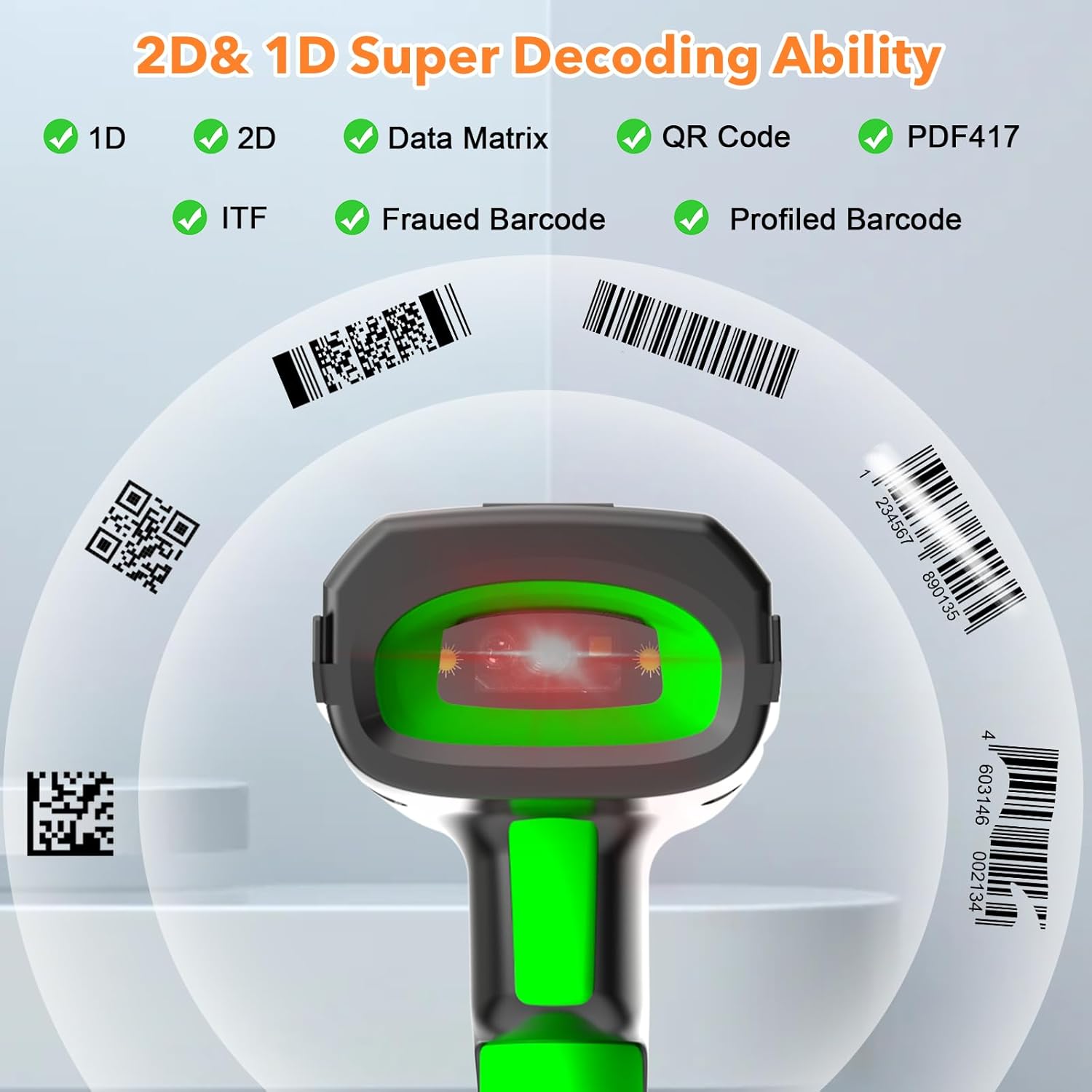
Figure 4.1: 1D and 2D Decoding Ability. The image highlights the scanner's capability to read multiple barcode formats.
4.2 Understanding the Screen Display
The 1.77-inch TFT colorful screen on the scanner provides essential information at a glance:
- 1. Time: Current time.
- 2. Connection Status: Indicates if the scanner is connected (e.g., signal strength icon).
- 3. Connection Mode: Shows the active connection type (e.g., Bluetooth or 433MHz).
- 4. Electricity Level: Battery charge indicator.
- 5. Store: Number of barcodes stored in internal memory.
- 6. Total: Total number of scans performed.

Figure 4.2: Scanner Screen Display. This image labels the various indicators on the scanner's screen.
4.3 Storage Mode
The scanner features an internal memory of 16MB, capable of storing approximately 50,000 barcodes. This allows for data collection even when out of range or disconnected, with subsequent upload when reconnected.
To switch between Normal mode (real-time transmission) and Storage mode (data collection), refer to the specific barcode commands in the full instruction manual provided with the product. The screen will indicate the active mode.
5. Maintenance
5.1 Cleaning
To maintain optimal scanning performance, keep the scanner's window clean.
- Use a soft, lint-free cloth slightly dampened with water or a mild cleaning solution.
- Do not use abrasive cleaners or solvents, as these can damage the scanner's surface or window.
- Ensure the scanner is powered off before cleaning.
5.2 Battery Care
The scanner's 2600mAh battery provides up to 30 hours of continuous scanning time and 30 days of standby time.
- Avoid fully discharging the battery frequently.
- Charge the scanner regularly, especially if it will be stored for an extended period.
- Store the scanner in a cool, dry place when not in use.

Figure 5.1: Battery Capacity and Life. This image details the scanner's battery specifications.
5.3 Durability
The scanner features an anti-shock design, capable of withstanding multiple drops from a height of 2.5 meters (8 feet) onto concrete surfaces.
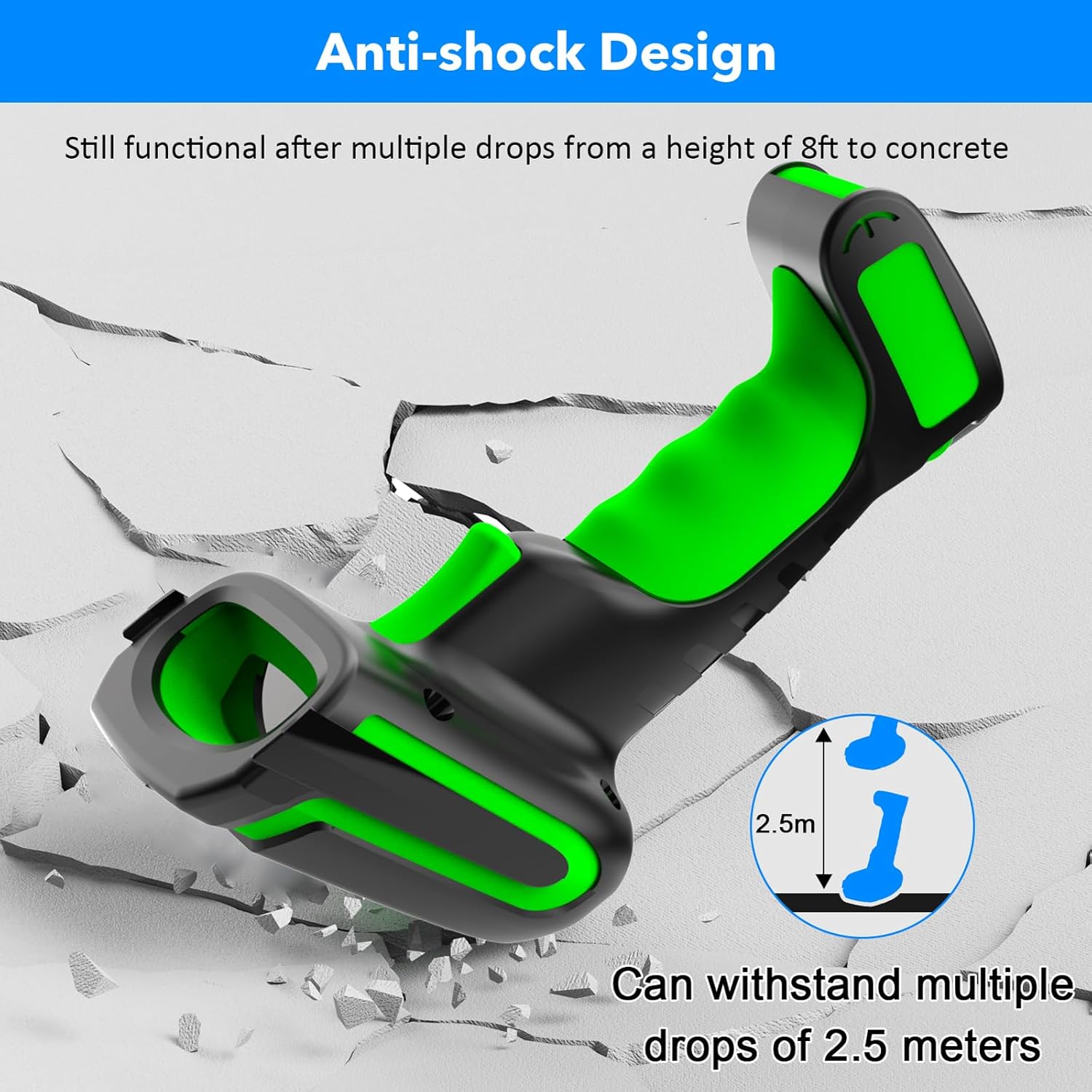
Figure 5.2: Anti-shock Design. The image illustrates the scanner's rugged construction.
6. Troubleshooting
If you encounter issues with your Alacrity barcode scanner, refer to the following common problems and solutions:
| Problem | Possible Cause | Solution |
|---|---|---|
| Scanner does not power on. | Low battery; Power button not pressed correctly. | Charge the scanner fully. Press and hold the power button for a few seconds. |
| Scanner fails to pair with the base or Bluetooth device. | Incorrect pairing procedure; Out of range; Interference; Base not recognized. | Ensure the base is correctly connected to the computer. Scan the correct pairing barcode from the physical manual. Ensure the scanner is within range. Restart both scanner and host device. |
| Scanner does not read barcodes. | Barcode damaged or poorly printed; Scanner window dirty; Incorrect barcode type setting; Scanner not connected. | Ensure barcode is clear. Clean the scanner window. Verify scanner is connected. Check scanner settings for supported barcode types (refer to full manual). |
| Data not transmitting to host device. | Scanner not connected; Host device not ready to receive input; Scanner in storage mode. | Confirm connection status on scanner screen. Ensure cursor is in a text field on the host device. Switch scanner to Normal mode if it is in Storage mode. |
If the problem persists, consult the comprehensive instruction manual provided with your product or contact customer support.
7. Specifications
| Feature | Specification |
|---|---|
| Model Number | NA-2023-Base |
| Connectivity Technology | Bluetooth, 433MHz Wireless |
| Wireless Range (433MHz) | Up to 1000m (3280ft) outdoor, 15m (49ft) indoor |
| Wireless Range (Bluetooth) | Up to 15m (49ft) |
| Battery Type | 1 Lithium Polymer battery (included) |
| Battery Capacity | 2600mAh |
| Charging Time | Approx. 4-5 hours |
| Scanning Time | Up to 30 hours |
| Standby Time | Up to 30 days |
| Display | 1.77-inch TFT Colorful Screen |
| Internal Storage | 16MB (approx. 50,000 barcodes) |
| Decoding Capability | 1D (EAN, UPC, DataBar, Interleaved 2 of 5, Matrix 2 of 5, Industrial 2 of 5, etc.), 2D (QR Code, DataMatrix, PDF 417, Aztec, etc.) |
| Drop Resistance | Withstands multiple drops from 2.5m (8ft) to concrete |
| Item Weight | 1.39 pounds |
| Package Dimensions | 9.72 x 4.92 x 4.09 inches |
| Compatible Devices | Desktop, Laptop |
| Manufacturer | alacrity |
8. Warranty and Support
8.1 Warranty Information
This product is covered by a manufacturer's warranty. Please refer to the warranty card included in your product packaging or contact the seller/manufacturer for specific warranty terms and conditions. Keep your proof of purchase for warranty claims.
8.2 Customer Support
For technical assistance, troubleshooting beyond this manual, or service inquiries, please contact Alacrity customer support through the retailer's platform or the contact information provided in your product documentation.


