
Cudy M3600 1-Pack
Contents
Cudy Dual Band BE3600 WiFi 7 Wi-Fi Mesh System User Manual
Model: M3600 1-Pack
1. Introduction
The Cudy Dual Band BE3600 WiFi 7 Wi-Fi Mesh System (Model M3600 1-Pack) is designed to provide seamless, high-speed wireless coverage throughout your home or office. Utilizing the latest Wi-Fi 7 technology, this system offers superior performance, extended range, and the capacity to connect numerous devices simultaneously. It features a dual-band setup, 3 Gigabit Ethernet ports, and multi-VPN compatibility, ensuring a robust and versatile network experience.

Image: The Cudy BE3600 WiFi 7 Mesh System unit, a sleek white cylindrical device.
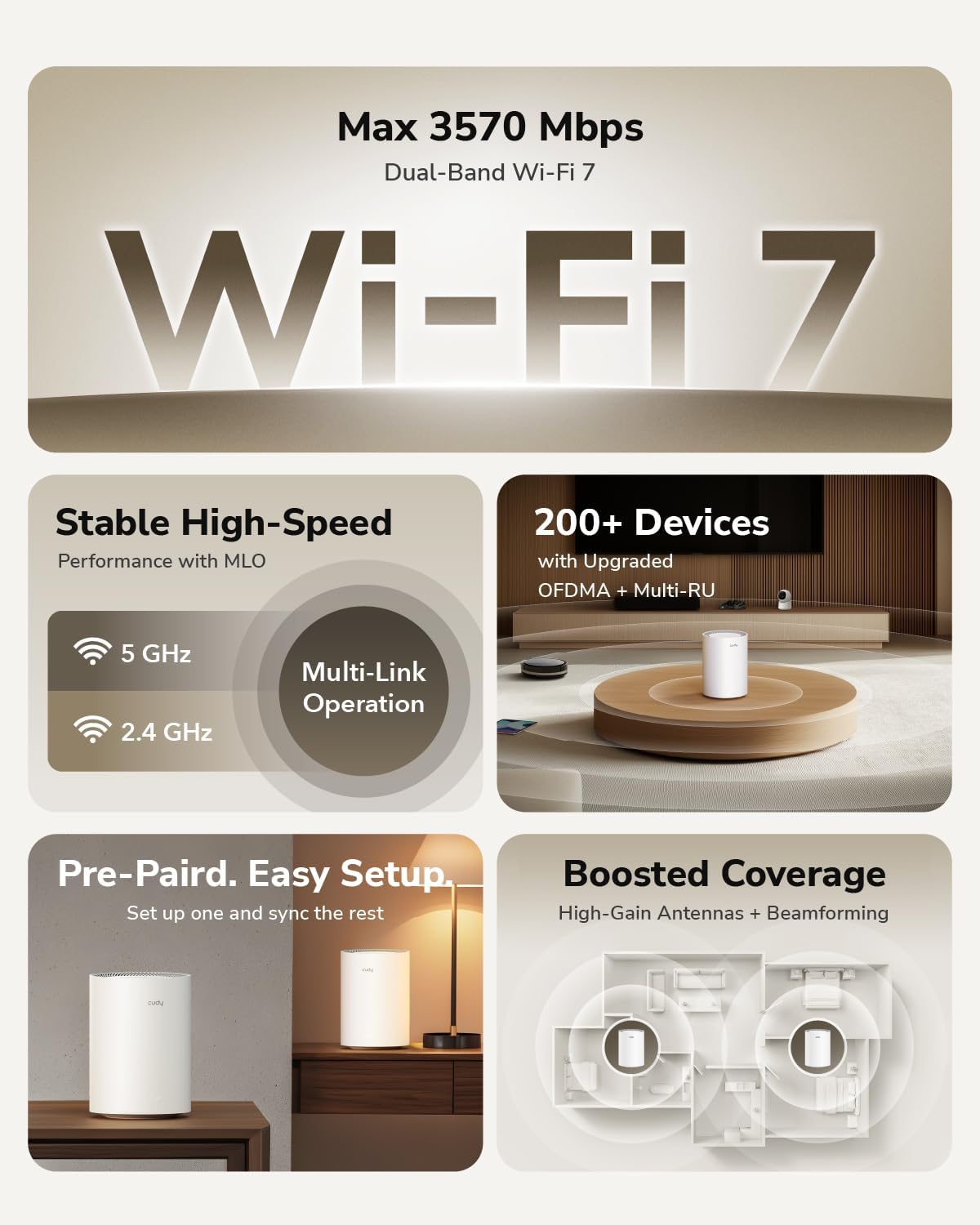
Image: An overview highlighting key features such as Max 3570 Mbps Dual-Band Wi-Fi 7, stable high-speed performance with MLO, support for 200+ devices, pre-paired easy setup, and boosted coverage with high-gain antennas and Beamforming.
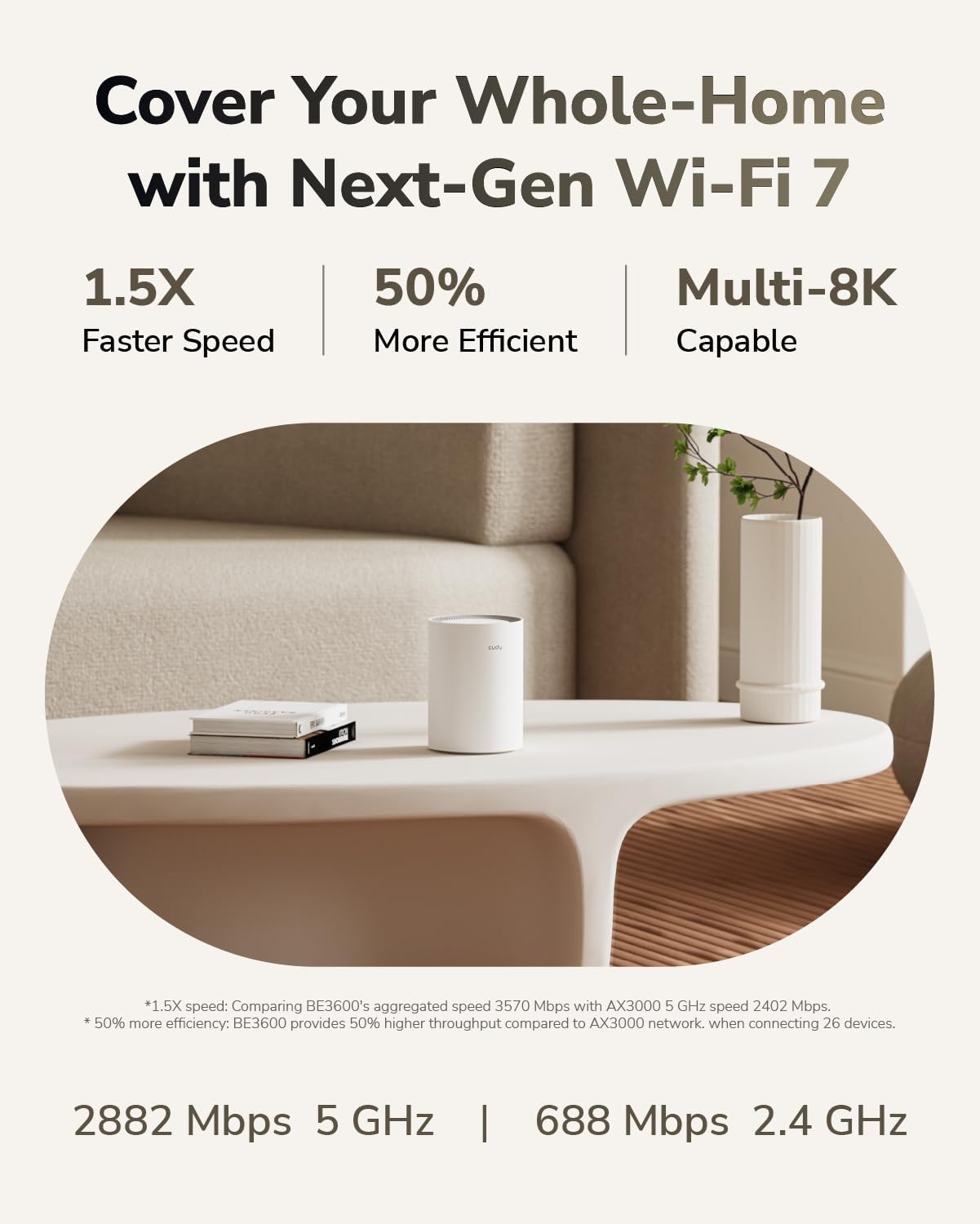
Image: Illustration showing whole-home coverage with Next-Gen Wi-Fi 7, emphasizing 1.5X faster speed, 50% more efficiency, and Multi-8K capability, with specific speeds for 5 GHz (2882 Mbps) and 2.4 GHz (688 Mbps).
2. Setup Guide
Setting up your Cudy M3600 Wi-Fi Mesh System is a straightforward process, primarily managed through the Cudy App.
Initial Setup (Single Unit)
- Download the Cudy App: Search for "Cudy" in your mobile device's app store (Google Play Store or Apple App Store) and install the application.
- Connect the First Unit:
- Connect your modem's Ethernet cable to the WAN port (Internet port) on the Cudy M3600 unit.
- Connect the power adapter to the Cudy M3600 unit and plug it into a power outlet.
- Wait for the unit to power on and the indicator light to stabilize.
- Launch the Cudy App: Open the Cudy App on your smartphone or tablet. The app will guide you through the initial configuration steps, including setting up your Wi-Fi network name (SSID) and password.
- Follow On-Screen Instructions: The app will provide clear, step-by-step instructions to complete the setup of your first mesh unit.
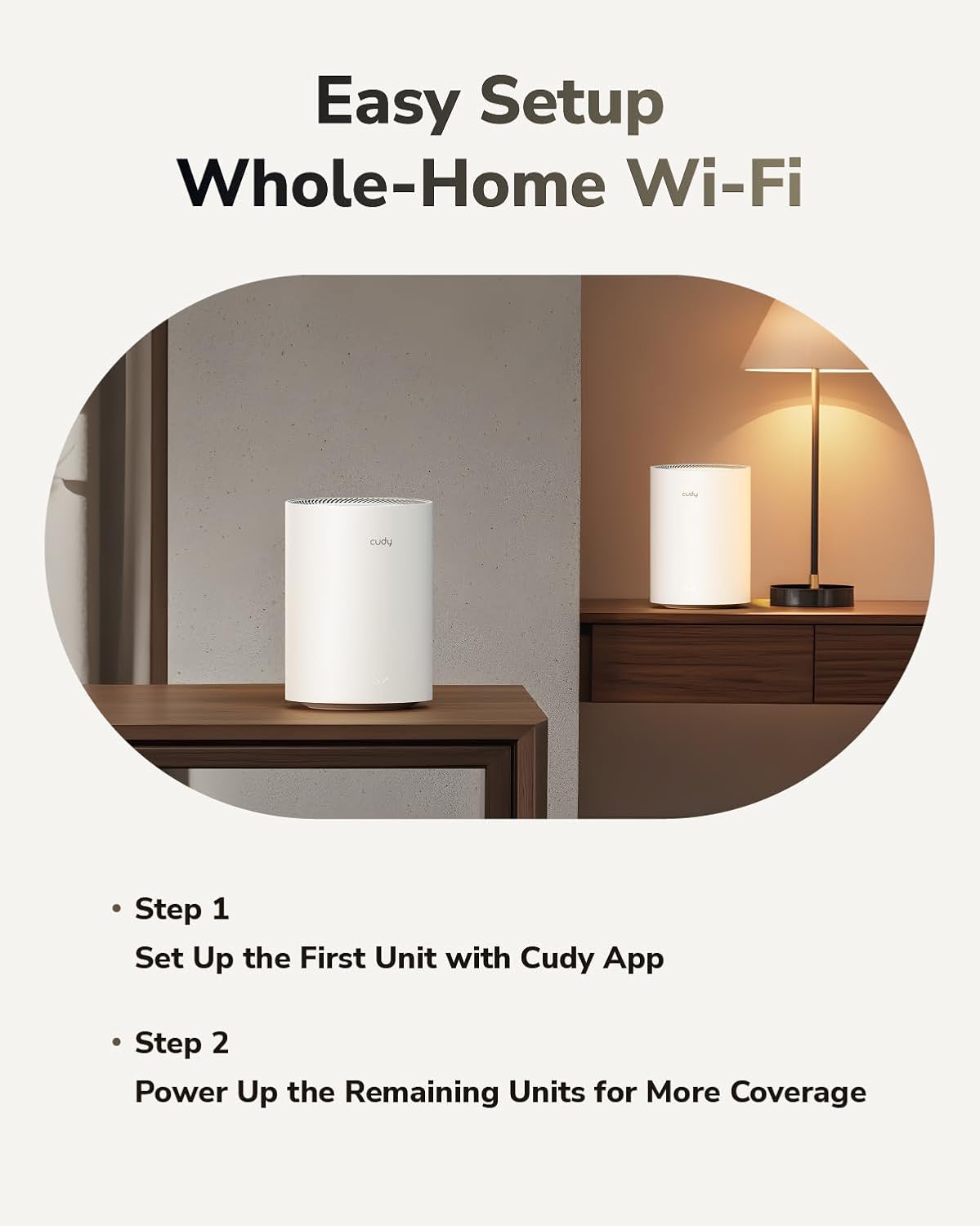
Image: Visual guide for easy whole-home Wi-Fi setup, showing Step 1: Set Up the First Unit with Cudy App, and Step 2: Power Up the Remaining Units for More Coverage.
Adding More Units (Mesh System)
If you have multiple Cudy M3600 units for a mesh system, they are typically pre-paired for easy expansion.
- Placement: Place additional Cudy M3600 units in areas where you need extended Wi-Fi coverage. Ensure they are within range of the main unit or another mesh unit to establish a strong connection.
- Power On: Connect the power adapter to each additional unit and plug it into a power outlet.
- Automatic Pairing: The units should automatically detect and connect to the existing mesh network. The indicator light will change to confirm a successful connection.
- Verify Connection: Use the Cudy App to verify that all units are connected and functioning correctly within your mesh network.
3. Operating Your Cudy M3600
The Cudy M3600 offers a range of features to enhance your network experience.
Network Connectivity
- Wi-Fi 7 Technology: Experience ultra-fast speeds and reduced latency with the latest Wi-Fi 7 standard, supporting 3.6 Gbps (BE3600) and 160 MHz bandwidth.
- Dual-Band Operation: The system operates on both 2.4 GHz and 5 GHz bands, providing flexibility for various devices and optimizing performance.
- Seamless Roaming: The M3600 creates a unified network with a single network name, allowing your devices to seamlessly switch between mesh units as you move throughout your home without interruption.
- Device Capacity: The system can support up to 200 devices simultaneously, thanks to upgraded OFDMA and Multi-RU technologies, ensuring stable connections even in busy networks.
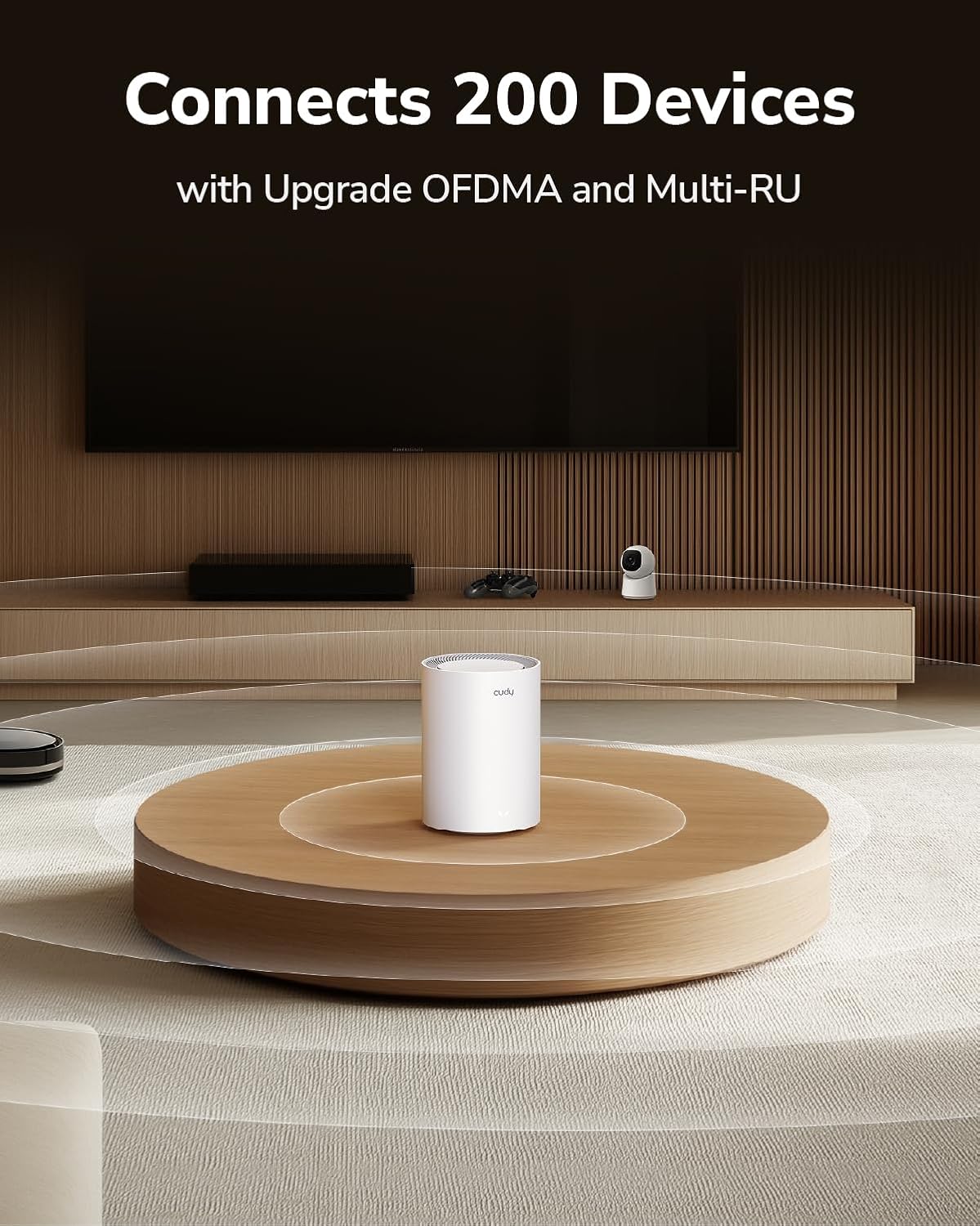
Image: An illustration depicting the Cudy M3600 connecting to 200 devices, showcasing its capability with upgraded OFDMA and Multi-RU.
Physical Ports
The Cudy M3600 unit is equipped with three Gigabit Ethernet ports for wired connections.
- WAN Port (Internet): Used to connect the mesh system to your modem or existing router for internet access.
- LAN Ports: Used to connect wired devices such as PCs, gaming consoles, smart TVs, or for a wired backhaul connection in a mesh setup.
- WPS Button: For secure one-press connection of WPS-compatible devices.
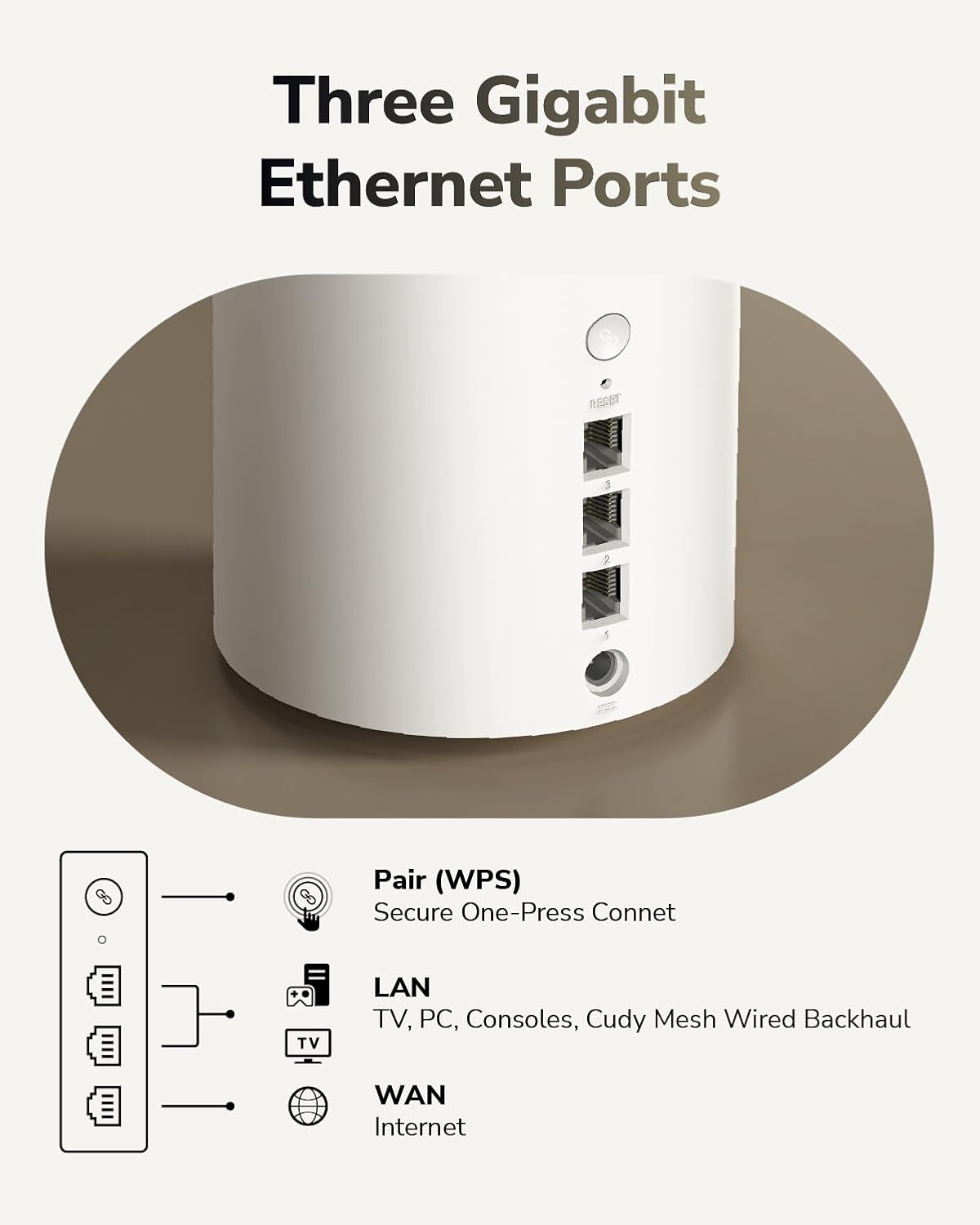
Image: Close-up view of the Cudy M3600's rear panel, showing the WPS button, Reset button, three Gigabit Ethernet ports (LAN/WAN), and the power input. Labels indicate functions for Pair (WPS), LAN (TV, PC, Consoles, Cudy Mesh Wired Backhaul), and WAN (Internet).
Advanced Features
- Multi-VPN Support: The system supports various VPN protocols including OpenVPN, WireGuard, IPsec, Zerotier, PPTP, and L2TP. This allows for secure remote access to your home or company network.
- Cudy App Control: Manage your network settings, connected devices, and advanced features conveniently from your smartphone or tablet using the Cudy App.
- Parental Control: Implement parental controls to manage internet access for specific devices or profiles, including URL blacklisting, time scheduling, and client management.

Image: Depiction of parental control features, including URL Blacklist, Time Schedule, Client Management, and Profiles, with two children using tablets.
4. Maintenance
To ensure optimal performance and longevity of your Cudy M3600 Wi-Fi Mesh System, consider the following maintenance tips:
- Firmware Updates: Regularly check for and install firmware updates through the Cudy App or web interface. Updates often include performance improvements, security patches, and new features.
- Optimal Placement: Place the units in central locations, away from obstructions like thick walls, large metal objects, or other electronic devices that may cause interference. Avoid placing them in enclosed spaces.
- Cleaning: Keep the units clean and free from dust. Use a soft, dry cloth to wipe the exterior. Do not use liquid cleaners or aerosols.
- Ventilation: Ensure proper ventilation around the units to prevent overheating. Do not block the ventilation holes.
- Rebooting: Periodically reboot your mesh system (e.g., once a month) by unplugging the power adapter for 10 seconds and then plugging it back in. This can help clear temporary issues and refresh network performance.
5. Troubleshooting
If you encounter issues with your Cudy M3600, try the following troubleshooting steps:
- No Internet Connection:
- Check if your modem is working correctly.
- Ensure the Ethernet cable from your modem is securely connected to the WAN port of the main Cudy M3600 unit.
- Reboot your modem and then your Cudy M3600 unit.
- Weak Wi-Fi Signal or Dead Zones:
- Relocate your Cudy M3600 units to more central positions, ensuring optimal coverage.
- Minimize physical obstructions (e.g., thick walls, large furniture) between your devices and the mesh units.
- If you have multiple units, ensure they are properly connected and within range of each other.
- Devices Not Connecting to Wi-Fi:
- Verify that you are using the correct Wi-Fi password.
- Restart the problematic device.
- Check the Cudy App to see if the device is blocked or if parental controls are active.
- Slow Internet Speed:
- Ensure your internet service provider (ISP) is delivering the expected speed.
- Check for excessive network traffic or too many devices simultaneously streaming/downloading.
- Perform a speed test using the Cudy App or a reliable online tool.
- Ensure the firmware is up to date.
- Unit Indicator Light is Red:
- A red light typically indicates a problem with the internet connection or the mesh unit's connection to the network. Refer to the "No Internet Connection" steps above.
- If it's a satellite unit, ensure it's within range of the main unit.
- Factory Reset: If issues persist, you may need to perform a factory reset. Locate the reset pinhole on the unit (often near the Ethernet ports), use a paperclip to press and hold the reset button for about 5-10 seconds until the indicator light flashes, then release. This will revert all settings to factory defaults, and you will need to set up the system again.
6. Specifications
| Feature | Detail |
|---|---|
| Model Name | M3600 1-Pack |
| Wi-Fi Standard | 802.11.be (Wi-Fi 7) |
| Frequency Band Class | Dual-Band (2.4 GHz & 5 GHz) |
| Max Speed | 3.6 Gbps (BE3600) |
| CPU | 2 GHz Quad-Core ARM Cortex-A7 CPU |
| RAM | 512 MB |
| ROM | 128 MB |
| Ethernet Ports | 3 Gigabit Ports |
| Coverage | Up to 2500 sq.ft (for 1-Pack) |
| Device Capacity | Up to 200 devices |
| Special Features | QoS, Access Point Mode, Remote Access, Multi-VPN (OpenVPN/WireGuard/IPsec/Zerotier/PPTP/L2TP) |
| Product Dimensions | 4.33 x 4.33 x 6.08 inches |
| Item Weight | 1.59 pounds |
| Manufacturer | Shenzhen Cudy Technology Co., Ltd. |
| Country of Origin | China |
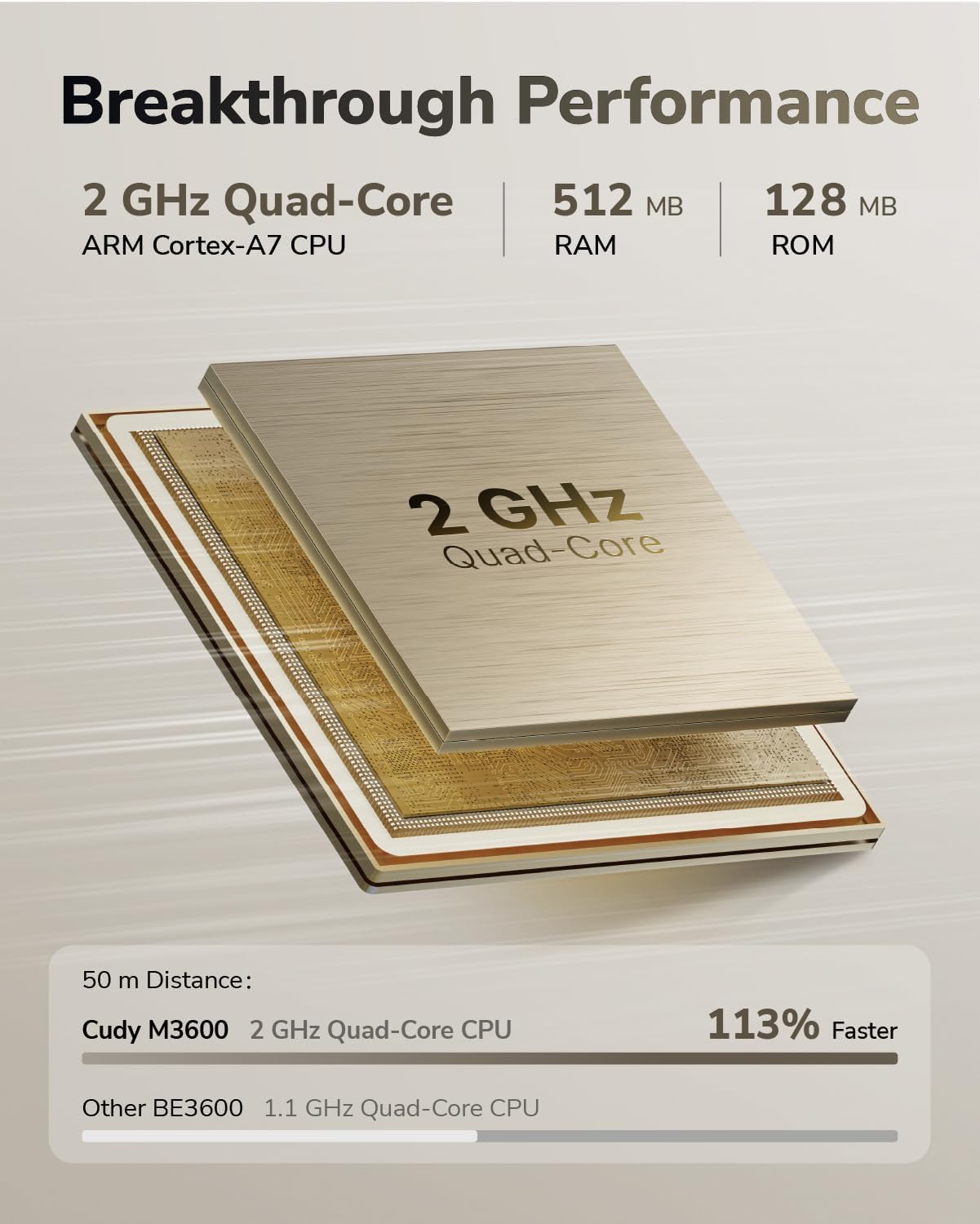
Image: Diagram illustrating the breakthrough performance with a 2 GHz Quad-Core ARM Cortex-A7 CPU, 512 MB RAM, and 128 MB ROM, showing a performance comparison indicating 113% faster speed at 50m distance compared to other BE3600 with 1.1 GHz Quad-Core CPU.
7. Warranty and Support
Cudy is committed to delivering high-performance, user-friendly communication technology.
Warranty Information
For specific warranty terms and conditions, please refer to the warranty card included with your product or visit the official Cudy website. Protection plans may also be available for extended coverage.
Customer Support
If you require technical assistance, have questions about your product, or need to troubleshoot an issue, please contact Cudy customer support.
- Cudy App: The Cudy App provides guidance and control for your device, which can often resolve common issues.
- Online Resources: Visit the official Cudy website for FAQs, support articles, and the latest firmware downloads.
- Contact Information: Refer to the Cudy website or product packaging for direct contact methods such as email or phone support.
Ask a question about this manual
Ask about setup, troubleshooting, compatibility, parts, safety, or missing instructions. Manuals+ will review the question and use this page’s manual context to help answer it.