
MOFII B0DZNDT6VP
Contents
MOFII Wireless Keyboard and Mouse Combo Instruction Manual
Model: B0DZNDT6VP
Introduction
Thank you for choosing the MOFII Wireless Keyboard and Mouse Combo. This full-size retro typewriter-style keyboard and optical mouse set offers efficient 2.4GHz wireless connectivity, designed for comfort and broad compatibility. This manual provides detailed instructions for setup, operation, maintenance, and troubleshooting to ensure optimal performance of your device.

Image: MOFII Wireless Keyboard and Mouse Combo in Light Blue Mix, showcasing the full set including the keyboard, mouse, and USB receiver.
Setup Instructions
Your MOFII Wireless Keyboard and Mouse Combo is designed for simple plug-and-play setup.
1. Battery Installation
- Mouse: Open the battery compartment on the underside of the mouse. Insert one AA battery (not included), ensuring correct polarity. Close the compartment.
- Keyboard: Open the battery compartment on the underside of the keyboard. Insert two AAA batteries (not included), ensuring correct polarity. Close the compartment.
2. Connect the USB Receiver
Locate the USB receiver, typically stored within the mouse's battery compartment. Plug this single nano USB receiver into an available USB port on your computer (PC, Laptop, Desktop, Smart TV). The system will automatically detect and install the necessary drivers.
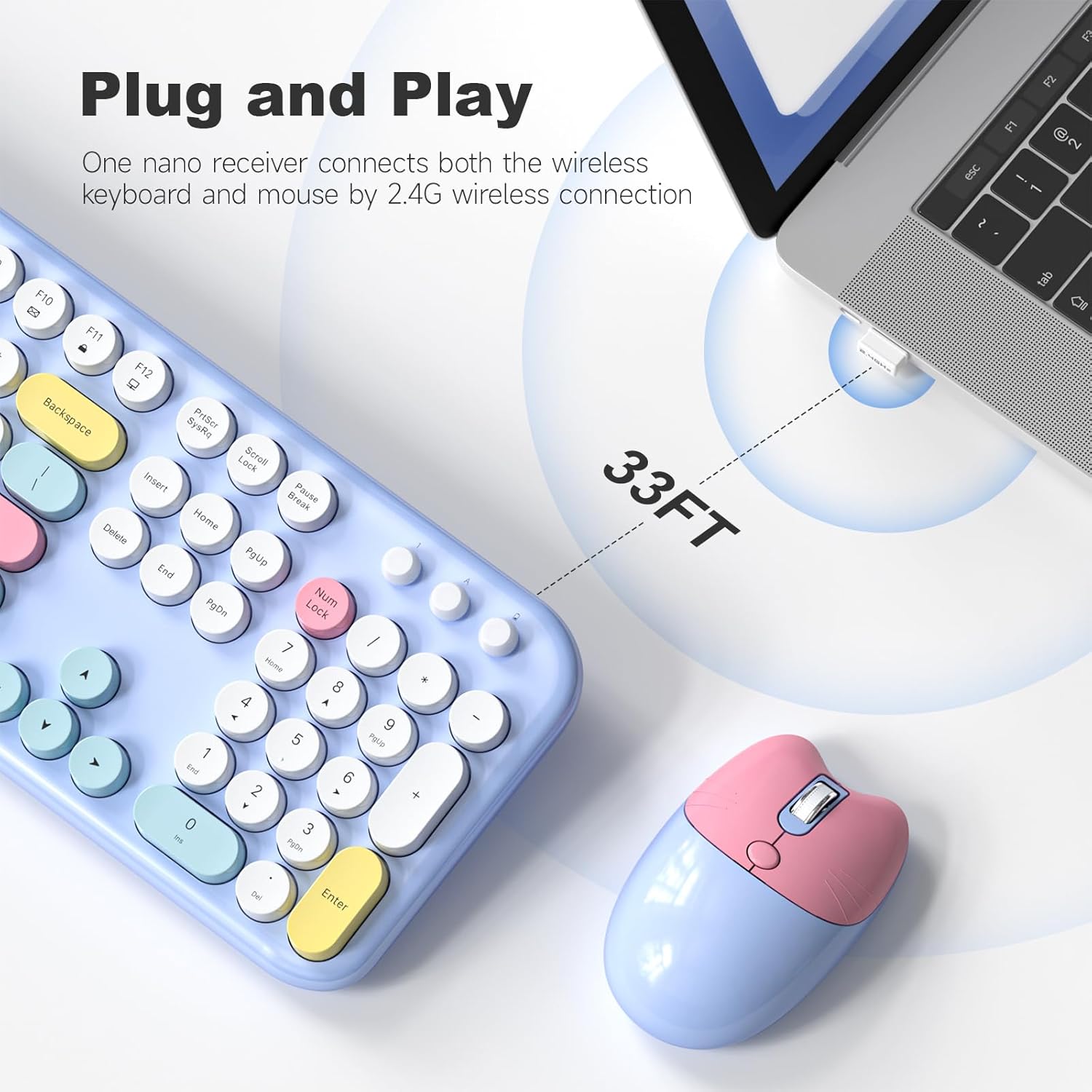
Image: Close-up of the USB receiver plugged into a laptop, illustrating the 2.4GHz wireless connection and effective range of up to 33 feet.

Image: Overhead view of the keyboard and mouse, highlighting that a single USB receiver connects both devices wirelessly.
3. Power On
Turn on the keyboard and mouse using their respective ON/OFF switches, usually located on the underside of each device. The devices are now ready for use.

Image: Wireless Keyboard and Mouse on a wooden desk, compatible with Windows, Laptops, and PCs.
Operating Instructions
Keyboard Features
- Full-Size Layout: The 104-key keyboard provides a complete typing experience.
- Round Keys: Enjoy the unique and comfortable feel of the retro-style round keycaps.
- Multimedia Shortcuts: Access 13 multimedia shortcuts for quick control of media, volume, web browsing, and email. These are typically accessed using the 'Fn' key in combination with the F1-F12 keys.
- Ergonomic Design: The keyboard features a fixed ergonomic tilt (approximately 7 degrees) and anti-slip pads for comfortable typing and reduced wrist pressure.
- Indicator Lights: The keyboard includes indicator lights for Number Lock, Caps Lock, and Power/Low Battery status.

Image: A user's hands typing on the MOFII keyboard, demonstrating a comfortable typing experience.

Image: Side profile of the keyboard highlighting its ergonomic 7-degree tilt, designed to reduce wrist pressure.

Image: The keyboard displaying its 13 hotkey functions, enhancing productivity for work and entertainment.
Mouse Features
- Adjustable DPI: The optical mouse offers 3 adjustable DPI levels (800/1200/1600) for precise cursor control.
- Ergonomic Design: The mouse is shaped to fit comfortably in your hand, reducing strain during extended use.
Intelligent Power Saving
Both the keyboard and mouse feature an auto-sleep function. After 5 minutes of inactivity, they will enter sleep mode to conserve battery life. A single keystroke or mouse click will instantly wake them up.

Image: The keyboard and mouse in a low-light setting, illustrating the intelligent auto-sleep feature that saves battery life.
Maintenance
To ensure the longevity and optimal performance of your MOFII Wireless Keyboard and Mouse Combo, follow these maintenance guidelines:
- Cleaning: Regularly wipe down the keyboard and mouse with a soft, dry cloth to remove dust and debris. For stubborn dirt, a slightly damp cloth can be used, ensuring no liquid enters the device. The round keycaps are designed to be easy to clean.
- Battery Replacement: When the low battery indicator light illuminates (on the keyboard) or if the mouse becomes unresponsive, it's time to replace the batteries. Refer to the 'Battery Installation' section for instructions.
- Storage: If not in use for an extended period, turn off both the keyboard and mouse using their ON/OFF switches to further conserve battery life. Store them in a cool, dry place.
Troubleshooting
If you encounter any issues with your MOFII Wireless Keyboard and Mouse Combo, please refer to the following common solutions:
- No Response from Keyboard/Mouse:
- Ensure both devices are turned ON using their respective switches.
- Check if the batteries are correctly installed and have sufficient charge. Replace if necessary.
- Verify that the USB receiver is securely plugged into a working USB port on your computer. Try a different USB port.
- Move the keyboard and mouse closer to the USB receiver to ensure they are within the 33-foot wireless range.
- Intermittent Connection:
- Ensure there are no large metal objects or other wireless devices (like Wi-Fi routers, other wireless keyboards/mice) interfering with the 2.4GHz signal.
- Try re-pairing the devices by unplugging and re-plugging the USB receiver.
- Keys Sticking or Unresponsive:
- Clean around and under the affected keys to remove any debris.
- Ensure the keyboard is on a flat, stable surface.
- Mouse Not Reactive/Responsive:
- Ensure the mouse is on a suitable surface (not highly reflective or transparent).
- Adjust the DPI settings using the DPI button on the mouse to see if a different sensitivity improves performance.
- Clean the optical sensor on the underside of the mouse.
- Compatibility Issues:
- The combo is widely compatible with Windows 7/8/10/11/XP/Vista, Linux, and Chrome operating systems.
- While it can connect to Apple devices, full compatibility with all Apple-specific shortcuts may not be available.
- Keyboard/Mouse is Noisy:
- The retro typewriter design of the keyboard naturally produces a tactile and audible click. This is a characteristic of the design and not a defect.
Specifications
| Feature | Detail |
|---|---|
| Brand | MOFII |
| Model | B0DZNDT6VP |
| Color | Light Blue Mix |
| Connectivity Technology | 2.4GHz USB Wireless |
| Keyboard Layout | Full-Size, 104 Round Keys |
| Mouse DPI | 800/1200/1600 (Adjustable) |
| Special Features | Retro Round Keycaps, Ergonomic Tilt, Multimedia Hotkeys, Auto-Sleep Function |
| Compatible Devices | PC, Desktop, Laptop, Notebook, Smart TV |
| Operating Systems | Windows 7/8/10/11/XP/Vista, Linux, Chrome OS |
| Item Weight | 3.2 ounces |
| Package Dimensions | 17.99 x 5.47 x 3.03 inches |

Image: Detailed dimensions of the full-size keyboard (18.1in length, 0.7in thickness, 5.5in width) and mouse (2.7in height, 4.1in length, 1.6in width).
Warranty & Support
MOFII is committed to providing quality products. For any support needs, please refer to the following information:
- Return Policy: This product is eligible for a 30-day refund/replacement policy from the date of purchase.
- Protection Plans: Extended protection plans are available for purchase, including 3-Year and 4-Year options, as well as a monthly 'Complete Protect' plan. Please refer to your purchase details for more information.
- Manufacturer Support: For further assistance, please visit the official MOFII Store on Amazon: MOFII Store.
Documents and downloads
Ask a question about this manual
Ask about setup, troubleshooting, compatibility, parts, safety, or missing instructions. Manuals+ will review the question and use this page’s manual context to help answer it.