
Trueque KC213
Trueque KC213 Wireless Ergonomic Keyboard and Mouse Combo User Manual
Model: KC213
Introduction
This manual provides comprehensive instructions for the setup, operation, maintenance, and troubleshooting of your Trueque KC213 Wireless Ergonomic Keyboard and Mouse Combo. Please read this guide thoroughly to ensure optimal performance and longevity of your device.
Setup Guide
1. Package Contents
Before you begin, ensure all items are present in the package:
- Wireless Keyboard
- Wireless Mouse
- USB Receiver (stored inside the mouse)
- User Manual

Image: Rear view of the keyboard and mouse, highlighting the battery compartments and the USB receiver storage.
2. Battery Installation
- For the Keyboard: Locate the battery compartment on the underside of the keyboard. Open the cover and insert two (2) AAA batteries (not included), ensuring correct polarity. Close the battery compartment cover.
- For the Mouse: Locate the battery compartment on the underside of the mouse. Open the cover and insert one (1) AA battery (not included), ensuring correct polarity. Close the battery compartment cover.

Image: Detailed diagram illustrating the insertion of AAA batteries into the keyboard and an AA battery into the mouse.
3. USB Receiver Connection
- The USB receiver is stored in the battery compartment of the mouse. Carefully remove it.
- Plug the USB receiver into an available USB port on your computer, laptop, or compatible device.
- The system will automatically detect and install the necessary drivers. No additional software installation is required.

Image: The compact USB receiver shown plugged into a laptop, enabling wireless connectivity for both devices.
4. Power On
Ensure the power switch on both the keyboard and mouse is in the "ON" position. The devices are now ready for use.
Operating Instructions
Ergonomic Design for Comfort
The keyboard features a generous palm rest and adjustable tilt legs to provide a comfortable typing position, reducing wrist strain during extended use. The mouse is contoured to fit the hand naturally, offering a comfortable grip.

Image: A user's hands positioned on the keyboard, demonstrating the comfort provided by the integrated wrist rest.
Integrated Phone/Tablet Holder
A built-in cradle on the keyboard allows you to prop up your smartphone or tablet (under 11.9 inches) at an optimal viewing angle. This feature helps keep your devices visible for notifications or media consumption while working.
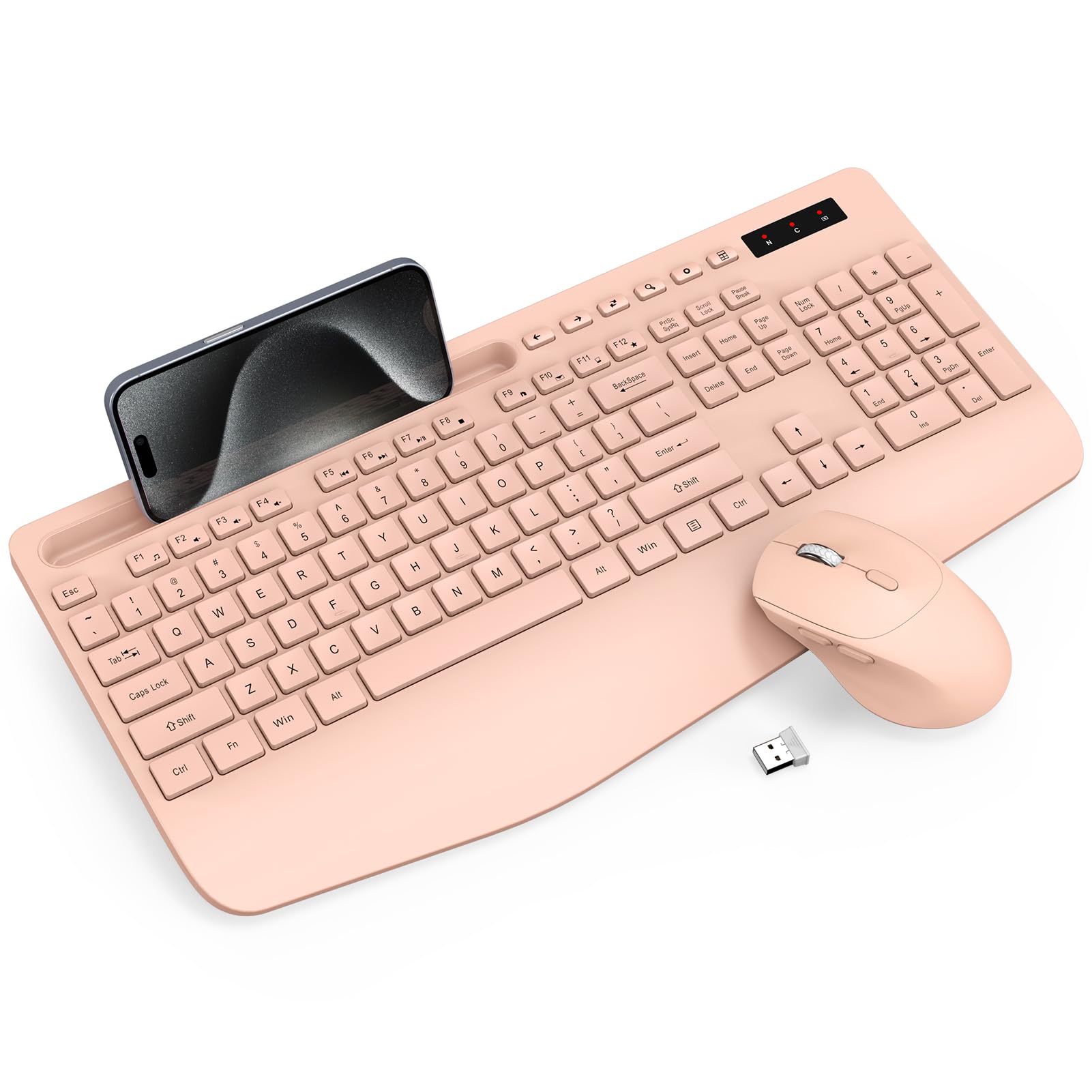
Image: A smartphone securely positioned in the keyboard's integrated holder, illustrating its practical use.
Multimedia and Shortcut Keys
The keyboard includes 6 commonly used hotkeys for quick access to functions like browsing web pages, opening the calculator, and media controls. The mouse features 6 buttons, including forward/backward functions, to enhance navigation efficiency.

Image: An illustration detailing the various shortcut keys on the keyboard and the functional buttons on the mouse.
DPI Adjustment (Mouse)
The mouse offers adjustable DPI settings (800, 1200, 1600) to customize cursor sensitivity. Press the DPI switch button located on the top of the mouse to cycle through the settings.

Image: A close-up view of the mouse, indicating the DPI switch and other functional buttons for enhanced control.
Quiet and Smooth Typing
The keyboard features soft membrane keys designed for quiet and smooth typing, minimizing noise. The mouse also operates with 95% less clicking noise, ensuring a peaceful work environment.

Image: A magnified view of the keyboard keys, illustrating the design for quiet and effortless typing.
Smart Power Management
To conserve battery life, both the keyboard and mouse enter a smart sleep mode after periods of inactivity. The keyboard sleeps after 15 minutes of idle time, and the mouse after 10 minutes. Press any key or button to wake them up.

Image: An infographic detailing the smart sleep mode feature for both the keyboard and mouse, indicating idle times before sleep activation.
Indicator Lights
The keyboard features indicator lights for Num Lock, Caps Lock, and Power. The power light will blink to indicate low battery status.
Compatibility
The Trueque KC213 Wireless Ergonomic Keyboard and Mouse Combo is compatible with a wide range of operating systems, including Windows, Chrome OS, and Mac OS. It can be used with PCs, laptops, and other compatible devices.

Image: Visual representation of the product's broad compatibility across various devices and operating systems.
Maintenance
Cleaning
To clean your keyboard and mouse, use a soft, damp cloth. Avoid using harsh chemicals or abrasive cleaners, as these may damage the surface. Ensure the devices are powered off before cleaning.
Battery Replacement
When the power indicator light on the keyboard blinks, or if the devices become unresponsive, it's time to replace the batteries. Follow the battery installation steps in the Setup Guide.
Troubleshooting
- No Connection/Unresponsive Devices:
- Ensure both the keyboard and mouse are powered on.
- Check that the USB receiver is securely plugged into a working USB port on your device.
- Replace the batteries in both the keyboard and mouse if they are low.
- Try plugging the USB receiver into a different USB port.
- Ensure the devices are within the 33ft wireless range of the USB receiver.
- Typing/Clicking Delays:
- Ensure there are no obstructions between the devices and the USB receiver.
- Move closer to the USB receiver to improve signal strength.
- Check for potential interference from other 2.4GHz wireless devices.
- Mouse Cursor Jumps/Erratic Movement:
- Clean the mouse sensor on the underside of the mouse.
- Use the mouse on a clean, non-reflective surface.
- Adjust the DPI setting of the mouse to a lower sensitivity if needed.
Specifications
| Feature | Detail |
|---|---|
| Model Number | KC213 |
| Connectivity Technology | 2.4GHz USB Wireless Connection |
| Wireless Range | Up to 33 feet (10 meters) |
| Keyboard Battery | 2 x AAA (not included) |
| Mouse Battery | 1 x AA (not included) |
| Keyboard Dimensions | 16.85 x 8.46 x 1.57 inches |
| Item Weight | 2.12 pounds |
| Compatible Devices | Chromebook, Laptop, Personal Computer (Windows, Chrome OS, Mac OS) |
| Special Features | Ergonomic Design, Wrist Rest, Phone Holder, Silent Keys, Smart Sleep Mode, Adjustable Mouse DPI |
Warranty and Support
Your Trueque KC213 Wireless Ergonomic Keyboard and Mouse Combo comes with a 12-month warranty. For any product inquiries, technical support, or warranty claims, please contact Trueque customer service:
Email: truequeservice@outlook.com
Trueque is committed to providing responsive customer support within 24 hours.
Image: Customer service details including email and warranty period.
Related documentsKC213

Ask a question about this manual
Ask about setup, troubleshooting, compatibility, parts, safety, or missing instructions. Manuals+ will review the question and use this page’s manual context to help answer it.