1. Introduction
This manual provides detailed instructions for the installation, operation, and maintenance of your MHCOZY SMT192 Micro WiFi USB Type C Adaptor. Please read this manual thoroughly before using the device to ensure proper functionality and safety.
The MHCOZY SMT192 is a smart USB adaptor designed to add remote control and scheduling capabilities to your USB-powered devices. It features both USB-A and USB-C output ports and integrates with the Tuya app, Alexa, and Google Home for convenient smart home automation.
2. Product Overview
The MHCOZY SMT192 adaptor is a compact device that allows you to control the power supply to your USB devices. It features two output ports (USB-A and USB-C) and connects to your home WiFi network for smart control.
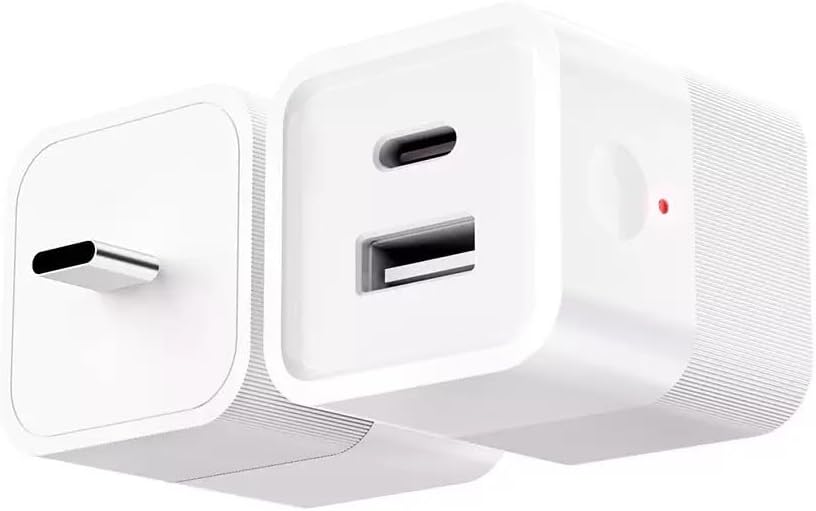
Figure 1: Front view of the MHCOZY SMT192 adaptor, showing the USB-A and USB-C output ports.

Figure 2: MHCOZY SMT192 adaptor highlighting Tuya integration and input/output specifications. Input: USB Type C male 5-12V 2.5A max. Output: USB Type A and Type C female, 5V 2.5A/12V 1A max.
3. Safety Information
- Ensure the input power source is within the specified voltage range (5-12V DC).
- Do not exceed the maximum output current of 2.5A for 5V or 1A for 12V.
- Keep the device away from water, moisture, and high temperatures.
- Do not attempt to disassemble or repair the device. Contact customer support if issues arise.
- Use only with compatible USB-powered devices.
4. Setup
4.1 Package Contents
- MHCOZY SMT192 Micro WiFi USB Type C Adaptor
- User Manual (this document)
Note: An AC power block with a USB-C port is required and not included.
4.2 Initial Connection
- Connect the MHCOZY SMT192 adaptor to a compatible USB-C power source (e.g., a wall charger with a USB-C output).
- Plug your USB-powered device(s) into the USB-A and/or USB-C output ports of the adaptor.
- Ensure the power indicator light on the adaptor is illuminated.

Figure 3: The MHCOZY SMT192 adaptor connected to a power strip, demonstrating its use with a USB-powered fan and speaker.
4.3 App Installation and Pairing
- Download the "Tuya Smart" or "Smart Life" app from your mobile device's app store (available on iOS and Android).
- Register or log in to your account.
- Open the app and tap the "+" icon to add a new device.
- Select "Electrical" -> "Socket (Wi-Fi)" or "USB Socket (Wi-Fi)".
- Follow the on-screen instructions to put the device into pairing mode. This usually involves pressing and holding the button on the adaptor until the indicator light blinks rapidly.
- Enter your Wi-Fi network credentials (2.4GHz network required).
- Wait for the app to discover and connect to the device. Once connected, you can rename the device for easier identification.
5. Operating Instructions
5.1 Manual Control
Press the physical button on the adaptor to manually toggle the power to the connected USB devices. This will turn both USB-A and USB-C outputs on or off simultaneously.
5.2 App Control
Once paired with the Tuya Smart/Smart Life app, you can control the adaptor remotely:
- On/Off: Tap the power icon within the app to turn the adaptor on or off.
- Separate Port Control: The app allows independent control of the USB-A and USB-C ports. You can toggle each port individually.
- Timer Function: Set schedules for automatic power on/off for each port.

Figure 4: Screenshot of the Tuya app demonstrating the ability to set separate timers for the USB-A and USB-C outputs.
5.3 Voice Control (Alexa/Google Home)
To enable voice control, link your Tuya Smart/Smart Life account with Amazon Alexa or Google Home:
- Open the Alexa or Google Home app.
- Navigate to "Skills & Games" (Alexa) or "Works with Google" (Google Home).
- Search for "Tuya Smart" or "Smart Life" and enable the skill/service.
- Link your Tuya/Smart Life account.
- Discover devices. Your MHCOZY SMT192 adaptor should appear.
Once linked, you can use voice commands such as:
- "Alexa, turn on [Device Name]."
- "Hey Google, turn off [Device Name]."

Figure 5: Illustration of using voice commands with Amazon Alexa and Google Assistant to control the smart adaptor.

Figure 6: The MHCOZY SMT192 adaptor connected to a USB light strip, demonstrating its application in smart lighting control.
6. Maintenance
- Clean the device with a soft, dry cloth. Do not use liquid cleaners or aerosols.
- Ensure the device is unplugged before cleaning.
- Avoid exposing the device to extreme temperatures or direct sunlight.
- Regularly check for firmware updates through the Tuya Smart/Smart Life app to ensure optimal performance and security.
7. Troubleshooting
| Problem | Possible Cause | Solution |
|---|---|---|
| Device not powering on. | No power from USB-C input; faulty adaptor. | Check USB-C power source. Try a different USB-C cable/charger. If still no power, contact support. |
| Cannot pair with app. | Incorrect Wi-Fi password; 5GHz Wi-Fi network; device not in pairing mode. | Ensure correct 2.4GHz Wi-Fi password. Confirm device indicator light is blinking rapidly. Reset device and try again. |
| USB device not turning on/off via adaptor. | USB device requires manual activation after power cut; adaptor faulty. | Some USB devices do not automatically resume operation after power is restored. Ensure your device has a mechanical on/off switch or a "power-on state" memory. Test with another USB device. |
| Voice control not working. | Account not linked; device not discovered; incorrect device name. | Verify Tuya/Smart Life account is linked in Alexa/Google Home app. Redo device discovery. Use the exact device name configured in the app. |
8. Specifications
- Model: SMT192
- Brand: MHCOZY
- Input: USB Type C male, 5-12V DC, 2.5A max
- Output: USB Type A female, USB Type C female
- Output Voltage: 5V DC
- Output Current: 2.5A max (total for both ports at 5V), 1A max (total for both ports at 12V)
- Wattage: 10W max
- Connectivity: Wi-Fi 2.4GHz (IEEE 802.11 b/g/n)
- App Compatibility: Tuya Smart / Smart Life
- Voice Control: Amazon Alexa, Google Home
- Dimensions: 1.18 x 1.17 x 0.18 inches (approximate)
- Weight: 0.634 ounces (approximate)
9. Warranty Information
MHCOZY products are covered by a limited warranty against defects in materials and workmanship for a period of one (1) year from the original purchase date. This warranty does not cover damage caused by accident, misuse, unauthorized modification, or improper installation.
To claim warranty service, please retain your proof of purchase and contact MHCOZY customer support.
10. Customer Support
If you encounter any issues or have questions regarding your MHCOZY SMT192 adaptor, please contact our customer support team:
- Email: Refer to product packaging or manufacturer website
- Website: Refer to product packaging or manufacturer website
Please provide your product model (SMT192) and a detailed description of the issue when contacting support.

