1. Introduction
This manual provides detailed instructions for the assembly, installation, and operation of your Perlegear 10U Open Frame Network Rack (Model PGSER02B). Please read this manual thoroughly before installation to ensure proper setup and safe use. Keep this manual for future reference.

Figure 1: Perlegear 10U Open Frame Network Rack with shelves.
2. Safety Information
Observe the following safety precautions during assembly and use:
- Ensure all components are present and undamaged before assembly.
- Do not exceed the maximum load capacity of 200 lbs for the rack and 22 lbs for the top panel.
- When wall-mounting, ensure the mounting surface (e.g., wood studs, concrete wall) can safely support the rack's weight and its contents. Do not mount on drywall alone.
- Use appropriate tools and follow all installation steps carefully.
- Keep children and pets away from the assembly area.
3. Package Contents
Verify that all parts are included in your package:

Figure 2: Complete Package Contents.
- Rack Frame (x2)
- Shelf (x2)
- Back Brace (x2)
- Front Brace (x2)
- M6 Bolt (x40)
- Cage Nut (x8)
- M6 Nut (x12)
- Wall Anchor (x6)
- Lag Screw (x6)
- Wall Plate Template (x1)
4. Specifications
| Feature | Specification |
|---|---|
| Model Number | PGSER02B |
| Rack Units (U) | 10U |
| Product Dimensions (D x W x H) | 20.12" x 20.5" x 19.39" (51.1cm x 52.1cm x 49.2cm) |
| Item Weight | 30.5 lbs (13.8 kg) |
| Material | Cold-rolled Steel |
| Color | Black |
| Max Load Capacity (Rack) | 200 lbs (90.7 kg) |
| Max Load Capacity (Top Panel) | 22 lbs (10 kg) |
| Compatibility | 19-inch networking, AV, and IT equipment |
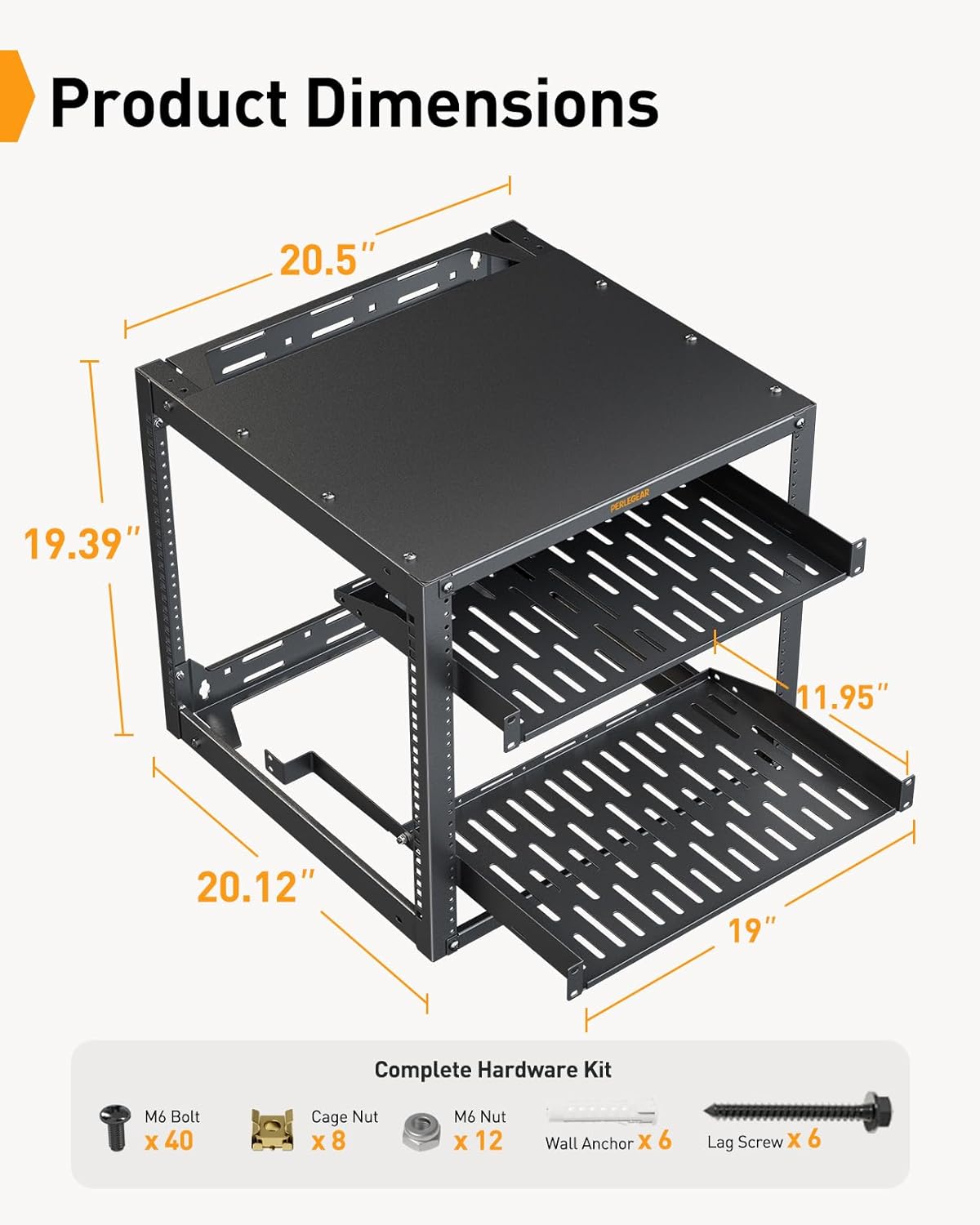
Figure 3: Product Dimensions and Hardware Kit Overview.
5. Setup and Installation
The Perlegear 10U Open Frame Network Rack offers flexible installation options: wall-mounted or floor-standing. Follow these steps for assembly and installation.
5.1. Assembly Overview

Figure 4: Simple Setup Overview.
5.2. Detailed Assembly Steps
For a visual guide, please refer to the official installation video below:
Video 1: Perlegear 10U Network Rack Installation Tutorial. This video demonstrates the step-by-step assembly and installation process for the rack.
- Assemble the Frame:
- Identify the Left and Right Frames, Back Braces, and Front Braces.
- Attach the Back Braces to the bottom of the Left and Right Frames using M6 Bolts and M6 Nuts. Ensure the side with three holes on the frame faces the front.
- Attach the Front Braces to the top of the Left and Right Frames, again ensuring the side with three holes faces the front. The 'PERLEGEAR' logo on the front brace should be visible.
- Tighten all M6 Nuts using a PH2 or PZ2 screwdriver and a 10mm wrench for secure assembly.
- Install Shelves:
- Insert the two 1U vented shelves into the desired rack unit positions.
- Utilize the provided shelf reinforcement brackets to support the shelves and prevent sagging, especially for heavier equipment. These brackets can be installed on one shelf or across two different shelves for added stability.

Figure 5: Shelf Reinforcement Options.
- Mounting Options:
- Floor-Standing: Place the assembled rack on a stable, level surface. The rack includes caster holes at the bottom for optional mobility (casters not included).
- Wall-Mounted: Use the provided drilling template to mark pilot holes. Mount the rack to 16-inch wood studs (without anchors) or concrete walls (with anchors) using the lag screws. Ensure the rack is securely fastened before loading equipment.

Figure 6: Flexible Setup - Wall-mounted and Floor-standing configurations.
6. Operating Instructions
Once assembled and installed, the Perlegear 10U Open Frame Network Rack is ready for use.
6.1. Equipment Installation
- Install your 19-inch rack-mounted networking, AV, and IT equipment into the rack units.
- Utilize the two 1U vented shelves for non-rack-mountable devices such as smaller switches, storage devices, or UPS units.
- Ensure proper cable management to maintain airflow and prevent obstruction.

Figure 7: Rack with 10U Space and Equipment.
6.2. Airflow and Cooling
The open frame design and vented shelves promote optimal airflow, which is crucial for keeping your networking, audio, and video equipment cool and preventing overheating.

Figure 8: Enhanced Airflow for Equipment Cooling.
6.3. Expandability
This server rack features an expandable design. You can stack two 10U racks to create a 20U rack, doubling your storage capacity for growing equipment needs. Ensure to remove the top panel of the bottom rack when stacking.

Figure 9: Stackable Design for Increased Capacity.
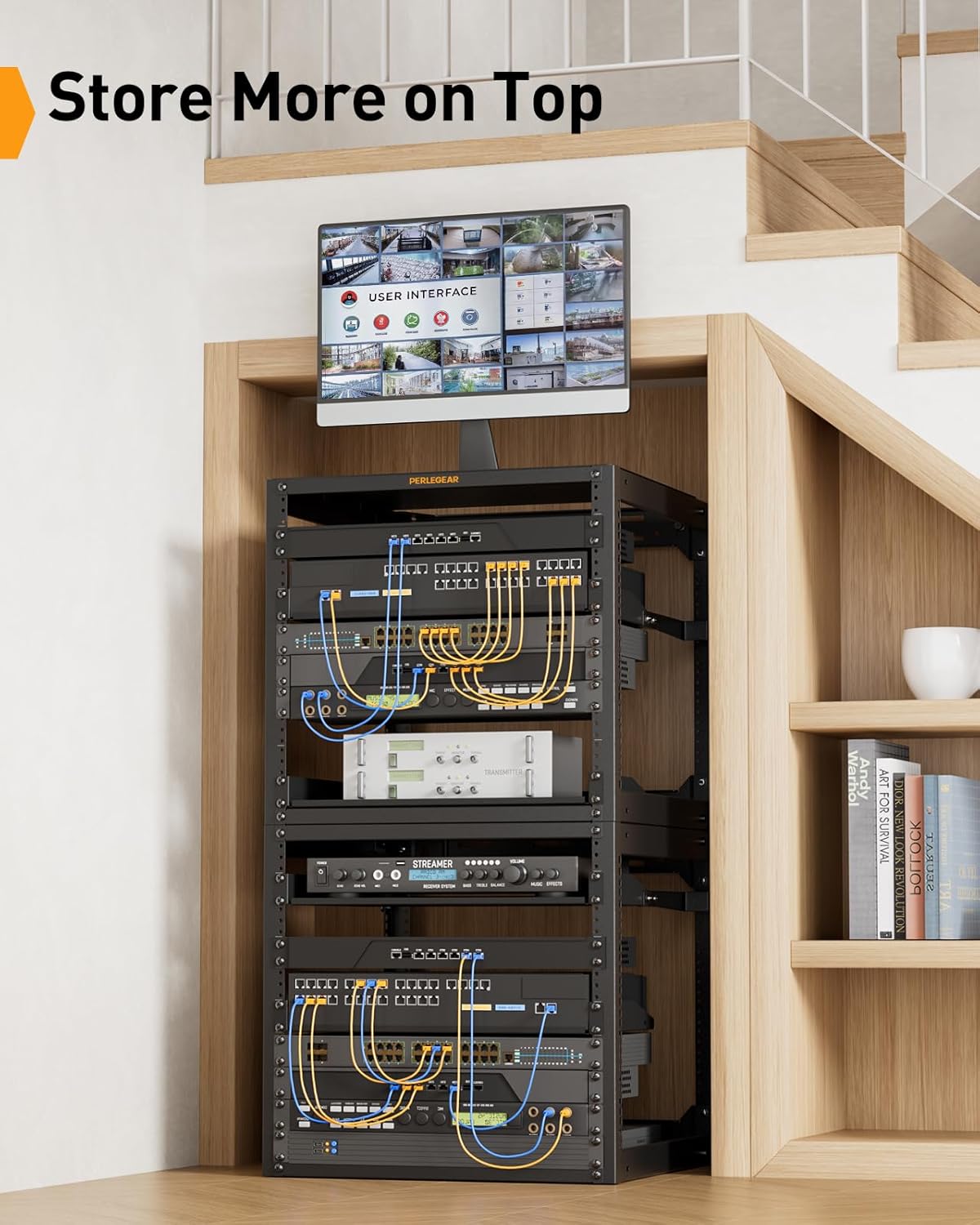
Figure 10: Utilizing the Top Surface for Additional Storage.
7. Maintenance
Regular maintenance ensures the longevity and optimal performance of your network rack:
- Cleaning: Wipe the rack surfaces with a soft, dry cloth to remove dust. For stubborn marks, use a mild, non-abrasive cleaner.
- Inspection: Periodically check all bolts and nuts to ensure they remain tight. Re-tighten if necessary.
- Load Check: Verify that the total weight of equipment does not exceed the maximum load capacity.
8. Troubleshooting
If you encounter any issues, consider the following:
- Rack Instability: Ensure all bolts and nuts are securely tightened. If wall-mounted, confirm the mounting hardware is correctly installed into appropriate structural supports.
- Equipment Overheating: Check for proper cable management that might obstruct airflow. Ensure the rack is not placed in an enclosed space without adequate ventilation.
- Difficulty Installing Equipment: Verify that your equipment is 19-inch rack-mountable. Ensure cage nuts are correctly inserted into the square holes before attaching equipment with M6 bolts.
9. Warranty and Support
Perlegear products are designed for durability and performance. For warranty information, technical support, or to purchase replacement parts, please visit the official Perlegear website or contact customer service through your retailer.


