
Introduction
This manual provides essential information for setting up, operating, maintaining, and troubleshooting your new CyberpowerPC Luxe Gaming PC V100R. This high-performance desktop is equipped with an AMD Ryzen 7 9800X3D processor, Nvidia GeForce RTX 5070 Ti graphics, 32GB DDR5 RAM, and a 1TB NVMe SSD, running on Windows 11 Home. Please read this manual thoroughly before using your system to ensure optimal performance and longevity.
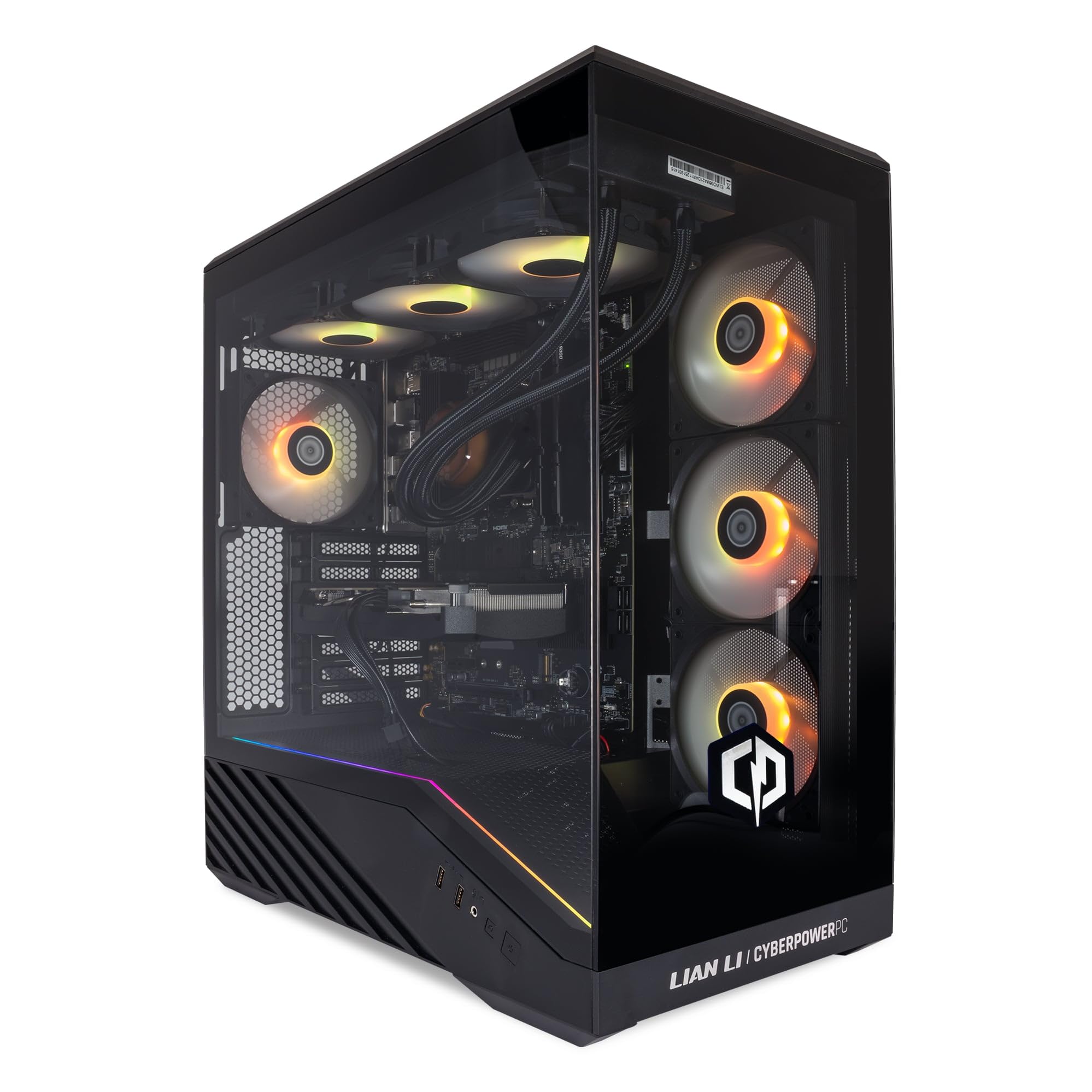
Image: The CyberpowerPC Luxe Gaming PC V100R, showcasing its transparent side panel and internal RGB lighting.
Setup Guide
1. Unpacking and Placement
- Carefully remove the PC from its packaging. Retain all packaging materials for future transport or service.
- Place the PC on a stable, flat surface with adequate ventilation. Ensure there is clear space around the air intake and exhaust vents.
- Remove any internal packing foam or protective materials from inside the PC case before powering on. This is crucial to prevent damage.

Image: Front and side view of the CyberpowerPC Luxe Gaming PC, highlighting its design and ventilation.
2. Connecting Peripherals
- Monitor: Connect your monitor(s) to the graphics card ports (HDMI or DisplayPort) located at the rear of the PC. Avoid connecting to motherboard video outputs if a dedicated graphics card is installed.
- Keyboard and Mouse: Connect your keyboard and mouse to the available USB ports.
- Network: Connect an Ethernet cable to the RJ45 port for wired internet, or ensure Wi-Fi antennas are attached for wireless connectivity.
- Audio: Connect speakers or headphones to the audio jacks.
- Power: Connect the power cable to the PC's power supply unit (PSU) and then to a wall outlet.

Image: Close-up of the front I/O panel, showing USB ports, audio jacks, and power/reset buttons.
3. Initial Power On
- Ensure all connections are secure.
- Flip the power switch on the PSU to the 'ON' position (usually 'I').
- Press the power button on the front of the PC case.
- Follow the on-screen instructions to complete the Windows 11 setup.
Operating Instructions
1. Windows 11 Home
- Your PC comes pre-installed with Windows 11 Home (64-bit).
- Perform all necessary Windows updates after initial setup to ensure system stability and security.
- Familiarize yourself with Windows 11 features and settings.
2. Driver Installation and Updates
- All essential drivers are pre-installed.
- For optimal gaming performance, regularly update your Nvidia GeForce RTX 5070 Ti graphics drivers via the official Nvidia website or GeForce Experience software.
- Check the motherboard manufacturer's website for the latest chipset and other component drivers.
3. RGB Lighting Control
- The V100R case features 6 RGB fans.
- RGB lighting can typically be controlled via a dedicated button on the case (refer to the front I/O image) or through motherboard software (e.g., ASUS Aura Sync, MSI Mystic Light, Gigabyte RGB Fusion, ASRock Polychrome Sync, depending on your specific motherboard model).
- Consult your motherboard manual for detailed RGB software instructions.

Image: Internal view of the PC, showing the liquid cooling system and fans illuminated with blue RGB lighting.
Maintenance
1. Dust Management
- Regularly clean dust filters (if present) and internal components using compressed air.
- Dust accumulation can lead to overheating and reduced performance.
- Ensure the PC is powered off and unplugged before cleaning.

Image: Top view of the PC case, illustrating the ventilation grilles for airflow.
2. Software Updates
- Keep your operating system (Windows 11) and all drivers updated.
- Update your antivirus software (Norton 360 for Gamers is included for 1 year) and perform regular scans.
3. System Monitoring
- Monitor CPU and GPU temperatures, especially during intensive tasks, using monitoring software.
- Ensure the liquid cooling system is functioning correctly.
Troubleshooting
1. No Display Output
- Ensure the monitor is connected to the graphics card (Nvidia RTX 5070 Ti) and not the motherboard.
- Check all cable connections (power, video).
- Try a different video cable or monitor if possible.
2. System Not Powering On
- Verify the power cable is securely connected to both the PC and the wall outlet.
- Ensure the PSU switch at the back of the PC is in the 'ON' position.
- Test the wall outlet with another device.
3. Overheating Issues
- Check for dust buildup in fans and heatsinks. Clean as described in the Maintenance section.
- Ensure proper airflow around the PC.
- Verify that all case fans and the liquid cooler pump are operational.
4. Performance Problems
- Update graphics drivers and Windows.
- Close unnecessary background applications.
- Run a malware scan using your antivirus software.
Specifications
| Model Number | CGS480VR1408 |
| Processor | AMD Ryzen 7 9800X3D (8 Cores, up to 5.2GHz) |
| Motherboard | B650M |
| Graphics Card | Nvidia GeForce RTX 5070 Ti (16GB GDDR7) |
| RAM | 32GB DDR5 RAM (4800 MHz) |
| Storage | 1TB M.2 NVMe SSD |
| Power Supply | 750W 80+ PSU |
| Cooling | 240mm All-in-one Liquid Cooler |
| Operating System | Windows 11 Home (64-bit) |
| Case | V100R Mid-Tower Gaming Case with 6 RGB Fans |
| Connectivity | Wi-Fi 5 (802.11ax), Ethernet, HDMI, DisplayPort |
| Dimensions | 43 x 29 x 40 cm |
| Included Software | 1 Year Norton 360 for Gamers VPN & Security |

Image: An overhead view of the internal components, showing the motherboard, CPU cooler, graphics card, and RAM modules.
Warranty and Support
Warranty Information
Your CyberpowerPC Luxe Gaming PC comes with a warranty of 2 years for components and 5 years for labor. Please retain your proof of purchase for warranty claims.
Customer Support
For technical assistance, troubleshooting beyond this manual, or warranty inquiries, please contact CyberpowerPC customer support.
- Online Support: Visit the official CyberpowerPC website for FAQs, driver downloads, and support contact information.
- Brand Store: You can also find more information and contact details through the CyberpowerPC Brand Store on Amazon.
