
AINAVI AINAVI H5 Series
AINAVI Android Car Stereo User Manual for Ford F150 (2009-2012)
Model: AINAVI H5 Series
1. Introduction
This manual provides comprehensive instructions for the installation, operation, and maintenance of your AINAVI Android Car Stereo. Please read this manual thoroughly before using the product to ensure proper functionality and safety. This system is designed to upgrade the in-dash experience for Ford F150 models from 2009 to 2012 (Manual AC).

Figure 1: AINAVI Android Car Stereo unit with included accessories and a smartphone displaying CarPlay/Android Auto.
The AINAVI Android Car Stereo is a state-of-the-art infotainment system featuring a QLED touch screen, GPS navigation, wireless mirroring, 5G WiFi, and voice control. It is equipped with 3GB RAM and 32GB ROM for smooth performance and ample storage.
2. Product Overview
The AINAVI H5 Series Android Car Stereo offers a significant upgrade to your vehicle's multimedia capabilities. Key features include:
- Super Connection Speed: Stable CarPlay & Android Auto signal flow, 1080P video playback without lag.
- Powerful Navigation Service: Android 12 with support for most satellite services and 5G WiFi for accurate navigation.
- 5G WiFi & 8-Core Processor: Faster network speeds and smooth operation with an 8-core CPU and Dual-Core GPU.
- (3RAM+32ROM) & Split Screen: Sufficient memory for multitasking and ample storage for applications.
- 1080P Rear View & Colorful Panel Light: High-definition reversing camera support and customizable button lighting.
- 48-EQ (Voice point touch control) + Professional DSP: Advanced audio customization for optimal sound quality.

Figure 2: Overview of AINAVI H5 Series key features including Octa-core processor, QLED screen, Android 12, 3GB RAM, 32GB ROM, SWC support, CarPlay, Android Auto, DSP, and Plug & Play installation.
3. Setup and Installation
This section outlines the components included and provides general guidance for installation. Professional installation is recommended.
3.1 Package Contents
Verify that all components are present in the package:
- Head Unit (9-inch QLED Display)
- Frame (Custom fit for Ford F-150 2009-2012)
- Car Microphone
- GPS Module
- Reversing Control Cable
- USB Cables (x2)
- HD Rearview Camera (Gift)
- Frame Removal Tool (Gift)
- Radio Antenna Adapter
- RCA Cable
- Power Cable (Some models with CANBus)

Figure 3: Detailed view of all items included in the product package.
3.2 Compatibility
This unit is specifically designed for Ford F-150 models manufactured between 2009 and 2012 with manual AC controls.

Figure 4: Visual comparison of a Ford F-150 dashboard before and after the AINAVI stereo installation, highlighting compatibility.
3.3 Installation Steps (General Guidance)
- Preparation: Ensure the vehicle's ignition is off and disconnect the negative terminal of the car battery to prevent electrical shorts.
- Remove Old Unit: Carefully remove the existing factory radio and trim using the provided frame removal tool. Disconnect all wiring harnesses.
- Connect Wiring: Connect the new stereo's wiring harness to the vehicle's harness. Connect the GPS antenna, WiFi antenna, USB cables, and rearview camera cable as per the wiring diagram (refer to the separate wiring diagram provided with your unit).
- Install New Unit: Mount the new AINAVI stereo into the dashboard opening. Secure it with screws or clips as required.
- Test Functionality: Reconnect the car battery. Turn on the ignition and test all functions of the stereo, including audio, touch screen, GPS, Bluetooth, and camera.
- Secure Trim: Once all functions are verified, reattach the trim pieces around the stereo.
For detailed installation instructions and technical support, please refer to the contact information in the 'Warranty and Support' section.

Figure 5: Visual guide on how to contact customer support for installation and technical assistance.
4. Operating Instructions
This section covers the primary functions and how to operate your AINAVI Android Car Stereo.
4.1 CarPlay and Android Auto
The unit supports both wired and wireless CarPlay and Android Auto for seamless smartphone integration. Connect your phone via USB or Bluetooth to activate these features.
Video 1: Demonstrates the setup and functionality of CarPlay and Android Auto, including shortcut key settings.

Figure 6: Illustrates the smart voice control feature, allowing users to interact with the stereo via voice commands for navigation, calls, and music.
4.2 GPS Navigation
The built-in GPS module supports various navigation applications available on the Google Play Store, including Google Maps and Google Earth. Enjoy 2D and 3D perspectives, real-time traffic updates, and voice guidance.
Video 2: Shows the GPS navigation features, including Google Earth and Google Maps integration.
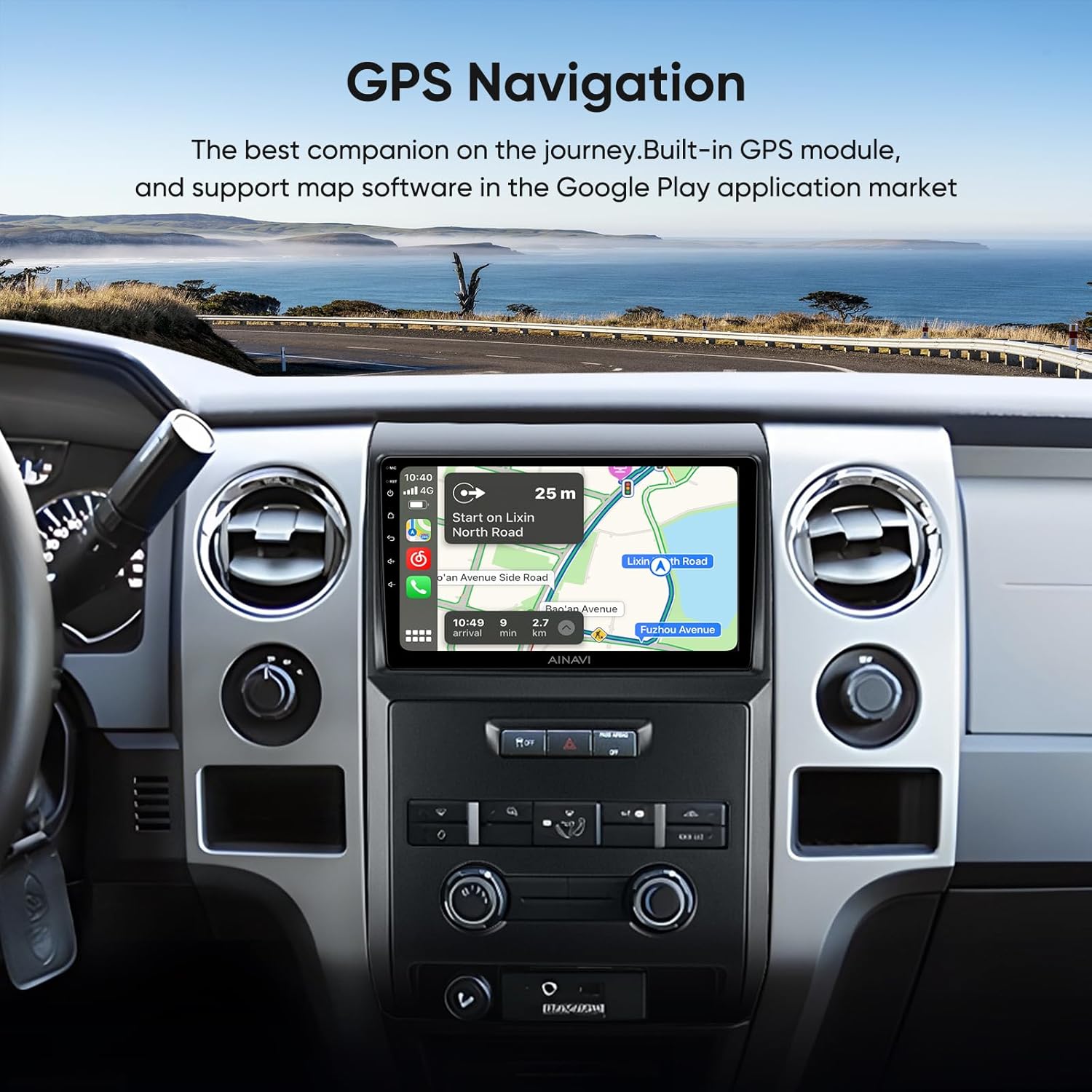
Figure 7: Display of the GPS navigation interface on the car stereo, showing map details and route information.
4.3 Media Playback and Connectivity
The stereo supports various media formats and offers multiple connectivity options, including 5G WiFi and USB network connection for internet access and content streaming.
Video 3: Demonstrates mirror projection function and USB network connection for internet browsing.
Video 4: Shows color keylight customization, 1080P video playback, Steering Wheel Control (SWC) setup, and Google Play Store access.
4.4 Professional DSP and Sound Settings
Customize your audio experience with the integrated Digital Sound Processor (DSP). The 48-band EQ allows for precise sound adjustments, including bass boost and individual speaker volume control. You can also adjust the sound stage based on seating position.
Video 5: Demonstrates the Pro DSP features, including 48-band EQ and sound stage adjustments.

Figure 8: Screenshot of the DSP interface showing equalizer settings and sound zone adjustments.
4.5 Split Screen Functionality
Utilize the split-screen feature to run two applications simultaneously, such as navigation and a media player, enhancing multitasking capabilities.

Figure 9: Depicts the split-screen mode, allowing two applications to be viewed and operated concurrently on the QLED display.
4.6 Rear View Camera
The system supports a 1080P rearview camera, which automatically displays the real-time view behind the car when in reverse gear. Dynamic guidelines assist with parking and maneuvering.

Figure 10: Shows the clear 1080P display from the rearview camera with parking guidelines.
4.7 Customizable Panel Lights
The unit features 7 color button lights that can be changed to match your vehicle's interior or personal preference, enhancing the driving atmosphere.

Figure 11: Displays the mobile phone mirroring feature and the customizable color keylight options for the panel buttons.
5. Maintenance
To ensure the longevity and optimal performance of your AINAVI Android Car Stereo, follow these maintenance guidelines:
- Screen Cleaning: Use a soft, lint-free cloth specifically designed for electronic screens. Avoid abrasive cleaners or harsh chemicals.
- Software Updates: Periodically check for and install software updates to ensure the system runs efficiently and has the latest features and security patches.
- Environmental Conditions: Avoid exposing the unit to extreme temperatures or direct sunlight for prolonged periods. The unit is designed for a wide temperature range (-4°F to 158°F), but prolonged exposure to extremes can affect performance.
- Cable Connections: Ensure all cables are securely connected. Loose connections can lead to intermittent issues.
- Regular Backup: If you store important data on the unit, consider regular backups to an external device.
6. Troubleshooting
If you encounter issues with your AINAVI Android Car Stereo, refer to the following common troubleshooting steps:
| Problem | Possible Cause | Solution |
|---|---|---|
| Unit does not power on | Loose power connection, blown fuse, vehicle battery issue. | Check power cables and fuses. Ensure car battery is charged. Consult a professional if issues persist. |
| No sound | Volume too low, mute activated, loose speaker wires, incorrect audio settings. | Increase volume, check mute status, verify speaker connections, adjust DSP/audio settings. |
| GPS not working or inaccurate | GPS antenna not connected, poor satellite signal, outdated map data. | Ensure GPS antenna is properly installed and has a clear view of the sky. Update map software. |
| Touch screen unresponsive | Software glitch, screen calibration issue. | Restart the unit. If available, perform screen calibration from settings. |
| CarPlay/Android Auto not connecting | Incorrect USB cable, phone settings, software compatibility. | Use original or certified USB cable. Check phone's CarPlay/Android Auto settings. Ensure phone OS is updated. |
If these steps do not resolve the issue, please contact AINAVI customer support.
7. Specifications
Detailed technical specifications for the AINAVI Android Car Stereo:
| Feature | Specification |
|---|---|
| Item Weight | 4.86 pounds |
| Package Dimensions | 15.63 x 13.54 x 5.55 inches |
| Display Size | 9 Inches |
| Display Type | QLED |
| Touch Screen Type | Capacitive |
| Operating System | Android 12 |
| Memory (RAM) | 3 GB |
| Storage (ROM) | 32 GB |
| Connectivity Technology | Bluetooth, Wi-Fi (5G), USB |
| Map Type | Worldwide, North America (Supports Google Maps, Google Earth) |
| Mounting Type | Dashboard Mount |
| Voice Command | Touchscreen, Microphone |
| Audio Features | 48-EQ (Sound Point Control), Professional DSP |
8. Warranty and Support
AINAVI provides a 12-month manufacturer guarantee for this product. For any installation queries, technical support, or warranty claims, please contact our professional technical support team.
You can reach us through the following methods:
- Via Amazon Order Center: Navigate to your order details and click on the seller's name (HomeCar), then select "Ask a question". Provide pictures or videos of your technical or installation questions for prompt assistance.
- Hotline: +1 (833) 858-5016 (Working hours: 3:00 PM to 12:00 PM PST)
- Email: info [at] ainavi [dot] com

Figure 12: Visual representation of customer support contact options.
Related documentsAINAVI H5 Series

Ask a question about this manual
Ask about setup, troubleshooting, compatibility, parts, safety, or missing instructions. Manuals+ will review the question and use this page’s manual context to help answer it.