
1. Product Overview
The Minthouz 7-in-1 USB C Docking Station is a versatile hub designed to expand the connectivity and display capabilities of your USB-C enabled devices. It supports quad display output for Windows laptops and stable single-display output for Mac devices, enhancing productivity for various professional and personal uses.
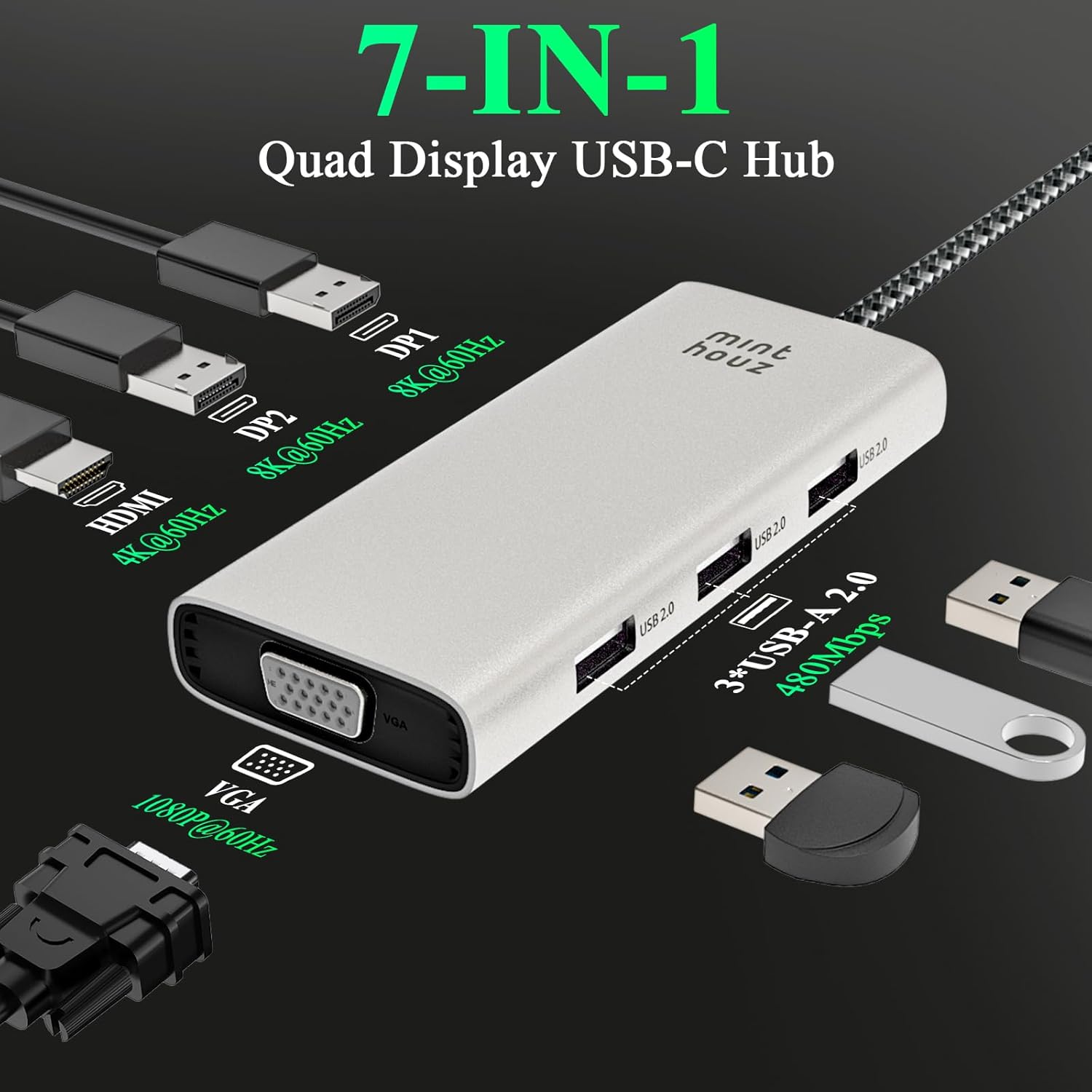
Figure 1: Minthouz 7-in-1 USB C Docking Station with port labels.
2. Key Features
- Quad Display Support: Connect up to four external monitors (Windows) via Dual 8K DP, 4K HDMI, and VGA ports. Mac devices support stable single-display output.
- 8K Ultra HD Visuals: Experience cinematic quality with single 8K@60Hz or 4K@144Hz via DisplayPort, and triple 4K@60Hz for compatible Windows devices.
- Multiple Display Modes: Supports mirror, extend, rotate, and clamshell modes for Windows. Mac devices support mirror and non-mirror modes (MST not supported).
- Universal Compatibility: Works with MacBook Neo/Pro/Air, iPad Pro, iPhone 17 Pro/Pro Max, Dell, HP, Lenovo, ThinkPad, and other full-featured Type-C devices.
- Driver-Free Plug-and-Play: No drivers or external power required for immediate use across Windows, Mac OS, Chrome OS, iOS, and Android.
- High-Speed USB 2.0 Ports: Three USB 2.0 ports (up to 480Mbps) for connecting peripherals like keyboards, mice, and external drives.
- Durable Design: Features an aluminum shell for better cooling and a braided cable for durability and tangle-free use.
3. Setup Instructions
Follow these steps to set up your Minthouz 7-in-1 USB C Docking Station:
- Verify Host Device: Ensure your device's USB-C port supports DisplayPort Alternate Mode (DP Alt Mode) for video output. Refer to your device's specifications or manufacturer for confirmation.
- Connect Docking Station: Plug the USB-C cable from the docking station into the USB-C port of your laptop, tablet, or smartphone.
- Connect Displays:
- For DisplayPort monitors, connect them to the DP1 and DP2 ports.
- For HDMI monitors, connect them to the HDMI port.
- For VGA monitors, connect them to the VGA port.
- Connect Peripherals: Plug your USB devices (keyboard, mouse, external hard drives, etc.) into the three USB 2.0 ports on the docking station.
- Power On: Power on your host device and connected monitors. The docking station is plug-and-play and should be recognized automatically.

Figure 2: Example of a workstation setup using the docking station.
4. Operating Instructions
4.1 Display Configuration
The docking station supports various display configurations depending on your operating system.
Windows Display Modes:
For Windows laptops, the docking station supports Mirror Mode, Extend Mode, and Quad Display. Some Windows laptops may only support 3 monitors due to graphic card limitations, and some may require the host screen to be turned off for 4-monitor output.

Figure 3: Windows Display Modes (Mirror, Extend, Quad Display).
Mac OS Display Modes:
Mac devices (including MacBook Neo) do not support Multi-Stream Transport (MST) due to native OS restrictions. Therefore, they support Mirror Mode and Non-Mirror Mode (extended display where all external monitors show the same extended content, different from the laptop screen).

Figure 4: Mac OS Display Modes (Mirror, Non-Mirror).
4.2 USB 2.0 Ports
The three USB 2.0 ports are designed for stable connection of low-bandwidth peripherals such as keyboards, mice, and printers. They are also suitable for fast file transfers up to 480Mbps.
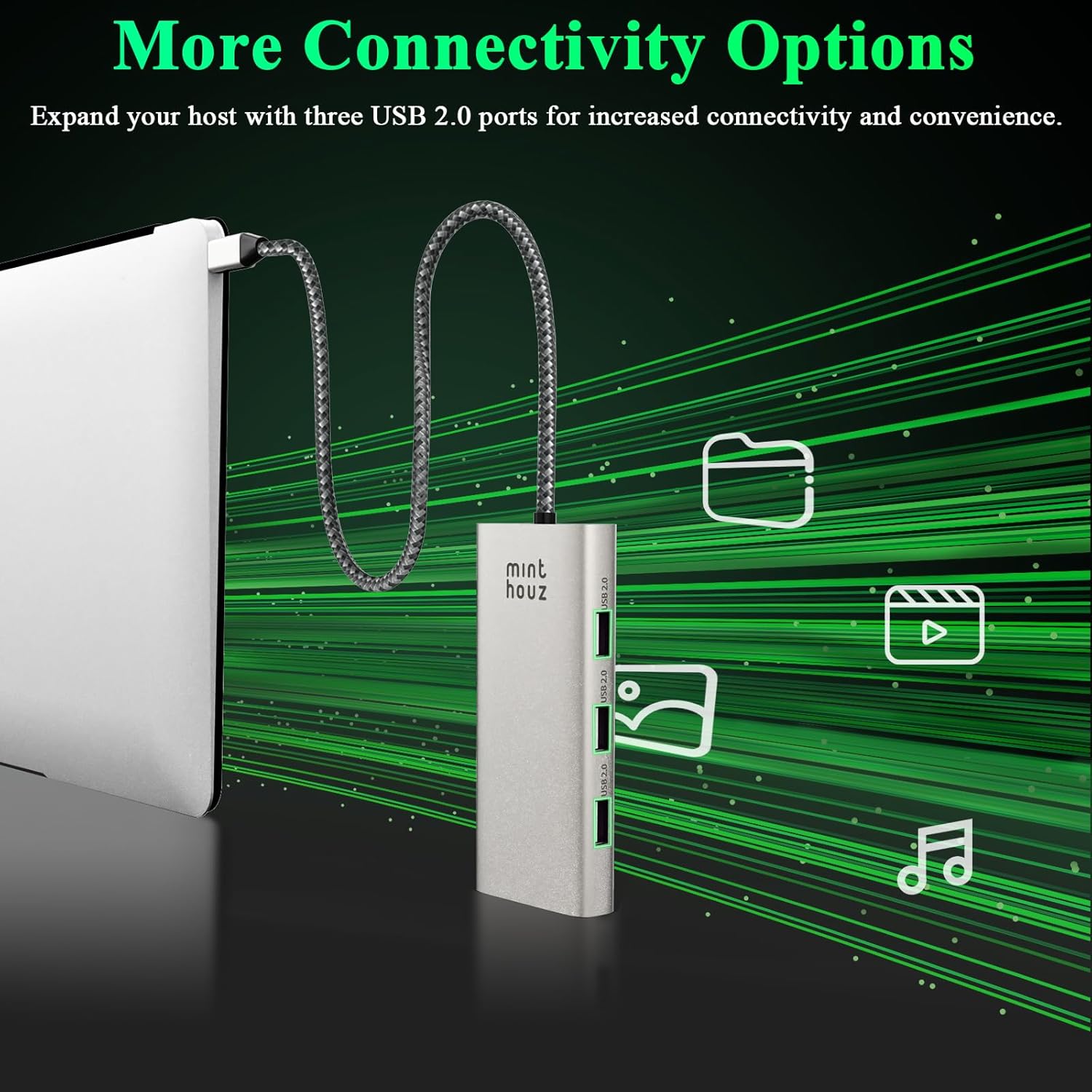
Figure 5: Connectivity options for USB 2.0 ports.
5. Compatibility
The Minthouz 7-in-1 USB C Docking Station offers broad compatibility:
- Host Devices: MacBook Neo, MacBook Pro/Air, iPad Pro, iPhone 17 Pro/Pro Max, Dell, HP, Lenovo, ThinkPad, and all full-featured Type-C devices that support DP Alt Mode.
- Operating Systems: Windows, Mac OS, Chrome OS, iOS, Android, Linux, Harmony OS.

Figure 6: Wide compatibility with various devices and operating systems.
Important Note Before Purchase:
Please ensure your device’s USB-C port supports DP Alt Mode (video output) to unlock full display functionality. Not all Type-C ports support video output; otherwise, the dock's video ports will not function. The MacBook Neo is not built with a Thunderbolt port, so features relying on a Thunderbolt interface will not be supported.

Figure 7: Examples of supported and unsupported USB-C port types.
6. Product Specifications
| Feature | Specification |
|---|---|
| Brand | Minthouz |
| Model Number | MT-UMD317 |
| Color | Silver |
| Hardware Interface | HDMI, DisplayPort (2x), VGA, USB 2.0 (3x), USB Type C (Host) |
| Display Output | Dual 8K@60Hz DP, 4K@60Hz HDMI, 1080p@60Hz VGA |
| Data Transfer Rate (USB 2.0) | Up to 480 Mbps |
| Total USB Ports | 3 (USB 2.0) |
| Operating System Support | Android, Chrome OS, Linux, Windows, iOS, macOS |
| Enclosure Material | Metal (Aluminum) |
| Item Dimensions (L x W x H) | 4.3"L x 2"W x 0.6"H |
| Item Weight | 0.12 Kilograms (85g / 3.0oz) |
| Special Feature | Plug and Play |
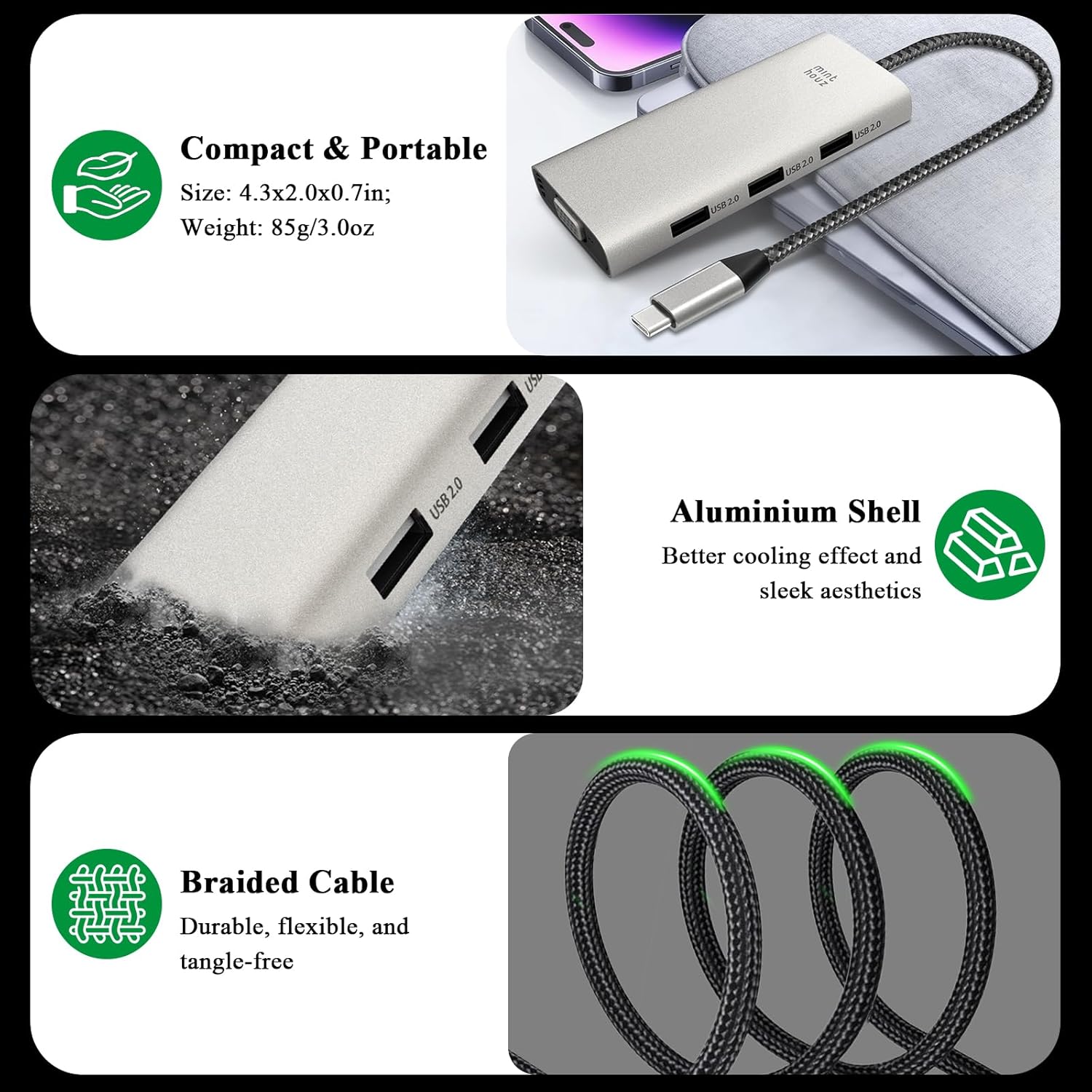
Figure 8: Physical characteristics of the docking station.
7. Troubleshooting
- No Display Output:
- Ensure your host device's USB-C port supports DP Alt Mode.
- Check all cable connections (USB-C to host, display cables to monitors).
- Try connecting one monitor at a time to isolate the issue.
- Restart your host device.
- For Windows, ensure display settings are configured correctly (e.g., Extend, Duplicate).
- For Mac, remember MST is not supported; external monitors will mirror or show the same extended content.
- USB Peripherals Not Working:
- Ensure the docking station is securely connected to your host device.
- Try connecting the peripheral directly to your host device to confirm it's functional.
- If using a high-power USB device, ensure your host device can provide sufficient power.
- Intermittent Connection:
- Ensure all cables are firmly seated.
- Avoid excessive bending or strain on the USB-C cable of the docking station.
- Ensure your host device's drivers are up to date.
8. Warranty & Support
8.1 Warranty Information
The Minthouz 7-in-1 USB C Docking Station comes with a 1-year warranty from the date of purchase. This warranty covers manufacturing defects and malfunctions under normal use. It does not cover damage caused by misuse, accidents, unauthorized modifications, or natural disasters.
8.2 Customer Support
For technical assistance, troubleshooting, or warranty claims, please contact Minthouz customer support through the following channels:
- Email: Refer to your product packaging or the official Minthouz website for the most current support email address.
- Website: Visit the official Minthouz website for FAQs, support resources, and contact forms.
Please have your product model number (MT-UMD317) and purchase details ready when contacting support.