
Introduction
This manual provides essential information for the proper use and maintenance of your Maxcom MM835 4G VoLTE Flip Phone. Please read these instructions carefully before using your device to ensure optimal performance and longevity. This phone is designed for ease of use, featuring large displays and a simplified interface.
Product Overview
The Maxcom MM835 is a 4G VoLTE flip phone designed for clear communication and user convenience. It features a dual-screen design, large backlit keys, and essential functions like an SOS button and HAC (Hearing Aid Compatibility).
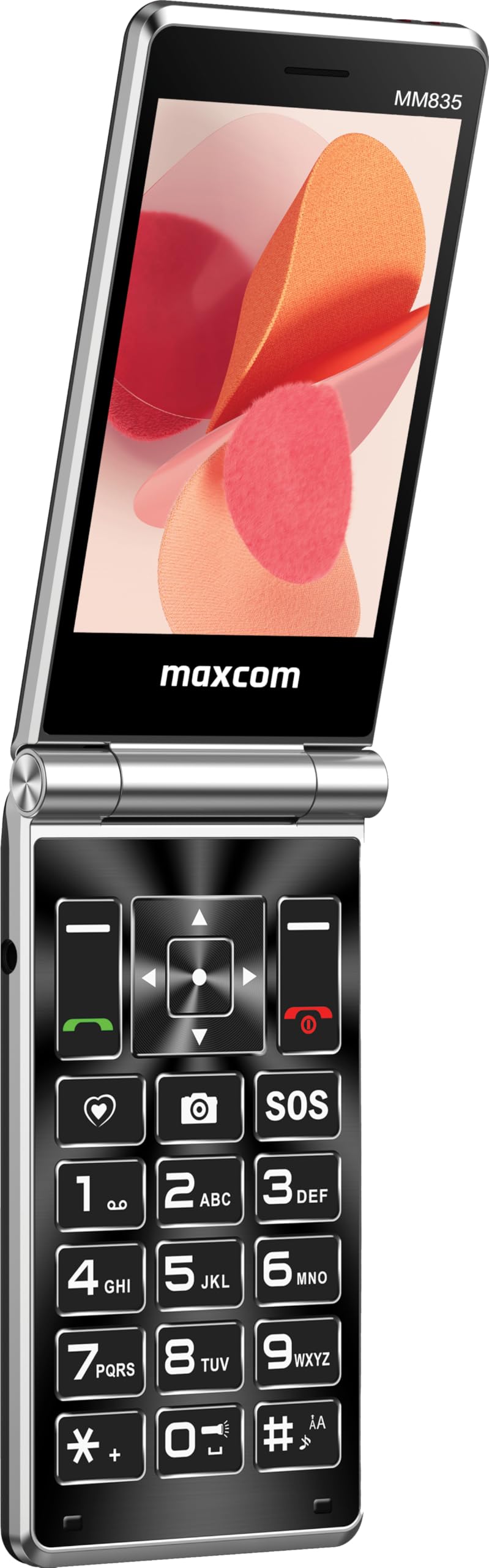
Figure 1: Maxcom MM835 Flip Phone (Closed View). The external 2.4-inch screen displays time, date, battery status, and missed calls without opening the phone.
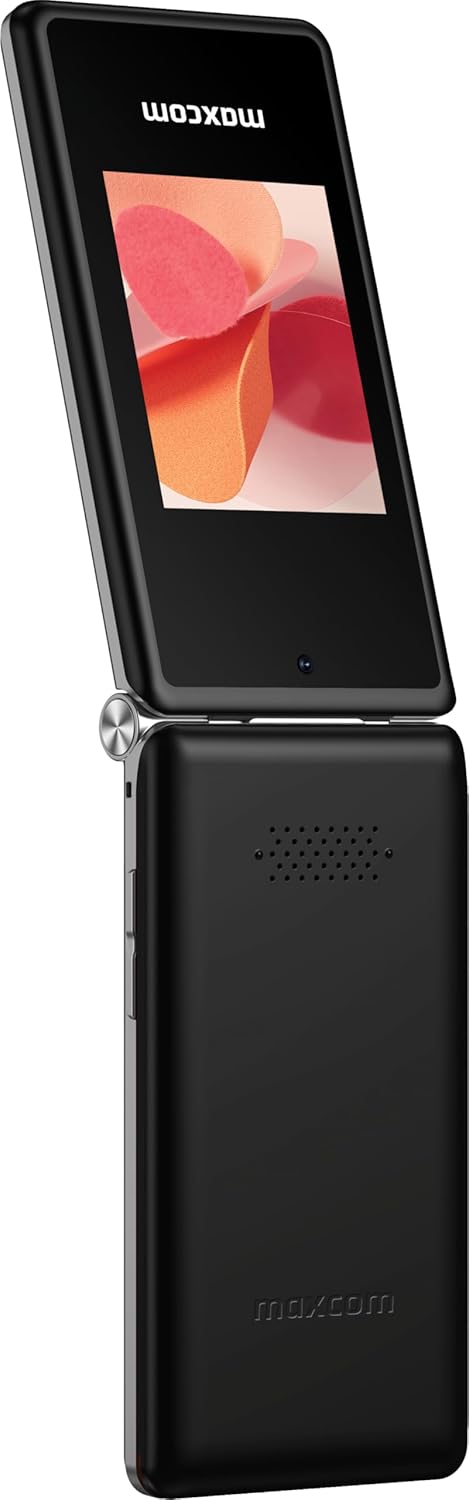
Figure 2: Maxcom MM835 Flip Phone (Open View). The internal 3.5-inch screen provides a clear interface for contacts and messages, complemented by large, comfortable keys.

Figure 3: Side view of the Maxcom MM835, illustrating the volume control buttons for easy audio adjustment.

Figure 4: Bottom view of the Maxcom MM835, highlighting the USB-C charging port for convenient power connection.

Figure 5: Detail of the Maxcom MM835 keyboard, featuring the prominent SOS button for emergency contacts.

Figure 6: The Maxcom MM835 is Hearing Aid Compatible (HAC), ensuring clear audio for users with hearing aids.
Setup
1. Battery Installation and Charging
- Open the back cover: Gently remove the back cover of the phone.
- Insert the battery: Place the included Lithium-ion battery into its compartment, ensuring the contacts align correctly.
- Replace the back cover: Securely attach the back cover.
- Charge the phone: Connect the provided USB-C cable to the phone's charging port (Figure 4) and to a compatible USB power adapter (not included). Allow the phone to charge fully before first use. The external screen will indicate charging status.
2. SIM Card Installation
The Maxcom MM835 supports dual SIM cards.
- Remove the back cover and battery: Follow the steps above to access the SIM card slots.
- Insert SIM cards: Carefully slide your SIM card(s) into the designated slot(s). Ensure the gold contacts face downwards and the notched corner aligns with the slot.
- Reinstall battery and cover: Replace the battery and back cover.
3. Powering On/Off
- To Power On: Press and hold the Power/End Call button (red button) until the screen lights up.
- To Power Off: Press and hold the Power/End Call button until the power-off options appear, then select "Power Off".
Operating Instructions
1. Basic Navigation
- Internal Display: The 3.5-inch internal screen is your primary interface for menus and content.
- External Display: The 2.4-inch external screen shows essential information like time, date, battery, and caller ID when the phone is closed.
- Navigation Keys: Use the directional keys (up, down, left, right) and the central OK button to navigate through menus.
- Soft Keys: The keys directly below the screen perform functions indicated on the display (e.g., "Menu", "Back").
- Call Keys: The green button initiates calls, and the red button ends calls or powers the phone on/off.
2. Making and Receiving Calls
- To Make a Call:
- Open the phone.
- Dial the number using the keypad.
- Press the green Call button to initiate the call.
- To Answer a Call:
- When the phone rings, open the flip or press the green Call button.
- To End a Call: Press the red End Call button.
3. Sending and Receiving Messages
- Navigate to the "Messages" menu.
- Select "New Message" to compose a text.
- Enter the recipient's number or select from contacts.
- Type your message using the keypad.
- Press "Send".
4. SOS Button Functionality
The SOS button (Figure 5) is located on the main keypad and is designed for emergency situations.
- Setup: Before use, configure emergency contacts in the phone's settings. Refer to the "SOS Settings" section in the phone's menu.
- Activation: In an emergency, press and hold the SOS button. The phone will automatically send pre-defined notifications to your emergency contacts and may initiate calls to them.
5. Camera
The phone includes a basic camera for capturing photos.
- Access the camera from the main menu.
- Frame your shot using the internal display.
- Press the central OK button to take a picture.
6. FM Radio
Enjoy listening to FM radio stations on your device.
- Navigate to the "FM Radio" application in the menu.
- Connect headphones (not included) to act as an antenna for optimal reception.
- Use the navigation keys to scan for stations or tune manually.
Maintenance
- Cleaning: Use a soft, dry cloth to clean the phone's exterior. Avoid liquid cleaners or abrasive materials.
- Battery Care: To prolong battery life, avoid extreme temperatures. Charge the phone regularly, but do not leave it fully discharged for extended periods.
- Storage: Store the phone in a cool, dry place away from direct sunlight and moisture when not in use.
- Software: While software updates are not explicitly guaranteed, ensure your phone's settings are optimized for performance.
Troubleshooting
If you encounter issues with your Maxcom MM835, refer to the following common solutions:
| Problem | Possible Solution |
|---|---|
| Phone does not power on | Ensure the battery is correctly installed and fully charged. Connect the charger and try again. |
| Cannot make or receive calls | Check if the SIM card is properly inserted. Verify that you have network signal. Contact your service provider if the issue persists. |
| Poor battery life | Ensure the phone is fully charged. Reduce screen brightness or close unused applications. Battery performance can degrade over time. |
| "Emergency Call Only" message | This indicates a lack of network signal or an issue with your SIM card/service. Try moving to an area with better reception or reinserting your SIM card. |
| Keys are unresponsive | Restart the phone. If the issue continues, ensure no debris is obstructing the keys. |
Specifications
| Feature | Detail |
|---|---|
| Brand | Maxcom |
| Model Name | MM835 |
| Product Type | Flip Phone |
| Color | Black |
| Operating System | Maxcom OS |
| Internal Screen Size | 3.5 Inches |
| External Screen Size | 2.4 Inches |
| Connectivity | 4G, VoLTE |
| Special Features | Dual SIM, SOS Button, HAC (Hearing Aid Compatible), Large Keys |
| Battery Composition | Lithium-ion |
| Battery Capacity | 1400 mAh |
| Charging Port | USB Type C |
| Memory Storage Capacity | 32 GB |
| CPU Model | ARMv7 |
| Screen Resolution | 640 x 360 |
| Wireless Carrier | All carriers (Unlocked) |
Warranty and Support
For warranty information and customer support, please refer to the documentation provided with your purchase or contact the seller directly. Maxcom strives to provide reliable products, and support is available for any manufacturing defects or operational queries.
- Manufacturer: Maxcom
- Seller: You Get - Innovation & Technology
- Return Policy: Typically 30 days for refund/replacement (check with seller for specifics).


