
Introduction
This manual provides comprehensive instructions for the MIKUSO Wired Computer Keyboard, designed for optimal performance and user comfort. Featuring laser-engraved, anti-fading characters and 12 multimedia hotkeys, this full-size keyboard is a reliable companion for various computing needs.
Key features include:
- Laser Engraving Characters: Advanced laser engraving technology ensures characters on keycaps are slightly raised and will not fade after long-term typing, preventing unclear character reading.
- Comfortable Keys: 104 standard keys with large silicone SHIN-ETSU and polyester film substrate, offering a soft and fast rebound for comfortable extended typing.
- Easy Setup: Plug-and-play functionality requires no driver installation, providing stable and sensitive typing via wired connection.
- 12 Multimedia Hotkeys: Convenient access to music, volume, computer, email, and more, significantly improving work efficiency. Includes Caps Lock and Number Lock indicators.
- Wide Compatibility: Compatible with Windows 7, 8, 10 or higher versions for computers, laptops, and PCs. (Note: Multimedia keys may not be compatible with MAC systems, but other keys function properly).

Image: The MIKUSO Wired Computer Keyboard, showcasing its full-size layout and wired USB connection.
Setup
The MIKUSO Wired Computer Keyboard is designed for simple and quick setup. No special drivers or software are required.
- Unpack the Keyboard: Carefully remove the keyboard from its packaging.
- Locate a USB Port: Identify an available USB-A port on your computer, laptop, or PC.
- Connect the Keyboard: Insert the USB connector of the keyboard cable into the USB port.
- System Recognition: Your operating system (Windows 7, 8, 10, or higher) will automatically detect and install the necessary generic drivers. This process usually takes a few seconds.
- Begin Typing: Once recognized, the keyboard is ready for immediate use.

Image: Illustration showing the keyboard's plug-and-play functionality and compatibility with laptops, computers, and desktops via USB.
Operating Instructions
Basic Typing
The MIKUSO keyboard features a standard 104-key layout, providing a familiar and efficient typing experience. The keys are designed for comfort, with a soft and fast rebound, reducing finger fatigue during prolonged use.
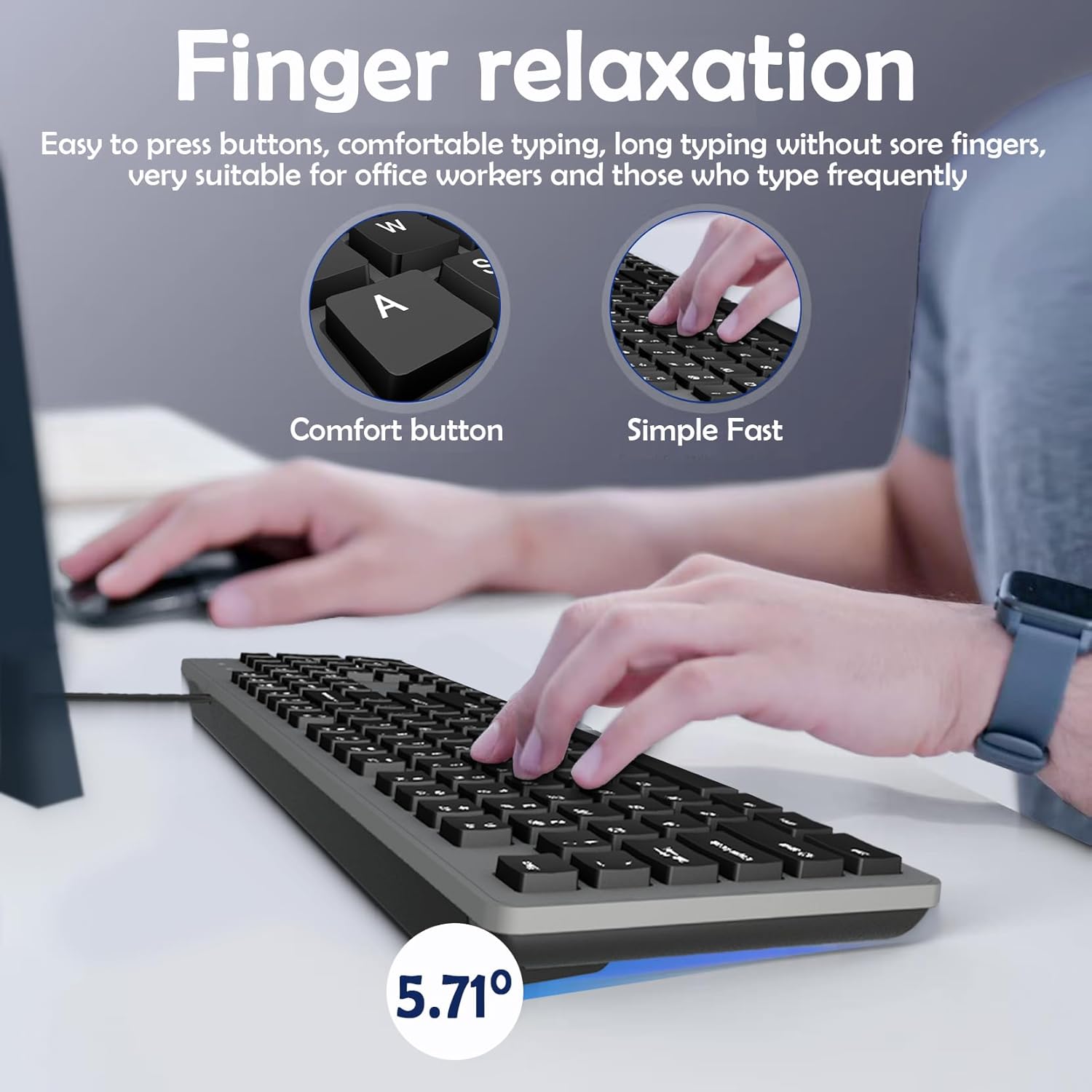
Image: A user's hands typing on the MIKUSO keyboard, highlighting the comfortable button design and fast typing capability.
Multimedia Hotkeys
The keyboard includes 12 multimedia hotkeys (F1-F12) that can be accessed by pressing the Fn key simultaneously with the desired function key. These shortcuts provide quick access to common functions, enhancing productivity.
| Hotkey Combination | Function |
|---|---|
| Fn + F1 | Music Player |
| Fn + F2 | Volume Down |
| Fn + F3 | Volume Up |
| Fn + F4 | Mute |
| Fn + F5 | Previous Track |
| Fn + F6 | Next Track |
| Fn + F7 | Play/Pause |
| Fn + F8 | Browser |
| Fn + F9 | |
| Fn + F10 | My Computer |
| Fn + F11 | Favorites |
| Fn + F12 | Calculator |
Note: Multimedia keys may not be fully compatible with MAC systems, though other standard keys will function correctly.

Image: Diagram illustrating the 12 multimedia hotkeys and their functions on the MIKUSO keyboard.
Indicator Lights
The keyboard features indicator lights in the upper right corner for Caps Lock and Number Lock, providing visual feedback on their active status.

Image: Close-up of the keyboard's upper right corner, showing the Caps Lock and Num Lock indicator lights.
Maintenance
To ensure the longevity and optimal performance of your MIKUSO Wired Computer Keyboard, follow these simple maintenance guidelines:
- Cleaning: Regularly clean the keyboard surface and between the keys using a soft, dry cloth or a can of compressed air to remove dust and debris. For stubborn dirt, a slightly damp cloth with mild soap can be used, ensuring no liquid enters the keyboard.
- Avoid Spills: While the keyboard has some water resistance, it is best to avoid liquid spills directly onto the keys or internal components. In case of a spill, immediately disconnect the keyboard and allow it to dry completely before reconnecting.
- Character Durability: The laser-engraved characters are designed to be anti-fading, providing long-lasting legibility even with extensive use. Avoid abrasive cleaners or harsh chemicals that could damage the keycap surface.
- Cable Care: Do not excessively bend or pull the USB cable. Store the cable neatly to prevent kinks or damage.
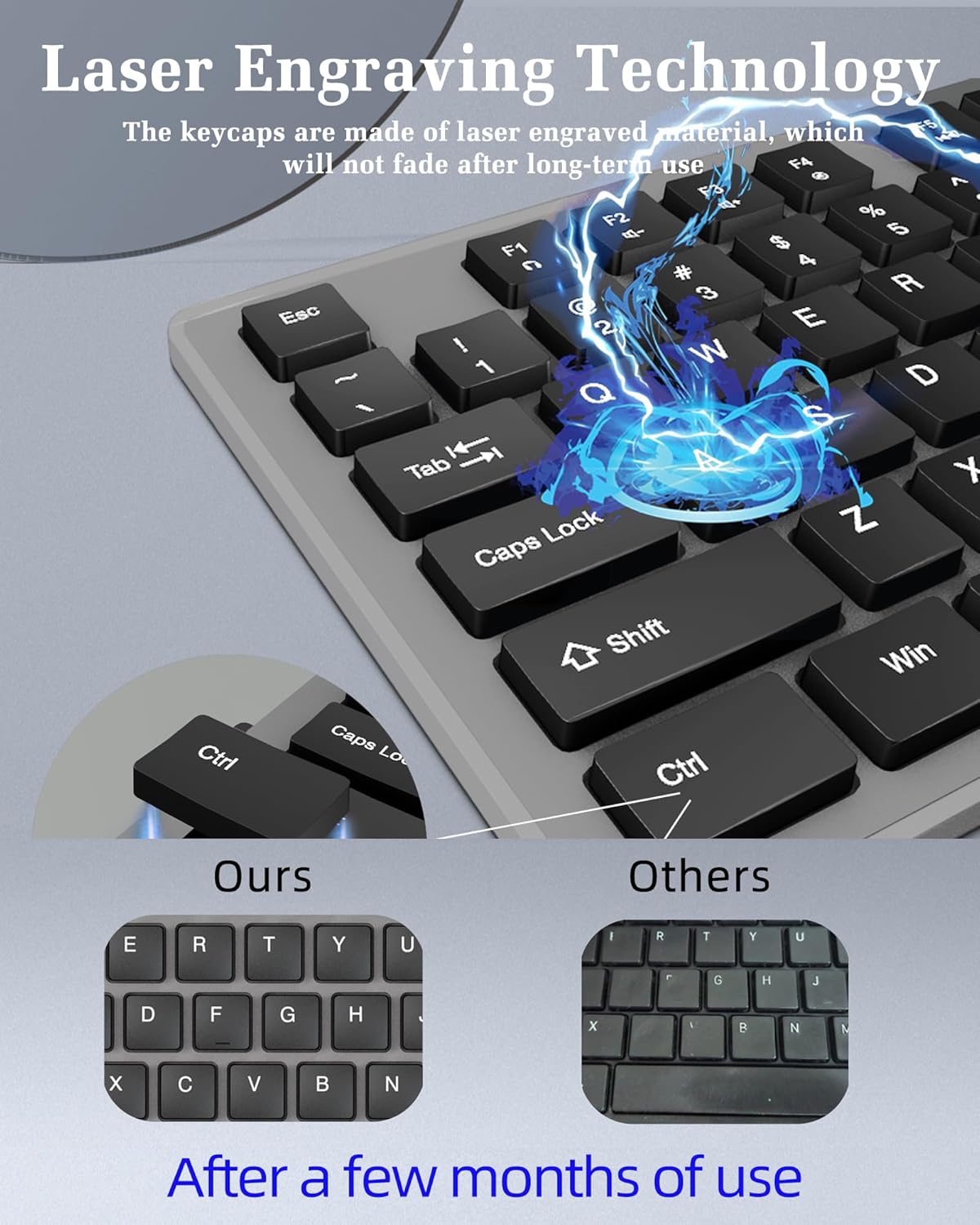
Image: A close-up comparing laser-engraved keycaps (left) which resist fading, to standard UV screen-printed keycaps (right) that show wear over time.
Troubleshooting
If you encounter issues with your MIKUSO Wired Computer Keyboard, please refer to the following common troubleshooting steps:
- Keyboard Not Responding:
- Ensure the USB cable is securely plugged into a functioning USB port on your computer.
- Try plugging the keyboard into a different USB port.
- Restart your computer.
- Test the keyboard on another computer to determine if the issue is with the keyboard or your computer's USB ports.
- Multimedia Keys Not Working (on Mac Systems):
- As noted in the product description, multimedia keys may have limited or no functionality on MAC operating systems. This is a known compatibility characteristic. Standard typing keys should still function normally.
- Keys Feel Stiff or Unresponsive:
- Ensure no debris or foreign objects are lodged under the keycaps. Gently clean around the affected keys.
- The keys are designed for a soft and fast rebound. If a key feels unusually stiff, it might indicate a manufacturing anomaly.
- Spacebar Squeaks:
- Some users have reported a slight squeaking sound from the spacebar. This can sometimes be a characteristic of the key stabilizer mechanism. While not affecting functionality, if persistent, it may diminish with continued use.
Specifications
| Feature | Detail |
|---|---|
| Brand | MIKUSO |
| Model Number | KB-088U-Grey |
| Product Dimensions | 17.3 x 5 x 1.2 inches (440mm x 127mm x 30.5mm) |
| Item Weight | 1.32 pounds |
| Connectivity Technology | Wired, USB-A |
| Keyboard Description | Membrane |
| Number of Keys | 104 |
| Cable Length | 1.6 meters (63 inches) |
| Compatible Devices | Laptop, PC (Windows 7, 8, 10 or higher) |
| Special Features | Lightweight, Hotkeys and Media Keys, Low-Profile Key, Laser Engraving, Water Resistant |
| Country of Origin | China |
| Date First Available | March 6, 2025 |

Image: Top-down view of the keyboard with key dimensions and cable length indicated.
What's in the Box
- 1 x MIKUSO Wired Computer Keyboard
Warranty and Support
For warranty information, technical support, or any product-related inquiries, please contact the MIKUSO customer service team or refer to the official MIKUSO website. Details regarding warranty coverage and support channels are typically provided with your purchase documentation or on the manufacturer's official product page.
You can also visit the MIKUSO brand store on Amazon for more information and product updates.