
Introduction
This manual provides detailed instructions for the setup, operation, maintenance, and troubleshooting of your RadioShack Mini Bluetooth Speaker. Please read this manual thoroughly before using the product to ensure proper function and longevity.
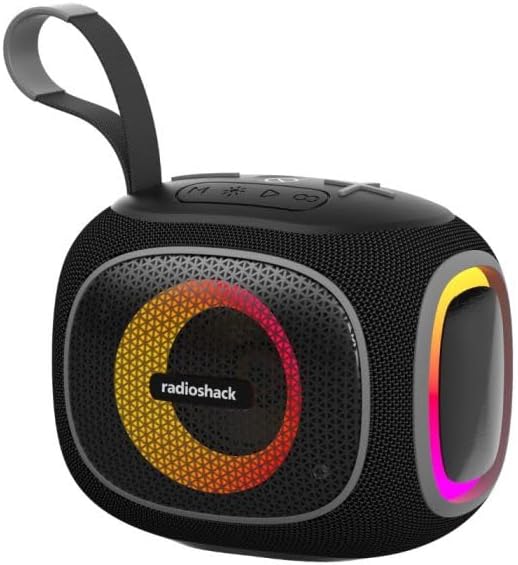
Image: The RadioShack Mini Bluetooth Speaker in black and gray, showcasing its compact design and integrated strap.
Setup
1. Unboxing and Package Contents
Carefully remove all items from the packaging. The package should contain the following:
- 1x Portable Wireless Speaker
- 1x User Manual
- 1x Type-C Charging Cable
- 1x 3.5mm Audio Cable

Image: Two color variants of the RadioShack Mini Bluetooth Speaker: Black and Gray (Model 4001775) and Black and Green (Model 4001776).
2. Charging the Speaker
Before initial use, fully charge the speaker. Connect the provided Type-C charging cable to the speaker's charging port and a compatible USB power source. The red light indicator will be on during charging and will turn off when the battery is fully charged. A full charge provides approximately 4-6 hours of playtime.
3. Initial Bluetooth Pairing
- Ensure the speaker is sufficiently charged.
- Press and hold the power button for approximately 3 seconds to turn on the speaker. A voice prompt will indicate that the device is ready for pairing.
- On your mobile device, enable Bluetooth and search for available devices.
- Select "RadioShack Speaker" from the list of found devices.
- Once paired, a voice prompt will confirm the successful connection. The white light indicator will remain steadily on.
Operating Instructions
1. Playback Modes
The speaker supports multiple playback modes:
- Bluetooth Mode: Connect wirelessly to a Bluetooth-enabled device.
- TF Card Mode: Insert a TF (microSD) card with audio files.
- U Disk Mode: Insert a USB flash drive with audio files.
- AUX Mode: Connect an external audio device using the 3.5mm audio cable.
- FM Radio Mode: Tune into FM radio stations.
To switch between modes, press the 'M' button on the speaker. The default mode upon power-on is Bluetooth.

Image: The speaker displaying its vibrant RGB lighting feature while playing music, highlighting its multi-functional audio capabilities.
2. Button Functions
| Button | Function |
|---|---|
| Power Button | Press and hold for ~3 seconds to turn on/off. Short press to play/pause. |
| 'M' Button (Mode) | Short press to switch between Bluetooth, TF Card, U Disk, AUX, and FM Radio modes. |
| '-' Button (Volume Down / Previous Track) | Short press for volume down. Long press for previous track. |
| '+' Button (Volume Up / Next Track) | Short press for volume up. Long press for next track. |
| Light Button | Press to turn RGB lights on/off. |
3. True Wireless Stereo (TWS) Connection
For an enhanced stereo audio experience, two RadioShack Mini Bluetooth Speakers can be paired together via TWS:
- Ensure both speakers are turned off and not connected to any device.
- Turn on both speakers simultaneously.
- On one of the speakers (this will be the host speaker), press the 'TWS' button. You will hear a prompt indicating TWS search.
- Once connected, a confirmation sound will play, and the host speaker's indicator light will flash, while the other speaker's light will remain steady.
- Now, connect your mobile device to the host speaker via Bluetooth. Both speakers will play audio in stereo.

Image: Two RadioShack Mini Bluetooth Speakers demonstrating the True Wireless Stereo (TWS) pairing capability for a wider audio experience.
4. RGB Lighting
The speaker features vibrant RGB lights that provide a dynamic visual experience. Press the dedicated Light Button to toggle the RGB lights on or off.

Image: A close-up of the speaker's grille showcasing its customizable RGB lighting, designed to enhance the listening experience.
Maintenance
1. Cleaning
To clean the speaker, use a soft, dry cloth. Do not use abrasive cleaners, alcohol, or other chemical solvents, as these may damage the surface of the speaker.
2. Water Resistance (IPX5)
The speaker has an IPX5 waterproof rating, meaning it is protected against low-pressure water jets from any direction. This makes it suitable for outdoor use and protection against splashes. However, it is not designed for submersion in water. Ensure the charging port cover is securely closed when near water to maintain water resistance.

Image: The speaker covered in water droplets, illustrating its IPX5 waterproof capability for outdoor and splash-prone environments.
Troubleshooting
| Problem | Possible Cause / Solution |
|---|---|
| Speaker does not turn on. | Battery may be depleted. Charge the speaker fully using the provided Type-C cable. |
| No sound or distorted sound. |
|
| Bluetooth pairing fails. |
|
| Speaker turns off automatically. |
|
| Speaker makes weird radio sound / squawking and turns off when USB flash drive is inserted. | This indicates a potential issue with the USB playback function or file compatibility. Ensure the USB flash drive is formatted correctly (FAT32) and contains only supported audio file types (MP3, FLAC). Try a different USB flash drive or use another playback mode (Bluetooth, TF card, AUX). If the issue persists, contact customer support. |
Specifications
| Feature | Detail |
|---|---|
| Model Name | RadioShack Mini Bluetooth Speaker, 10W, IPX5 Waterproof, Wireless & Portable |
| Model Number | 4001775 |
| Brand | RadioShack |
| Speaker Type | Outdoor |
| Special Feature | Wireless |
| Color | Black and Gray |
| Product Dimensions (D x W x H) | 5.7"D x 4.75"W x 5.22"H (135x97x111mm) |
| Item Weight | 1.5 pounds |
| Speaker Maximum Output Power | 10 Watts |
| Connectivity Technology | Bluetooth 5.3 |
| Audio Output Mode | Stereo (with TWS) |
| Battery | Built-in 2400mAh lithium battery |
| Playtime | 4-6 hours (varies with volume and features) |
| Waterproof Rating | IPX5 |
| Additional Playback Modes | U disk, TF card, AUX, MP3 player, FM radio |

Image: Diagram showing the product dimensions: Height 4.3 in, Width 5.3 in, Length 3.8 in.
Warranty Information
This product comes with a Limited Warranty. For specific terms and conditions, please refer to the warranty card included in your product packaging or visit the official RadioShack website.
Customer Support
If you encounter any issues or have questions regarding your RadioShack Mini Bluetooth Speaker that are not covered in this manual, please contact RadioShack customer support for assistance. Contact information can typically be found on the product packaging or the official RadioShack website.
For more information and product updates, visit the RadioShack Store on Amazon.