
Introduction
This manual provides instructions for setting up, operating, maintaining, and troubleshooting your NETGEAR EAX16 WiFi 6 Mesh Range Extender. This device is designed to extend your existing WiFi network, providing enhanced coverage and speed for your connected devices.
What's in the Box
- AX2400 Dual-Band WiFi 6 WiFi Extender (EAX16)
- Quick start guide

Image: The NETGEAR EAX16 WiFi 6 Mesh Range Extender, highlighting its capabilities: up to 2.4 Gbps speed, support for 20 wireless devices, and up to 1,500 sq. ft. of additional coverage.
Setup
Follow these steps to set up your NETGEAR EAX16 WiFi 6 Mesh Range Extender.
1. Initial Placement
Place the extender in a location between your existing WiFi router and the area where you need improved WiFi coverage. Ensure it is within range of your router's WiFi signal.

Image: A diagram illustrating optimal placement of the WiFi extender in a home to create a mesh network, extending coverage from the main router.
Video: This short video demonstrates how to strategically place your NETGEAR WiFi extender to create a mesh network and extend coverage throughout your home.
2. Power On and Connect
- Plug the extender into an electrical outlet.
- Wait for the Power LED to light up.
- Connect your mobile device or computer to the extender's WiFi network (e.g., "NETGEAR_EXT").
3. Configuration using Nighthawk App or Web Browser
You can configure the extender using the Nighthawk app or a web browser.

Image: Screenshot of the Nighthawk App, showing options for device management, network map, WiFi settings, and support, facilitating easy setup and management of the extender.
Using the Nighthawk App:
- Download the NETGEAR Nighthawk app from the Apple App Store or Google Play Store.
- Launch the app and follow the on-screen instructions to set up your extender.
Using a Web Browser:
- Open a web browser and go to www.mywifiext.net.
- Follow the setup wizard to connect the extender to your existing WiFi network.
- When prompted, choose to use the same network name (SSID) as your existing router for seamless roaming.
4. WPS (WiFi Protected Setup) Method (Optional)
If your router supports WPS, you can use this method for a quick setup.
- Press the WPS button on your extender.
- Within two minutes, press the WPS button on your router.
- The Extender Link LED on the extender should turn solid white, indicating a successful connection.
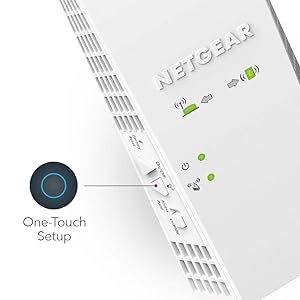
Image: A close-up of the NETGEAR extender, showing the "One-Touch Setup" (WPS) button, simplifying the connection process.
Operating the Extender
Understanding LED Indicators
The LEDs on your EAX16 extender provide information about its status:
- Power LED: Indicates if the extender is powered on.
- Extender Link LED: Shows the connection status between the extender and your router. A solid white light indicates a good connection.
- Client Link LED: Indicates the connection status between the extender and your connected devices.
- WPS LED: Lights up during and after a successful WPS connection.
Seamless Roaming (Mesh WiFi)
The EAX16 supports Smart Roaming, allowing your devices to automatically connect to the strongest WiFi signal (either from your router or the extender) as you move around your home. This feature works best when the extender is configured to use the same network name (SSID) as your main router.

Image: A man using a tablet, illustrating the benefit of seamless roaming where devices stay connected to the best WiFi signal without manual intervention.
Video: This short video illustrates how the NETGEAR Mesh Extender expands your home's WiFi coverage, ensuring a strong signal even as you move between rooms.
Using the Gigabit Ethernet Port
The EAX16 includes one Gigabit Ethernet port. You can use this port to connect a wired device, such as a smart TV, gaming console, or desktop computer, to your network for a stable and high-speed connection.
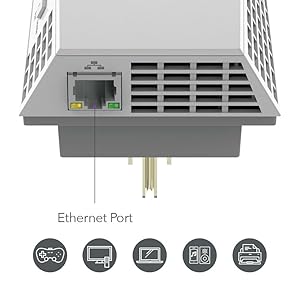
Image: A close-up view of the NETGEAR extender's bottom, clearly showing the Gigabit Ethernet port for wired connections to devices like gaming consoles, computers, and printers.
Maintenance
To ensure optimal performance and longevity of your NETGEAR EAX16 extender, consider the following maintenance tips:
- Firmware Updates: Regularly check for and install firmware updates through the Nighthawk app or the web interface. Updates often include performance improvements and security enhancements.
- Cleaning: Keep the extender free from dust. Use a soft, dry cloth to gently wipe the exterior. Do not use liquid cleaners or aerosols.
- Placement: Ensure the extender is in a well-ventilated area and not obstructed by furniture or other objects that could impede airflow.
- Restart: Occasionally restarting the extender (unplugging and replugging after 10 seconds) can resolve minor issues and improve performance.
Troubleshooting
If you encounter issues with your NETGEAR EAX16 extender, try the following troubleshooting steps:
- No Power: Ensure the extender is securely plugged into a working electrical outlet. Check if the Power LED is lit.
- No Internet Connection:
- Verify that your main router has an active internet connection.
- Check the Extender Link LED. If it's not solid white, the extender might be too far from the router or experiencing interference. Try repositioning it closer to the router.
- Restart both your router and the extender.
- Slow Speed:
- Ensure the extender is placed optimally, not too close or too far from the router.
- Reduce interference by moving the extender away from other electronic devices (microwaves, cordless phones).
- Check if too many devices are connected to the extender or your main network.
- Cannot Access Setup Page:
- Ensure your device is connected to the extender's WiFi network.
- Try clearing your browser's cache or using a different browser.
- If www.mywifiext.net doesn't work, try using the extender's IP address (refer to your router's connected devices list).
- Factory Reset: If all else fails, you can perform a factory reset. With the extender powered on, use a paperclip to press and hold the Reset button for about 5-10 seconds until the Power LED blinks. This will revert the extender to its default factory settings, and you will need to set it up again.
Specifications
| Feature | Detail |
|---|---|
| Brand | NETGEAR |
| Model | EAX16 |
| Wireless Communication Standard | 802.11ax (WiFi 6) |
| Data Transfer Rate | Up to 2400 Megabits Per Second (2.4 Gbps) |
| Special Feature | WiFi Mesh |
| Color | White |
| Compatible Devices | Desktop, Laptop, Printer |
| Frequency Bands Supported | 2.4 GHz, 5 GHz |
| Range | Up to 1500 sq. ft. |
| Item Weight | 14.08 ounces |
| Ethernet Ports | 1 Gigabit Ethernet Port |
| Security | WPA3 |
Warranty Information
The NETGEAR EAX16 WiFi 6 Mesh Range Extender comes with a 1 Year Limited Warranty from the manufacturer. Please retain your proof of purchase for warranty claims. For detailed terms and conditions, refer to the warranty documentation included with your product or visit the official NETGEAR support website.
Support
For further assistance, technical support, or to access the latest drivers and firmware, please visit the official NETGEAR support website:
You can also find additional resources and community forums on the NETGEAR website.