
1. Introduction
Thank you for purchasing the ugtenversi R36Plus Retro Handheld Game Console. This device is designed to provide a portable gaming experience with a wide selection of classic games across various emulators. This manual provides essential information for safe and effective use of your new console. Please read it thoroughly before use and retain it for future reference.
2. Safety Information
To ensure safe operation and prevent damage, please observe the following safety guidelines:
- Keep the console away from sources of fire and extreme temperatures.
- Do not use the game console while charging to prevent overheating.
- Children under the age of 16 should use the device with adult supervision.
- Avoid dropping or subjecting the device to strong impacts.
- Do not attempt to disassemble or repair the device yourself. Contact customer support for assistance.
- Use only the provided charging cable or a certified USB-C cable.
3. What's in the Box
Verify that all items are present upon unboxing:
- R36Plus Handheld Game Console
- USB-C Charging Cable
- 64GB Memory Card (pre-installed)
- Screen Protector
- Cleaning Wipes

Image: R36Plus Handheld Game Console with USB-C cable, screen protector, and memory card.
4. Product Overview
The R36Plus features a 4.0-inch IPS OCA fully laminated HD MIPI screen (720*720 resolution) for clear visuals. It is powered by an RK3326 1.5GHz 64-bit gaming processor and runs on ArkOS 2.0.

Image: Diagram showing the key labeling and ports of the R36Plus console.
Key Labeling:
| No. | Feature | No. | Feature |
|---|---|---|---|
| 1 | L1/L2 Shoulder Button | 2 | R1/R2 Shoulder Button |
| 3 | Power Key | 4 | RESET |
| 5 | TF1-OS (Memory Card Slot 1 for OS) | 6 | Lithium-ion Batteries (Internal) |
| 7 | OTG Port (USB Type-C) | 8 | Headphone Hole (3.5mm Jack) |
| 9 | DC (Charging Port) | 10 | 4.0-Inch HD Screen |
| 11 | Volume Button | 12 | TF2-GAME (Memory Card Slot 2 for Games) |
| 13 | Game Keys (A, B, X, Y) | 14 | Joystick (R3) |
| 15 | D-Pad | 16 | Horn Hole (Speaker) |
| 17 | Joystick (L3) | 18 | SELECT Button |
| 19 | HOME/F Button | 20 | START Button |
5. Setup
5.1 Initial Charging
Before first use, fully charge the console. Connect the provided USB-C cable to the DC charging port (9) on the console and the other end to a compatible USB power adapter (not included). The charging indicator will show the charging status. A full charge typically takes approximately 4 hours and provides up to 5 hours of gameplay.
5.2 Powering On/Off
To power on the console, press and hold the Power Key (3) until the screen illuminates. To power off, press and hold the Power Key (3) again and follow the on-screen prompts to shut down the system safely.
5.3 System Updates
The R36Plus supports player-initiated system updates. To update the system, connect the console to a computer and follow the specific instructions provided on the official ArkOS website or the manufacturer's support page. Ensure the console is sufficiently charged before initiating any updates.
6. Operating Instructions
6.1 Navigating the Interface
Use the D-Pad (15) or Joysticks (14, 17) to navigate through menus and game lists. The A, B, X, Y Game Keys (13) are used for selection and action within games and menus. The SELECT (18) and START (20) buttons have various functions depending on the game or system menu.

Image: Screen displaying various supported emulators like MAME, N64, PS1, NeoGeo, GBA, FC, SFC, MD, CPS1, CPS2/3, PSP.
6.2 Playing Games
The console comes pre-loaded with over 15,000 classic games across more than 26 emulators. Select an emulator from the main menu, then browse and select a game to begin playing. The console is designed to handle most 2D games and a selection of 3D games without significant lag.
6.3 Multiplayer Gaming (OTG Functionality)
The R36Plus supports OTG (On-The-Go) functionality, enabling two-player gaming in several ways:
- Local Network Play: Connect two R36Plus consoles via OTG functionality for simultaneous two-player gaming on a local network.
- External Controller: Connect an external gamepad controller to the OTG Port (7) for two-player gameplay on a single console.
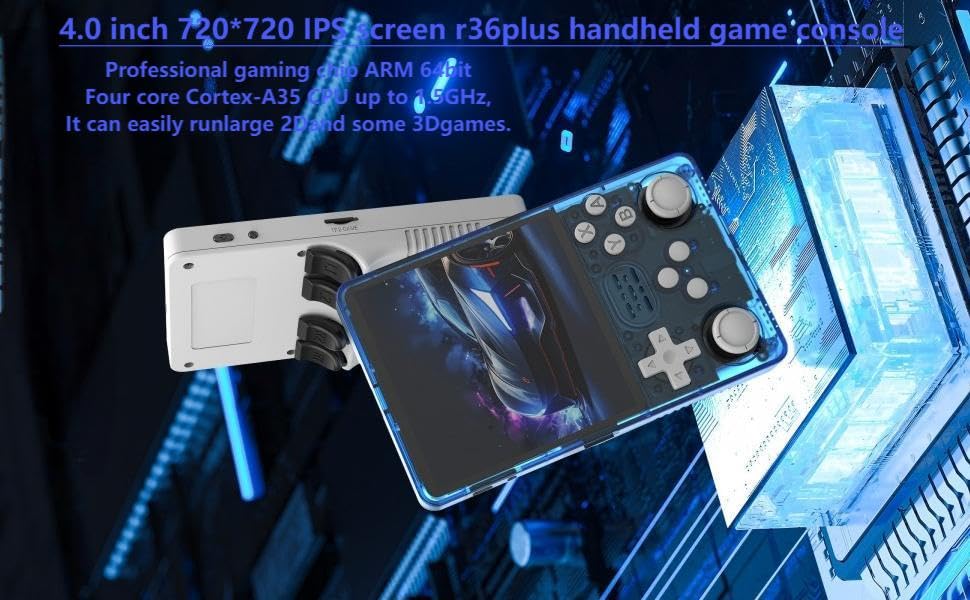
Image: Two R36Plus consoles shown connected wirelessly, illustrating support for two-player games on the same network.
6.4 Connecting to a Large Screen
You can output the console's display to a larger screen, such as a TV or monitor. Use a compatible adapter cable (not included) connected to the OTG Port (7) to connect to your display device. The console supports MP4 format output.

Image: Diagram showing the OTG Port connected to an OTG adapter, which then connects to a large screen and a gamepad.
6.5 Moonlight Streaming
The R36Plus supports Moonlight streaming, allowing you to play PC games smoothly on your handheld console. Refer to the ArkOS documentation for detailed setup instructions for Moonlight streaming.

Image: R36Plus console next to a monitor, illustrating Moonlight game streaming capability.
7. Maintenance
7.1 Cleaning
Use a soft, dry cloth to clean the console's exterior. For the screen, use the provided cleaning wipes or a screen-specific cleaning solution and a microfiber cloth. Avoid using harsh chemicals or abrasive materials.
7.2 Battery Care
The console is equipped with a 3500mAh polymer lithium battery. To prolong battery life, avoid fully discharging the battery frequently. Store the device in a cool, dry place when not in use for extended periods. If the device will not be used for a long time, charge it to about 50% every few months.
8. Troubleshooting
If you encounter issues with your R36Plus console, consider the following common solutions:
- Console not turning on: Ensure the battery is charged. Connect the console to a charger and wait a few minutes before attempting to power it on again.
- Games lagging or freezing: Some more demanding 3D games may experience performance issues. Ensure your system is updated to the latest ArkOS version. Try restarting the console.
- Controls unresponsive: Check if the console is in a game or menu that requires specific button inputs. Restart the console if controls remain unresponsive.
- System crash: If the system crashes, press the RESET button (4) using a thin, pointed object (e.g., a paperclip) to restart the device.
- Unable to read SD cards: Ensure the SD cards are properly inserted into the TF1-OS (5) and TF2-GAME (12) slots. Check if the cards are formatted correctly according to ArkOS requirements.
If problems persist, please contact ugtenversi customer support for further assistance.
9. Specifications
| Feature | Detail |
|---|---|
| Model Number | r36plus |
| Screen Size | 4.0 Inches |
| Display Type | IPS OCA fully laminated HD MIPI LCD |
| Resolution | 720*720 Pixels |
| Processor | RK3326 1.5GHz 64-bit (Four core Cortex-A35) |
| Operating System | ArkOS 2.0 |
| Memory Storage Capacity | 64 GB (included) |
| Battery | 3500 mAh Polymer Lithium-Ion |
| Battery Life | Up to 5 Hours |
| Charging Port | USB Type-C |
| Hardware Interface | USB Type-C (OTG) |
| Controller Type | Button Control, Dual Joysticks |
| Product Dimensions | 6.9 x 3.2 x 1.1 inches |
| Item Weight | 11.7 ounces |
| Material | Plastic |
| Recommended Age | 12 years and up |
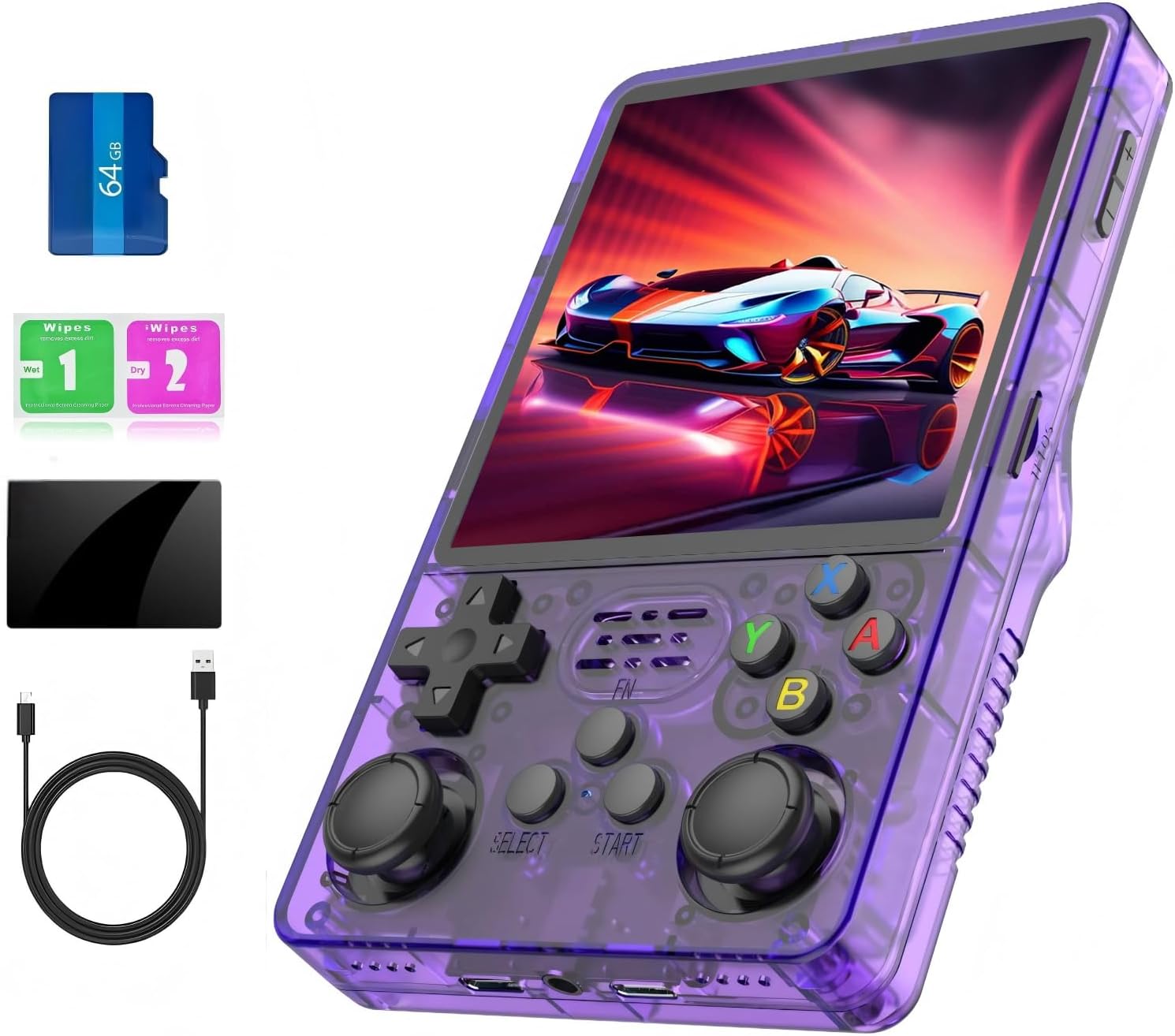
Image: Close-up of the R36Plus screen highlighting its 4.0-inch IPS display and processor details.
10. Warranty & Support
ugtenversi provides customer support for any issues encountered with the R36Plus Retro Handheld Game Console. If you have questions, require technical assistance, or need to report a problem, please contact us through the retailer's platform or the official ugtenversi support channels. Please retain your proof of purchase for warranty claims.