1. Introduction
The YUNZII x MADLIONS MAD68 HE is a high-performance 60% wired mechanical gaming keyboard featuring Hall Effect magnetic switches. Designed for speed and precision, it offers advanced customization options and a durable build for competitive gaming and efficient typing.
Key features include:
- Ultra-Fast Hall Effect Magnetic Switches: Experience rapid 0.125ms latency and an 8K polling rate for instant keystroke registration and 0.02mm accuracy.
- Advanced Rapid Trigger and DKS Technology: Benefit from adjustable actuation points and Dynamic Keystroke (DKS) technology for faster stops, quicker movements, and seamless key combinations.
- Durable Construction: Built with a sturdy metal positioning plate and multi-layer sound foams for enhanced stability and longevity. N-Key Rollover (NKRO) ensures every key press is registered accurately.
- User-Friendly Web Software: Customize Hall Effect settings, remap keys, set macros, and personalize RGB lighting effects via intuitive web-based software compatible with Windows and Mac.
- Compact RGB Design: A 60% layout with 16 million customizable RGB colors and dynamic lighting effects, including directional keys, for a personalized and space-saving setup.
2. Package Contents
Verify that all items are present in the package:
- MAD68 Keyboard x1
- TYPE-C Cable x1
- Keycap Puller x1
- User Manual x1
- Custom Ribbon x1
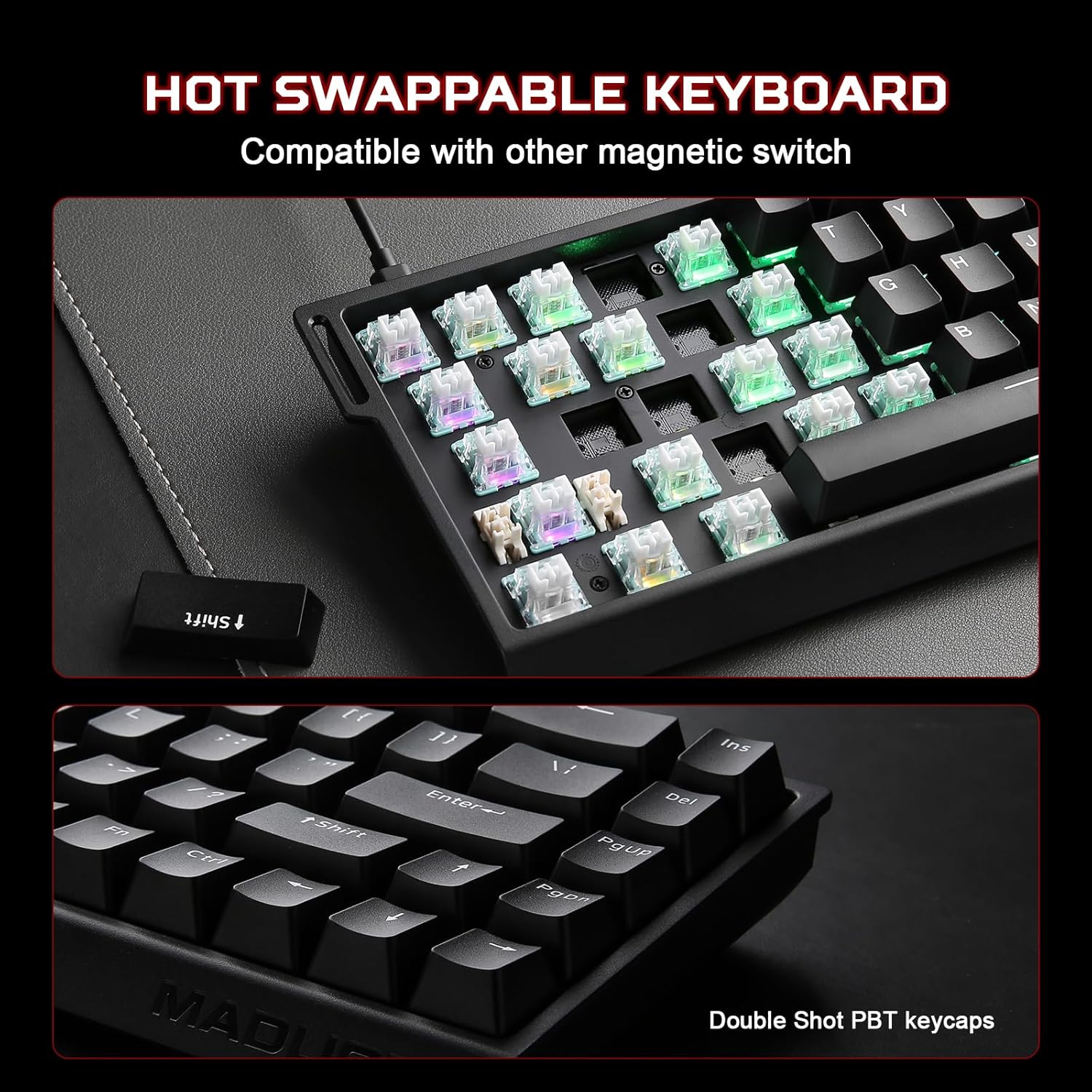
Figure 2.1: Contents of the MAD68 HE package, including the keyboard, USB-C cable, keycap puller, and a custom ribbon.
3. Setup
3.1 Connecting the Keyboard
- Locate the USB-C port on the MAD68 keyboard, typically on the top edge.
- Connect one end of the provided TYPE-C cable to the keyboard.
- Connect the other end of the TYPE-C cable to an available USB port on your computer (PC, Laptop) or compatible device (Smartphone, Tablet).
- The keyboard will automatically power on, and the RGB backlighting will illuminate.

Figure 3.1: The MAD68 HE keyboard connected via its wired Type-C cable, demonstrating compatibility with various devices.
3.2 Initial RGB Backlighting
Upon connection, the keyboard's RGB backlighting will activate with a default effect. You can customize these effects using the FN shortcuts or the web-based software.

Figure 3.2: The MAD68 HE keyboard displaying its full RGB backlighting, illustrating the FN + Tab key combination for controlling the lighting.
4. Operating Instructions
4.1 Basic Key Functions
The MAD68 HE features a 60% layout. Standard alphanumeric keys function as labeled. Access to certain functions and multimedia controls is achieved through the Function (FN) key combinations.
4.2 FN Shortcuts
Utilize the FN key in combination with other keys for various functions:

Figure 4.1: A visual guide to the FN key shortcuts available on the MAD68 HE keyboard for system and media control.
4.3 RGB Lighting Shortcuts
Control the keyboard's RGB lighting effects directly using FN key combinations:

Figure 4.2: RGB lighting control shortcuts using the FN key on the MAD68 HE keyboard.
4.4 Rapid Trigger and Dynamic Keystroke (DKS)
The MAD68 HE features Rapid Trigger technology, allowing keys to activate and deactivate based on movement rather than a fixed actuation point. DKS enables multiple actions per key press based on press depth.

Figure 4.3: Explanation of Rapid Trigger technology, emphasizing precision and speed in gaming.
4.5 Web-Based Software Customization
For advanced customization, access the dedicated web-based software. This software allows you to:
- Adjust Hall Effect settings, including actuation points.
- Remap individual keys.
- Create and assign macros.
- Customize RGB lighting effects and colors.

Figure 4.4: The web-based software interface for customizing the MAD68 HE keyboard.
Video 4.1: An overview of the YUNZII x MADLIONS MAD68 HE keyboard, demonstrating its unboxing, features, and typing sound. This video provides a visual and auditory demonstration of the product in use.
5. Maintenance
5.1 Cleaning the Keyboard
To maintain optimal performance and appearance, regularly clean your keyboard:
- Disconnect the keyboard from your computer.
- Use a soft, lint-free cloth dampened with a small amount of water or a mild cleaning solution to wipe down the keycaps and chassis.
- For dust and debris between keys, use compressed air.
- Avoid spraying liquids directly onto the keyboard.
5.2 Keycap and Switch Replacement (Hot-Swappable)
The MAD68 HE features hot-swappable switches, allowing for easy replacement without soldering. Use the provided keycap puller and switch puller (if included) for this process.
- Gently use the keycap puller to remove the desired keycap.
- If replacing a switch, use a switch puller to carefully extract the switch from the PCB.
- Align the pins of the new switch with the holes on the PCB and press firmly until it clicks into place.
- Place the new keycap onto the switch stem.
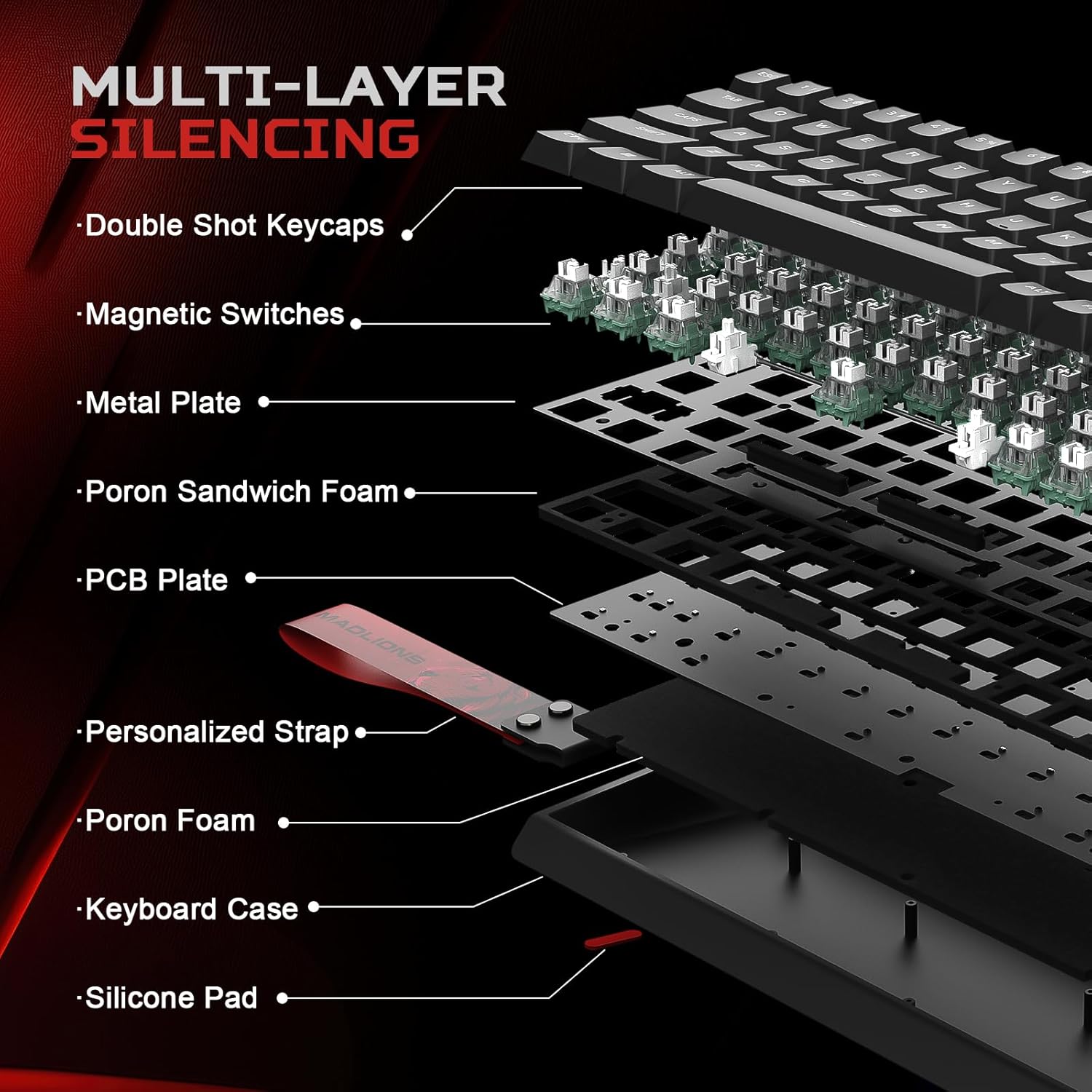
Figure 5.1: The hot-swappable design of the MAD68 HE keyboard, allowing for easy switch and keycap replacement.
6. Troubleshooting
6.1 Keyboard Not Responding
- Ensure the USB-C cable is securely connected to both the keyboard and your computer.
- Try connecting the keyboard to a different USB port on your computer.
- Test the keyboard on another computer to rule out system-specific issues.
- Check if the cable is damaged; try using a different USB-C cable if available.
6.2 RGB Lighting Issues
- Verify that RGB lighting is not turned off using the FN + Tab shortcut.
- Adjust brightness using FN + Q (increase) or FN + A (decrease).
- If using the web software, ensure settings are applied correctly.
6.3 Key Input Errors or Ghosting
- Ensure the N-Key Rollover (NKRO) function is active (if applicable via FN shortcut or software).
- Clean around the affected keys to remove any debris that might be interfering with switch operation.
- If a specific switch is faulty, consider replacing it due to the hot-swappable design.
6.4 Resetting the Keyboard
If you encounter persistent issues, you can perform a factory reset:
- Press and hold FN + ESC + Backspace simultaneously for 5 seconds.
- The keyboard's lighting may flash to indicate a successful reset.
Figure 6.1: Instructions for resetting the MAD68 HE keyboard by holding FN + ESC + Backspace for 5 seconds.
7. Specifications
| Feature | Detail |
|---|---|
| Model Number | MAD68 |
| Product Dimensions | 12.6 x 4.57 x 1.46 inches |
| Item Weight | 0.029 ounces |
| Manufacturer | YUNZII |
| Connectivity Technology | USB-C |
| Keyboard Description | Mechanical |
| Special Feature | Backlit, Customizable Display Keys, Ergonomic, Hot-Swappable |
| Color | Black |
| Keyboard Backlighting | RGB (16.8 million colors) |
| Material | Plastic |
| Polling Rate | 8K Hz |
| Switch Type | Hall Effect Magnetic (Amber Pro Switch) |
| Actuation Point | Adjustable (0.1-3.8mm) |
| Latency | 0.125ms |
8. Warranty and Support
8.1 Product Warranty
YUNZII products are covered by a limited warranty against manufacturing defects. Please refer to the official YUNZII website or your purchase documentation for specific warranty terms and conditions.
8.2 Customer Support
For technical assistance, troubleshooting, or warranty claims, please contact YUNZII customer support. You can typically find contact information on the official YUNZII website or through the retailer where you purchased the product.
If you purchased through Amazon, you can reach us directly:
- Visit the YUNZII product page on Amazon.
- Select the seller's name, "Yunzii Keyboard".
- Click "Ask a question" to send a message.
Alternatively, after placing an order, go to your orders, select "Problem with order", and send us a message.

Figure 8.1: Guide on how to contact YUNZII customer support through Amazon.


