1. Introduction
The MAMBASNAKE X60 HE is a high-performance 60% rapid trigger wireless gaming keyboard designed for precision and speed. Featuring Hall Effect magnetic switches, adjustable actuation points, and multi-mode connectivity, it offers a customizable and responsive experience for both gaming and general use.
This manual provides detailed instructions for setting up, operating, and maintaining your keyboard to ensure optimal performance.
2. Package Contents
Verify that all items are present in your package:
- 1x X60 HE Keyboard
- 1x USB-C Cable
- 1x 2-in-1 Keycap and Switch Puller
- 1x Pennant
- 1x USB Receiver (2.4G)
- 2x User Manual

3. Key Features
- Hall Effect Magnetic Switches: Advanced adjustable magnetic switches for ultra-high precision and durability.
- Adjustable Actuation: Customize key actuation points from 0.1mm to 3.2mm.
- Rapid Trigger Functionality: Dynamic key response for instant key activation and deactivation.
- Ultra-Low Latency: 0.1ms response time with an 8000Hz polling rate and 128K scanning sample rate.
- Tri-Mode Connectivity: Supports wired (USB-C), Bluetooth, and 2.4G wireless connections.
- 60% Compact Layout: 61-key design for portability and ergonomic comfort.
- PBT Keycaps: Durable side-printed PBT keycaps.
- RGB Backlighting: 16.8 million colors with customizable effects.
- Custom Software: Self-developed software for macros, lighting, and advanced key functions (DKS, Mod-Tap, Toggle, Snap Key).
- 4000mAh Battery: High-capacity battery for extended wireless use.

4. Setup
4.1 Connectivity Modes
The X60 HE keyboard supports three connection modes:
- Wired Mode (USB-C): Connect the keyboard directly to your device using the provided USB-C cable. This mode supports an 8000Hz polling rate for the fastest response.
- 2.4G Wireless Mode: Insert the 2.4G USB receiver into your device. The keyboard will automatically connect.
- Bluetooth Mode: The keyboard can connect to up to three Bluetooth devices.

4.2 Charging
The keyboard features a 4000mAh high-capacity battery. Connect the USB-C cable to the keyboard and a power source (e.g., computer USB port, wall adapter) to charge. You can check the battery level by pressing FN + Ctrl.

5. Operating Instructions
5.1 Basic Key Functions (61-Key Layout)
Due to the compact 61-key layout, many functions are accessed via the FN key in combination with other keys. Refer to the user manual for a complete list of FN key combinations.
5.2 RGB Backlighting Control
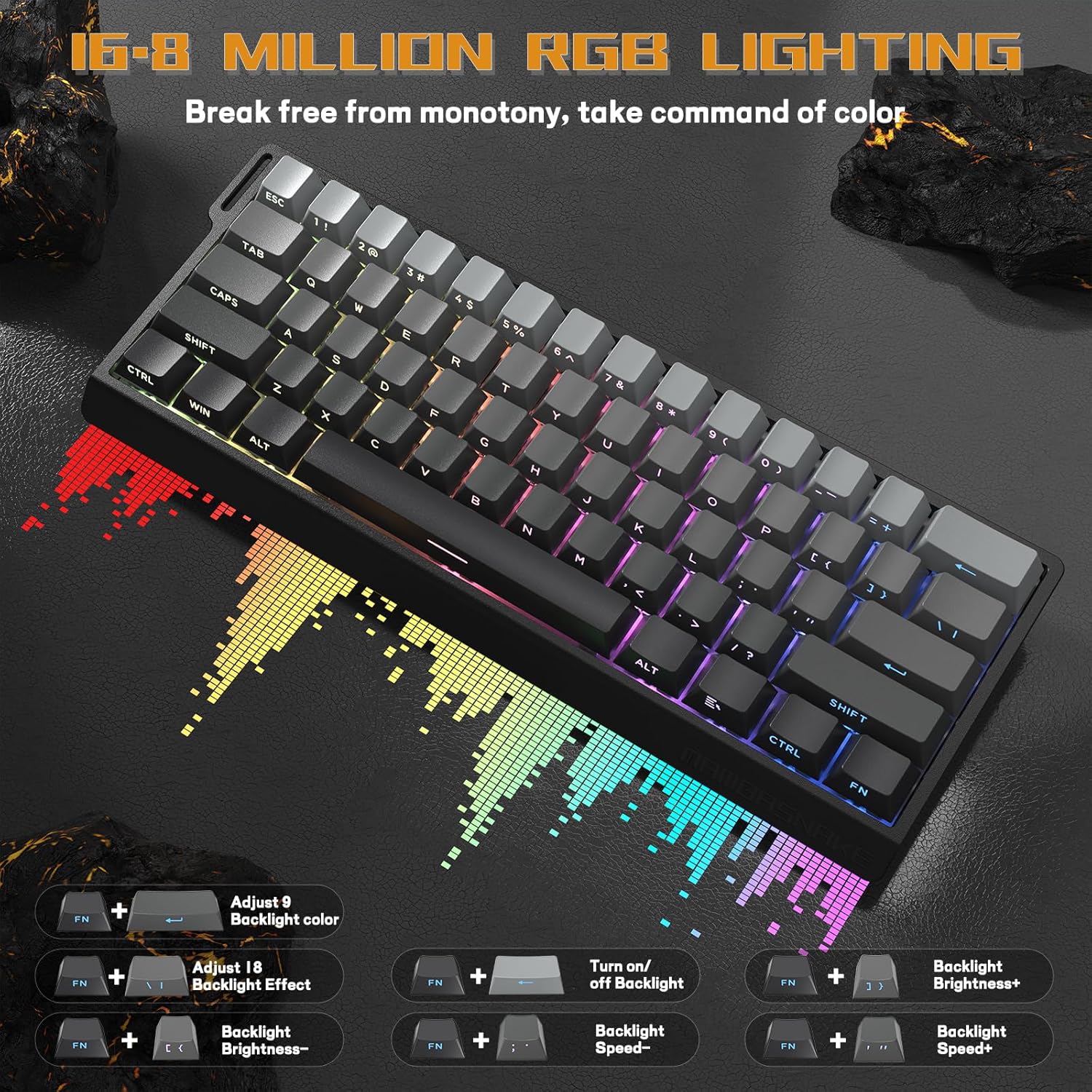
The X60 HE features 16.8 million RGB backlighting colors and various effects. Use the following FN key combinations to control the lighting:
- FN + \|: Adjust 18 backlight effects.
- FN + Enter: Adjust 9 backlight colors.
- FN + Backspace: Turn on/off backlight.
- FN + ↑: Backlight Brightness +.
- FN + ↓: Backlight Brightness -.
- FN + →: Backlight Speed +.
- FN + ←: Backlight Speed -.
5.3 Software Customization
The X60 HE features custom-developed software for advanced customization. This software allows you to:
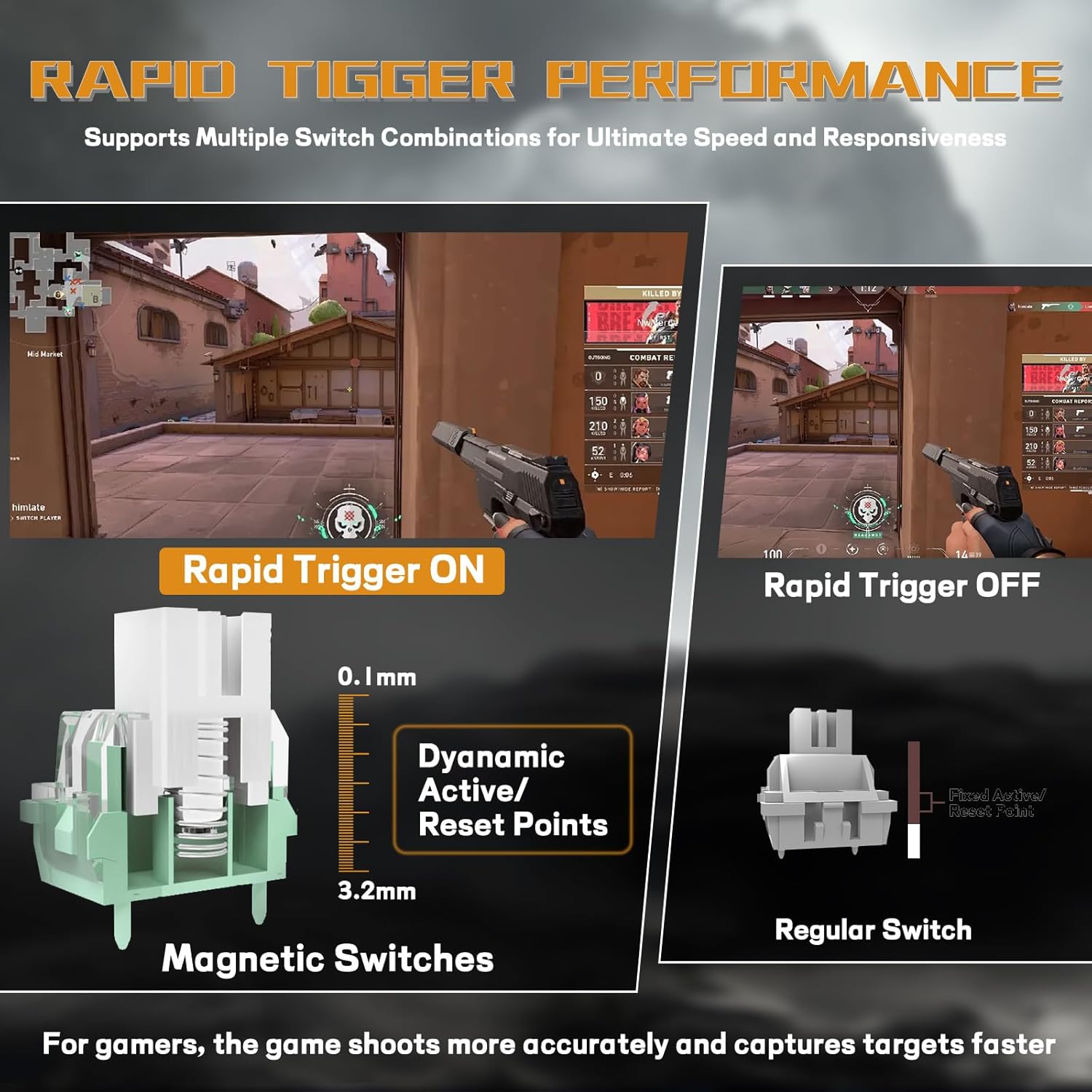
- Adjust Actuation Point: Fine-tune the key actuation distance from 0.1mm to 3.2mm for each switch.
- Rapid Trigger: Enable or disable rapid trigger functionality and adjust its sensitivity.
- Dynamic Key Response (DKS): Assign multiple actions to a single key based on press depth.
- Mod-Tap (MT), Toggle (TGL), Snap Key: Utilize advanced key functions for enhanced control.
- Macros: Create and assign custom macros to keys.
- Lighting Effects: Customize RGB lighting patterns and colors per key.
Access the software via the provided web driver link in your user manual or product documentation.
6. Maintenance
6.1 Cleaning
Regularly clean your keyboard to prevent dust and debris buildup. Use a soft brush or compressed air to remove particles between keycaps. For stubborn dirt, gently wipe the keycaps with a damp cloth and mild soap, ensuring no liquid enters the switches or internal components.
6.2 Keycap and Switch Removal
The X60 HE features hot-swappable magnetic switches. Use the included 2-in-1 keycap and switch puller to carefully remove keycaps and switches for cleaning or replacement. Ensure proper alignment when reinserting switches to avoid damage.

7. Troubleshooting
- Keyboard not responding: Ensure the keyboard is charged and properly connected (wired, 2.4G receiver, or Bluetooth). Try restarting your device.
- 2.4G Wireless connection issues: Ensure the USB receiver is securely plugged in and the keyboard is in 2.4G mode. Try moving the receiver to a different USB port.
- Bluetooth pairing issues: Ensure the keyboard is in Bluetooth pairing mode and visible to your device. Remove previous pairings on your device and try again.
- RGB lighting not working: Check FN key combinations for turning on/off or adjusting brightness/effects. Ensure the software is not overriding settings.
- Software not detecting keyboard: Ensure the keyboard is connected via wired mode when using the software. Update the software to the latest version.
- Keys not registering or double-typing: This may indicate an issue with the switch actuation point. Adjust the actuation point in the software. If the issue persists, consider replacing the switch.
8. Specifications
| Feature | Detail |
|---|---|
| Model | X60 HE |
| Switches | Hall Effect Magnetic Switches |
| Actuation Point | Adjustable 0.1mm - 3.2mm |
| Polling Rate | 8000Hz (Wired) |
| Latency | 0.1ms |
| Connectivity | USB Type-C (Wired), Bluetooth, 2.4G Wireless |
| Layout | 60% (61-key) |
| Keycaps | PBT (Side-printed) |
| Backlighting | 16.8 Million Color RGB |
| Battery Capacity | 4000mAh |
| Compatible Devices | Laptop, PC, Tablet (Win/Mac) |
| Item Weight | 2.01 pounds |
| Package Dimensions | 13.07 x 6.57 x 2.13 inches |
9. Official Product Videos
MAMBASNAKE X60 HE RT Mechanical Gaming Keyboard Overview
Video: A concise overview of the MAMBASNAKE X60 HE Rapid Trigger Mechanical Gaming Keyboard, highlighting its features and design.
X60 HE Rapid Trigger Wireless Gaming Keyboard Product Video
Video: An official product video showcasing the MAMBASNAKE X60 HE's rapid trigger capabilities, magnetic switches, and overall gaming performance.
10. Warranty and Support
For warranty information, technical support, or any product-related inquiries, please refer to the contact details provided in your product packaging or visit the official MAMBASNAKE website. Keep your proof of purchase for warranty claims.