
Introduction
The MAMBASNAKE X60 HE is a high-performance 60% mechanical gaming keyboard featuring advanced magnetic switches, adjustable actuation points, and rapid trigger technology. It offers versatile connectivity options including wired, 2.4GHz wireless, and Bluetooth, making it suitable for various computing environments. This manual provides detailed instructions for setting up, operating, maintaining, and troubleshooting your keyboard.

Image: The MAMBASNAKE X60 HE Magnetic Switch Keyboard in Star White.
Package Contents
Please verify that all items are present in your package:
- MAMBASNAKE X60 HE Magnetic Switch Keyboard
- USB-C Cable
- Keycap Puller
- 2.4GHz Wireless Dongle (may be stored in the keyboard's base)
- User Manual (this document)
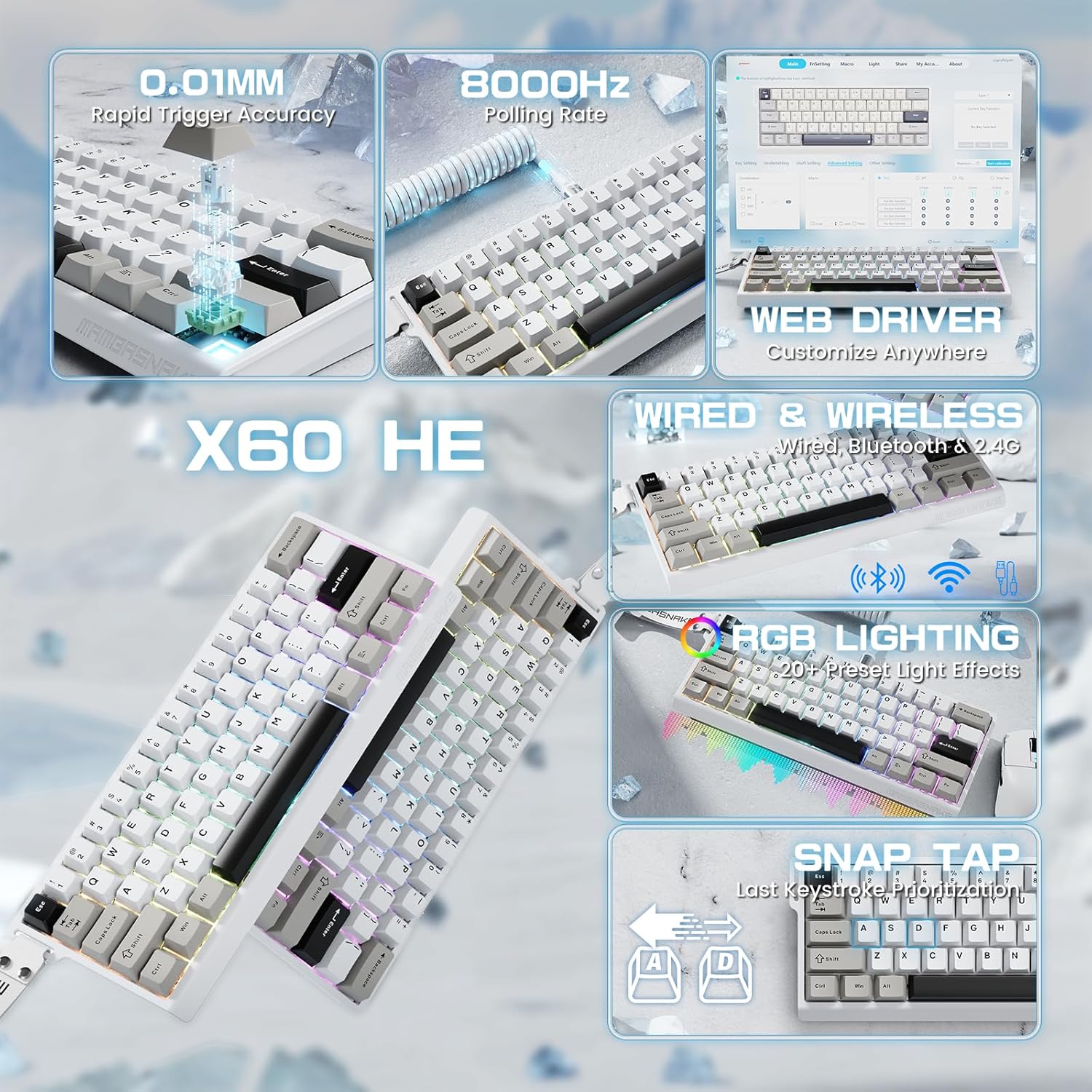
Image: The MAMBASNAKE X60 HE keyboard shown with its USB-C cable and keycap puller.
Setup
1. Wired Connection
- Locate the USB-C port on the keyboard.
- Connect the provided USB-C cable to the keyboard and the other end to an available USB port on your computer.
- The keyboard will be automatically recognized by your operating system. In wired mode, the keyboard operates at an 8000Hz polling rate for ultra-low latency.

Image: The MAMBASNAKE X60 HE keyboard connected to a computer via its coiled USB-C cable, highlighting the wired connection.
2. 2.4GHz Wireless Connection
- Locate the 2.4GHz wireless dongle, typically stored in a compartment on the keyboard's underside.
- Plug the 2.4GHz dongle into an available USB port on your computer.
- On the back of the keyboard, switch the connectivity mode to 2.4G. The keyboard should automatically connect.
3. Bluetooth Connection
- On the back of the keyboard, switch the connectivity mode to Bluetooth.
- The keyboard will enter pairing mode (indicated by a flashing LED).
- On your device (PC, laptop, tablet), navigate to Bluetooth settings and search for new devices.
- Select "MAMBASNAKE X60 HE" from the list of available devices to pair.

Image: The MAMBASNAKE X60 HE keyboard highlighting its tri-mode connectivity, including 2.4GHz wireless and Bluetooth options, powered by a 4000mAh battery.
Operating Instructions
Adjustable Actuation and Rapid Trigger
The MAMBASNAKE X60 HE features magnetic switches that allow for adjustable actuation points from 0.1mm to 3.2mm. This enables you to customize the sensitivity of each keypress. The Rapid Trigger function allows keys to reset instantly upon release, providing faster repeated inputs, which is beneficial for competitive gaming.
- Actuation Point Adjustment: Use the customization software (Web Driver) to set the desired actuation depth for individual keys.
- Rapid Trigger: This feature is enabled and configured through the customization software, allowing for dynamic key reset based on your settings.

Image: A diagram illustrating the adjustable actuation point of the magnetic switches, ranging from 0.1mm to 3.4mm, and highlighting the 100 million click lifespan.

Image: An illustration explaining the Rapid Trigger (RT) function, demonstrating its benefit in various gaming scenarios for quick and precise inputs.
RGB Lighting Control
The keyboard features customizable RGB backlighting with 16.8 million colors and over 20 preset lighting effects. You can adjust these settings using the keyboard's function keys or the customization software.
- FN + \|: Cycle through different lighting modes.
- FN + Enter: Adjust backlight color.
- FN + Backspace: Turn backlight On/Off.
- FN + [: Increase backlight brightness.
- FN + ]: Decrease backlight brightness.
- FN + ;: Increase backlight speed.
- FN + ': Decrease backlight speed.

Image: The MAMBASNAKE X60 HE keyboard showcasing its full RGB light effects and the function key combinations for adjusting brightness, speed, and light modes.
Customization Software (Web Driver)
The MAMBASNAKE X60 HE utilizes cloud-based software for comprehensive customization. This software allows you to:
- Create and manage macros.
- Customize RGB lighting effects and profiles.
- Remap key functions.
- Adjust actuation points and rapid trigger settings.
The software is accessible via both PC and web, allowing you to save and transfer settings across multiple devices. Refer to the official MAMBASNAKE website for software download and detailed instructions.
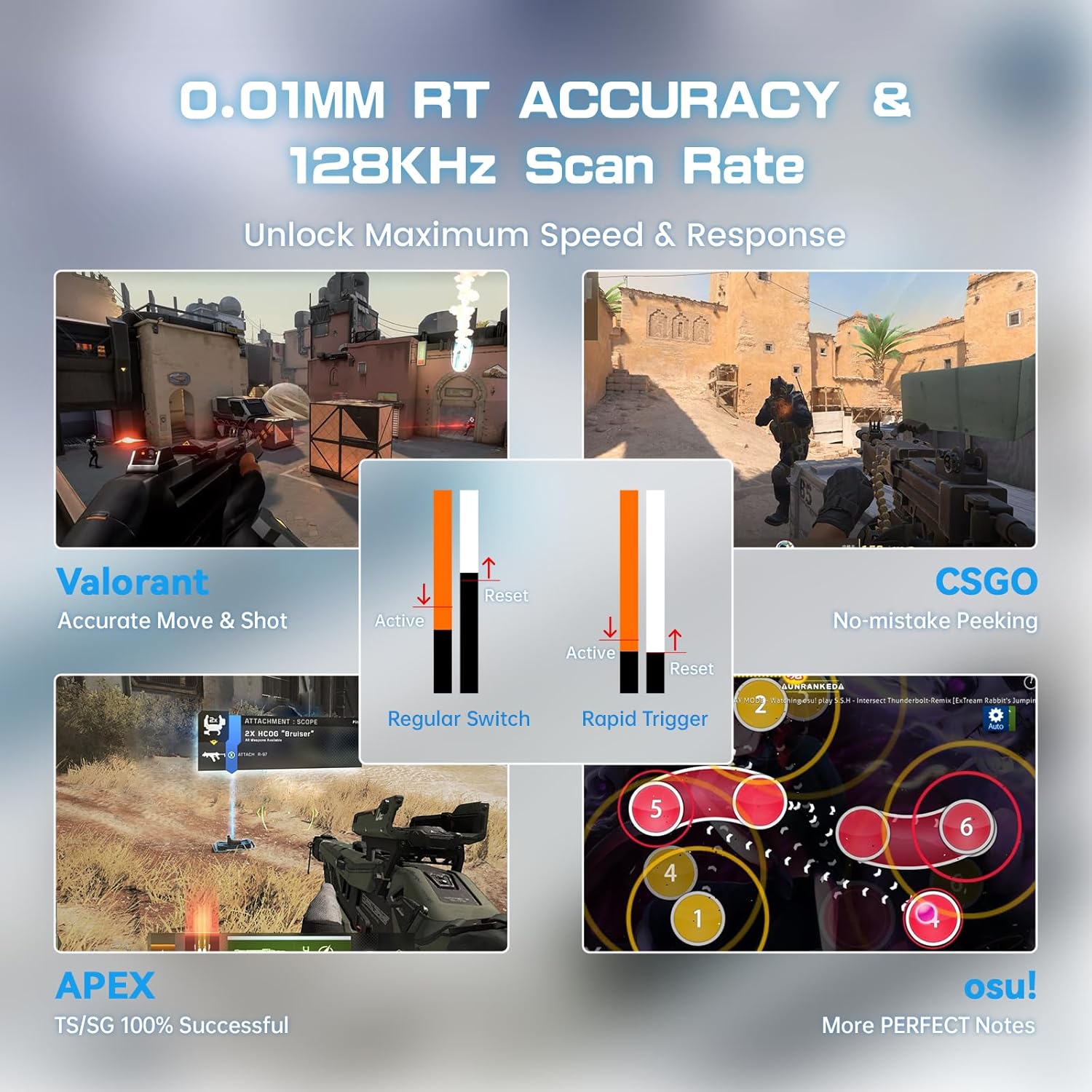
Image: A screenshot of the MAMBASNAKE X60 HE customization software interface, demonstrating options for key remapping, actuation adjustment, and other advanced settings.
Hot-Swappable Switches
The keyboard features a hot-swappable design, allowing you to change switches without soldering. This provides flexibility to customize your typing and gaming experience with different switch types.
- Use the provided keycap puller to carefully remove the desired keycap.
- Use a switch puller (not included, but often comes with replacement switches) to gently remove the switch from the PCB.
- Align the pins of the new switch with the holes on the PCB and press firmly until it clicks into place.
- Replace the keycap.
Ensure the new switches are compatible with the keyboard's magnetic switch sockets.

Image: An exploded view diagram of the MAMBASNAKE X60 HE, showing its internal components such as PBT keycaps, Attack Shark Magnetic Switches, aluminum alloy plate, PORON foam, PCB, and battery.
Battery Management
The keyboard is equipped with a 4000mAh battery for extended wireless usage. To charge the keyboard, connect it via the USB-C cable to a powered USB port. The LED indicator will show charging status and full charge.
Maintenance
- Cleaning: Use a soft, dry cloth to wipe the keyboard surface. For deeper cleaning, remove keycaps using the provided keycap puller and use compressed air to clear debris from between switches.
- Avoid Liquids: Do not expose the keyboard to liquids. If liquid spills occur, immediately disconnect the keyboard and allow it to dry completely before reconnecting.
- Storage: Store the keyboard in a cool, dry place away from direct sunlight and extreme temperatures.
Troubleshooting
| Issue | Possible Solution |
|---|---|
| Keyboard not responding (Wired) | Ensure the USB-C cable is securely connected to both the keyboard and the computer. Try a different USB port or cable. |
| Keyboard not responding (Wireless) | Check if the keyboard is in the correct mode (2.4G or Bluetooth). For 2.4G, ensure the dongle is plugged in. For Bluetooth, ensure it's paired and your device's Bluetooth is on. Recharge the keyboard if the battery is low. |
| RGB lighting not working | Ensure the backlight is turned on (FN + Backspace). Adjust brightness (FN + [ / ]). Check settings in the customization software. |
| Keys not registering or double-typing | This could indicate an issue with the switch or actuation settings. Check actuation settings in the customization software. If a specific switch is faulty, consider hot-swapping it. |
| Connectivity issues (R key flashing green) | The R key flashing green indicates the keyboard has moved out of range in 2.4GHz or Bluetooth mode. Move the keyboard closer to the receiver/device or switch to wired mode. |
Specifications
| Feature | Detail |
|---|---|
| Model | X60 HE |
| Switch Type | Magnetic Switches (Hot-Swappable) |
| Actuation Range | 0.1mm - 3.2mm (Adjustable) |
| Polling Rate | 8000Hz (Wired), 1000Hz (Wireless) |
| Scan Rate | 128,000Hz |
| Connectivity | Wired (USB-C), 2.4GHz Wireless, Bluetooth |
| Battery Capacity | 4000mAh |
| RGB Lighting | 16.8 Million Colors, Multiple Effects |
| Dimensions (L x W x H) | 12.8 x 4.53 x 1.57 inches |
| Weight | 2.14 pounds |
| Compatible Devices | Laptop, PC, Tablet |

Image: An overview of the MAMBASNAKE X60 HE keyboard highlighting key specifications such as 128K scanning sample rate, 8000Hz polling rate, 4000mAh battery, and 0.1-3.2mm adjustable accuracy.
Warranty and Support
For warranty information, technical support, or further assistance, please refer to the official MAMBASNAKE website or contact their customer service directly. Keep your purchase receipt for warranty claims.
Product Video Overview
Video: An overview of the MAMBASNAKE X60 HE Magnetic Switch Keyboard, demonstrating its features and functionality.