
Introduction
This manual provides detailed instructions for the ALLIMITY replacement remote control, designed for various LG LCD and LED television models. Please read this manual carefully to ensure proper use and to maximize the lifespan of your remote control.
Product Overview
The ALLIMITY replacement remote control is a direct substitute for original LG remote models AKB72915244 and AKB72915246. It requires no programming and is ready to use with compatible LG TVs simply by inserting batteries.

Front view of the ALLIMITY replacement remote control, showcasing its ergonomic design and button layout. Key buttons include power, input, number pad, channel and volume controls, navigation pad, and special function buttons.
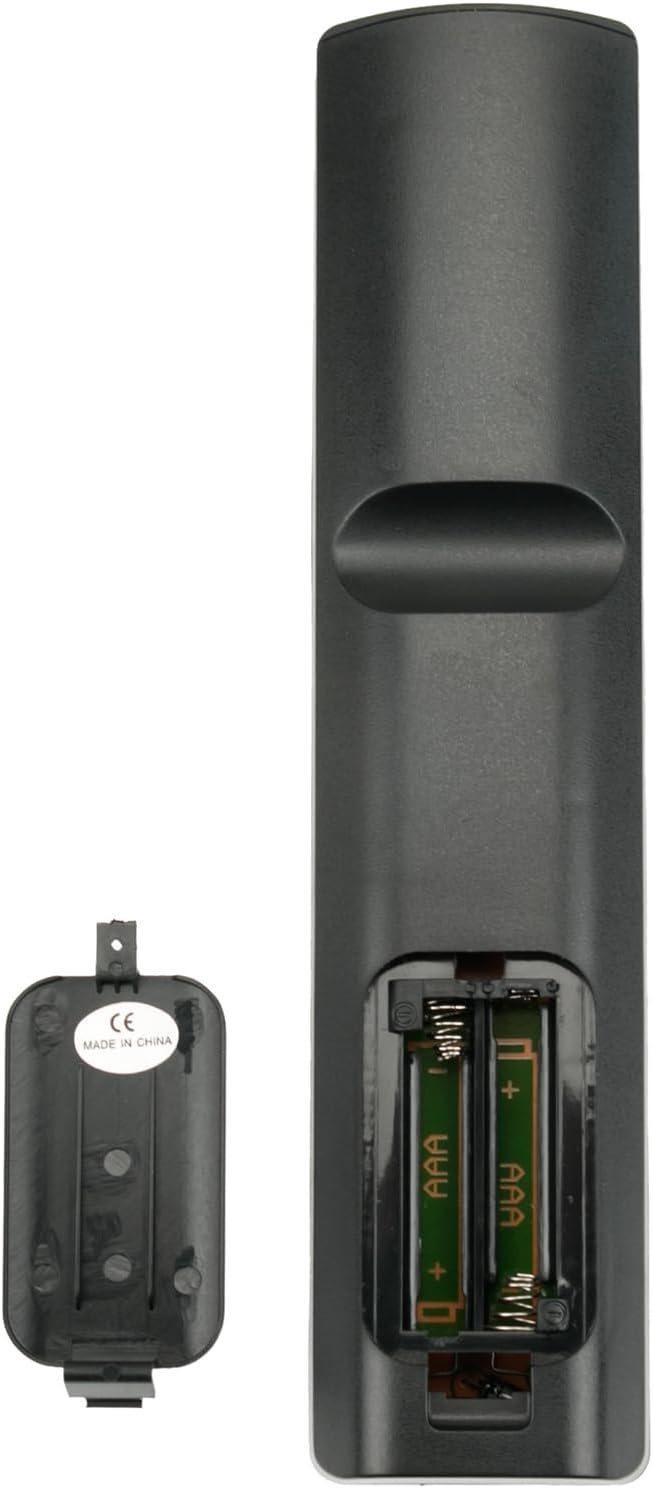
Rear view of the remote control with the battery compartment cover removed, illustrating the correct orientation for inserting two AAA batteries. This view highlights the simplicity of battery installation.
Setup
Battery Installation
- Locate the battery compartment on the back of the remote control.
- Press down on the tab and slide the battery cover off.
- Insert two (2) 1.5V AAA batteries, ensuring the positive (+) and negative (-) terminals align with the markings inside the compartment. Refer to the image in the 'Product Overview' section for guidance.
- Slide the battery cover back into place until it clicks securely.
No additional setup or programming is required. The remote control is ready for use once batteries are installed.
Operating Instructions
Basic Functions
This replacement remote control provides all essential functions of the original LG remote. Simply point the remote control towards your LG TV and press the desired button.
- Power Button (●): Turns the TV on or off.
- Input Button: Selects video input sources (HDMI, AV, Component, etc.).
- Number Pad (0-9): Directly enters channel numbers.
- Volume Up/Down (+/-): Adjusts the TV volume.
- Channel Up/Down (▲/▼): Changes TV channels.
- Mute Button: Mutes or unmutes the TV audio.
- Navigation Pad (Up, Down, Left, Right, OK): Navigates through menus and confirms selections.
- Back Button: Returns to the previous menu or screen.
- Exit Button: Exits the current menu.
- Guide Button: Displays the TV program guide.
- Q.MENU Button: Accesses the Quick Menu for common settings.
- INFO Button: Displays information about the current program or input.
- TEXT Button: Activates Teletext (if supported by TV).
- T.OPT Button: Accesses Teletext options.
- SUBTITLE Button: Toggles subtitles on/off.
- AD Button: Activates Audio Description (if supported by TV).
- Colored Buttons (Red, Green, Yellow, Blue): Functionality varies by TV model and application.
Compatible Models
This remote control is compatible with a wide range of LG LCD and LED TV models, including but not limited to:
- AKB72915244, AKB72915246
- 19LV2500, 42LK520, 32LV3520, 26LE5500, 42LE5500, 19LV2520, 55LE8500
- 42LE7300, 55LE5500, 47LE7300, 55LE7300, 50PT350, 42PJ350, 50PJ340, 50PJ350
- 32LD450, 37LD450, 42LD450, 47LD450, 32LD520, 42LD630, 47LD630, 47LD520, 55LD630
- 32LV3500, 47LV3500, 55LD520, 26LD350, 37LD450C, 32LD550, 42LD520, 42LD550
- 46LD550, 46LD550UB, 47LD650, 47LD450C, 47LD650UA, 52LD550, 55LD650, 55LD650UA, 60LD550
- 19LE5300, 22LE5300, 26LE5300, 22LE5500, 32LE5300, 37LE5300, 42LE5300, 47LE5300, 55LE5300
- 42LE5350, 50PJ350UB, 32LK430, 22LV2500, 37LV3500, 26LV2500, 42LV3500, 32LV2500, 55LV3500
- 22LV2520, 26LV2520, 42LV3520, 26LK330, 32LK450, 32LK330, 37LK450, 42LK450, 42LK430
- 47LK450, 47LK520, 55LK520, 42PW340, 42PJ350UB, 42PW350U, 50PW340, 55LD520C
- 32LD550UB, 42PJ350C, 50PW350U, 42PW350, 42PW350R, 50PW350, 50PW350R, 50PZ200, 60PZ200
- 32LD420, 42LD420, 47LD420, 42LD450C, 50PJ350C, 42LE7300UA, 52LD550UB, 50PJ340UC
- 42PJ350CUB, 50PJ350CUB, 42LD550UB
Maintenance
Battery Replacement
Replace batteries when the remote control's response becomes sluggish or stops working. Always replace both batteries at the same time with new 1.5V AAA alkaline batteries. Do not mix old and new batteries, or different types of batteries.
Cleaning
To clean the remote control, gently wipe its surface with a soft, dry cloth. For stubborn dirt, slightly dampen the cloth with water or a mild, non-abrasive cleaner. Avoid using harsh chemicals or excessive moisture, as this can damage the remote's electronics.
Troubleshooting
- Remote Control Not Responding
- Check if the batteries are inserted correctly with the correct polarity (+/-). Replace old batteries with new 1.5V AAA alkaline batteries. Ensure there are no obstructions between the remote control and the TV's infrared receiver. Point the remote directly at the TV.
- Some Buttons Not Working
- Verify that your TV model is listed in the 'Compatible Models' section. While this remote is broadly compatible, specific advanced functions might vary slightly depending on the exact TV model. Ensure the remote is clean and free of debris that might obstruct button presses.
Specifications
| Feature | Detail |
|---|---|
| Product Dimensions | 5 x 1.38 x 0.72 inches |
| Item Weight | 1.59 ounces |
| Item model number | CV-AKB72915244-SH |
| Manufacturer | ALLIMITY |
| Brand | ALLIMITY |
| Special Feature | wireless |
| Color | Black |
| Max Number of Supported Devices | 1 |
| Compatible Devices | Television |
| Power Supply | 2 x 1.5V AAA batteries (not included) |
Warranty and Support
As a replacement remote control, specific warranty terms may vary. Please refer to the seller's return policy or contact the seller directly for information regarding warranty coverage and support for this product. For general troubleshooting, please consult the 'Troubleshooting' section of this manual.
For further assistance, you may contact the seller: Shenzhen shunyijia e-commerce Co., Ltd.


