
Introduction
This manual provides essential information for setting up, operating, and maintaining your Microsoft Surface Laptop (2025). It covers key features, specifications, and guidance to ensure optimal performance and user experience. Please read this manual thoroughly before using your device.
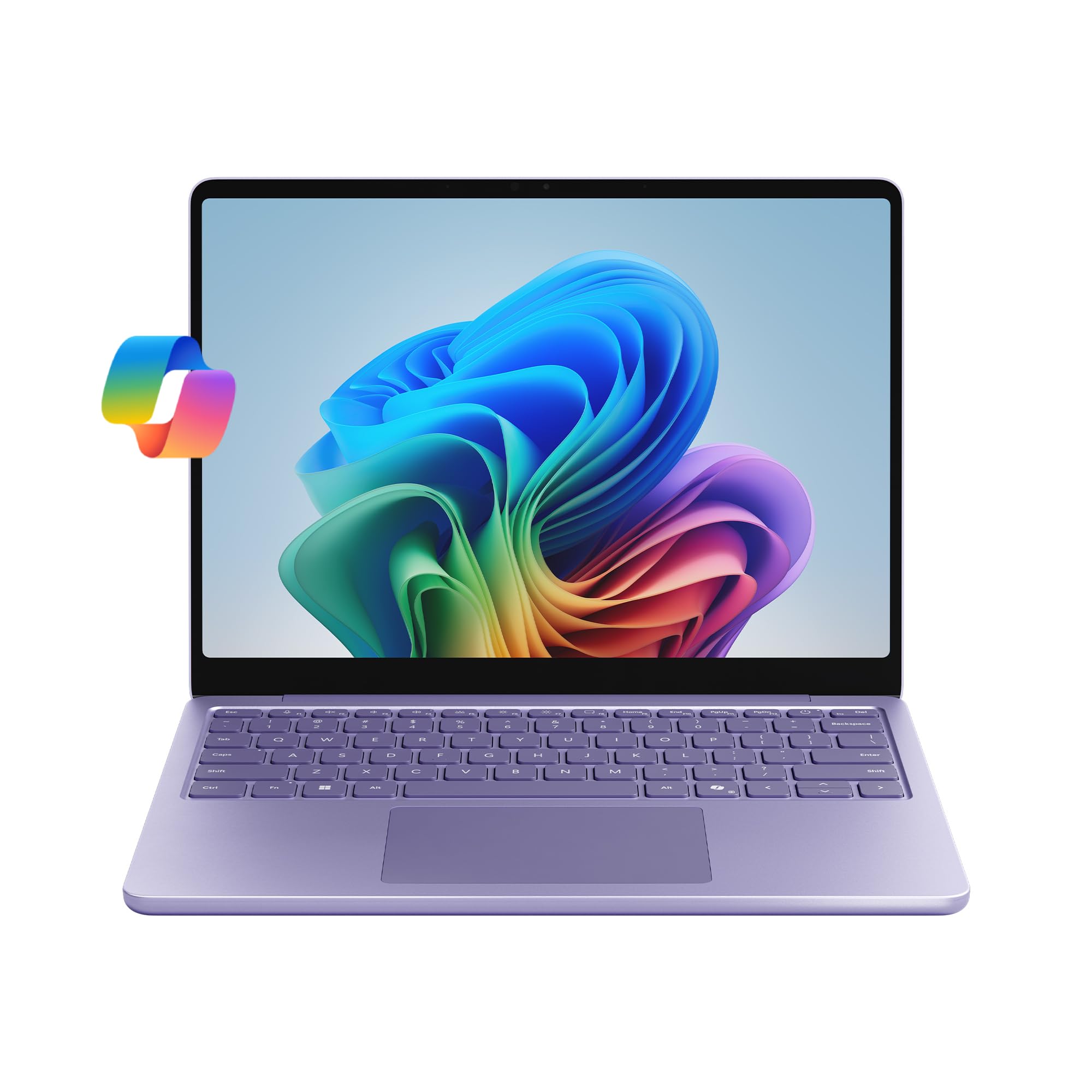
Image: Rear view of the Microsoft Surface Laptop (2025) in Violet, showcasing its sleek design and the Microsoft logo.
What's in the Box
Upon unboxing your Microsoft Surface Laptop (2025), verify that all components are present:
- Surface Device
- Power Supply
- USB-C Cable

Image: Illustration of the items included in the product packaging: Surface Laptop 13-inch, USB-C Charging Cable, 45W USB-C Wall Charger, Quick Start Guide, and Safety/Warranty documents.
Setup
- Initial Power On: Open the laptop lid. The device should power on automatically. If not, press the power button located on the keyboard.
- Connect Power: Connect the provided USB-C cable to the laptop's USB-C port and the power supply. Plug the power supply into a wall outlet.
- Windows Setup: Follow the on-screen instructions to complete the Windows 11 Home setup. This includes selecting your region, language, connecting to a Wi-Fi network, and signing in with or creating a Microsoft account.
- Updates: After initial setup, ensure your device is connected to the internet and check for any available Windows updates to ensure optimal performance and security.

Image: The Microsoft Surface Laptop (2025) open and ready for use, showing the Windows 11 interface.
Operating Instructions
Display and Interaction
The Surface Laptop features a 13-inch PixelSense touchscreen display with a resolution of 1920 x 1280 pixels. This display supports touch input for intuitive navigation and interaction with Windows 11.

Image: The laptop screen showing a video, highlighting the vibrant display quality.
Performance and AI Capabilities
Powered by the Snapdragon X Plus (8-core) processor and an integrated Adreno GPU, the Surface Laptop (2025) is designed for responsive performance across various tasks. It includes built-in AI tools as a Copilot+ PC, enhancing productivity and creativity.

Image: The laptop screen showing the Copilot AI interface, demonstrating its functionality for speeding up tasks and providing personalized answers.
Copilot in Windows 11 assists with tasks such as content rewriting, quick answers, and brainstorming. Features like Recall and Windows Search are enhanced by AI to help you find information faster and more efficiently.
Battery Life
The device offers up to 23 hours of battery life for local video playback. Actual battery life varies based on usage, network conditions, and settings.

Image: The laptop screen showing a document, emphasizing its extended battery life for all-day use.
Ports and Connectivity
The Surface Laptop (2025) includes two USB-C 3.2 ports for charging, data transfer, and connecting peripherals. Wireless connectivity is supported via 802.11.be, 802.11a/b/g/n/ac, and 802.11ax standards.

Image: Detail of the laptop's side, showing the two USB-C 3.2 ports for versatile connectivity.
Official Product Videos
Microsoft Surface Laptop 2025 - Daily Routine
Video: This video demonstrates a typical daily routine using the Microsoft Surface Laptop (2025), highlighting its portability, performance for work and study, and entertainment capabilities.
Recall (Preview) - Find What You Forgot, Instantly
Video: A preview of the Recall feature, showcasing how it allows users to instantly find previously viewed content on their PC, enhancing productivity and information retrieval.
Windows Search: Search That Feels Like Magic
Video: This video illustrates the improved Windows Search functionality, demonstrating its speed and accuracy in finding files, applications, and information across the device.
Maintenance
- Cleaning the Display: Use a soft, lint-free cloth slightly dampened with water or a screen cleaner specifically designed for electronics. Avoid harsh chemicals.
- Cleaning the Keyboard and Chassis: Use a soft, dry cloth. For stubborn dirt, a slightly damp cloth can be used, ensuring no liquid enters the device.
- Software Updates: Regularly check for and install Windows updates and driver updates to maintain system stability, security, and performance.
- Battery Care: To prolong battery life, avoid extreme temperatures and do not leave the device fully charged or fully discharged for extended periods.
- Storage Management: Periodically review and delete unnecessary files to free up storage space and improve system responsiveness.
Troubleshooting
- Device Not Powering On: Ensure the device is charged. Connect the power supply and wait a few minutes before attempting to power on again.
- Slow Performance: Close unnecessary applications, check for background processes, and ensure sufficient free storage space. Restarting the device can often resolve temporary slowdowns.
- Wi-Fi Connectivity Issues: Verify that Wi-Fi is enabled and you are connected to the correct network. Restart your router and the laptop.
- Printer Connection Issues: Ensure your printer drivers are up to date and compatible with Windows 11. Try reinstalling the printer. Some older printers or specific network configurations may require additional setup or may not be fully compatible.
- Touchscreen Unresponsive: Restart the device. If the issue persists, check for display driver updates.
Specifications

Image: Visual summary of key technical specifications for the Surface Laptop (2025).
| Feature | Detail |
|---|---|
| Model Name | Surface Laptop |
| Item Model Number | EP2-33426 |
| Screen Size | 13 Inches |
| Screen Resolution | 1920 x 1280 pixels |
| Processor | Snapdragon X Plus (8 core) @ 3.4 GHz |
| RAM | 16 GB LPDDR5x |
| Hard Drive | 512 GB SSD |
| Graphics Coprocessor | Adreno (Integrated) |
| Operating System | Windows 11 Home |
| Wireless Type | 802.11.be, 802.11a/b/g/n/ac, 802.11ax |
| USB Ports | 2 x USB 3.0 Ports (USB-C 3.2) |
| Average Battery Life | Up to 23 Hours |
| Item Weight | 5.13 pounds |
| Product Dimensions | 12.01 x 9.22 x 2.35 inches |
| Color | Violet |
Warranty and Support
Your Microsoft Surface Laptop (2025) comes with a standard manufacturer's warranty. For detailed information regarding warranty coverage, terms, and conditions, please refer to the Safety / Warranty documents included in your product box or visit the official Microsoft support website.
Protection Plans
Extended protection plans are available for purchase to provide additional coverage beyond the standard warranty:
- 2-Year Protection Plan: Provides coverage for 24 months.
- 4-Year Protection Plan: Provides coverage for 48 months.
- Complete Protect: A monthly plan covering eligible past and future purchases.
For technical assistance, troubleshooting, or service requests, please contact Microsoft Support through their official channels. Online resources, FAQs, and community forums are also available for self-help.


