
Introduction
This manual provides essential information for the proper setup, operation, and maintenance of your Havit H2042d Wired Stereo Gaming Headset. Please read these instructions carefully before using the product to ensure optimal performance and longevity.
Product Overview
The Havit H2042d is a wired stereo gaming headset designed for an immersive audio experience. It features a comfortable over-ear design, a flexible microphone, and RGB lighting.
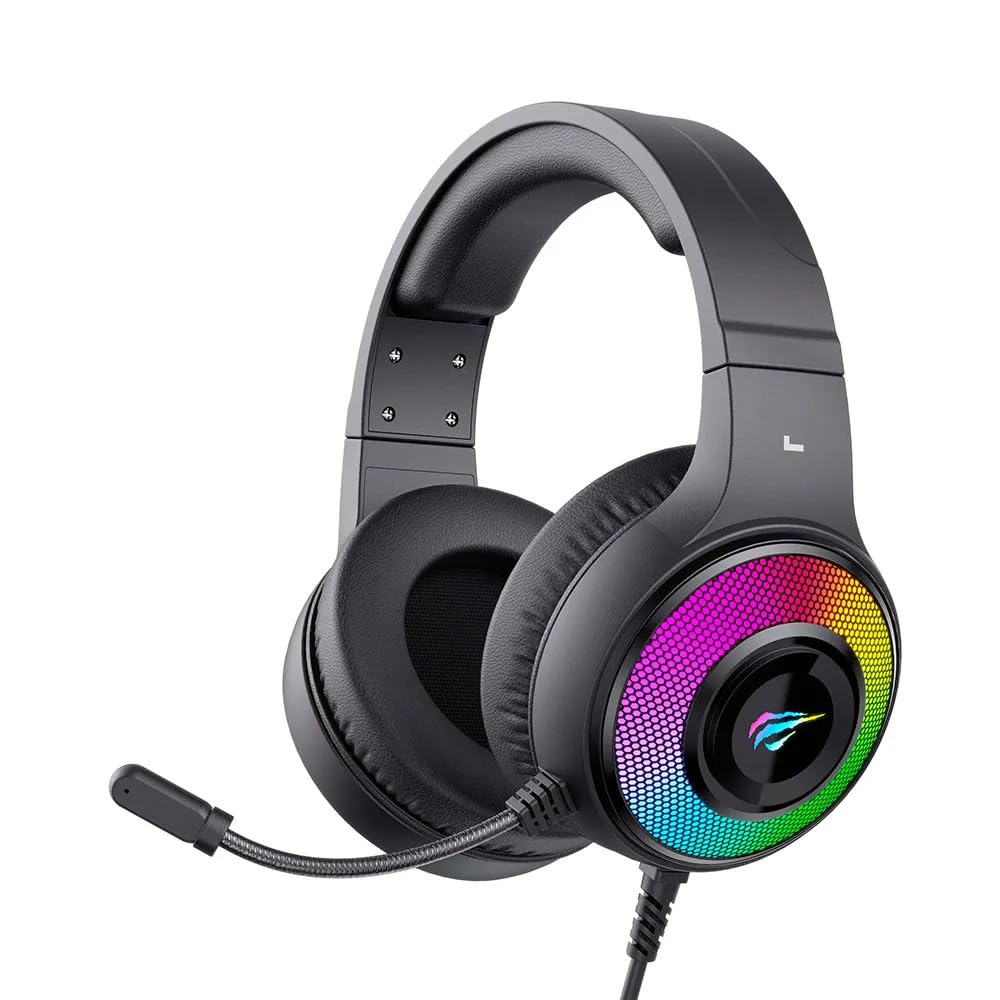
Figure 1: Havit H2042d Gaming Headset, front view with RGB lighting.

Figure 2: Angled view of the Havit H2042d Gaming Headset, highlighting the earcups and microphone.
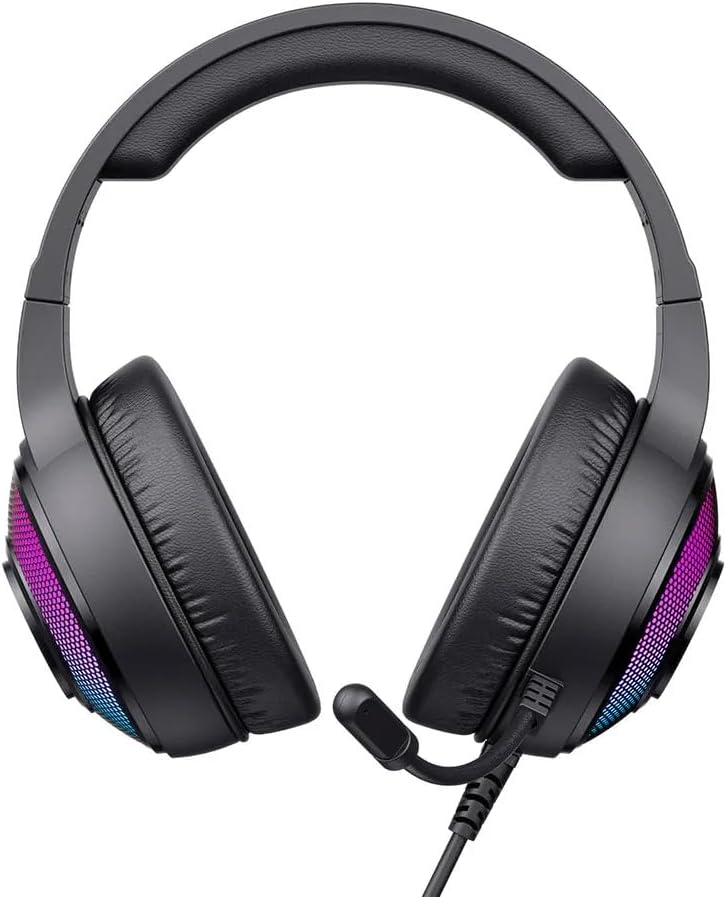
Figure 3: Top-down view of the Havit H2042d Gaming Headset.
Package Contents:
- Havit H2042d Wired Stereo Gaming Headset
- User Manual
Setup
Follow these steps to connect your Havit H2042d headset to your device:
- Connect the 3.5mm Audio Jack: Plug the 3.5mm audio jack into the corresponding audio output port on your computer, laptop, or gaming console. This connection provides the audio input and output for the headset and microphone.
- Connect the USB Cable: Plug the USB cable into an available USB port on your computer or laptop. This connection powers the RGB lighting feature of the headset. The headset will function for audio even without the USB connected, but the RGB lighting will not illuminate.
- Adjust System Settings: After connecting, ensure your operating system's sound settings are configured to use the Havit H2042d headset as the default playback and recording device.
Operating Instructions
Volume Control:
- Locate the volume control wheel on the headset's cable or earcup.
- Rotate the wheel upwards to increase the volume.
- Rotate the wheel downwards to decrease the volume.
Microphone Usage:
- The headset features an integrated, flexible microphone. Adjust its position for optimal voice pickup.
- Ensure the microphone is not muted in your device's sound settings or via any inline control if present.
RGB Lighting:
- The RGB lighting is powered by the USB connection. Once the USB cable is plugged in, the RGB lights on the earcups will illuminate automatically.
- The lighting pattern is pre-set and not user-customizable directly from the headset.
Maintenance
Proper care will extend the life of your headset:
- Cleaning: Use a soft, dry cloth to clean the headset. Do not use liquid cleaners or abrasive materials.
- Storage: Store the headset in a cool, dry place when not in use. Avoid extreme temperatures.
- Cable Care: Do not pull on the cables forcefully. Avoid bending or twisting the cables sharply to prevent damage.
- Water Exposure: This headset is not water-resistant. Avoid exposure to liquids to prevent damage.
Troubleshooting
If you encounter issues with your headset, refer to the following common problems and solutions:
| Problem | Possible Cause | Solution |
|---|---|---|
| No sound from headset | 3.5mm jack not fully connected; incorrect audio output selected; volume too low. | Ensure 3.5mm jack is securely plugged in. Check device's sound settings to select the headset as the default output. Increase volume on headset and device. |
| Microphone not working | Microphone muted; incorrect audio input selected; microphone not positioned correctly. | Check for a mute switch on the cable. Verify device's sound settings to select the headset microphone as the default input. Adjust microphone position closer to your mouth. |
| RGB lighting not working | USB cable not connected or faulty; USB port not providing power. | Ensure the USB cable is securely plugged into a working USB port. Try a different USB port. |
| Sound quality is poor | Loose connection; audio source issue; damaged cable. | Check all connections. Test with a different audio source. If issues persist, the cable may be damaged. |
Specifications
| Feature | Detail |
|---|---|
| Model | H2042d |
| Connectivity Technology | Wired (3.5mm audio jack + USB for RGB) |
| Driver Diameter | 50mm |
| Impedance | 20Ω ± 15% |
| Sensitivity | 114dB ± 3dB |
| Frequency Response | 20Hz - 20kHz |
| Microphone Size | 6.0*2.7mm |
| Cable Length | 2.1 meters |
| Operating Current | ≤160mA |
| Water Resistance | IPX0 (Not water-resistant) |
| Materials | Fabric, Memory Foam |
| Compatible Devices | Desktop computers, Laptops, Digital video game consoles |
| Age Range | Teens and Adults |
| Noise Control | Passive Noise Cancellation |
Warranty and Support
Havit products are designed and manufactured to the highest quality standards. For warranty information and technical support, please refer to the warranty card included with your product or visit the official Havit website. Keep your purchase receipt as proof of purchase.
If you experience any issues not covered in the troubleshooting section, please contact Havit customer support for assistance.


