
1. Introduction
The Motorola Razr 40 Ultra 5G combines advanced technology with a classic foldable design, offering a unique and flexible mobile experience. This manual provides essential information for setting up, operating, and maintaining your device.
Key features include a stunning 6.9-inch FHD+ pOLED main display, an ultra-functional 3.6-inch external display, 256GB internal storage, 8GB RAM, Dual SIM support (Nano SIM + eSIM), Android 13 operating system, and blazing-fast 5G connectivity. Its compact, foldable design redefines portability, fitting comfortably in your pocket.
2. What's in the Box
- Power Adapter (Non-US)
- USB Cable
- SIM Tray Ejector
3. Initial Setup
3.1. Insert SIM Card
- Locate the SIM tray on the side of your Motorola Razr 40 Ultra 5G.
- Use the provided SIM tray ejector tool to gently press into the small hole on the SIM tray until it pops out.
- Place your Nano SIM card into the designated slot on the tray, ensuring the gold contacts face downwards and the card is correctly aligned.
- Carefully reinsert the SIM tray back into the device until it clicks into place.
- If using an eSIM, follow the on-screen instructions during initial device setup or consult your mobile carrier for activation details.
3.2. Power On and Initial Configuration
- Press and hold the power button, located on the side of the device, until the Motorola logo appears on the screen.
- Follow the on-screen prompts to complete the initial setup process. This typically includes selecting your preferred language, connecting to a Wi-Fi network, signing in to your Google account, and configuring security features such as a PIN, pattern, or fingerprint.
4. Operating Your Device
4.1. Folding and Unfolding
The Motorola Razr 40 Ultra 5G is designed with a flexible hinge, allowing it to fold in half for compact portability and unfold to reveal its full main display. Always handle the device gently when folding and unfolding to ensure its longevity.

Image: The Motorola Razr 40 Ultra 5G in its folded, compact state.
4.2. External Display (Quick View Display)
The 3.6-inch external display provides convenient access to essential information and controls without needing to open the phone.
- Time and Notifications: Tap the external screen to quickly view the current time, date, battery life, and incoming notifications.
- Widgets: Swipe left or right across the external display to access various customizable widgets, such as music playback controls, calendar, weather, and timers.
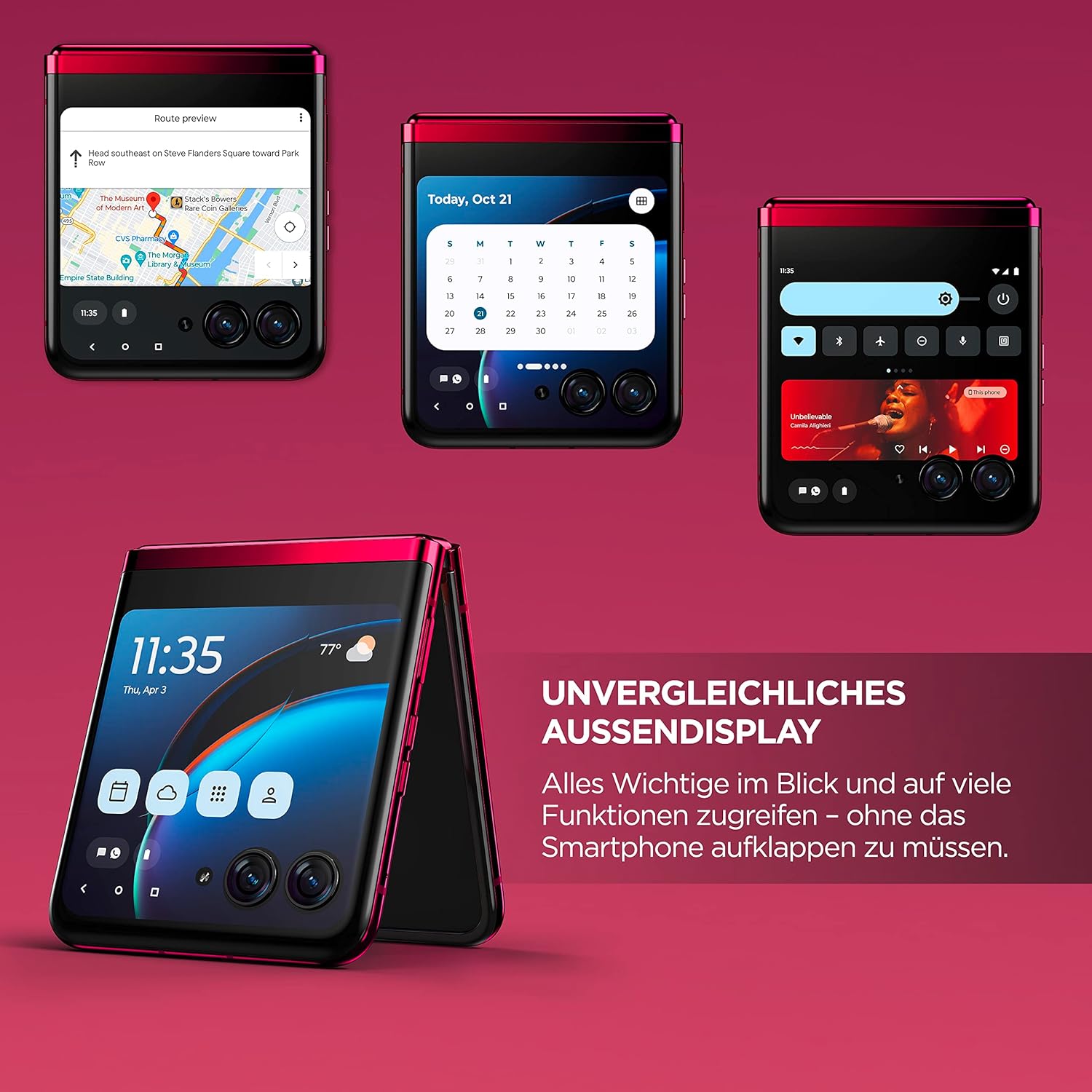
Image: The external display of the Motorola Razr 40 Ultra 5G showcasing interactive widgets.
4.3. Main Display
Unfold the device completely to access the full 6.9-inch pOLED display for all standard smartphone functions, including browsing, gaming, and app usage.
- Navigation: Utilize standard Android gestures for navigating the interface, launching applications, and managing multitasking.
- Volume Control: Adjust media playback and call volume using the dedicated physical volume buttons located on the side of the device.

Image: The Motorola Razr 40 Ultra 5G fully unfolded, showing its vibrant main display.
5. Camera Features
The Motorola Razr 40 Ultra 5G is equipped with an advanced camera system designed for capturing high-quality photos and videos in various scenarios.
- Rear Cameras: The device features dual rear cameras for capturing detailed images and wide-angle shots.
- Selfie Camera: A front-facing camera is integrated into the main display for video calls and selfies.
- Flex View Photography: The unique foldable design allows for innovative photography angles. Partially fold the phone and place it on a flat surface to capture stable shots without a tripod, or use the external display as a viewfinder to take high-quality selfies using the more powerful rear cameras.

Image: The Motorola Razr 40 Ultra 5G in Flex View, demonstrating its capability for hands-free photography.
6. Specifications
| Feature | Detail |
|---|---|
| Brand | Motorola |
| Model Name | Razr 40 Ultra |
| Operating System | Android 13.0 |
| RAM Memory | 8 GB |
| Internal Storage | 256 GB |
| Main Screen Size | 6.9 Inches |
| Main Display Type | AMOLED |
| Main Display Resolution | 2640x1080 |
| External Screen Size | 3.6 Inches |
| CPU Model | Cortex |
| CPU Speed | 3.4 GHz |
| Cellular Technology | 5G |
| Wireless Carrier | Unlocked for All Carriers |
| SIM Card Slot Count | Dual SIM (Nano + eSIM) |
| Battery Capacity | 3800 Milliamp Hours |
| Water Resistance Level | Water Resistant |
| Item Weight | 189 Grams |
| Item Dimensions | 3.48 x 2.91 x 0.59 inches |
7. Maintenance
- Water Resistance: Your Motorola Razr 40 Ultra 5G is water resistant. However, it is not waterproof. Avoid submerging the device in water or exposing it to high-pressure water jets. Ensure all ports are dry before charging.
- Screen Care: The foldable screen is a delicate component. Avoid pressing hard objects onto the screen or applying excessive pressure when folding. Do not attempt to remove any pre-installed screen protectors, as this may damage the display and void your warranty.
- Cleaning: Use a soft, lint-free cloth to clean the device. Avoid using harsh chemicals, abrasive cleaners, or compressed air, as these can damage the phone's finish or internal components.
8. Troubleshooting
- Device Not Responding: If your device becomes unresponsive, press and hold the power button for approximately 10-15 seconds to force a restart.
- Excessive Battery Drain: To conserve battery life, reduce screen brightness, disable unnecessary background applications, and turn off Wi-Fi, Bluetooth, or GPS when not in active use.
- Network Connectivity Issues: Ensure your Nano SIM card is correctly inserted into the tray. Verify that you are within your mobile network's coverage area. Check your network settings in the device menu to ensure mobile data is enabled and airplane mode is off.
9. Warranty and Support
This Motorola Razr 40 Ultra 5G comes with a 90-day limited warranty. For detailed warranty terms and conditions, please refer to the documentation provided with your purchase or visit the official Motorola support website.
For further assistance, technical support, or service inquiries, please contact Motorola customer service or your product retailer.


