
DOOGEE Tab G6+
DOOGEE Tab G6+ Android 15 Tablet User Manual
Model: Tab G6+
1. Introduction
The DOOGEE Tab G6+ is an advanced 11-inch Android 15 tablet designed for versatile use, from entertainment to productivity. Featuring a vibrant FHD+ 90Hz display, powerful Unisoc T7280 octa-core processor, and integrated Gemini AI, it offers a smooth and intelligent user experience. With a massive 32GB of RAM and 256GB of internal storage, expandable up to 2TB, you have ample space for all your applications, media, and documents. The tablet also boasts an 8000mAh battery for extended use, 4G LTE connectivity, and comes with a suite of accessories including a keyboard, stylus, and mouse to enhance your productivity.
2. Setup
2.1. What's in the Box
Carefully unbox your DOOGEE Tab G6+ tablet and ensure all components are present:
- DOOGEE Tab G6+ Tablet PC
- Charger
- USB Type-C Cable
- Keyboard
- Stylus
- SIM Card Slot Pin
- Mouse
- Protective Case
- User Manual
- Warranty Card
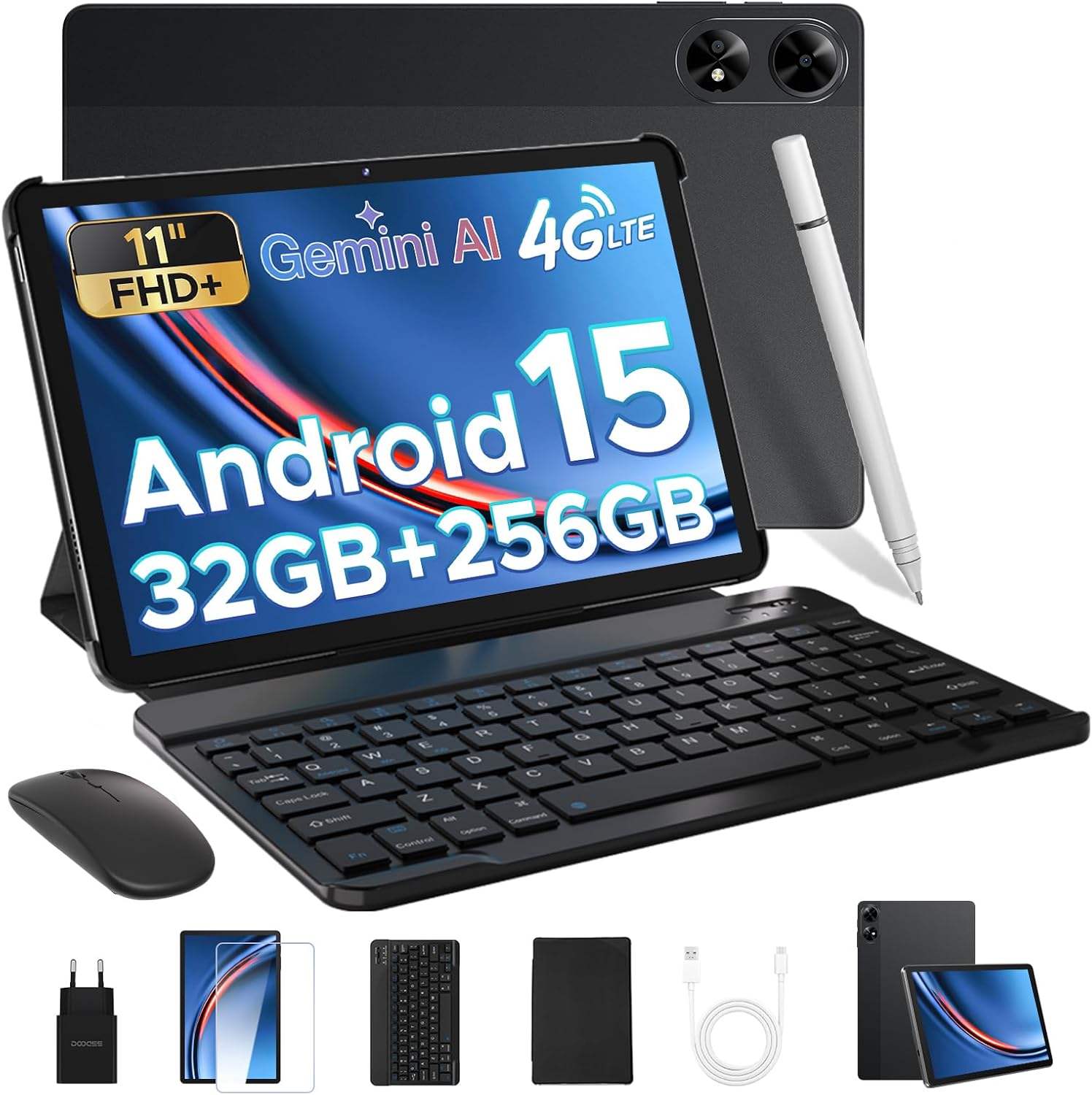
Figure 2.1: DOOGEE Tab G6+ and included accessories.

Figure 2.2: Detailed view of the package contents.
2.2. Initial Power On
To power on your tablet, press and hold the power button located on the side of the device until the DOOGEE logo appears on the screen. Follow the on-screen prompts to complete the initial setup, including selecting your language, connecting to a Wi-Fi network, and setting up your Google account.
2.3. SIM Card and MicroSD Card Installation
The DOOGEE Tab G6+ supports dual SIM cards and a microSD card for expandable storage. Locate the SIM card tray on the side of the tablet. Use the provided SIM ejector tool to open the tray. Insert your Nano-SIM cards and/or microSD card into the designated slots, ensuring correct orientation. Gently push the tray back into the tablet until it clicks into place.

Figure 2.3: Inserting SIM and microSD cards.
2.4. Connecting Accessories
The tablet comes with a magnetic keyboard, stylus, and mouse for enhanced productivity. These accessories connect via Bluetooth 5.0 for a lag-free experience.
- Keyboard: Align the magnetic connectors on the keyboard with those on the tablet. The keyboard will snap into place and automatically connect.
- Stylus & Mouse: Turn on the stylus and mouse. Go to Settings > Connected devices > Bluetooth on your tablet. Enable Bluetooth and select the stylus or mouse from the list of available devices to pair.
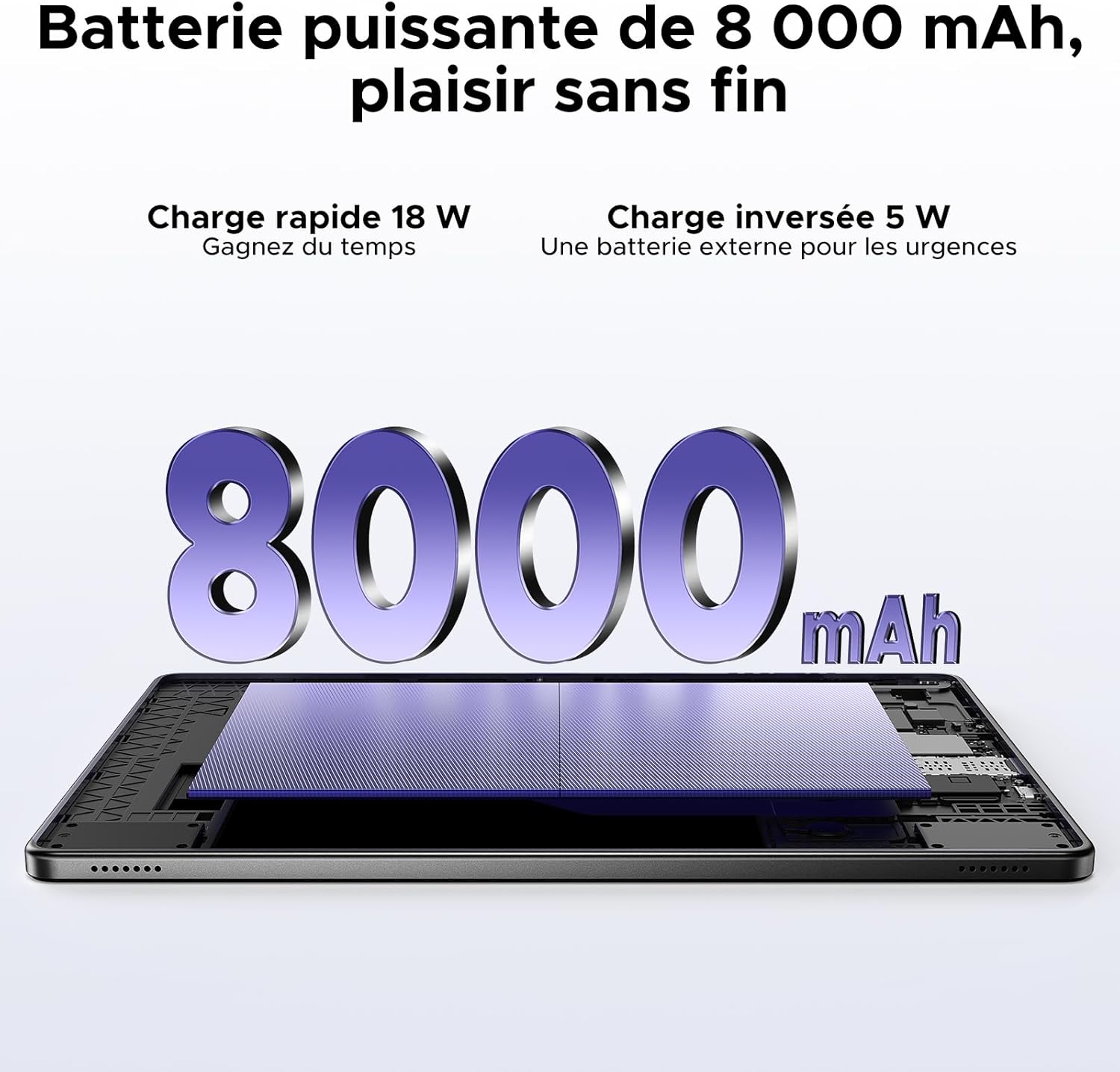
Figure 2.4: Tablet with keyboard, stylus, and mouse.
3. Operating the Tablet
3.1. Display Features
The DOOGEE Tab G6+ features an 11-inch FHD+ display with a 90Hz refresh rate, providing smooth visuals and an immersive viewing experience. It supports a resolution of 1920 x 1200 pixels and is Widevine L1 certified, allowing you to stream high-definition content from platforms like Netflix and Prime Video.

Figure 3.1: 11-inch FHD+ 90Hz Display.

Figure 3.2: Widevine L1 Support for HD Streaming.
3.2. Android 15 and Gemini AI
The tablet runs on the latest Android 15 operating system, enhanced with Google's Gemini AI. This integration provides features such as real-time translation, intelligent content synthesis, and creative assistance, making daily tasks more efficient and intuitive.

Figure 3.3: Android 15 Operating System.

Figure 3.4: Integrated Gemini AI.
3.3. Performance and Storage
Powered by an Unisoc T7280 octa-core processor clocked at 2.2 GHz, the tablet ensures smooth multitasking and gaming. It comes with 32GB of RAM (8GB base + 24GB extended) and 256GB of UFS internal storage, which can be expanded up to 2TB using a microSD card (sold separately).

Figure 3.5: Unisoc T7280 Octa-Core Processor.

Figure 3.6: Massive Storage and RAM.
3.4. Camera Usage
The tablet is equipped with a 13MP main camera for clear photos and document scanning, and a 5MP front camera for video calls and selfies. The front camera supports AI Beauty mode and facial recognition for quick unlocking.

Figure 3.7: Main and Front Cameras.
3.5. Audio System
Experience rich audio with the tablet's dual speakers, providing 360° stereo sound. A 3.5mm audio jack is also available for connecting wired headphones, ideal for private listening.

Figure 3.8: Dual Speaker System.
3.6. Connectivity
The tablet supports dual-band Wi-Fi (2.4GHz/5GHz) for stable and fast internet connections, reducing buffering time. Bluetooth 5.0 ensures seamless connection with wireless peripherals. With 4G LTE support, you can stay connected on the go by inserting a SIM card.

Figure 3.9: High-Speed Wi-Fi 5.
3.7. Navigation
The DOOGEE Tab G6+ integrates multiple navigation systems including GPS, Beidou, Glonass, and Galileo, providing accurate positioning for all your travel and outdoor activities.

Figure 3.10: Precise Navigation System.
3.8. Productivity Tools
With pre-installed WPS Office, the tablet transforms into a portable workstation, supporting Word, Excel, and PowerPoint operations. The detachable magnetic keyboard and stylus provide a comfortable and efficient input experience for both work and creative tasks.

Figure 3.11: WPS Office Integration.
3.9. Battery Management
The 8000mAh large-capacity battery provides up to 14 hours of continuous video playback. It supports 18W fast charging, allowing you to recharge 50% of the battery in approximately 85 minutes. The tablet also features 5W OTG reverse charging, enabling you to use it as a power bank for other devices in emergencies.

Figure 3.12: 8000mAh Battery with Fast and Reverse Charging.
3.10. Security Features
Unlock your tablet quickly and securely using facial recognition. This feature provides convenient access while keeping your data protected.

Figure 3.13: Facial Recognition Unlock.
3.11. Additional Features
- FM Radio: Enjoy free FM radio without data consumption, ideal for outdoor activities or commutes.
- Multi-user System: Create separate user profiles for different family members, ensuring privacy and personalized experiences.
- Parental Control: Manage and restrict content access for children, promoting a safe digital environment.
- Night Mode: Reduce eye strain during low-light conditions by activating Night Mode, which adjusts screen colors.

Figure 3.14: FM Radio Functionality.

Figure 3.15: Android 15 Enhanced Features.
4. Maintenance
4.1. Cleaning the Tablet
To maintain the tablet's appearance and functionality, regularly clean its surfaces. Use a soft, lint-free cloth, slightly dampened with water or a screen cleaner, to wipe the screen and body. Avoid using harsh chemicals or abrasive materials that could damage the finish.
4.2. Battery Care
To prolong battery life, avoid exposing the tablet to extreme temperatures. Do not let the battery completely drain frequently. For long-term storage, charge the battery to about 50% and store the device in a cool, dry place.
4.3. Software Updates
Regularly check for and install software updates to ensure your tablet has the latest features, security patches, and performance improvements. You can usually find this option in Settings > System > System update.
5. Troubleshooting
This section addresses common issues you might encounter with your DOOGEE Tab G6+ tablet.
- Tablet does not turn on: Ensure the battery is charged. Connect the tablet to the charger and wait a few minutes before attempting to power it on again. If it still doesn't turn on, try holding the power button for 10-15 seconds for a forced restart.
- Wi-Fi connectivity issues: Check if Wi-Fi is enabled in settings. Restart your Wi-Fi router. Forget the network on your tablet and reconnect. If the issue persists, try restarting the tablet.
- Apps crashing or freezing: Close the problematic app and reopen it. Clear the app's cache and data in Settings > Apps. Ensure the app is updated to its latest version. If the problem continues, consider uninstalling and reinstalling the app.
- Slow performance: Close unnecessary background apps. Clear cached data regularly. Ensure you have sufficient free storage space. A factory reset can resolve persistent performance issues, but remember to back up your data first.
- Accessories not connecting: Ensure Bluetooth is enabled on the tablet and the accessory is in pairing mode. Check the accessory's battery level. Try unpairing and re-pairing the accessory.
6. Specifications
| Feature | Specification |
|---|---|
| Brand | DOOGEE |
| Model Name | Tab G6+ V |
| Operating System | Android 15 |
| Processor | Unisoc T7280 Octa-Core, 2.2 GHz |
| Screen Size | 11 Inches |
| Screen Resolution | 1920 x 1200 Pixels (FHD+) |
| Refresh Rate | 90Hz |
| RAM | 32 GB (8GB base + 24GB extended) |
| Internal Storage | 256 GB UFS |
| Expandable Storage | Up to 2 TB (MicroSD) |
| Battery Capacity | 8000 mAh |
| Charging | 18W Fast Charging, 5W OTG Reverse Charging |
| Main Camera | 13 MP |
| Front Camera | 5 MP |
| Connectivity | 4G LTE, Dual-band Wi-Fi (802.11a/b/g/n/ac), Bluetooth 5.0 |
| Navigation | GPS, Beidou, Glonass, Galileo |
| Dimensions (L x W x H) | 24.5 x 16.3 x 1 cm |
| Product Weight | 528 Grams |
| Special Features | Fast Charging, Detachable Keyboard, Expandable Storage, Stylus Support, Facial Recognition, FM Radio |
7. Warranty and Support
DOOGEE is committed to providing excellent customer service for your Tab G6+ tablet.
- 30-Day Guarantee: Enjoy a 30-day refund and free return policy from the date of purchase.
- 2-Year Limited Warranty: Your tablet is covered by a 2-year limited warranty against manufacturing defects.
- 24/7 Online Assistance: For any inquiries or technical support, please utilize the 24/7 online assistance available through DOOGEE's official support channels.

Figure 7.1: DOOGEE Customer Service Information.
For further assistance, please visit the official DOOGEE website or contact their customer support team directly.
Related documentsTab G6+


Ask a question about this manual
Ask about setup, troubleshooting, compatibility, parts, safety, or missing instructions. Manuals+ will review the question and use this page’s manual context to help answer it.