
1. Introduction
This manual provides detailed instructions for the setup, operation, and maintenance of your CiBest Google TV Projector. Designed for versatile use, this projector features 4K support, a native 1080p resolution, 1000 ANSI lumens brightness, HDR10+ technology, and a 20,000:1 contrast ratio. It comes with an officially licensed Google TV system, offering access to numerous streaming applications and smart functionalities.

Image: The CiBest Google TV Projector, a compact and modern device.
2. Package Contents
Verify that all items are present in the package:
- CiBest Google TV Projector
- Remote Control
- HDMI Cable
- AV Cable (3-in-1)
- Power Cord
- User Manual (Quick Start Guide)
- Carrying Case (Fabric)
3. Setup
3.1 Initial Placement
Place the projector on a stable, flat surface or mount it using the M6 mounting hole at the bottom. Ensure there is adequate space around the projector for ventilation.
3.2 Power Connection
- Connect the power cord to the projector's power input.
- Plug the other end of the power cord into a suitable electrical outlet.
3.3 Android TV Box Installation
The projector includes a built-in Android TV box. To ensure proper function:
- Locate the compartment on the side of the projector.
- Open the cover and connect the micro HDMI and micro USB cables from the projector to the Android TV box.
- Securely place the Android TV box inside the compartment and close the cover.

Image: A close-up view of the projector's side compartment with the Android TV box connected.
3.4 First-Time Power On and Language Selection
- Press the power button on the projector or remote control to turn it on.
- Follow the on-screen prompts to select your preferred OSD (On-Screen Display) language.
- Connect to your Wi-Fi network as instructed.
3.5 Focus and Keystone Adjustment
The projector features automatic focus and keystone correction. For manual adjustments:
- Autofocus: The projector will automatically adjust focus when moved. You can also press the dedicated focus button on the remote for a quick adjustment.
- Manual Focus: Use the left/right buttons on the remote when the focus prompt is active for fine-tuning.
- Keystone Correction: Use the manual keystone knob on the projector to correct image distortion if the projector is not perfectly perpendicular to the screen.

Image: Visual representation of the flexible image adjustment options, including 50%-100% zoom and ±15° keystone correction.
4. Operating Instructions
4.1 Google TV Interface
The projector comes with an officially licensed Google TV system, providing a smart and intuitive interface for accessing content.
- Streaming Apps: Access popular apps like Netflix, Prime Video, YouTube, Disney+, Hulu, Max, ESPN, and more directly from the home screen.
- Google Voice Assistant: Use the built-in Google Voice Assistant via the remote control for hands-free operation, app launching, content search, and volume adjustment.
- Google Cast & AirPlay: Supports screen mirroring from Google phones and AirPlay for easy interaction with various smart devices.
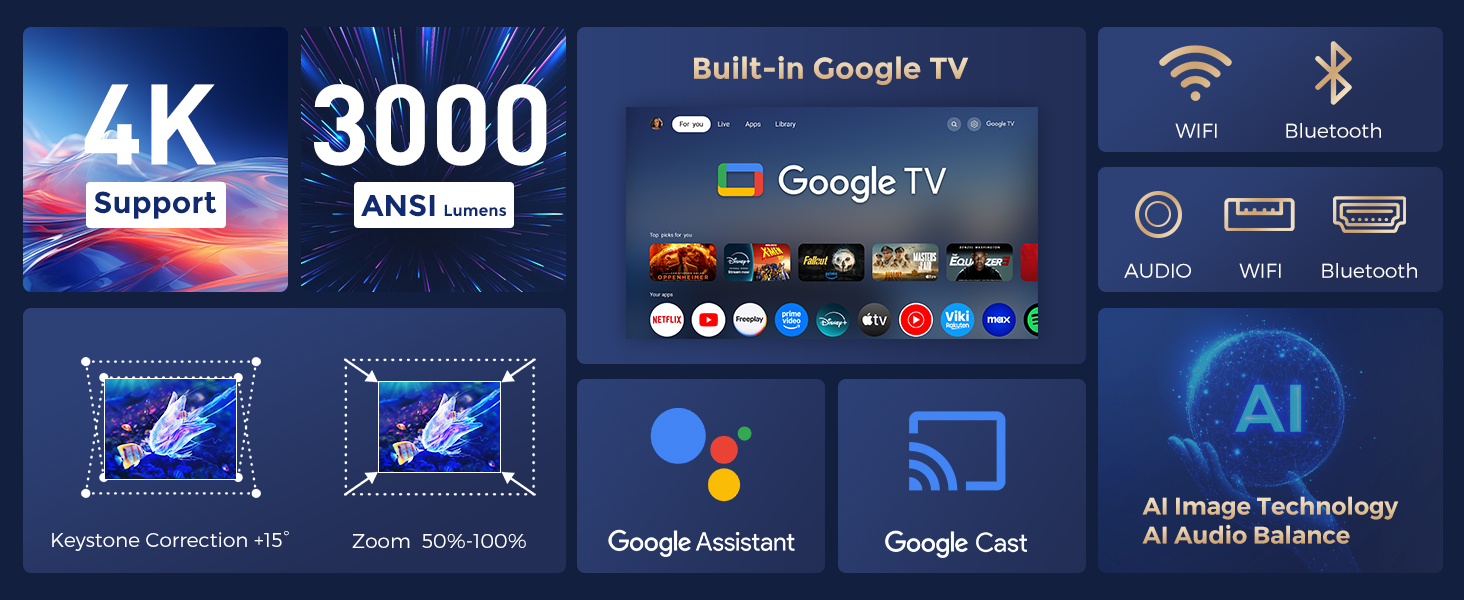
Image: The Google TV home screen displaying various streaming apps and the Google Assistant voice command interface.

Image: A visual demonstrating the vast library of supported applications and free channels available through the Google TV system.
4.2 Connecting External Devices
The projector offers multiple connectivity options:
- HDMI: Connect devices like laptops, gaming consoles (PS5, Switch), or Blu-ray players using an HDMI cable. The projector supports HDMI ARC.
- USB: Plug in USB drives for media playback.
- 3.5mm Audio: Connect external audio systems or headphones.
- AV: Use the included 3-in-1 AV cable for older devices.
- Bluetooth 5.2: Connect Bluetooth speakers, headphones, or game controllers wirelessly.
- WiFi 6: Ensures fast and stable wireless internet connection for streaming.

Image: An illustration highlighting the various input and wireless connectivity options available on the projector.
4.3 Remote Control
The included remote control provides full functionality for navigating the Google TV interface and adjusting projector settings. It features dedicated buttons for popular streaming services and voice commands.
5. Maintenance
5.1 Dust-Free Optical Engine
The projector features a fully-sealed optical engine designed to prevent dust from entering and affecting image quality. This design extends the projector's lifespan and reduces the need for frequent lens cleaning.

Image: An internal view illustrating the fully sealed optical engine, designed to protect against dust.
5.2 Cooling System
The integrated cooling system ensures optimal operating temperature and contributes to low operating noise. Keep the ventilation vents clear of obstructions to maintain efficient cooling.
5.3 Lamp Life
The projector lamp is designed for a long lifespan of up to 100,000 hours under normal usage conditions.

Image: The projector highlighting its impressive 100,000-hour lamp life.
5.4 Cleaning
- Use a soft, dry cloth to clean the exterior of the projector.
- For the lens, use a lens cleaning cloth and specialized lens cleaning solution. Avoid abrasive materials.
6. Troubleshooting
If you encounter issues with your projector, refer to the following common solutions:
- No Power: Ensure the power cord is securely connected to both the projector and the power outlet.
- No Image: Check all cable connections (HDMI, AV). Verify the input source is correctly selected on the projector.
- Blurry Image: Adjust the focus using the autofocus feature or manual fine-tuning. Ensure the projection surface is flat.
- Distorted Image (Trapezoid Shape): Use the keystone correction feature to square the image.
- No Sound: Check the volume settings on the projector and any connected audio devices. Ensure external speakers are properly connected via Bluetooth or 3.5mm audio jack.
- Wi-Fi/Bluetooth Connectivity Issues: Restart the projector and your router. Ensure the projector is within range of your Wi-Fi network.
- App Not Working: Ensure the app is updated to the latest version. Check your internet connection.
For further assistance, please contact customer support.
7. Specifications
| Feature | Specification |
|---|---|
| Brand | CiBest |
| Model | B0DZ69CXJ2 |
| Display Resolution | 1920 x 1080 (Native), 4K Support |
| Brightness | 1000 ANSI Lumens |
| Contrast Ratio | 20,000:1 |
| Special Feature | Built-in Speakers, Autofocus, Keystone Correction, Google TV, Google Assistant, HDR10+ |
| Connectivity Technology | Google TV, HDMI (ARC), USB, 3-in-1 AV, 3.5mm Audio, WiFi 6, Bluetooth 5.2 |
| Recommended Uses | Indoor/Outdoor Home Theater |
| Item Weight | 8.49 pounds |
| Product Dimensions | 6 x 12 x 16.8 inches |
| Optical Engine | Fully-Sealed |
| Lamp Life | Up to 100,000 hours |
8. Warranty and Support
For warranty information and customer support, please refer to the documentation included in your product packaging or visit the official CiBest website. Keep your purchase receipt for warranty claims.

