
Introduction
This manual provides essential information for setting up, operating, and maintaining your HP 21.5-inch All-in-One Desktop PC. Please read these instructions carefully before using your device to ensure optimal performance and longevity.
What's in the Box
Your HP All-in-One Desktop PC package includes the following items:
- HP All-in-One Desktop Computer (Model 22-DG0024)
- Wired Keyboard
- Wired Mouse
- Power Adapter and Cable
- External Optical DVD Drive
- Mousepad
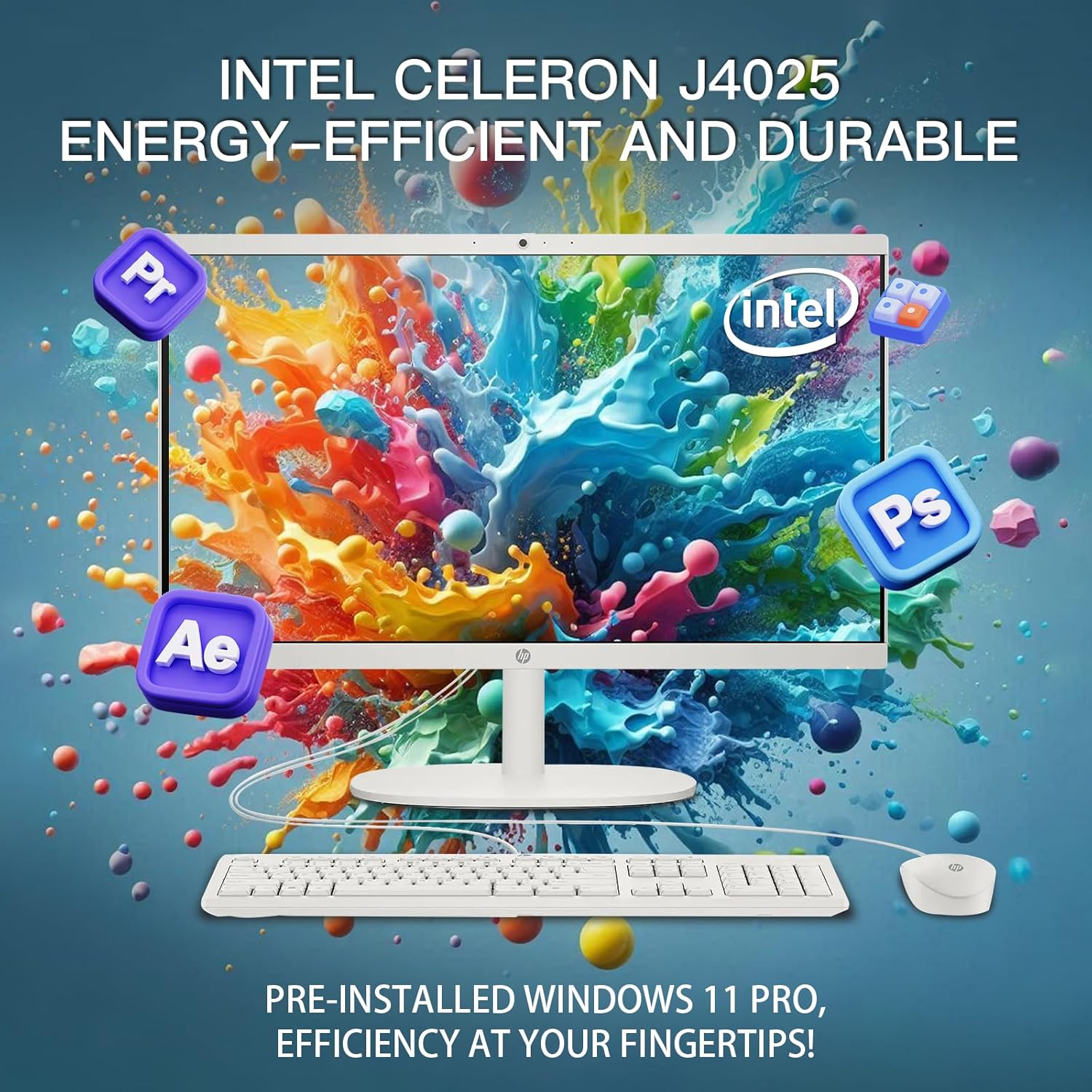
Image: Contents of the HP All-in-One Desktop PC package, including the computer, keyboard, mouse, and power accessories.
Initial Setup
- Unpack the Device: Carefully remove all components from the packaging.
- Position the PC: Place the All-in-One PC on a stable, flat surface. Ensure adequate ventilation around the device.
- Connect Peripherals:
- Connect the wired keyboard and mouse to the available USB ports on the back of the PC.
- Connect the external optical DVD drive to a USB port if desired.
- Connect Power: Plug the power adapter into the PC's power input, then plug the power cable into a wall outlet.
- Power On: Press the power button, usually located on the side or back of the display.
- Initial Windows Setup: Follow the on-screen instructions to complete the Windows 11 Pro setup, including language, region, network connection, and user account creation.
Video: An official seller video demonstrating the setup process of an HP All-in-One PC, including connecting peripherals and initial boot-up. This video is provided by Azure Sky group Corporation.
Key Components and Features
Display
The HP All-in-One PC features a 21.5-inch Full HD (1920x1080) Anti-Glare LED display. This screen is designed to provide crisp, clear, and vibrant images while reducing reflections for comfortable viewing.

Image: Close-up view of the 21.5-inch Full HD anti-glare display, highlighting its visual clarity and eye comfort features.
Processor and Memory
Powered by an Intel Celeron J4025 Dual-core processor (2.0 GHz base, up to 2.9 GHz burst), this PC is equipped for everyday computing tasks. It comes with 32GB of DDR4 RAM and a 1TB SSD for fast performance and ample storage.

Image: Visual representation of the internal components, emphasizing the 32GB RAM and 1TB SSD for seamless multitasking.
Image: The HP All-in-One Desktop PC displaying the Intel Celeron J4025 processor and Windows 11 Pro interface, highlighting its energy efficiency.
Ports and Connectivity
The device offers a variety of ports for versatile connectivity:
- 2 x USB Type-A 2.0
- 2 x USB Type-A 3.0 (5Gbps signaling rate)
- 1 x USB Type-C 3.0 (5Gbps signaling rate)
- 1 x HDMI 2.1 Out
- 1 x RJ-45 (Ethernet)
- 1 x Headphone / Microphone Combination Jack
- 1 x SD Card Reader 3.0
Wireless connectivity includes Wi-Fi 6 and Bluetooth 5.3 for fast and reliable connections.

Image: Detailed view of the rear ports on the HP All-in-One PC, illustrating the various connectivity options available.

Image: Graphic emphasizing the Wi-Fi 6 and Bluetooth 5.3 wireless connectivity features of the HP All-in-One PC.
Integrated Webcam
The PC includes an integrated HP True Vision 720p HD Privacy Camera, ideal for video calls and online meetings. The privacy feature allows you to physically cover the camera when not in use.
Image: Close-up of the HP True Vision HD Privacy Camera, showing its design for secure video communication.
Operating Instructions
Power On/Off
- To turn on: Press the power button.
- To turn off: Click the Start button in Windows, then select Power > Shut down. Alternatively, press and hold the power button for a few seconds for a forced shutdown (use only when necessary).
Using the Keyboard and Mouse
The included wired keyboard and mouse are plug-and-play. Connect them to any available USB port. No additional drivers are typically required for basic functionality.
Connecting to the Internet
- Wi-Fi: After initial setup, click the Wi-Fi icon in the taskbar, select your network, and enter the password.
- Ethernet: Connect an Ethernet cable from your router or modem to the RJ-45 port on the back of the PC.
Using the Webcam
To use the integrated 720p HD Privacy Camera, gently push the top edge of the camera module to extend it. Push it back down to retract and ensure privacy when not in use. The camera is compatible with most video conferencing applications.

Image: A person engaged in a video conference using the HP All-in-One PC, demonstrating the integrated webcam in use.
Care and Maintenance
- Cleaning: Use a soft, lint-free cloth to clean the screen and exterior surfaces. Avoid abrasive cleaners or solvents.
- Ventilation: Ensure the ventilation openings on the PC are not blocked to prevent overheating.
- Software Updates: Regularly update Windows 11 Pro and drivers to maintain system security and performance.
- Data Backup: Periodically back up important data to an external drive or cloud storage.
Troubleshooting Common Issues
No Power
- Check if the power cable is securely connected to both the PC and the wall outlet.
- Verify the wall outlet is functional by plugging in another device.
- Ensure the power adapter is correctly connected.
No Display
- Confirm the PC is powered on (check power indicator light).
- If an external monitor is connected, ensure the correct input source is selected on the external monitor.
Slow Performance
- Close unnecessary applications running in the background.
- Check for and install any pending Windows updates.
- Run a disk cleanup and defragmentation (for HDD) or optimize drives (for SSD).
- Scan for malware or viruses.
Wi-Fi Connectivity Issues
- Restart your router and modem.
- Ensure Wi-Fi is enabled on your PC.
- Check if the PC is within range of your Wi-Fi network.
- Update Wi-Fi drivers if available.
Technical Specifications
| Feature | Detail |
|---|---|
| Model Number | 22-DG0024 |
| Display Size | 21.5 Inches |
| Screen Resolution | 1920 x 1080 (Full HD) |
| Processor | Intel Celeron J4025 (Dual-core, 2.0 GHz base, 2.9 GHz max) |
| RAM | 32 GB DDR4 |
| Storage | 1 TB SSD |
| Graphics | Intel UHD Graphics 600 (Integrated) |
| Operating System | Windows 11 Pro |
| Connectivity | Wi-Fi 6, Bluetooth 5.3, Ethernet (RJ-45) |
| Ports | 2x USB 2.0 Type-A, 2x USB 3.0 Type-A, 1x USB 3.0 Type-C, 1x HDMI 2.1 Out, 1x Headphone/Mic Combo, 1x SD Card Reader |
| Webcam | HP True Vision 720p HD Privacy Camera |
| Dimensions (WxHxD) | 19.43" x 15.07" x 6.69" |
| Weight | 9.19 pounds |
Warranty and Support
For detailed warranty information and technical support, please refer to the documentation included with your product or visit the official HP support website. Keep your purchase receipt and product serial number handy for any warranty claims.
This product comes with pre-installed Windows 11 Pro and a lifetime license for Microsoft Office, ensuring seamless productivity.


