Introduction
This manual provides detailed instructions for the setup, operation, and maintenance of your Moukey MAMP1 2.0 Channel Bluetooth Stereo Receiver. This amplifier is designed to deliver powerful, high-quality audio for various applications, including home theater systems, acoustic setups, and karaoke. Please read this manual thoroughly before using the device to ensure proper and safe operation.
Safety Instructions
- Do not expose this unit to rain or moisture to prevent fire or shock hazards.
- Do not open the casing. There are no user-serviceable parts inside. Refer all servicing to qualified service personnel.
- Ensure proper ventilation. Do not block ventilation openings.
- Place the unit on a stable, flat surface away from direct sunlight, heat sources, or excessive dust.
- Use only the specified power supply voltage.
- Disconnect the power cord from the outlet if the unit will not be used for a long period.
- Keep out of reach of children.
Package Contents
Please check that all items are present in the package:
- Moukey MAMP1 Stereo Receiver
- Remote Controller
- FM Antenna
- User Manual (this document)
Product Overview
Front Panel Controls and Inputs

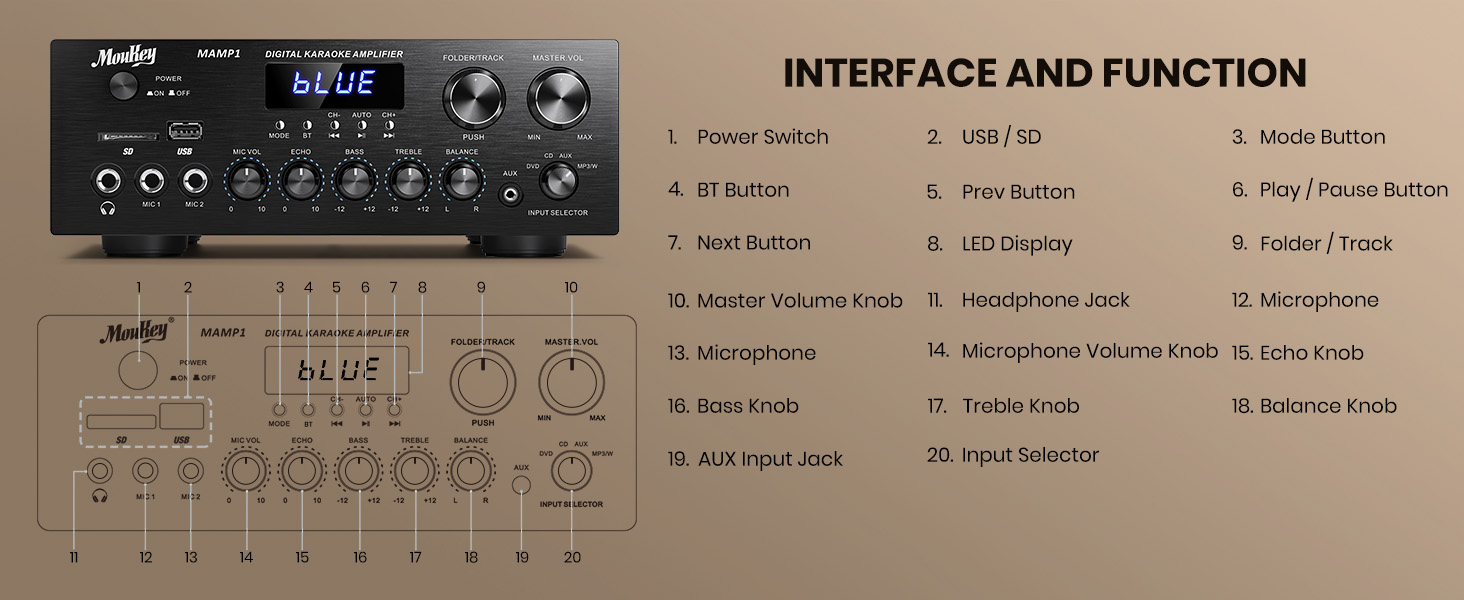
The front panel of the MAMP1 receiver provides access to all primary controls and convenient input options:
- Power Switch: Toggles the unit on/off.
- USB / SD Card Slots: For playing audio files from USB drives (up to 32GB) and SD cards (up to 16GB).
- Mode Button: Cycles through input modes (Bluetooth, USB, SD, AUX, FM).
- BT Button: Directly switches to Bluetooth mode.
- Prev/Next Buttons: For track navigation in USB/SD/Bluetooth modes or station tuning in FM mode.
- Play / Pause Button: Controls playback for USB/SD/Bluetooth.
- LED Display: Shows current mode, track information, and FM frequency.
- Folder / Track Knob: Navigates folders and tracks on USB/SD.
- Master Volume Knob: Adjusts the overall output volume.
- Headphone Jack (1/4"): For private listening.
- Microphone Inputs (MIC 1, MIC 2 - 1/4"): Connect microphones for karaoke or public address.
- Microphone Volume Knob: Adjusts the volume of connected microphones.
- Echo Knob: Controls the echo effect for microphones.
- Bass Knob: Adjusts the low-frequency audio output.
- Treble Knob: Adjusts the high-frequency audio output.
- Balance Knob: Adjusts the left/right channel balance.
- AUX Input Jack (3.5mm): For connecting external audio devices.
- Input Selector Knob: Selects between CD/DVD RCA inputs and the front panel AUX/MP3/FM/BT inputs.

Rear Panel Connections
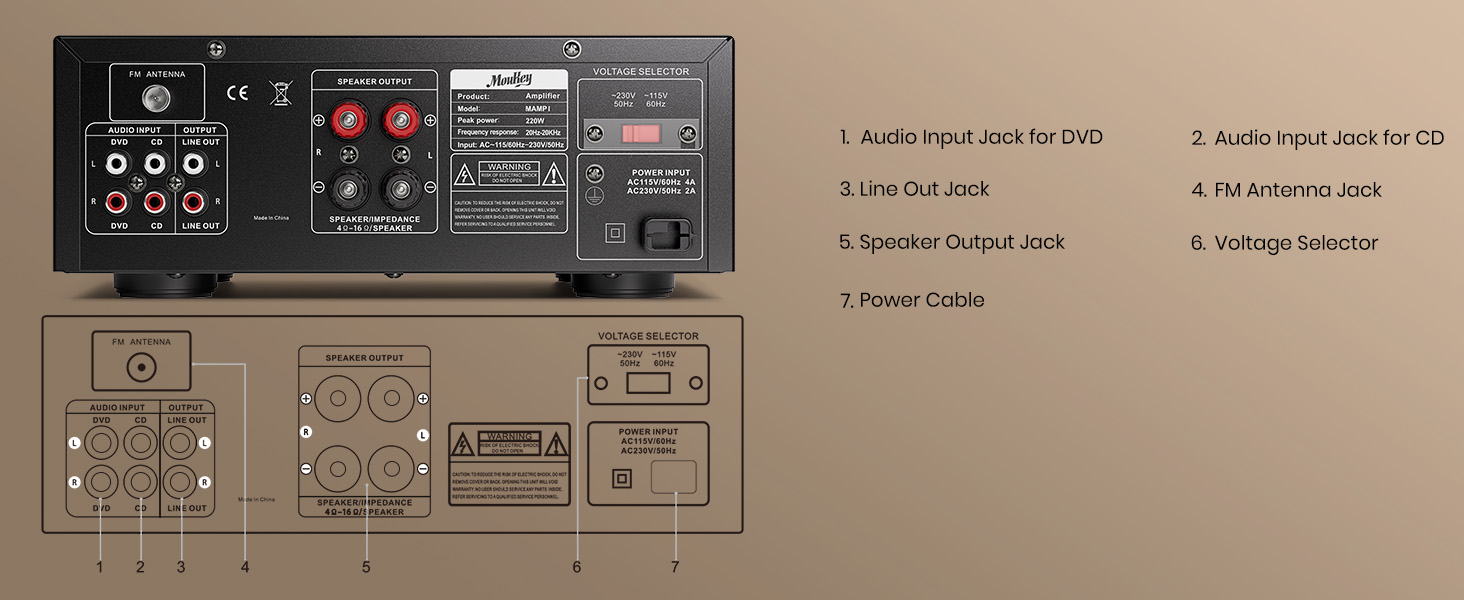
The rear panel provides essential connections for your audio system:
- Audio Input Jack for DVD (RCA): Connect audio output from a DVD player or similar source.
- Audio Input Jack for CD (RCA): Connect audio output from a CD player or similar source.
- Line Out Jack (RCA): Provides an audio output signal for connecting to another amplifier or recording device.
- FM Antenna Jack: Connect the included FM antenna for radio reception.
- Speaker Output Jacks (Banana Plug/Binding Post): Connect your passive speakers.
- Voltage Selector: Allows selection between 110V and 220V power input (ensure this matches your local voltage before connecting power).
- Power Cable Input: Connect the AC power cord.
Setup
Speaker Connection
The MAMP1 uses banana plug/binding post terminals for speaker connections. Ensure your speakers are passive and match the impedance requirements (typically 4-16 ohms).

- Prepare Wires: If using bare speaker wire, strip approximately 10mm (0.4 inches) of insulation from the ends of each wire. Twist the exposed strands tightly.
- Loosen Terminal: Rotate and loosen the speaker knob on the rear panel.
- Insert Wire: Insert the bare wire into the hole in the center of the binding post. Ensure no stray strands touch the other terminal.
- Tighten Terminal: Tighten the knob to secure the wire firmly.
- Polarity: Ensure correct polarity (+ to + and - to -) for both speakers and the receiver to avoid phase issues.
Connecting Audio Sources
- RCA Inputs (CD/DVD): Connect audio output from your CD player, DVD player, or other audio sources using RCA cables to the corresponding "CD" or "DVD" input jacks on the rear panel.
- AUX Input (3.5mm): Connect smartphones, tablets, or other devices with a 3.5mm audio output to the "AUX" jack on the front panel.
- USB/SD Card: Insert a USB flash drive (up to 32GB) or an SD card (up to 16GB) into the respective slots on the front panel.
- Microphones: Plug 1/4" microphones into the "MIC 1" or "MIC 2" inputs on the front panel.
- FM Antenna: Connect the included FM antenna to the "FM ANTENNA" jack on the rear panel for radio reception.
Power Connection
Before connecting power, ensure the Voltage Selector on the rear panel is set to match your local power supply (110V or 220V). Then, connect the power cable to the receiver and plug it into a wall outlet.
Operating Instructions
Power On/Off
Press the "POWER" switch on the front panel to turn the unit on or off. The LED display will illuminate when the unit is powered on.
Input Selection
Use the "MODE" button on the front panel or the "Input Selector" knob to choose your desired audio source (Bluetooth, USB, SD, AUX, FM, CD, DVD).
Bluetooth Operation

- Press the "BT" button or cycle the "MODE" button until "BLUE" appears on the LED display.
- On your smartphone or Bluetooth-enabled device, search for "Moukey MAMP1" in the Bluetooth settings.
- Select "Moukey MAMP1" to pair. Once connected, you will hear a confirmation tone.
- You can now stream audio wirelessly from your device to the receiver. Control playback (play/pause, next/prev track) using the buttons on the receiver or your connected device.
USB/SD Card Playback
Insert a USB drive or SD card with audio files into the corresponding slot. The unit will automatically switch to USB/SD mode and begin playback. Use the "Prev/Next" and "Play/Pause" buttons to control playback. The "Folder/Track" knob allows navigation through folders and tracks.
Note: The unit supports USB drives up to 32GB and SD cards up to 16GB. Larger capacities may not be recognized.
FM Radio Operation
Ensure the FM antenna is connected. Press the "MODE" button until "FM" appears on the display.
- Auto Scan: Press and hold the "Play/Pause" button to initiate an auto-scan for available FM stations. The unit will save detected stations.
- Manual Tuning: Use the "Prev/Next" buttons to manually tune to specific frequencies or cycle through saved stations.
Microphone and Karaoke Functions

Connect up to two 1/4" microphones to the "MIC 1" and "MIC 2" inputs on the front panel.
- MIC VOL: Adjusts the overall volume of both microphones.
- ECHO: Adjusts the echo effect applied to the microphone audio.
- Ensure the main "Master Volume" is also adjusted appropriately for the desired output level.
Tone and Balance Control

- BASS: Rotate the Bass knob to increase or decrease the low-frequency response of the audio.
- TREBLE: Rotate the Treble knob to increase or decrease the high-frequency response of the audio.
- BALANCE: Adjust the Balance knob to shift the audio output between the left and right speakers.
Maintenance
- Cleaning: Use a soft, dry cloth to clean the exterior of the unit. Do not use liquid cleaners or aerosols.
- Ventilation: Ensure the ventilation openings are clear of dust and debris to prevent overheating.
- Storage: If storing the unit for an extended period, disconnect it from power and store it in a cool, dry place.
Troubleshooting
| Problem | Possible Cause | Solution |
|---|---|---|
| No power | Power cord not connected; Power switch off; Voltage selector incorrect. | Ensure power cord is securely plugged in. Turn power switch ON. Verify voltage selector matches local power. |
| No sound output | Incorrect input selected; Volume too low; Speakers not connected properly; Source device issue. | Select correct input. Increase Master Volume. Check speaker connections and polarity. Verify source device is playing audio. |
| Bluetooth not connecting | Not in Bluetooth mode; Device too far; Device already connected to another unit. | Switch to Bluetooth mode. Ensure device is within 40ft range. Disconnect from other Bluetooth devices and try pairing again. |
| USB/SD card not recognized | Card/drive capacity too large; Incorrect file format; Card/drive not inserted correctly. | Ensure capacity is within limits (USB 32GB, SD 16GB). Use supported audio formats. Reinsert card/drive firmly. |
| Microphone echo/volume issues | MIC VOL or ECHO knobs incorrectly set. | Adjust MIC VOL and ECHO knobs to desired levels. |
| Poor FM reception | Antenna not connected or positioned poorly. | Connect FM antenna securely. Adjust antenna position for better signal. |
Specifications
| Feature | Detail |
|---|---|
| Brand | Moukey |
| Model Number | MAMP1 |
| Peak Power Output | 220 Watts |
| Number of Channels | 2.0 |
| Connectivity Technology | RCA, Bluetooth 5.0, USB, SD, 3.5mm AUX |
| Compatible Devices | Smartphone, Tablet, iPad, iPhone, Computer, Speaker |
| Audio Output Mode | Stereo |
| Microphone Inputs | 2 x 1/4" with Echo Control |
| USB/SD Card Support | USB up to 32GB, SD up to 16GB |
| FM Radio | Built-in with LED screen |
| Dimensions (L x W x H) | Approx. 10 x 8 x 4 inches (25 x 21.3 x 9.5 cm) |
| Item Weight | 6.87 pounds |

Warranty and Support
Moukey products typically come with a standard manufacturer's warranty. For specific warranty details, including duration and coverage, please refer to the warranty card included with your product or visit the official Moukey website. For technical support, troubleshooting assistance beyond this manual, or warranty claims, please contact Moukey customer service through their official channels.
You can often find support contact information on the manufacturer's website or on the product packaging.


