
1. Introduction
This manual provides detailed instructions for the installation, operation, and maintenance of your WAVLINK AX1800 USB WiFi Adapter. This device is designed to provide high-speed wireless connectivity for desktop PCs running Windows 10 or 11, utilizing WiFi 6 technology for enhanced performance.
2. Safety Information
- Do not expose the device to water or excessive humidity.
- Avoid placing the device near heat sources or in direct sunlight.
- Use only the provided USB cable to connect the adapter to your computer.
- Keep the device away from children.
- Do not attempt to disassemble or repair the device yourself. Contact customer support for assistance.
3. Package Contents
Verify that all items are present in your package:
- 1 x WAVLINK AX1800 WiFi 6 USB Adapter
- 1 x USB 3.0 Extension Cable (1 meter)
- 1 x Quick Start Guide

Image: Contents of the WAVLINK AX1800 USB WiFi Adapter package, including the adapter, USB cable, and quick start guide.
4. Product Overview
The WAVLINK AX1800 USB WiFi Adapter is designed to upgrade your PC's wireless capabilities to WiFi 6 standards. It features dual-band operation, advanced signal technologies, and robust security.
Key Features:
- AX1800 WiFi 6 Speeds: Up to 1201Mbps on 5GHz and 574Mbps on 2.4GHz.
- Dual Band Support: Operates on both 5GHz and 2.4GHz frequencies.
- MU-MIMO & OFDMA: Enhances network efficiency and reduces latency for multiple devices.
- Beamforming Technology: Directs WiFi signals towards connected devices for stronger connections.
- 4x3dBi External Antennas: Improves signal reception and coverage.
- WPA3 Security: Provides enhanced encryption for network protection.
- USB 3.0 Connectivity: Ensures high-speed data transfer.
- Magnetic Base: For stable and flexible placement on metal surfaces.

Image: The WAVLINK AX1800 USB WiFi Adapter, a black device with four upright antennas, connected to a USB 3.0 cable.

Image: Diagram illustrating the AX1800 dual-band speeds: 1201Mbps on 5GHz and 574Mbps on 2.4GHz, suitable for gaming, streaming, and browsing.

Image: Illustration of the adapter's signal technologies including MU-MIMO, OFDMA, Beamforming, and 4x3dBi antennas for wider and stronger signal coverage.

Image: The adapter's dimensions are shown as approximately 8cm (3.15in) by 8cm (3.15in) at the base, with a height of 10cm (3.94in).

Image: The adapter connected to a desktop PC, highlighting its 1m USB 3.0 cable and magnetic base for flexible and stable placement.
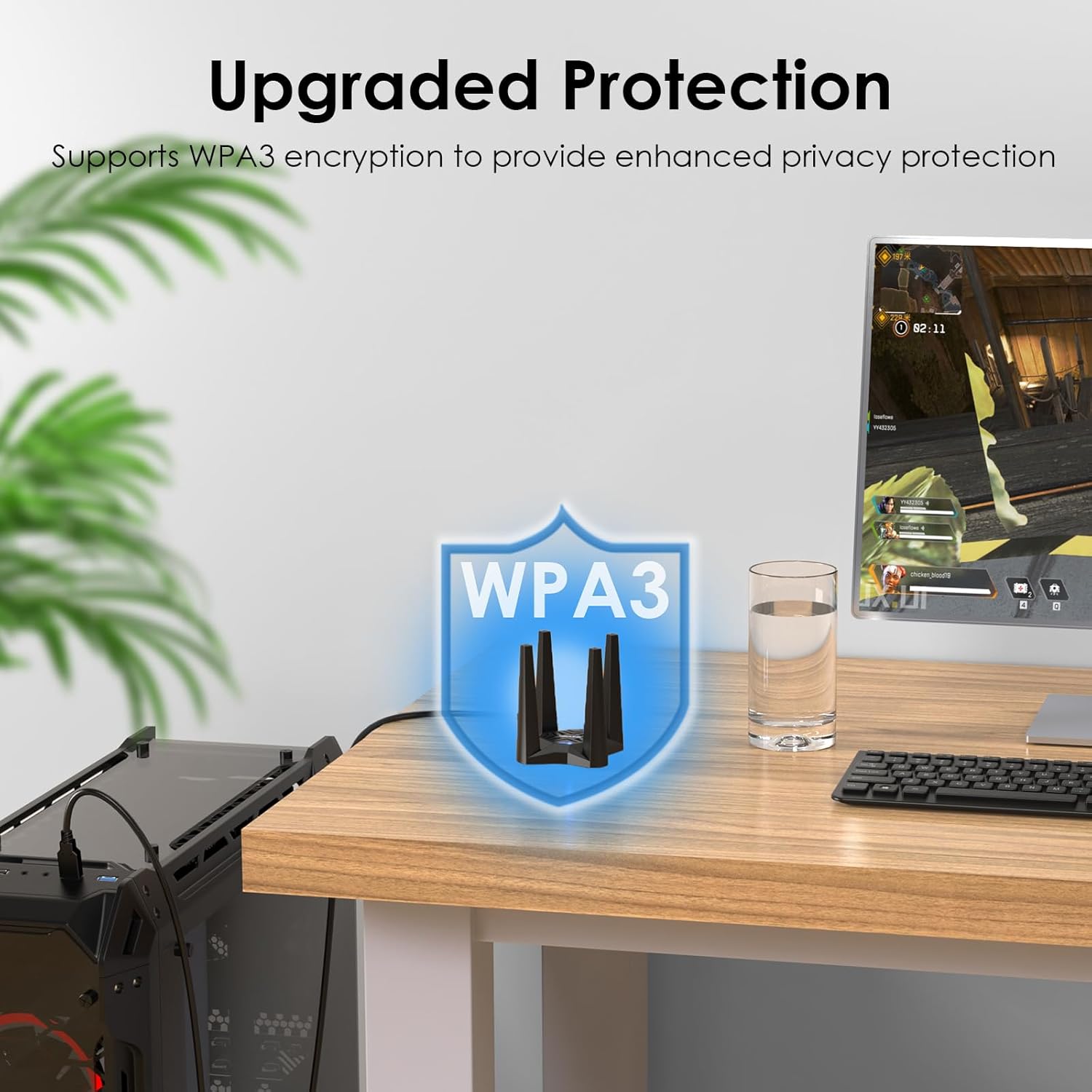
Image: A shield icon with 'WPA3' indicating the adapter's support for WPA3 encryption for enhanced network security.
5. Setup and Driver Installation
The WAVLINK AX1800 USB WiFi Adapter is compatible with Windows 10 and Windows 11 (32/64bit) operating systems only. It features a built-in driver for convenient installation.
Installation Steps:
- Connect the Adapter: Plug the USB 3.0 cable from the adapter into an available USB port on your computer.
- Locate the 'CD Drive': Open 'This PC' or 'My Computer' and look for a new 'CD Drive' icon. This represents the adapter's built-in driver.
- Install the Driver: Double-click the 'CD Drive' and follow the on-screen instructions to install the driver.
Note: If your computer already has a driver for this device installed, the 'CD Drive' may not appear. If the 'CD Drive' does not appear and the adapter is not functioning, please visit the official WAVLINK support page at www.wavlink.com to download the driver manually for Model WL-WN693X1F.

Image: Visual guide showing the adapter connected to a laptop, with Windows 10 and Windows 11 logos, and the three steps for built-in driver installation.

Image: A three-panel illustration demonstrating the easy setup process: connecting the adapter, finding the 'CD Drive' in 'This PC', and clicking to install the driver.
6. Operating Modes
The WAVLINK AX1800 USB WiFi Adapter supports two primary operating modes:
6.1. WiFi Mode (Signal Receiver)
In WiFi Mode, the adapter functions as a wireless client, allowing your PC to connect directly to an existing WiFi network (router) to access the internet wirelessly. This eliminates the need for an Ethernet cable connection to your PC.
6.2. Soft AP Mode (Signal Transmitter)
In Soft AP Mode, the adapter transforms a wired internet connection from your PC into a WiFi hotspot. This allows other wireless devices (such as mobile phones, laptops, or tablets) to connect to your PC's internet connection wirelessly.

Image: Diagram illustrating both Soft AP Mode (sharing wired internet as WiFi) and WiFi Mode (PC connecting to WiFi wirelessly).
Image: A visual comparison of WiFi Mode (searching for signals to connect) and Soft AP Mode (creating WiFi signals for sharing).
7. Maintenance
- Keep the adapter clean and free from dust. Use a soft, dry cloth for cleaning.
- Ensure the USB cable is not bent or kinked to prevent damage.
- Periodically check for driver updates on the WAVLINK official website to ensure optimal performance and security.
8. Troubleshooting
8.1. Adapter Not Detected or Not Working
- Check USB Connection: Ensure the adapter is securely plugged into a functioning USB 3.0 port. Try a different USB port.
- Driver Installation: Confirm that the driver has been successfully installed. If the 'CD Drive' did not appear, manually download and install the driver from www.wavlink.com.
- Compatibility: Verify your operating system is Windows 10 or 11 (32/64bit). The adapter is not compatible with other operating systems.
- Restart Computer: A system restart can often resolve detection issues.
8.2. Slow or Unstable Connection
- Signal Strength: Ensure the adapter is placed in an optimal location, ideally with a clear line of sight to your WiFi router. The magnetic base allows for flexible positioning.
- Router Settings: Confirm your router supports WiFi 6 (802.11ax) for maximum performance. Ensure both 2.4GHz and 5GHz bands are enabled.
- Interference: Keep the adapter away from other electronic devices that may cause interference (e.g., microwaves, cordless phones).
- Driver Update: Ensure you have the latest driver installed from the WAVLINK website.
- Band Selection: For higher speeds, try connecting to the 5GHz band. For better range, use the 2.4GHz band.
8.3. Cannot Connect to WiFi Network
- Correct Password: Double-check that you are entering the correct WiFi password.
- Network Visibility: Ensure your WiFi network is broadcasting its SSID (network name).
- Router Reboot: Restart your WiFi router and modem.
- Security Type: Verify your router's security settings (WPA2, WPA3). The adapter supports WPA3.
9. Specifications
| Product Dimensions | 3.15 x 3.15 x 3.94 inches |
| Item Weight | 10.2 ounces |
| Model Number | RZAMUS-693X1F-B |
| Wireless Standard | WiFi 6 (802.11ax) |
| Wireless Speed | AX1800 (1201Mbps on 5GHz, 574Mbps on 2.4GHz) |
| Frequency Bands | 2.4GHz & 5GHz Dual Band |
| Antennas | 4 x 3dBi External Antennas |
| Interface | USB 3.0 |
| Security | WPA3 |
| Compatibility | Windows 10/11 (32/64bit) |
10. Warranty Information
WAVLINK products are covered by a limited warranty from the date of purchase. For specific warranty terms and conditions, please refer to the warranty card included with your product or visit the official WAVLINK website.
11. Customer Support
If you encounter any issues or have questions regarding your WAVLINK AX1800 USB WiFi Adapter, please contact our customer support team:
- Website: www.wavlink.com
- Phone: +1 8889730883 (UTC-5, Mon - Fri 9AM - 6PM)
- Email: contact@wavlink.com
You can also reach us via Amazon Message for support.

Image: Customer support details including website, phone number, and email address.