
1. Introduction
This manual provides detailed instructions for setting up and operating your WAVLINK USB-C Triple Monitor Docking Station. This device is designed to expand the connectivity of your USB-C enabled laptop, offering multiple display outputs, high-speed USB ports, and network connectivity through a single USB-C connection. It supports up to three external monitors for enhanced multitasking and productivity.
2. What's in the Box
Upon unboxing your WAVLINK USB-C Triple Monitor Docking Station, you should find the following items:
- 1 x WAVLINK USB-C Triple Display Universal Docking Station
- 1 x USB-C to USB-C Cable
- 1 x DC20V/6.5A 130W Power Adapter
- 1 x Quick Start Guide
- 1 x Driver Link Card
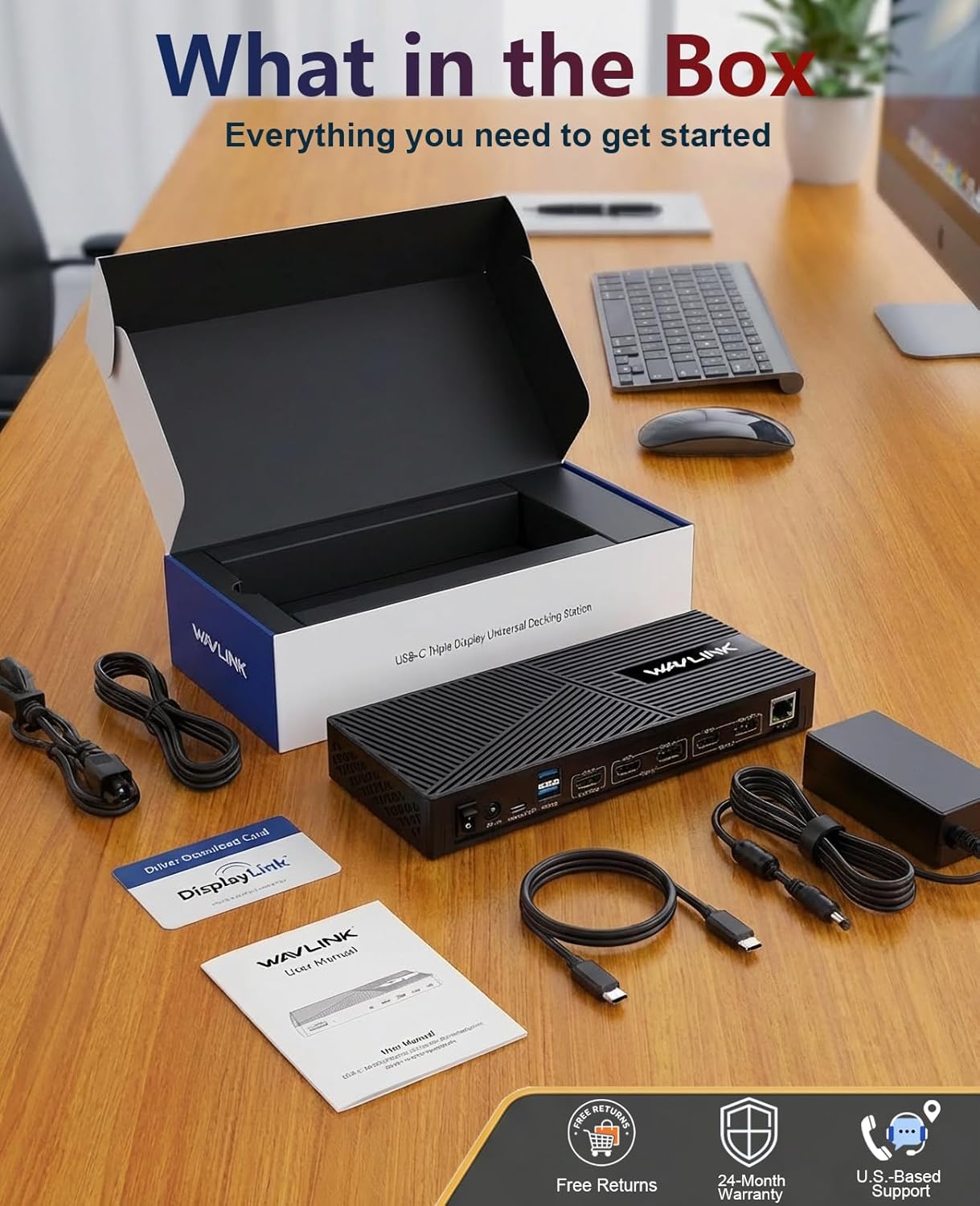
Image: Contents of the WAVLINK USB-C Triple Monitor Docking Station package, including the docking station, power adapter, USB-C cable, and documentation.
3. Product Features and Ports
The WAVLINK USB-C Triple Monitor Docking Station offers a comprehensive array of ports to connect all your peripherals and displays. Below is an overview of the available ports:

Image: Detailed diagram illustrating the various ports on the front and rear of the WAVLINK 15-in-1 Expansion Dock.
Front Panel Ports:
- Audio/Mic (3.5mm Jack): For connecting headphones or a microphone.
- USB-A 3.1 (10Gbps) x 2: High-speed USB ports for data transfer.
- USB-C (10Gbps) x 2: High-speed USB-C ports for data transfer.
Rear Panel Ports:
- Power Switch: On/Off button for the docking station.
- DC-IN 130W (20V IN): Power input for the docking station.
- USB-C (Host) PD100W (Computer): Connects to your laptop for data, video, and power delivery.
- HDMI (ALT MODE) 4K@60Hz: Primary HDMI output supporting up to 4K resolution at 60Hz.
- HDMI / DisplayPort 1 (2K@60Hz): Flexible output for either HDMI or DisplayPort, supporting up to 2K resolution at 60Hz.
- HDMI / DisplayPort 2 (2K@60Hz): Flexible output for either HDMI or DisplayPort, supporting up to 2K resolution at 60Hz.
- RJ45 Gigabit Ethernet (1000Mbps): For stable wired network connection.
4. Setup Guide
4.1. Driver Installation
For multi-display functionality, especially with macOS, the DisplayLink driver is required. Follow these steps to install the necessary drivers:
- Visit displaylink.com.
- Navigate to the 'Downloads' section and select your operating system (Windows, macOS, Chrome OS, Ubuntu, Android).
- Download the latest DisplayLink Manager application.
- Install the application following the on-screen prompts.
- For macOS, you may need to grant 'Screen Recording' permissions in 'Privacy & Security' settings to allow DisplayLink to function correctly.

Image: Visual guide for downloading and installing the DisplayLink driver for multi-display support.
Video: Tutorial demonstrating the Mac driver download and installation process for the WAVLINK docking station.
4.2. Connecting the Docking Station
Connect the 130W power adapter to the DC-IN port of the docking station and plug it into a power outlet. Then, connect the provided USB-C cable from the 'USB-C (Host) PD100W' port on the docking station to your laptop's USB-C port. Ensure your laptop's USB-C port supports video output (DP Alt Mode) and Power Delivery for full functionality.

Image: A WAVLINK docking station connected to a laptop and three external monitors, illustrating a typical setup.
4.3. Connecting External Monitors
The docking station supports up to three external monitors. For optimal performance and to ensure correct display output, connect your monitors in the following order from left to right:
- Connect your primary 4K monitor to the HDMI (ALT MODE) 4K@60Hz port.
- Connect your second monitor to either the HDMI / DisplayPort 1 (2K@60Hz) port.
- Connect your third monitor to either the HDMI / DisplayPort 2 (2K@60Hz) port.
Note: In Display 1 and Display 2, DisplayPort and HDMI ports cannot be used simultaneously. Use only one port in each video stream group.

Image: A user utilizing a triple monitor workstation setup with a MacBook and Windows laptop, connected via the WAVLINK docking station.
Video: Demonstration of connecting three monitors to the WAVLINK USB-C docking station and achieving a triple display setup.
4.4. Power Delivery (PD)
The docking station provides up to 100W Power Delivery to your connected laptop, allowing it to charge while you work. This eliminates the need for a separate laptop charger, reducing cable clutter.

Image: A laptop being charged via the WAVLINK docking station, highlighting the 100W Power Delivery feature.
4.5. Data Transfer
Utilize the 6x 10Gbps USB ports (2x USB-C + 4x USB-A) for high-speed data transfer. These ports are ideal for connecting external SSDs, USB drives, and other peripherals, ensuring quick and efficient file management.

Image: The WAVLINK docking station with various USB devices connected, demonstrating its 10Gbps high-speed data transfer capabilities.
4.6. Gigabit Ethernet
Connect an Ethernet cable to the RJ45 Gigabit Ethernet port for a stable and fast wired network connection, superior to Wi-Fi for critical tasks like online meetings, VPN, and RDP sessions.

Image: Close-up of the WAVLINK docking station's Gigabit Ethernet port with an Ethernet cable connected.
4.7. Audio Connectivity
The 3.5mm audio/mic jack on the front panel allows you to connect headphones, speakers, or a headset for audio input and output.

Image: Headphones connected to the 2-in-1 audio/mic jack on the WAVLINK docking station.
5. Operating Modes
The WAVLINK docking station supports both Extend Mode and Mirror Mode for multiple displays on compatible Mac and Windows systems.
5.1. Extend Mode
In Extend Mode, each connected monitor displays independent content, expanding your desktop workspace. This is ideal for multitasking, allowing you to have different applications open on separate screens.

Image: A triple monitor setup demonstrating Extend Mode, with different content displayed on each screen for both Mac and Windows.
5.2. Mirror Mode
In Mirror Mode, all connected external monitors display the same content as your primary laptop screen. This is useful for presentations or sharing your screen with an audience.

Image: A triple monitor setup demonstrating Mirror Mode, where all screens duplicate the content of the main display for both Mac and Windows.
6. Compatibility
The WAVLINK USB-C Triple Monitor Docking Station is compatible with a wide range of USB-C laptops, including:
- MacBook: M1/M2/M3/M4/M5 Macs (requires DisplayLink driver).
- Windows: Laptops with USB-C, USB4, & Thunderbolt 3/4 ports (e.g., Dell XPS, HP Spectre, Lenovo ThinkPad, Microsoft Surface with USB-C).
- Chrome OS: Compatible with Chrome OS 100+.
- Ubuntu: Compatible with Ubuntu 20.04, 22.04, 23.04, 24.04.
- Android: 5.0 or later with USB OTG cable.
Important Note: Your laptop's USB-C port must support video output (DP Alt Mode) and Power Delivery for full functionality. This docking station does NOT support USB-A laptops or gaming consoles. It is not recommended for gaming or HDCP-protected 4K streaming.

Image: A compatibility chart detailing supported operating systems and a partial list of compatible host devices for the WAVLINK docking station.
7. Troubleshooting
- No Display Output: Ensure the DisplayLink driver is correctly installed and updated. Verify that your laptop's USB-C port supports DP Alt Mode. Check all cable connections between the docking station, monitors, and laptop.
- Incorrect Resolution/Refresh Rate: Refer to the manual's display settings table for supported resolutions and refresh rates for different port combinations. Adjust display settings in your operating system.
- Laptop Not Charging: Confirm your laptop's USB-C port supports Power Delivery. Ensure the 130W power adapter is correctly connected to the docking station and a power outlet.
- Intermittent Connectivity: Check all physical connections. Ensure the USB-C cable connecting the dock to your laptop is securely fastened, especially if it has a screw-in mechanism.
- MacBook M1/M2/M3/M4/M5 Issues: These Mac models specifically require the DisplayLink driver for multiple external displays. Ensure the driver is installed and screen recording permissions are granted.
8. Specifications
| Feature | Detail |
|---|---|
| Brand | WAVLINK |
| Model | WL-UG63PD25 |
| Hardware Interface | 3.5mm Audio, DisplayPort, Ethernet, HDMI, USB 3.1 Type A, USB 3.1 Type C |
| Total USB Ports | 6 (4x USB-A 3.1, 2x USB-C 3.1) |
| Total HDMI Ports | 3 (1x Alt Mode 4K@60Hz, 2x 2K@60Hz shared with DP) |
| Total DisplayPort | 2 (2K@60Hz shared with HDMI) |
| Ethernet | Gigabit (1000Mbps) RJ45 |
| Power Delivery | 100W to host laptop |
| Power Adapter | 130W (DC20V/6.5A) |
| Product Dimensions | 3.6"L x 8.7"W x 1"H |
| Item Weight | 15 Ounces |
| Minimum OS Required | ChromeOS 134, Windows 10, iOS 11 |
9. Warranty & Support
The WAVLINK USB-C Triple Monitor Docking Station comes with a 2-year warranty. For responsive customer support and replacement assistance, please contact WAVLINK directly.
- Phone Support: +1 8889730883 (UTC -5) Mon - Fri 9AM - 6PM
- Email Support: Contact@wavlink.com


