
1. Product Overview
The DARKROCK 20-Port PC Case Fan Hub is designed to centralize control of your PC's cooling fans and addressable RGB lighting. It supports up to 10 PWM 4-pin fans for speed control and 10 ARGB 3-pin fans for lighting effects, all powered via dual SATA ports for stable operation. The included remote control allows for convenient adjustment of fan speed and lighting modes.
Key Features:
- Dual SATA Port Power: Ensures precise and stable control of fan speed.
- PWM Smart Control: Adjusts speed for up to 10 4-pin PWM fans via remote control.
- Addressable RGB Lighting: Supports up to 10 ARGB fans with 5V 3-pin connectors for customizable lighting.
- Easy Installation: Features magnets for secure attachment inside the PC case.
Package Contents:
- DARKROCK 20-Port PC Case Fan Hub
- Remote Control

Image 1.1: The DARKROCK 20-Port PC Case Fan Hub and its accompanying remote control.
2. Safety Information
- Ensure your PC is powered off and unplugged from the wall outlet before installation.
- Handle components with care to avoid damage.
- Do not attempt to modify the hub or its components.
- This hub is designed for 5V 3-pin ARGB components only. It does not support 12V RGB components. Connecting 12V RGB devices may cause damage.
- Keep the device away from moisture and extreme temperatures.
3. Setup and Installation
3.1. Product Diagram
Familiarize yourself with the hub's ports and connections before installation.

Image 3.1: Detailed diagram of the fan hub's connection ports.
3.2. Installation Steps
- Mount the Hub: The hub features strong magnets on its back. Attach it directly to a metal surface inside your PC case. Ensure it is securely placed and does not obstruct other components or airflow.
- Connect Power: Connect the two SATA power connectors from the hub to available SATA power cables from your power supply unit (PSU). This provides stable power to the fans and ARGB lighting.
- Connect to Motherboard (Optional for Sync):
- For PWM fan speed control, connect the 4-pin PWM cable from the hub to a 4-pin PWM fan header on your motherboard (labeled 'PWM/FG' on the hub).
- For motherboard ARGB lighting synchronization, connect the 3-pin 5V ARGB cable from the hub to a compatible 3-pin 5V ARGB header on your motherboard (labeled 'SYNC 5V 3PIN' on the hub).
- Connect Fans: Connect your 4-pin PWM fans to the 'FAN-A1' through 'FAN-A5' and 'FAN-B1' through 'FAN-B5' ports on the hub. Connect your 3-pin 5V ARGB devices (fans or LED strips) to the 'ARGB-A1' through 'ARGB-A5' and 'ARGB-B1' through 'ARGB-B5' ports.
- Important Note for PWM: Ensure that at least one 4-pin PWM fan is connected to the FAN-A1 port. This port is crucial for the motherboard to read the fan speed and access the PWM signal for all connected fans. If FAN-A1 is not connected, the BIOS may not correctly detect or control fan speeds.
- Connect LED Switch (Optional): If you have an external LED switch on your PC case, you can connect it to the 2-pin 'LED SWITCH' port on the hub to toggle lighting effects.

Image 3.2: Magnetic installation of the fan hub.
4. Operation
4.1. Remote Control Functions
The included remote control allows for comprehensive management of fan speed and ARGB lighting effects. Point the remote directly at the fan hub for optimal signal reception.

Image 4.1: Remote control button functions.
- ON/OFF Lights (Power Button): Toggles the ARGB lighting on or off.
- SPEED- / SPEED+ Buttons: Increases or decreases the fan speed.
- MODE- / MODE+ Buttons: Cycles through different ARGB lighting modes.
- AUTO Button: Activates automatic cycling through all available lighting modes.
- Luminosity Adjustment Keys (Sun Icons): Adjusts the brightness of the ARGB lighting.
- Monochromatic Shortcut Keys (R, G, B, W): Directly sets the lighting to Red, Green, Blue, or White.
- Music Mode Keys (♪1, ♪2, ♪3): Activates different music-reactive lighting modes.
- M/B Button (Motherboard & Controller Signal Switching Key): Switches control between the remote controller and motherboard ARGB synchronization. When the hub is first connected to a 5V ARGB port on the motherboard, the lighting defaults to motherboard control. Pressing the M/B button will switch control back to the remote.
5. Maintenance
To ensure optimal performance and longevity of your DARKROCK fan hub, follow these simple maintenance guidelines:
- Cleaning: Periodically clean the hub and its connections using a soft, dry cloth. Avoid using liquid cleaners or solvents.
- Dust Removal: Ensure the area around the hub and connected fans is free from excessive dust buildup, which can impede cooling and affect component lifespan.
- Cable Management: Maintain tidy cable routing to prevent strain on connectors and improve airflow within your PC case.
6. Troubleshooting
- Fans Not Spinning or Incorrect Speed:
- Ensure all SATA power connectors are securely plugged into the PSU.
- Verify that the 4-pin PWM cable from the hub is connected to a motherboard fan header.
- Confirm that at least one 4-pin PWM fan is connected to the FAN-A1 port on the hub. This is essential for BIOS detection and PWM signal transmission.
- Check fan connections to the hub for proper seating.
- ARGB Lights Not Working or Incorrect Colors:
- Ensure all SATA power connectors are securely plugged in.
- Verify that 3-pin 5V ARGB devices are connected to the correct 3-pin 5V ARGB ports on the hub.
- Compatibility Note: This hub is only compatible with 3-pin 5V addressable RGB components. It does not support 12V RGB components. Connecting 12V RGB devices will not work and may damage the hub or the device.
- If using motherboard sync, ensure the 3-pin 5V ARGB cable is connected to the motherboard's 5V ARGB header. If lights are controlled by the motherboard, press the M/B button on the remote to switch control back to the remote.
- Check ARGB device connections to the hub for proper seating.
- Remote Control Not Responding:
- Ensure there are no obstructions between the remote and the hub.
- Check the remote control's battery and replace if necessary.
7. Specifications
| Feature | Detail |
|---|---|
| Brand | DARKROCK |
| Model | DR-FAN-CONTROLLER |
| Color | Black |
| Power Input | Dual SATA Port |
| Fan Ports | 10 x 4-pin PWM |
| ARGB Ports | 10 x 3-pin 5V ARGB |
| Voltage | 12 Volts (for fans), 5 Volts (for ARGB) |
| Material | Metal |
| Item Weight | 0.12 Kilograms |
| Included Components | Controller hub and remote |
| UPC | 850059070291 |
7.1. Dimensions
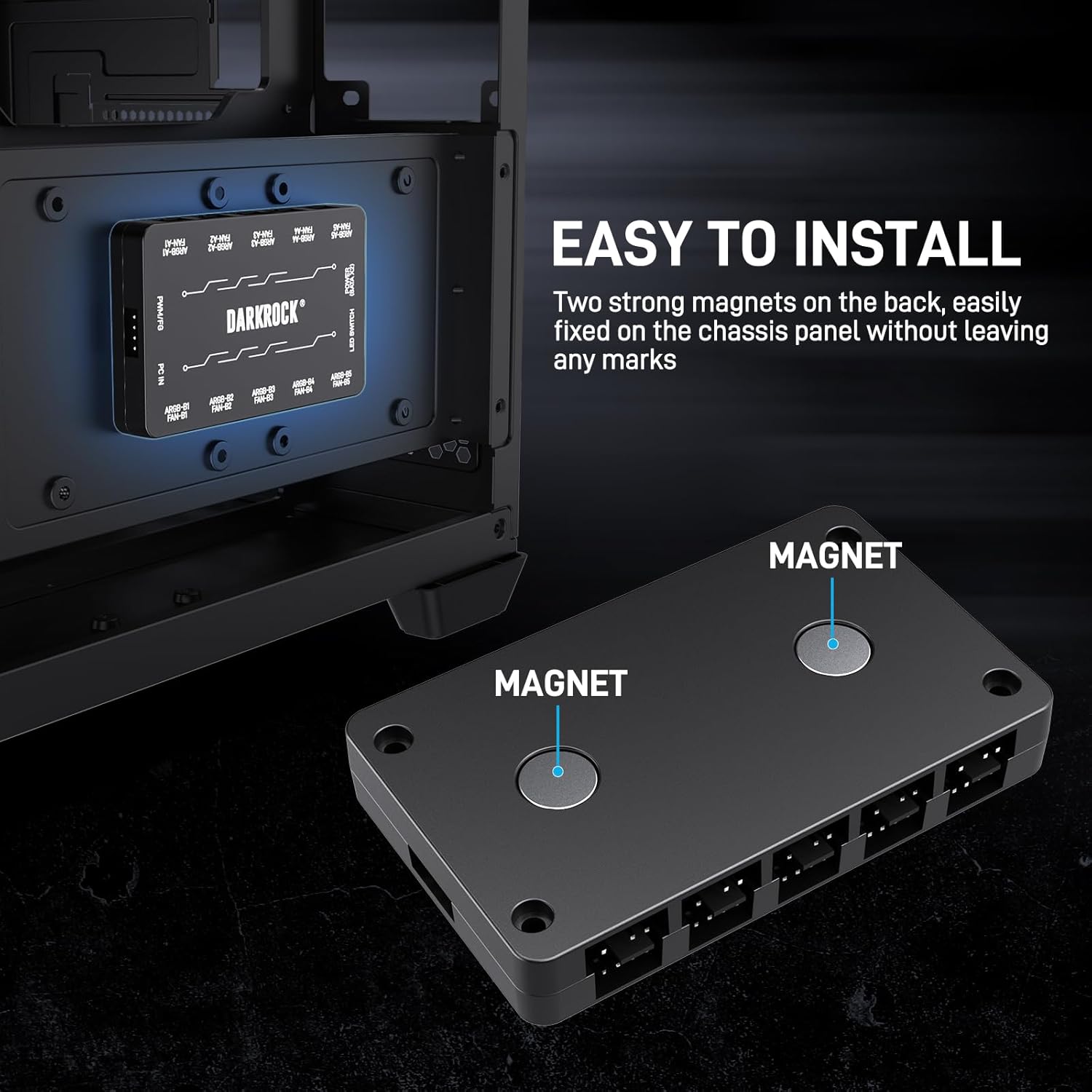
Image 7.1: Approximate dimensions of the fan hub (3.7" x 0.6" x 0.6").
8. Warranty and Support
Specific warranty details are not provided in the product information. For warranty claims, technical support, or further inquiries, please contact DARKROCK customer service directly through their official website or the retailer where the product was purchased.
Please retain your proof of purchase for any warranty-related requests.