
1. Product Overview
The Lemorele 7-in-1 USB C Docking Station is a versatile multiport hub designed to expand the connectivity of your USB-C enabled devices. It provides essential ports for dual monitor setups, high-speed data transfer, and efficient power delivery, enhancing productivity and entertainment experiences.
This docking station features two HDMI 4K@60Hz ports, one USB-A 3.0 port (5Gbps), three USB-A 2.0 ports, and a Power Delivery (PD) 100W port. Its compact and portable design makes it an ideal accessory for laptops, tablets, and phones with a full-featured USB-C port.

Image: The Lemorele 7-in-1 USB C Docking Station, showcasing its compact design and multiple connectivity options including USB-C, HDMI, and various USB-A ports, surrounded by connected peripherals like a USB drive and HDMI cables.
2. Setup Guide
The Lemorele 7-in-1 USB C Docking Station is designed for plug-and-play functionality, requiring no additional drivers or software installation. Follow these steps to set up your docking station:
- Verify Device Compatibility: Ensure your device's USB-C port supports video output (DisplayPort Alternate Mode or Thunderbolt). This is crucial for external monitor functionality.
- Connect the Docking Station: Plug the USB-C cable of the docking station into a full-featured USB-C port on your laptop, tablet, or phone.
- Connect External Displays: Use HDMI cables to connect your 4K displays to the two HDMI ports on the docking station.
- Connect USB Peripherals: Plug your USB devices (e.g., mouse, keyboard, USB drives) into the available USB-A 3.0 and USB-A 2.0 ports.
- Connect Power Adapter (Optional but Recommended): For stable operation and charging your host device, connect a 100W (or higher) USB-C PD power adapter to the PD 100W port on the docking station. Note that the power adapter is not included.

Image: A detailed diagram illustrating the various ports of the Lemorele 7-in-1 USB C Docking Station, including USB-A 3.0, USB-A 2.0, HDMI 4K@60Hz, and USB-C PD Input 100W, highlighting their functions and data transfer speeds.
3. Operating Instructions
3.1 Dual Monitor Display Modes
The docking station supports various display modes for extended or mirrored desktop environments. Configuration depends on your operating system.
- Windows OS: Supports both Extended (A-B-B, A-B-C) and Mirror (A-A-A) modes. You can configure display settings via "Display Settings" or by pressing Windows + P keys.
- macOS: Due to macOS limitations, only SST Mode (A-A-A or A-B-B) is supported. Multi-Stream Transport (MST) display is not supported. Configure via "Displays" option in System Preferences.

Image: Visual representation of various display configurations (A-A-A, A-A-B, A-B-B, A-B-C) possible with the Lemorele docking station on a Windows operating system, showing how a laptop screen can be extended or mirrored across multiple external monitors.
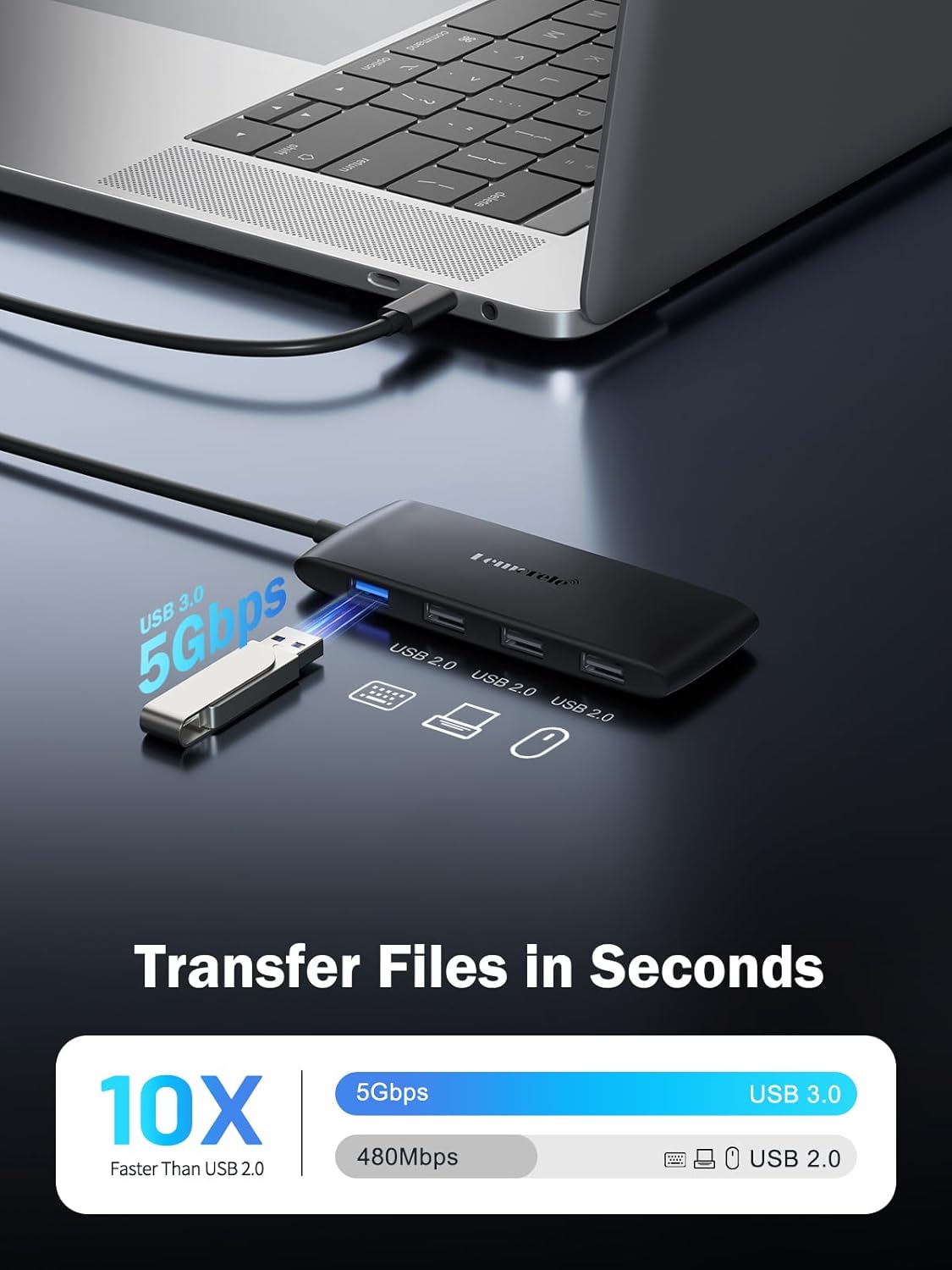
Image: Visual representation of display configurations (A-A-A, A-B-B) possible with the Lemorele docking station on a Mac OS operating system, illustrating how a MacBook screen can be mirrored or extended to external monitors, with a note about MST limitations.
3.2 High-Speed Data Transfer
The docking station is equipped with a USB 3.0 port for rapid data transfer and three USB 2.0 ports for standard peripheral connections.
- USB 3.0 Port: Supports data transfer speeds up to 5Gbps, ideal for connecting external hard drives, SSDs, or high-speed USB flash drives.
- USB 2.0 Ports: Supports data transfer speeds up to 480Mbps, suitable for connecting keyboards, mice, printers, and other standard USB peripherals.
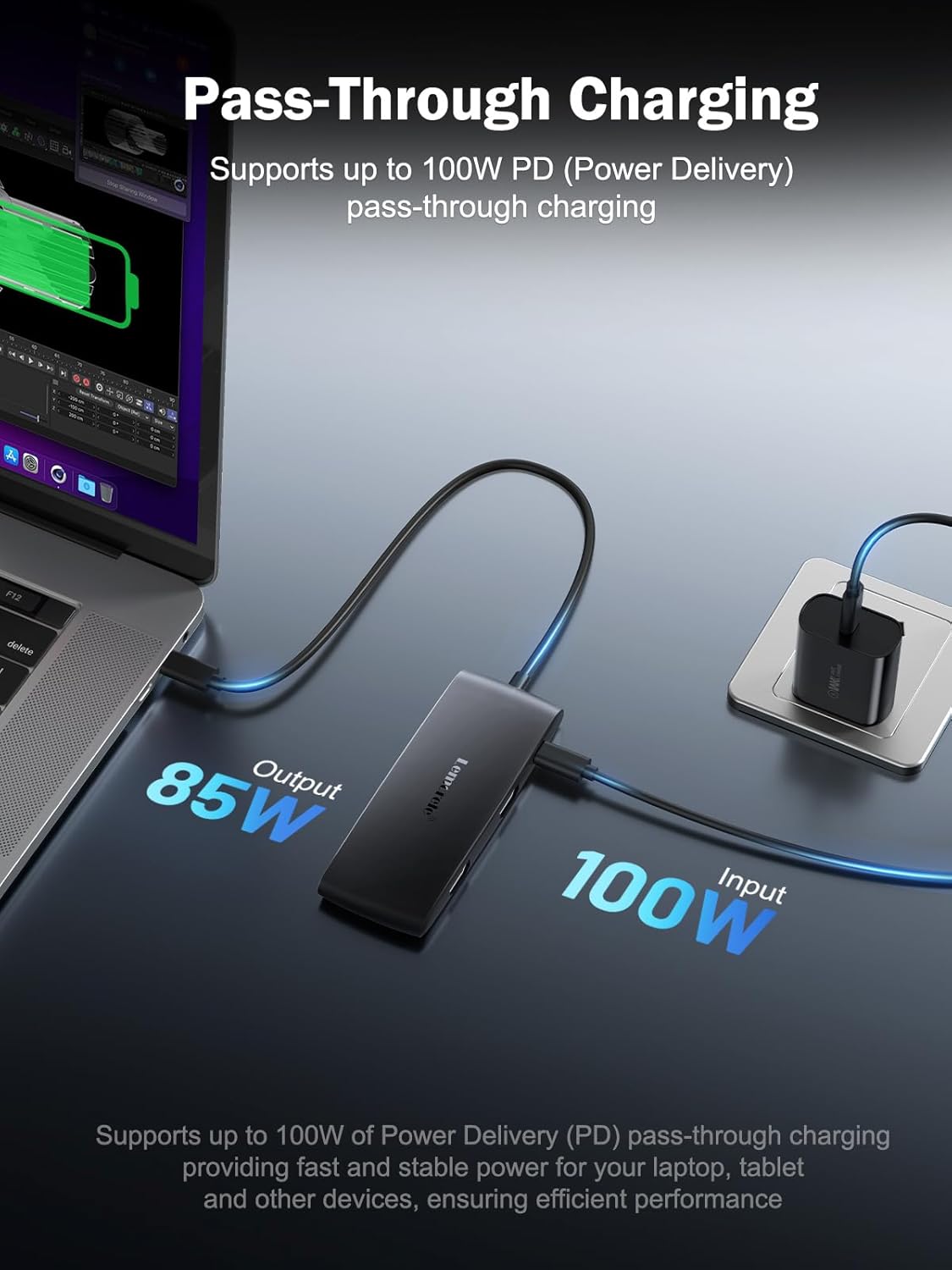
Image: A graphic illustrating the speed advantage of USB 3.0 (5Gbps) over USB 2.0 (480Mbps) for data transfer, with icons representing various files like games, photos, and videos being transferred rapidly.
3.3 Power Delivery (PD) Charging
The dedicated PD 100W port allows you to charge your host laptop or device while using the docking station. This port supports up to 100W input and a maximum of 85W output to the laptop.
- Ensure you use a 100W or higher power adapter (not included) for optimal charging performance.
- The PD port is for power input only and does not support data transfer or video output.

Image: A diagram showing the Lemorele docking station connected to a laptop and a power outlet, illustrating the 100W power input to the hub and 85W power output to the laptop for pass-through charging.
3.4 Wide Compatibility
The Lemorele 7-in-1 USB C Docking Station offers broad compatibility with a variety of devices and operating systems.
- Compatible Laptops: Includes MacBook Pro, MacBook Air, Dell, HP, Lenovo ThinkPad, Samsung, Surface, ASUS, ACER, and more with a full-featured Type-C port.
- Compatible Mobile/Tablet Devices: Includes iPad Pro, iPhone 15, Samsung, Surface Pro, Galaxy Tab, OnePlus, and others.
- Compatible Game Consoles: Includes Nintendo Switch, ROG Ally, Steam Deck.
- Supported Operating Systems: Windows, macOS, Linux, Chrome OS, Android, iPadOS.

Image: A comprehensive chart displaying the wide range of compatible laptops, mobile devices, game consoles, and operating systems that work with the Lemorele USB-C docking station.
4. Maintenance
To ensure the longevity and optimal performance of your Lemorele 7-in-1 USB C Docking Station, follow these maintenance guidelines:
- Cleaning: Gently wipe the surface of the docking station with a soft, dry cloth. Avoid using liquid cleaners or abrasive materials, which could damage the device.
- Storage: Store the docking station in a cool, dry place away from direct sunlight, extreme temperatures, and high humidity. Its portable size allows for easy storage in a pocket or laptop bag.
- Heat Dissipation: The docking station features a built-in intelligent microchip and strong heat dissipation design. Ensure proper airflow around the device during operation to prevent overheating. Do not cover the device.
- Cable Care: Avoid bending or pulling the integrated USB-C cable excessively, as this can damage the internal wiring.
- Protection Systems: The device includes protection systems against overcurrent, over-voltage, short circuit, and high temperature. While these systems are in place, always use the device within its specified operating conditions.
5. Troubleshooting
If you encounter issues with your Lemorele 7-in-1 USB C Docking Station, refer to the following common troubleshooting tips:
Common Issues and Solutions:
- Q: Why is there no audio output when connecting a 3.5mm audio device?
A: Please confirm that your laptop's USB-C port supports audio and video output. The HUB's 3.5mm audio output follows the HDMI audio output. You need to switch the laptop's audio output settings to LCD or HDMI audio output. Some monitors may lack audio drivers, which can lead to the 3.5mm audio port not being recognized after connecting to an HDMI monitor. Please use a monitor with HDMI audio capabilities for connection.
- Q: Why is the HUB intermittently disconnecting and not recognizing the Ethernet connection?
A: Please first check if the Ethernet cable is connected properly and verify that there are no IP address conflicts in the network settings. If the issue persists, it is recommended to download the latest network drivers from the official website to ensure the device operates correctly.
- Q: Why does my laptop indicate slow charging when I connect the charger?
A: The HUB itself requires at least 15W of power to operate. It is recommended to use a higher wattage PD power adapter (preferably up to 100W). This ensures that there is sufficient power supplied to both the HUB and the laptop, avoiding slow charging issues.
- Q: Why is there no charging indication when connecting the PD power adapter?
A: Please confirm whether your laptop's USB-C port supports PD charging functionality and check if the power adapter is connected properly. If the issue persists, it is recommended to try connecting a different PD power adapter to rule out compatibility issues with the PD charging protocol.
- Q: How do I set a higher resolution and display mode when connecting a VGA monitor?
A: The VGA monitor supports up to 1080P at 60Hz. When connecting multiple HDMI and VGA monitors, the maximum supported resolution is 1080P @60Hz. In extended mode settings, the VGA display follows the HDMI port next to it.
- Q: Why can't a SD card be read?
A: Please check if the SD card is inserted correctly and ensure that the card's file format is compatible with the device.
- Q: Can I use a USB-C extension cable to connect the HUB?
A: Using a USB-C extension cable may weaken the signal, leading to some ports (such as HDMI) not displaying properly. It is not recommended to use a USB-C extension cable.
- Q: How do I set the HDMI monitor to mirror or extend mode?
A: Windows OS: You can press the Windows + P keys to select the display mode, or go to "System Settings" and find "Display Settings" to adjust the display mode. macOS: Open "System Preferences" go to the "Displays" option, and from there, you can choose to set the display to mirror or extend mode.
- Q: The laptop's USB-C port supports audio and video output, so why is there no display when connecting to an HDMI monitor?
A: Please try disconnecting the HUB from the laptop, shutting down the laptop, and then pressing and holding the power button for 40 seconds to discharge any static electricity. After that, reconnect the HUB and try again.
- Q: Does the HUB's HDMI port support other refresh rates?
A: By default, it supports 1080P @60Hz and 4K @30Hz resolutions. When connecting a single HDMI monitor, the resolution display depends on the laptop's USB-C port and the monitor's supported resolution (e.g., 2560x1440P @144Hz).
- Q: My laptop doesn't have a USB-C port. Can I use a USB-A adapter?
A: No, using a USB-A adapter to connect the Hub will result in the HDMI and other ports being unable to output audio and video, causing the monitor and other devices to not function properly.
- Q: Can a USB-C monitor be connected?
A: No, the HUB's USB-C PD port only supports connecting to a PD power adapter, and the USB-C data port only supports connecting storage devices for data transfer. It does not facilitate data transfer or video output. To connect a monitor, please use the HDMI connection.
- Q: Why can't a MacBook achieve triple-screen extended display when connected to multiple HDMI monitors?
A: macOS does not support MST (Multi-Stream Transport) technology. As a result, only mirroring (A-A-A) or duplicating the same extended display (A-B-B) is supported, and triple-screen extended mode is not supported.
- Q: Does the HUB require driver installation before use?
A: The HUB is a plug-and-play external device and generally does not require manual driver installation.
- Q: Can the 3.5mm audio port be used for microphone input?
A: The 3.5mm audio port only supports audio output and does not support microphone input.
- Q: Does it support connecting USB-C headphones?
A: The hub's USB-C port does not support audio output. Please use headphones connected via the USB-A or 3.5mm audio port.

Image: A section of the troubleshooting guide, presenting common questions and answers regarding audio output, intermittent disconnections, slow charging, and power adapter issues.

Image: The second part of the troubleshooting guide, addressing questions about display modes, USB-C port functionality, driver installation, and audio port usage for headphones and microphones.
6. Product Specifications
| Feature | Specification |
|---|---|
| Model Name | Black-7 in 1 |
| Brand | Lemorele |
| Connectivity | USB-C (Host Connection) |
| HDMI Ports | 2 x HDMI 4K@60Hz |
| USB-A 3.0 Ports | 1 (5Gbps Data Transfer) |
| USB-A 2.0 Ports | 3 (480Mbps Data Transfer) |
| Power Delivery (PD) Port | 1 (100W Input, Max 85W Output to Laptop) |
| Plug and Play | Yes |
| Heat Dissipation | Built-in intelligent microchip and protection systems |
| Dimensions | 4.5 x 1.7 x 0.5 inches |
| Cable Length | 10.2 inches |
| Item Weight | 2.39 ounces |
7. Warranty and Support
Lemorele is committed to providing high-quality products and excellent customer service. While specific warranty details are not provided in this manual, please retain your proof of purchase for any warranty claims.
For technical support, troubleshooting assistance, or warranty inquiries, please contact Lemorele customer service through the official channels provided at the point of purchase or on the Lemorele brand website. Our team is dedicated to ensuring your satisfaction with our products.
You can visit the official Lemorele Store for more information and support: Lemorele Store