
Product Overview
The GOBOULT Y1 Pro Wireless Earbuds are designed to provide a high-quality audio experience with features like extended playtime, clear calling, and low-latency gaming. This manual provides detailed instructions for setting up, operating, and maintaining your earbuds.

Image: A collage showcasing key features of the GOBOULT Y1 Pro Earbuds, including 60 hours playtime, Zen Quad Mic ENC, 45ms low latency gaming, 13mm bass drivers, Type-C fast charging, and Bluetooth 5.3.
Package Contents
- GOBOULT Y1 Pro Wireless Earbuds
- Charging Case
- USB Type-C Charging Cable
- Ear Cushions (various sizes)
- Eartips (various sizes)
- Warranty Card
Setup
1. Charging the Earbuds and Case
Before initial use, ensure both the earbuds and the charging case are fully charged. This optimizes battery life and performance.
- Connect the provided USB Type-C charging cable to the charging port on the case and to a compatible USB power adapter (not included).
- The LED indicator on the charging case will illuminate to show charging status.
- A full charge typically takes a few hours. A quick 10-minute charge can provide approximately 120 minutes of playtime.

Image: The GOBOULT Y1 Pro earbuds and charging case, illustrating the Type-C fast charging capability, where 10 minutes of charge provides 120 minutes of playtime.
2. Initial Pairing
Follow these steps to pair your earbuds with your device for the first time:
- Remove any protective film from the charging contacts on the earbuds.
- Place both earbuds into the charging case and close the lid for a few seconds.
- Open the charging case lid. The earbuds will automatically power on and enter pairing mode, indicated by flashing LED lights.
- On your smartphone or other Bluetooth-enabled device, go to the Bluetooth settings.
- Search for available devices and select "GOBOULT Y1 Pro" from the list.
- Once connected, a voice prompt will confirm successful pairing.

Image: A diagram illustrating the initial setup steps, including removing protective film and opening the case, along with a detailed guide to the touch controls for both left and right earbuds.
3. Automatic Reconnection
After initial pairing, the earbuds will automatically connect to the last paired device when removed from the charging case and Bluetooth is enabled on the device.

Image: GOBOULT Y1 Pro earbuds and charging case, demonstrating Bluetooth 5.3 for stable, efficient, and fast pairing with a connected smartphone.
Operating Instructions
Power On/Off
- Power On: Open the charging case lid. The earbuds will power on automatically. Alternatively, if outside the case, long press the touch area on both earbuds for 3 seconds.
- Power Off: Place both earbuds back into the charging case and close the lid. They will power off automatically. Alternatively, long press the touch area on both earbuds for 5 seconds.
Touch Controls
The GOBOULT Y1 Pro earbuds feature intuitive touch controls for managing music, calls, and other functions. Refer to the diagram below and the following list for specific actions:
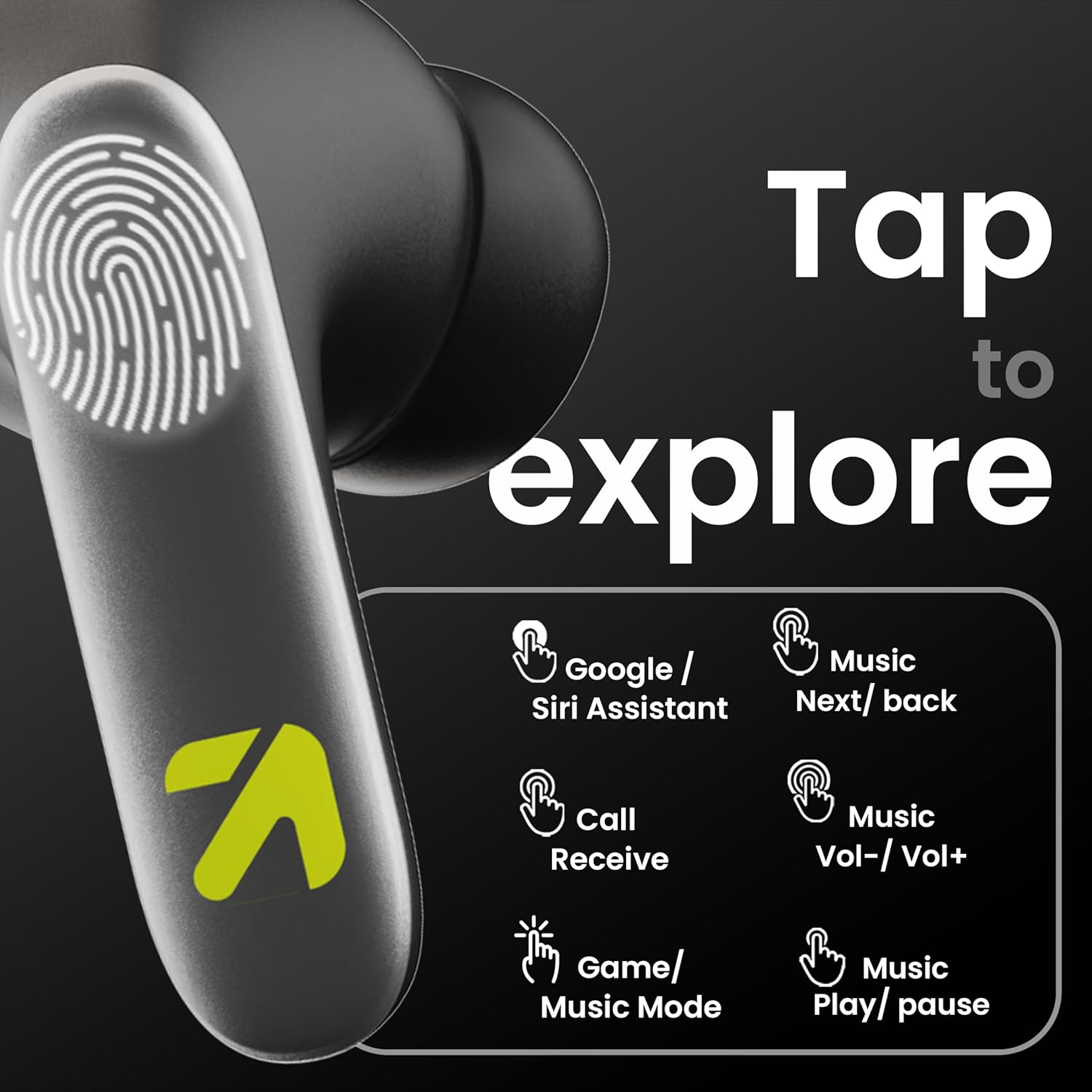
Image: A visual guide to the touch controls on the GOBOULT Y1 Pro earbuds, detailing actions for Google/Siri Assistant, music navigation, call management, volume control, and game/music mode switching.
- Single Tap (Left/Right): Play/Pause music, Answer/End call.
- Double Tap (Left Earbud): Previous song.
- Double Tap (Right Earbud): Next song.
- Triple Tap (Left Earbud): Volume Down.
- Triple Tap (Right Earbud): Volume Up.
- Long Press (2 seconds, Left/Right): Reject incoming call, Activate Voice Assistant (Google/Siri).
- Four Taps (Left/Right): Activate/Deactivate Gaming Mode.
Gaming Mode
For an enhanced gaming experience, activate the ultra-low latency Gaming Mode:
- Activation: Tap the touch area four times on either earbud.
- Deactivation: Tap the touch area four times again.

Image: GOBOULT Y1 Pro earbuds and charging case, highlighting the 45ms low latency gaming mode for real-time audio synchronization, activated by four taps.
Voice Assistant
Quickly access your device's voice assistant (Siri or Google Assistant) for hands-free control:
- Activation: Perform a long tap on the touch area of either earbud.

Image: Illustration showing how to access Siri or Google Assistant with a long tap on the earbud's touch sensor.
Environmental Noise Cancellation (ENC)
The GOBOULT Y1 Pro features Zen Quad Mic ENC technology, ensuring crystal-clear calls by effectively filtering out ambient noise from your surroundings.

Image: A diagram explaining how Environmental Noise Cancellation (ENC) works by isolating your voice from environmental noise, ensuring clear communication during calls.
Maintenance
Cleaning
- Regularly clean the earbuds and charging case with a soft, dry, lint-free cloth.
- Ensure the charging contacts on both the earbuds and inside the case are free from dust and debris to maintain proper charging.
- Do not use abrasive cleaners, solvents, or harsh chemicals, as these may damage the product.
Water Resistance
The GOBOULT Y1 Pro earbuds are rated IPX5 water-resistant. This means they are protected against low-pressure water jets from any direction, making them suitable for workouts and light splashes.
- Do not submerge the earbuds in water.
- Avoid exposing them to heavy rain or extreme moisture.
- Ensure the earbuds are dry before placing them back into the charging case to prevent damage.

Image: GOBOULT Y1 Pro earbuds with water droplets, illustrating their IPX5 water resistance, providing protection against sweat and splashes.
Troubleshooting
If you encounter any issues with your GOBOULT Y1 Pro earbuds, refer to the following common troubleshooting steps:
Earbuds not pairing or connecting
- Ensure both earbuds and the charging case have sufficient battery.
- Turn off Bluetooth on your device, wait 5 seconds, then turn it back on.
- On your device, "Forget" or "Unpair" "GOBOULT Y1 Pro" from the Bluetooth list, then attempt the pairing process again.
- Place both earbuds back into the charging case, close the lid, wait 10 seconds, then open the lid to re-enter pairing mode.
Only one earbud working
- Ensure both earbuds are charged.
- Place both earbuds back into the charging case, close the lid, and then open it again. This often re-syncs them.
- If the issue persists, try resetting the earbuds (refer to the manufacturer's website for specific reset instructions if not detailed here).
Poor sound quality or low volume
- Ensure the earbuds are properly seated in your ears to create a good seal. Try different sized eartips.
- Clean any debris from the earbud grilles.
- Check the audio source device's volume and sound settings.
- Move closer to your connected device to avoid signal interference.
Charging issues
- Ensure the charging cable is securely connected to both the case and the power source.
- Try a different USB Type-C charging cable or power adapter.
- Clean the charging contacts on both the earbuds and inside the case with a dry cotton swab.
Specifications
| Feature | Detail |
|---|---|
| Brand | GOBOULT |
| Model Name | AirBass |
| Bluetooth Version | 5.3 |
| Ear Placement | In Ear |
| Noise Control | Environmental Noise Cancellation (ENC) |
| Audio Driver Size | 13 Millimetres |
| Total Playtime | Up to 60 Hours (with charging case) |
| Low Latency | 45ms (Gaming Mode) |
| Charging Type | Type-C Fast Charging |
| Water Resistance | IPX5 |
| Control Method | Touch |
| Compatible Devices | Smartphones, Tablets, Laptops, Desktops, Smart Speakers |
| Item Weight | 50 Grams |
| Country of Origin | China |
Warranty Information
The GOBOULT Y1 Pro Wireless Earbuds are covered by a 1 Year Manufacturer's Warranty from the date of purchase.
This warranty covers manufacturing defects. Please retain your proof of purchase for any warranty claims. The warranty does not cover damage caused by misuse, accidents, unauthorized modifications, or normal wear and tear.
Support
For further assistance, technical support, or warranty inquiries, please contact:
- Manufacturer: Exotic Mile Private Limited, B-67 Wazirpur Industrial Area, New Delhi 110052
- Importer: Exotic Mile Pvt. Ltd. , B67 Wazirpur Industrial Area , New Delhi 110052
- For customer service contact details, please refer to the GOBOULT official website or the platform where you purchased the product.


