
aowoka weTag pro
aowoka weTag pro Bluetooth Tracker Instruction Manual
Model: weTag pro
Introduction
The aowoka weTag pro is a Bluetooth item tracker designed to help you locate your valuables using the Apple Find My app on iOS devices. This manual provides detailed instructions for setting up, operating, maintaining, and troubleshooting your weTag pro tracker.
Important Note: This device is compatible only with Apple Find My app on iOS devices. Ensure your iOS device is updated to the latest version for optimal functionality.
Package Contents
- aowoka weTag pro Bluetooth Tracker(s)
- User Manual
- CR2032 Battery (pre-installed or included)
Setup and Pairing
Follow these steps to pair your aowoka weTag pro with your iOS device:
- Enable Bluetooth and Location Services: On your iOS device, ensure Bluetooth is turned on and Location Services are enabled for the Find My app.
- Open Find My App: Launch the "Find My" app on your iPhone or iPad.
- Add Item: Navigate to the "Items" tab within the Find My app. Tap on "Add Item," then select "Other Supported Item."
- Activate Tracker: Press the button on your weTag pro tracker once. You should hear a tone indicating it's ready for pairing.
- Connect: Follow the on-screen instructions in the Find My app to complete the connection. The app will detect your weTag pro and allow you to name it.

Figure 1: Simple Matching steps for the weTag pro tracker.
Once paired, your weTag pro will appear in the "Items" tab of your Find My app.
Operating Your weTag pro
Locating Items
You can locate your items using the Find My app in several ways:
- View on Map: The Find My app displays the last known location of your weTag pro on a map. This location is updated by the global Find My network of billions of iOS devices.
- Play Sound: If your item is within Bluetooth range (up to 60 meters / 200 feet), you can tap "Play Sound" in the Find My app to make your weTag pro emit a loud sound (80-100 dB), helping you pinpoint its exact location.

Figure 2: Locating an item using the Apple Find My app.

Figure 3: Using the 'Play Sound' feature to find nearby items.
Left Behind Remind
If you leave an item with your weTag pro behind and it disconnects from your iOS device's Bluetooth range, the Find My app will send you an immediate notification. This feature helps prevent accidental loss.

Figure 4: Left Behind Remind notification.
Lost Mode
If an item is truly lost, you can activate "Lost Mode" in the Find My app. This allows any nearby Apple device to detect your weTag pro and provide its location to you anonymously. You can also include your contact information, which can be accessed by someone who finds your tag, enabling them to return your item.
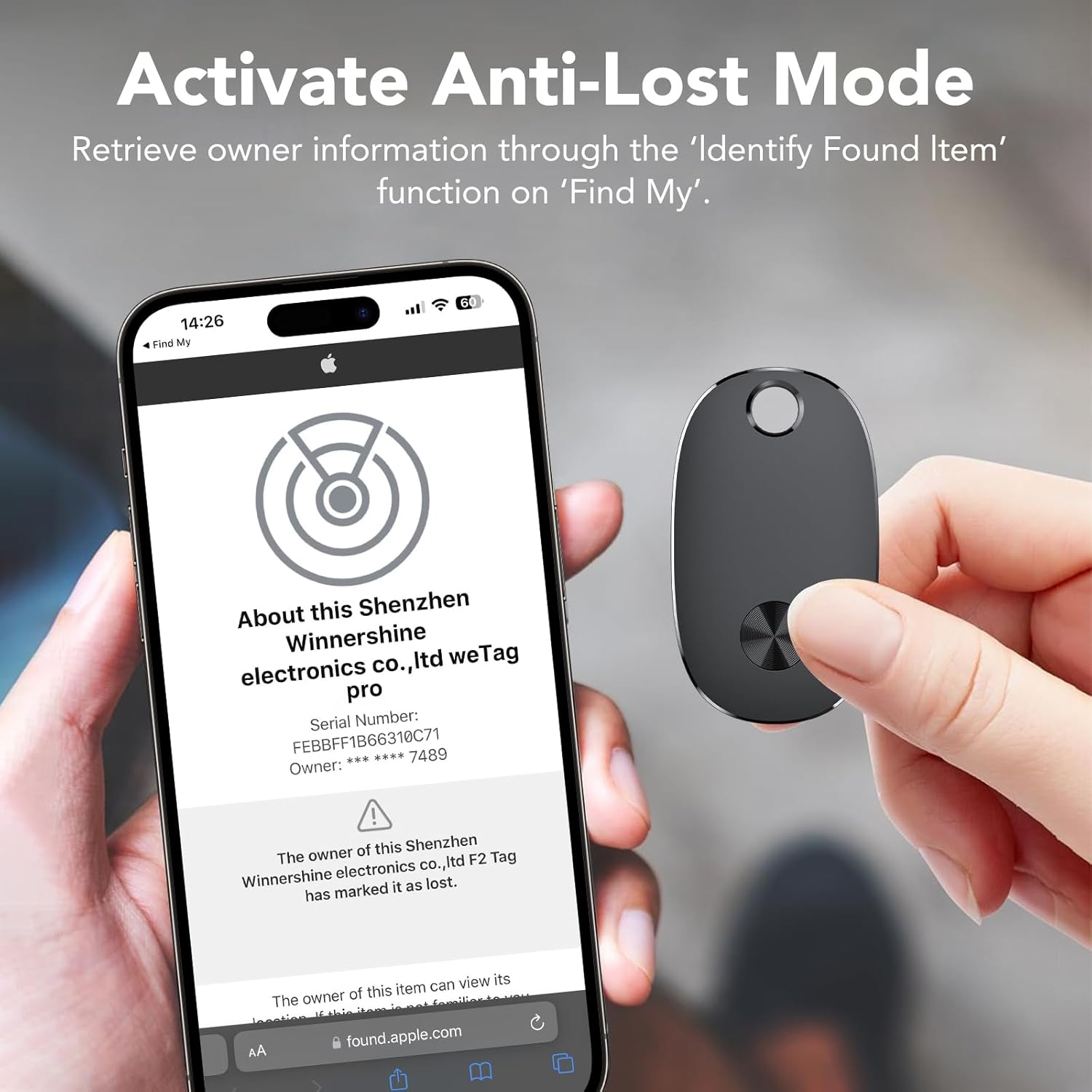
Figure 5: Activating Lost Mode and viewing tracker information.
Sharing Your Tracker
The weTag pro allows you to share its location with up to 5 other Apple devices. This is useful for families or groups tracking shared items like luggage or car keys.

Figure 6: Sharing tracker access with family and friends.
Maintenance
Battery Replacement
The weTag pro uses a replaceable CR2032 coin cell battery, which typically lasts up to 2 years. When the battery is low, you will receive a notification in the Find My app.
- Remove Cover: Locate the small notch on the side of the tracker. Use a thin tool (like a small screwdriver or a coin) to gently pry open the cover.
- Replace Battery: Carefully remove the old CR2032 battery and insert a new one, ensuring the positive (+) side faces upwards.
- Close Cover: Align the cover and press firmly until it clicks securely into place.

Figure 7: Battery replacement steps.
Cleaning and Care
The weTag pro is IP67 water and dust resistant, meaning it can withstand splashes, rain, and brief immersion in water. However, it is not recommended for prolonged submersion. Clean the device with a soft, damp cloth. Avoid using harsh chemicals or abrasive materials.
Troubleshooting
| Problem | Possible Solution |
|---|---|
| Tracker not pairing. |
|
| Cannot hear the sound from the tracker. |
|
| Location is inaccurate or not updating. |
|
| "Left Behind Remind" not working. |
|
Specifications
| Feature | Detail |
|---|---|
| Brand | aowoka |
| Model | weTag pro |
| Connectivity | Bluetooth |
| Compatibility | Apple Find My app (iOS only) |
| Battery Type | CR2032 (replaceable) |
| Battery Life | Up to 2 years |
| Water Resistance | IP67 (dust and water resistant) |
| Bluetooth Range | Up to 60 meters (200 feet) |
| Weight | Approximately 9 grams |
| Material | Plastic |
Warranty Information
The aowoka weTag pro comes with a 1-Year Manufacturer Warranty from the date of purchase. This warranty covers defects in materials and workmanship under normal use. It does not cover damage caused by misuse, accidents, unauthorized modifications, or normal wear and tear. Please retain your proof of purchase for warranty claims.
Customer Support
If you encounter any issues or have questions regarding your aowoka weTag pro, please refer to the troubleshooting section of this manual. For further assistance, contact aowoka customer support through the retailer's platform or the official aowoka website.
For the latest information and support, please visit: aowoka Official Store on Amazon
no relevant documents
Ask a question about this manual
Ask about setup, troubleshooting, compatibility, parts, safety, or missing instructions. Manuals+ will review the question and use this page’s manual context to help answer it.