
1. Introduction
This manual provides comprehensive instructions for the ORICO MiniSnap SC20Pro 1TB Portable SSD. Designed for versatility and high performance, this external solid-state drive offers a unique magnetic and suction cup attachment system, a foldable phone stand, and ultra-fast data transfer speeds. Please read this manual carefully to ensure proper usage and to maximize the device's potential.
2. Product Features
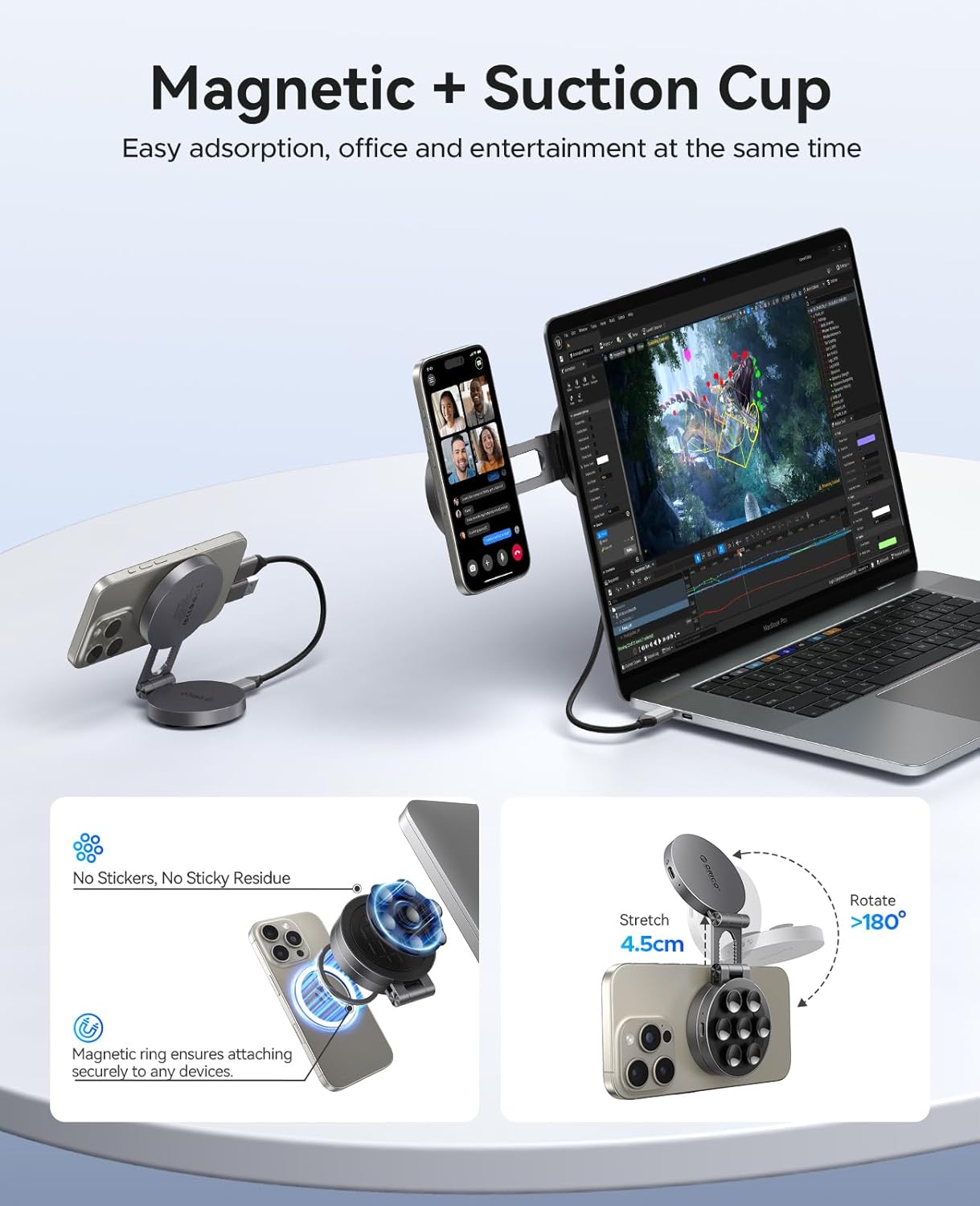
- Magnetic & Suction Cup Design with Foldable Phone Stand: Features a versatile magnetic and suction cup base for secure mounting on various surfaces, including laptops and phones. Includes a built-in foldable stand for hands-free viewing.
- 1TB High-Speed SSD Storage: Provides 1TB capacity with fast SSD technology for storing large files, applications, and media, ensuring quick access and reliability.
- Blazing-Fast USB 3.2 Gen2*2 Speeds up to 2000MB/s: Achieves ultra-rapid data transfers with support for USB 3.2 Gen2*2 (20Gbps), delivering speeds of up to 2000MB/s for seamless backups and large file handling.
- ProRes 4K60fps Video Support: Ideal for content creators, this SSD supports high-resolution ProRes 4K video recording at 60fps (and up to 120fps on compatible devices), enabling smooth editing and playback for professional-grade projects.
3. Package Contents
Please verify that all items are present in your package:
- ORICO MiniSnap SC20Pro 1TB Portable SSD
- USB-C to USB-C Cable (short)
- USB-C to USB-A Cable (with adapter)
- Magnetic Rings (for non-MagSafe compatible devices)
- User Manual
4. Setup and Connection
4.1 Connecting to iPhone 15/16 Series
The ORICO MiniSnap SC20Pro is designed for direct connection to iPhone 15/16 series for external storage, especially for ProRes video recording. For iPhone 14 and earlier models, an ORICO LC10 Lightning adapter is required (not included). Adapters from other brands are not supported.
- Connect the USB-C to USB-C cable to the ORICO MiniSnap SSD and your iPhone 15/16.
- Attach the SSD to the back of your iPhone using the magnetic or suction cup side. Ensure a secure fit.
- Open the Photos app or Camera app on your iPhone.
- Select the photos/videos you wish to transfer or begin recording.
- For transfers, click "Save to Files," then "Browse," select "ORICO," and click "Save."
- For video recording, ensure ProRes is enabled in camera settings. The iPhone will recognize the external SSD for direct recording.

4.2 Connecting to Android Phones
The ORICO MiniSnap SC20Pro can also be connected to compatible Android phones for external storage.
- Connect the USB-C to USB-C cable to the ORICO MiniSnap SSD and your Android phone.
- Attach the SSD to the back of your Android phone using the magnetic or suction cup side.
- Open the "Files" app on your Android phone.
- Navigate to the desired files (e.g., "Images").
- Select the files you wish to copy and choose "Copy."
- Select "ORICO" as the destination and confirm the transfer.

4.3 Connecting to Laptops/Desktops
The SSD can be connected to laptops or desktops for data transfer and storage expansion.
- Use the provided USB-C to USB-C cable or the USB-C to USB-A cable (with adapter) to connect the ORICO MiniSnap SSD to an available port on your computer.
- The SSD will be recognized as an external drive. You can access it through your computer's file explorer (Windows) or Finder (macOS).
- Drag and drop files to transfer data.


5. Operating Instructions
5.1 Data Transfer
Once connected to your device (phone, tablet, or laptop), the ORICO MiniSnap SC20Pro functions as a standard external storage device. You can drag and drop files, copy and paste, or use your device's native file management system to move data to and from the SSD.

5.2 Direct Video Recording (ProRes)
For compatible devices like the iPhone 15/16 series, the SSD allows direct recording of high-resolution video formats such as ProRes 4K at 60fps or 120fps. This bypasses the internal storage limitations of your phone, providing extended recording times for professional-grade content.
Video 1: Demonstrates the ORICO MiniSnap's functionality, including its magnetic attachment, foldable stand, and direct video recording capabilities with a smartphone.
5.3 Using the Foldable Stand
The integrated foldable stand allows you to prop up your phone or tablet for hands-free viewing. Simply unfold the stand from the SSD unit and adjust it to your desired viewing angle.
6. Maintenance
- Cleaning: Use a soft, dry cloth to clean the exterior of the SSD. Avoid liquid cleaners or abrasive materials.
- Storage: Store the SSD in a cool, dry place away from direct sunlight and extreme temperatures.
- Safe Ejection: Always safely eject the SSD from your computer or phone before disconnecting to prevent data corruption.
- Suction Cups: Ensure suction cups are clean and free of dust for optimal adhesion.
7. Troubleshooting
- SSD Not Recognized:
- Ensure the cable is securely connected to both the SSD and your device.
- Try a different USB port or cable.
- Restart your device.
- For phones, check if external storage is enabled in settings.
- Slow Data Transfer Speeds:
- Ensure your device's USB port supports USB 3.2 Gen2*2 (20Gbps) for maximum speed. Older USB standards will result in lower speeds.
- Avoid transferring many small files simultaneously; large files transfer more efficiently.
- Close other applications that might be using system resources.
- Magnetic/Suction Cup Not Holding:
- Ensure the surface is clean, dry, and smooth.
- For magnetic attachment, ensure your device is MagSafe compatible or use the provided magnetic rings.
- Avoid textured or uneven surfaces for suction cups.
8. Specifications
| Feature | Specification |
|---|---|
| Brand | ORICO |
| Model Number | SC20Pro-1TB |
| Hard Drive Type | Solid State Drive |
| Capacity | 1TB |
| Interface | USB 3.2 Gen2*2 (20Gbps) |
| Max Transfer Speed | Up to 2000MB/s |
| Compatible Devices | Desktop, Laptops, Smartphones, Tablets |
| Compatible Phone Models | iPhone 15, iPhone 16, Samsung (and other USB-C Android phones) |
| Mounting Type | Magnetic, Suction Cup, Tabletop (Foldable Stand) |
| Item Weight | 5.6 ounces |
| Package Dimensions | 5.98 x 4.25 x 1.14 inches |
9. Warranty and Support
ORICO products typically come with a manufacturer's warranty. Please refer to the warranty card included in your package or visit the official ORICO website for detailed warranty terms and conditions. For technical support, product inquiries, or service, please contact ORICO customer support through their official channels.
You can find more information and support on the ORICO Store on Amazon.


