
Dpofirs #3
Contents
Dpofirs FHD 1080P Digital Camera User Manual
Model: #3
1. Product Overview
The Dpofirs FHD 1080P Digital Camera is a compact and user-friendly device designed for capturing high-quality photos and videos. It features a 50MP image resolution and 1080P Full HD video output, ensuring clear and vibrant results. Its portable design makes it ideal for travel and everyday use.
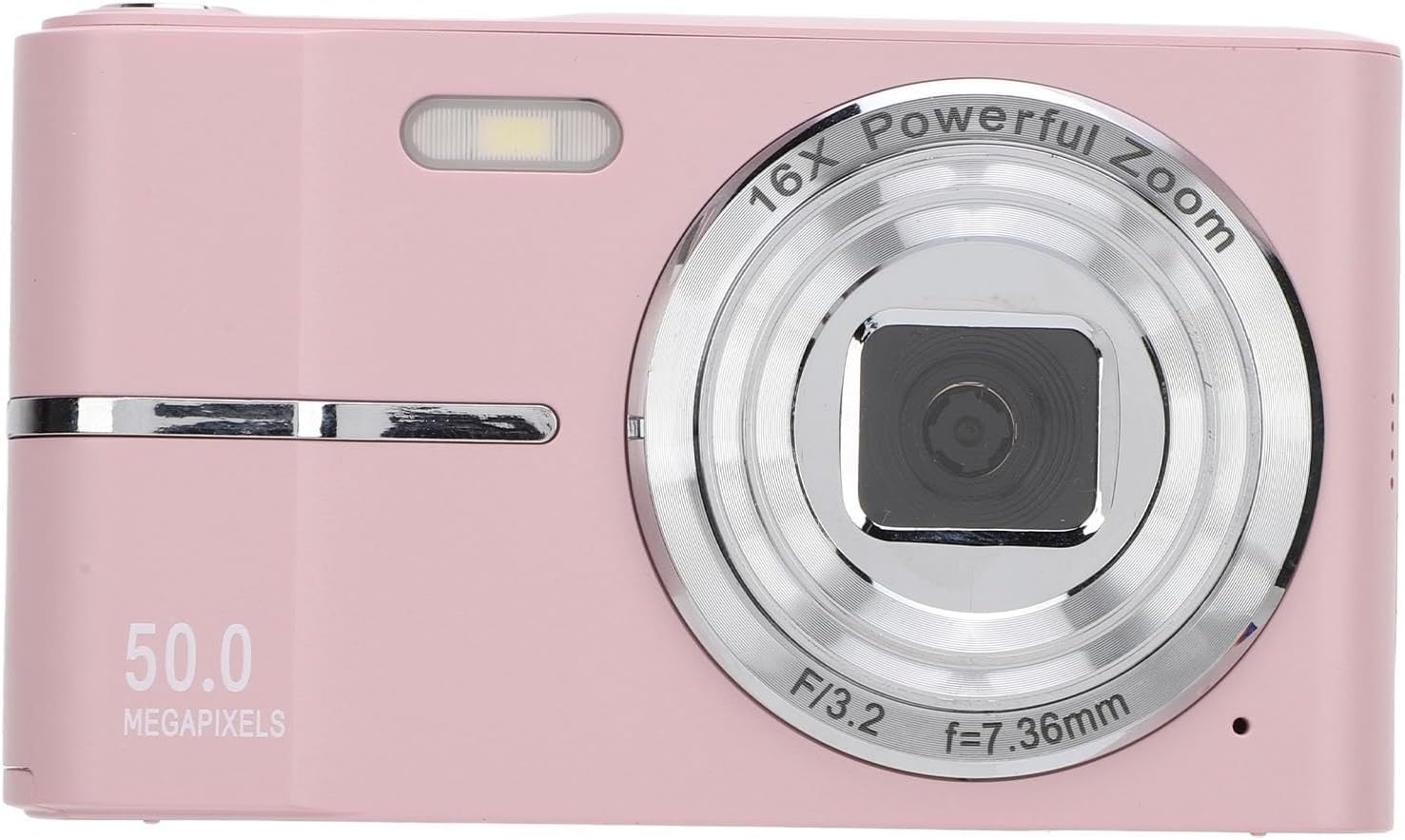
Figure 1.1: Front view of the Dpofirs FHD 1080P Digital Camera.
2. Package Contents
Verify that all items listed below are included in your product package:
- Dpofirs FHD 1080P Digital Camera
- Lithium-ion Battery (NP-6L, 700mAh)
- USB Charging Cable
- Wrist Strap
- Soft Carrying Pouch
- User Manual (this document)

Figure 2.1: Included accessories with the camera.
3. Setup
3.1 Battery Installation and Charging
- Locate the battery compartment on the bottom of the camera.
- Slide the battery compartment latch to open the cover.
- Insert the provided NP-6L Lithium-ion battery into the compartment, ensuring the correct orientation as indicated by the diagram inside the compartment.
- Close the battery compartment cover securely until it clicks into place.
- Connect the camera to a power source using the supplied USB charging cable. The charging indicator light will illuminate.
- Allow the battery to fully charge before first use.

Figure 3.1: Battery compartment location.
3.2 Memory Card Installation (Not Included)
This camera requires a memory card (SD card, not included) to store photos and videos. The camera will display a "No Card!" message if a memory card is not inserted.
- Open the battery compartment cover.
- Locate the memory card slot next to the battery.
- Insert the memory card with the metal contacts facing the correct direction (usually towards the front of the camera) until it clicks into place.
- Close the battery compartment cover.
Video 3.1: Demonstrates unboxing, battery, and memory card installation.
4. Operating Instructions
4.1 Powering On/Off
Press and hold the power button (usually located on the top or side of the camera) to turn the camera on or off. The 2.4-inch HD screen will display "Welcome" upon startup.

Figure 4.1: Rear view with screen and controls.
4.2 Taking Photos
The camera supports 50MP photo capture with autofocus. Simply frame your shot using the screen and press the shutter button to take a picture. The camera features automatic sensitivity and electronic vibration prevention for ease of use.
4.3 Recording Videos
To record 1080P Full HD videos, switch to video mode (refer to on-screen icons or the mode button). Press the shutter button to start and stop recording.
4.4 Digital Zoom
The camera features 16x digital zoom. Use the zoom buttons (often marked 'W' for Wide and 'T' for Telephoto) to adjust the zoom level.
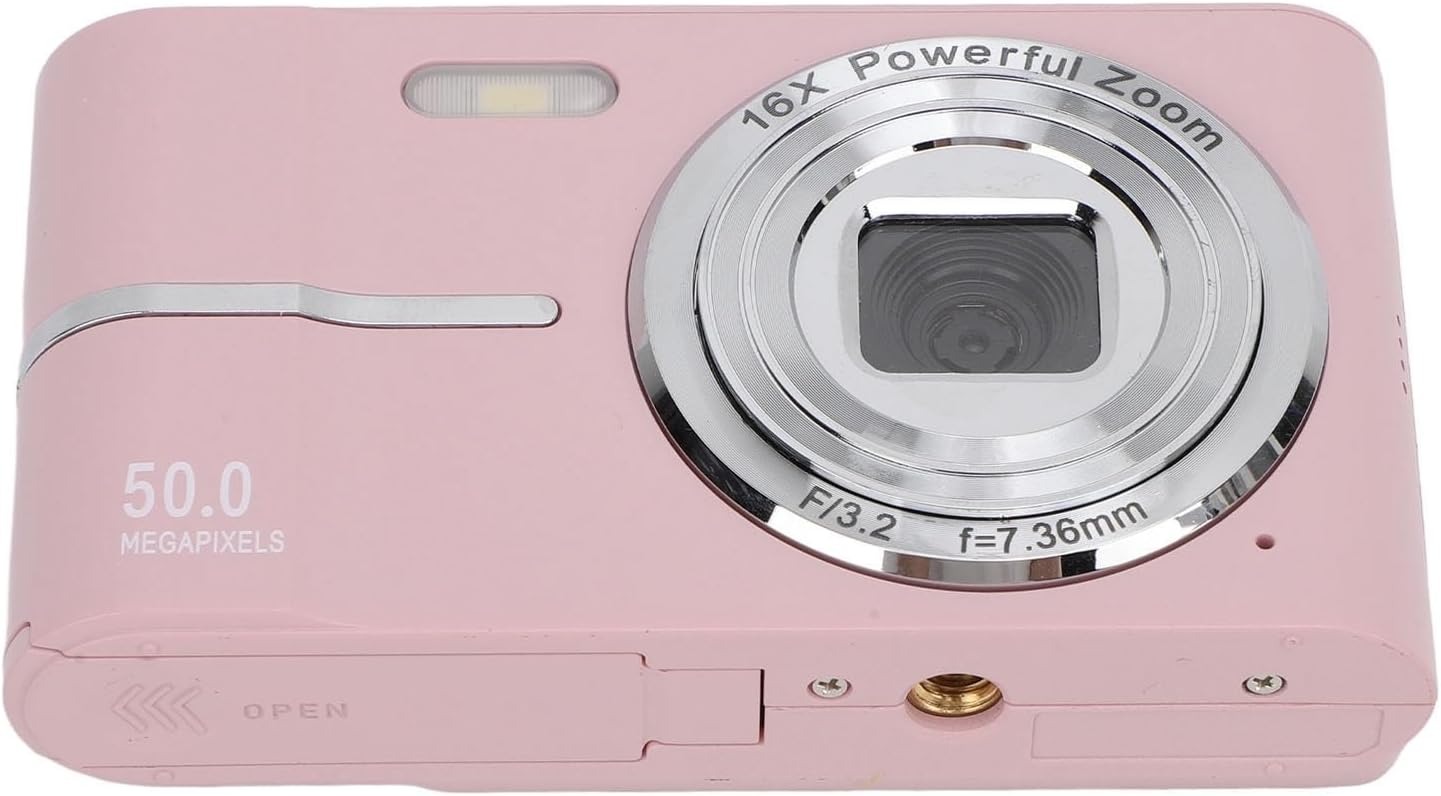
Figure 4.2: Front view highlighting the lens and zoom.
4.5 Special Effects and Modes
Explore various photography effects such as film style, sunset sense, Gothic wind, and high saturation to customize your photos. These modes can be accessed through the camera's menu system.
4.6 Autofocus and Beauty Function
The camera includes an autofocus function, eliminating the need for manual focusing. It also supports portrait smiling face catch and automatic beauty features to enhance your photos.
5. Maintenance
- Keep the camera clean by wiping it with a soft, dry cloth.
- Avoid exposing the camera to extreme temperatures, dust, or moisture.
- Store the camera in its protective pouch when not in use.
- Ensure the battery is charged regularly, even if the camera is not used frequently, to maintain battery health.
6. Troubleshooting
| Problem | Possible Cause | Solution |
|---|---|---|
| Camera does not turn on. | Battery is depleted or not inserted correctly. | Charge the battery fully. Ensure the battery is inserted with correct polarity and the compartment cover is closed. |
| "No Card!" message displayed. | Memory card is not inserted or is faulty. | Insert a compatible SD card. Ensure it is inserted correctly. Try a different memory card if the issue persists. |
| Photos/Videos are blurry. | Lens is dirty, insufficient lighting, or camera shake. | Clean the lens with a soft cloth. Ensure adequate lighting. Hold the camera steady or use a tripod. |
| Camera freezes or is unresponsive. | Software glitch or low battery. | Remove and reinsert the battery to reset the camera. Ensure the battery is sufficiently charged. |
7. Specifications
| Feature | Detail |
|---|---|
| Brand | Dpofirs |
| Model Name | #3 (Dpofirsgyxe2i6zg8-13) |
| Sensor Pixels | 5MP |
| Image Resolution | Up to 50MP (interpolated) |
| Video Resolution | Up to 1080FHD |
| Aspect Ratio | 16:9 |
| Zoom Ratio | 16X Digital Zoom |
| White Balance | Auto, Daylight, Cloudy, Incandescent, Fluorescent |
| Autofocus | Supported |
| Battery Type | Lithium-ion battery (NP-6L) |
| Battery Capacity | 700mAh |
| Storage Support | SD Card (not included) |
| Display Screen | 2.4-inch HD screen |
| Color | #3 (Pink) |
8. Warranty and Support
For information regarding product warranty, returns, or technical support, please refer to the purchase documentation or contact Dpofirs customer service directly. Contact details are typically available on the manufacturer's official website or the product packaging.
Please retain your proof of purchase for any warranty claims.
Documents and downloads
Ask a question about this manual
Ask about setup, troubleshooting, compatibility, parts, safety, or missing instructions. Manuals+ will review the question and use this page’s manual context to help answer it.