
Introduction
The MOES 2-Zone WiFi Sprinkler Timer with Hub provides advanced control over your garden watering system. This innovative device features a dual-outlet design for independent control of two separate watering zones, optimizing water distribution for diverse plant needs. With seamless integration via the Smart Life app and 2.4GHz WiFi, you can manage watering schedules, monitor activity, and utilize voice control through Alexa or Google Assistant from anywhere. This manual will guide you through the setup, operation, and maintenance of your new sprinkler timer.
1. Setup
1.1 Package Contents
- MOES 2-Zone WiFi Sprinkler Timer
- WiFi Hub
- User Manual
1.2 Battery Installation
- Locate the battery compartment on the back of the sprinkler timer.
- Open the compartment and insert 4 new AA alkaline batteries, ensuring correct polarity.
- Securely close the battery compartment to maintain the IP55 waterproof rating.
1.3 Physical Installation
- Thread the sprinkler timer onto any standard outdoor faucet. Ensure a tight fit to prevent leaks.
- Connect your garden hoses to the two independent outlets at the bottom of the timer.

The MOES 2-Zone WiFi Sprinkler Timer securely installed on an outdoor faucet, ready for hose connections.
1.4 WiFi Hub Setup & App Pairing
- Plug the WiFi Hub into a power outlet within range of your 2.4GHz WiFi network and the sprinkler timer.
- Download the Smart Life app from your smartphone's app store (iOS or Android).
- Register or log in to your Smart Life account.
- In the app, add the WiFi Hub by following the on-screen instructions.
- Once the hub is added, add the sprinkler timer as a sub-device to the hub within the app.

The Smart Life app interface demonstrating WiFi control and integration with the hub and timer.
2. Operating Instructions
2.1 Dual Outlet Control
The timer features two independent outlets, allowing you to manage watering for two distinct areas of your garden. Each outlet can be programmed with its own schedule and settings via the Smart Life app.

The dual-zone water valve provides tailored control for different areas of your garden.
2.2 Smart Life App Features
The Smart Life app is your central control panel for the sprinkler timer. Through the app, you can:
- Set and modify watering schedules for each zone.
- Initiate manual watering sessions.
- Activate the rain delay function.
- View watering history and device status.
2.3 Voice Control
Integrate your sprinkler timer with Amazon Alexa or Google Assistant for convenient voice commands. Once linked, you can use phrases like:
- "Alexa, turn on the water timer in Zone 1."
- "Hey Google, turn off the garden sprinkler."
2.4 Watering Schedules
The app offers two types of watering schedules:
- Timed Watering Schedule: Set specific start times, durations, and days for watering sessions. Ideal for consistent moisture levels.
- Cyclical Watering Schedule: Define a cycle (e.g., every 2 days) and a watering duration. Useful for adapting to seasonal changes or plant requirements.

The Smart Life app provides two timed modes for diverse watering needs.
2.5 Manual Watering & Rain Delay
- Manual Watering: You can initiate watering manually at any time through the app without affecting your preset schedules.
- Rain Delay: If rain is expected, you can pause your programmed schedule for 1 to 7 days. The timer will automatically resume the schedule after the delay period. This feature helps conserve water.

The Smart Life app allows setting a rain delay for up to 7 days.
3. Maintenance
3.1 Cleaning
Periodically wipe the exterior of the timer with a damp cloth to remove dirt and debris. Do not use harsh chemicals or abrasive cleaners.
3.2 Battery Replacement
Replace the 4 AA alkaline batteries when the low battery indicator appears in the app or on the device, or if the timer stops responding. Always use new, high-quality alkaline batteries.
3.3 Winterization
Before the first frost, disconnect the sprinkler timer from the faucet and hoses. Remove the batteries. Store the timer indoors in a dry, frost-free location to prevent damage from freezing water.
The MOES timer features IP55 waterproofing and a rubber sealing gasket for durability in outdoor conditions.
4. Troubleshooting
4.1 No Water Flow
- Ensure the faucet is fully open.
- Check battery levels and replace if necessary.
- Verify that the timer is securely connected to the faucet and hoses.
- Check for any active rain delay settings in the app.
4.2 App Connection Issues
- Confirm your WiFi network is 2.4GHz.
- Ensure the WiFi Hub is powered on and within range of your router and the timer.
- Restart the Smart Life app, the WiFi Hub, and your router.
- Attempt to re-pair the timer with the hub and app if connection is lost.
4.3 Incorrect Watering Schedule
- Review all programmed schedules in the Smart Life app for accuracy.
- Check if a rain delay is active.
- Ensure the correct time zone is set in the app.
5. Specifications
| Feature | Specification |
|---|---|
| Model Number | BWV-YC02 |
| Working Network | 2.4GHz WiFi |
| Working Water Pressure | 7.25-116 psi |
| Working Temperature | 40.1°F-113°F (4.5°C-45°C) |
| Rain Delay Time | 1 day and up to 7 days |
| Waterproof Rating | IP55 |
| Battery Type | 4 × AA alkaline batteries |
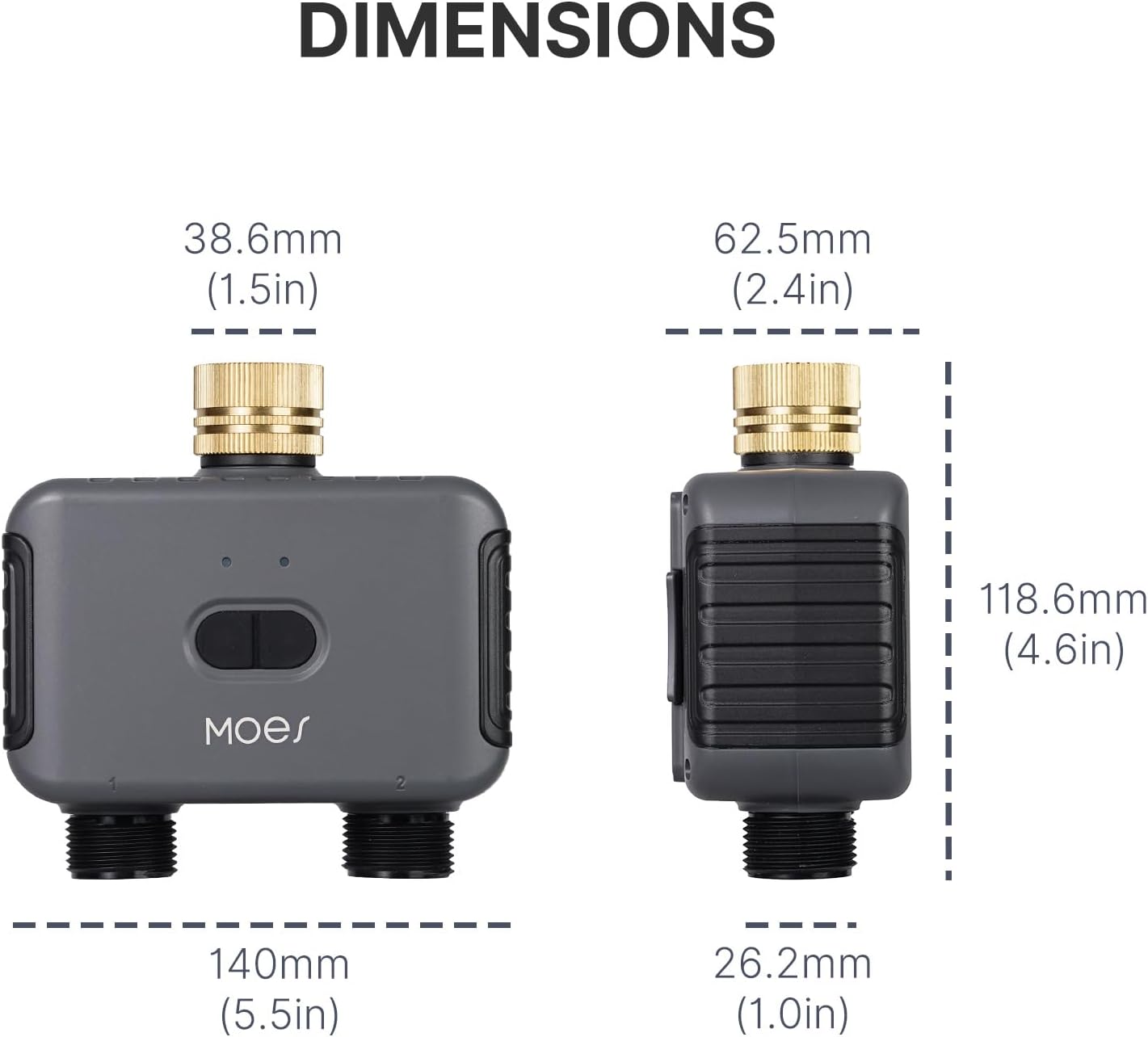
| Product Dimensions (D x W x H) | 2.7" x 6" x 6" |

Detailed dimensions of the MOES 2-Zone WiFi Sprinkler Timer.
6. Warranty and Support
For warranty information, technical assistance, or customer support, please refer to the contact details provided with your product packaging or visit the official MOES website. Ensure you have your product model number (BWV-YC02) and purchase details available when contacting support.


