ASUS ROG Zephyrus G16 (2024) Gaming Laptop User Manual
Model: GU605CW-XS98-CA
Introduction
This manual provides essential information for setting up, operating, maintaining, and troubleshooting your ASUS ROG Zephyrus G16 (2024) Gaming Laptop, Model GU605CW-XS98-CA. Please read this guide thoroughly to ensure optimal performance and longevity of your device.
Package Contents
Verify that all items are present in your package:
- ASUS ROG Zephyrus G16 (2024) Gaming Laptop
- Power Adapter
Setup Guide
1. Initial Power-On
Before first use, ensure your laptop is connected to the power adapter. The power adapter charges the internal battery and provides power for operation.
- Connect the power adapter to the laptop's power input port.
- Plug the power adapter into a wall outlet.
- Open the laptop lid.
- Press the power button, typically located on the keyboard deck, to turn on the laptop.
- Follow the on-screen instructions to complete the Windows 11 Pro setup.

Figure 1: ASUS ROG Zephyrus G16 laptop powered on and ready for initial setup.
2. Connecting Peripherals
Your laptop offers various ports for connecting external devices. Refer to the diagram below for port locations.

Figure 2: Robust Connectivity - Left side ports include ASUS Slim Power Jack, HDMI 2.1, USB 3.2 Gen2 Type A, Thunderbolt™ 4 Type-C (DisplayPort 2.1, Power Delivery 3.0). Right side ports include Audio jack (Mic-in & Headphone), USB 3.2 Gen2 Type A, SD Card Reader (UHS II), USB 3.2 Gen2 Type C (DisplayPort 2.1, Power Delivery 3.0).
- USB Ports: Connect USB devices such as mice, keyboards, or external storage drives.
- HDMI Port: Connect an external monitor or TV.
- Thunderbolt™ 4 / USB-C Ports: For high-speed data transfer, external displays, and power delivery.
- Audio Jack: Connect headphones or an external microphone.
- SD Card Reader: Insert SD cards for data transfer.
Operating Your ASUS ROG Zephyrus G16
Basic Operation
- Power On/Off: Press the power button to turn on. To shut down, click the Start button in Windows, then Power > Shut down.
- Touchpad: Use the integrated touchpad for cursor control and multi-touch gestures.
Keyboard Features
The laptop features a precision keyboard designed for responsiveness and durability.
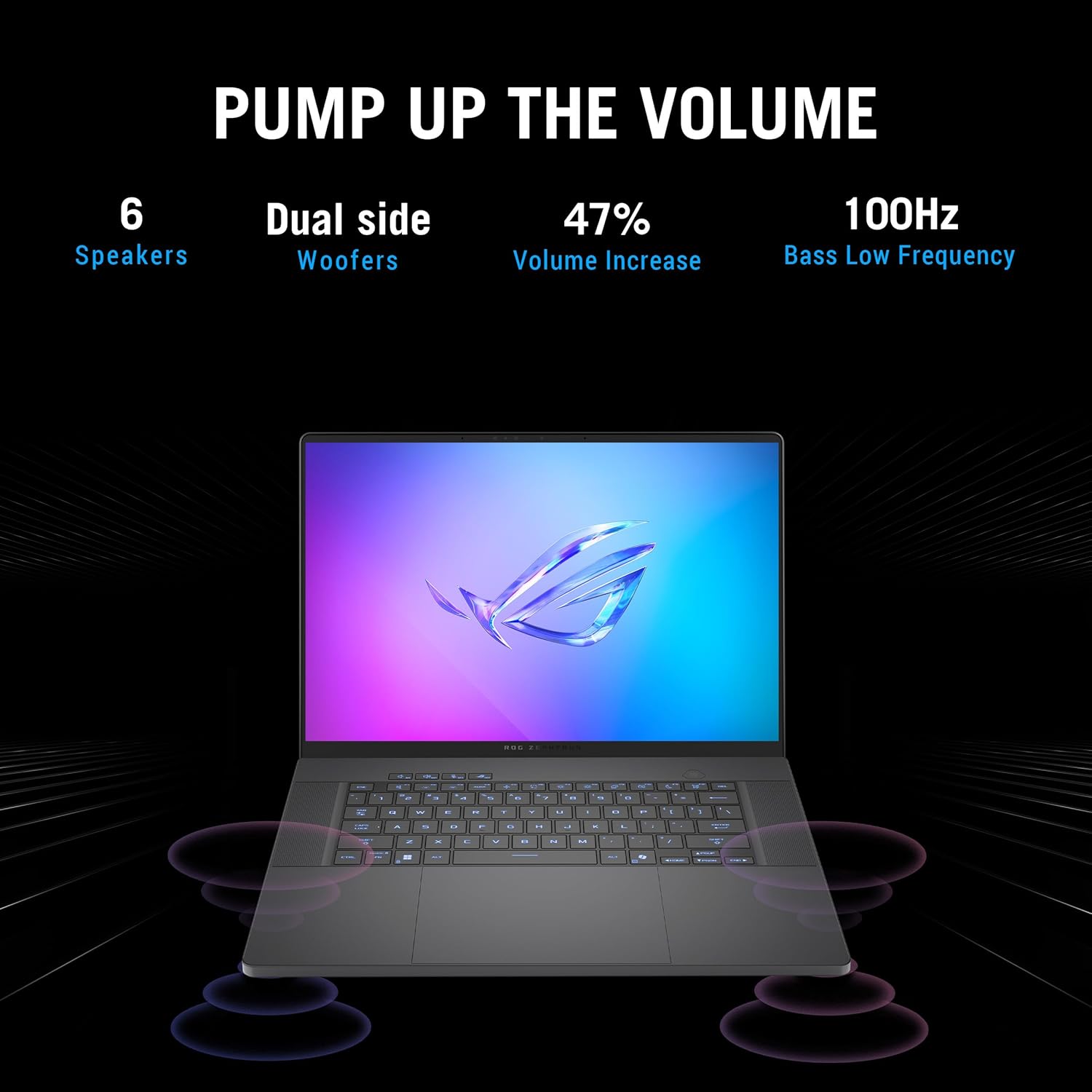
Figure 3: Keyboard specifications, including key travel, durability, and backlight features.
- Key Travel: 1.7mm for comfortable typing.
- Durability: Designed for 20 million key-press lifetime.
- Backlighting: ASUS Aura Sync compatible.
- Silent Operation: Less than 30 dB silent keyboard rollover.
Display Features
Experience vivid visuals with the 16-inch ROG Nebula Display, an OLED panel optimized for gaming and creative work.

Figure 4: ROG Nebula Display features, highlighting the OLED panel with G-SYNC support, 2.5K resolution, 0.2ms response time, and 240Hz refresh rate.
- Panel Type: OLED
- Resolution: 2.5K (2560 x 1600 pixels)
- Refresh Rate: 240Hz
- Response Time: 0.2ms
- Color Accuracy: 100% DCI-P3, Delta E <1, Pantone Validated
- Technologies: NVIDIA G-SYNC, VESA Certified DisplayHDR 500, Dolby Vision
Audio System
The laptop integrates a powerful audio system for immersive sound.

Figure 5: Audio system details, showing 6 speakers and dual-side woofers for improved sound quality.
- Speakers: 6 integrated speakers.
- Woofers: Dual-side woofers for enhanced bass.
- Bass Frequency: Down to 100Hz.
Portability and Design
The Zephyrus G16 is designed to be ultra-slim and lightweight, making it highly portable.

Figure 6: The ultra-slim design of the ASUS ROG Zephyrus G16, emphasizing its portability and quick charging capability. The laptop weighs approximately 4.30 lbs (1.95 kg).
- Thickness: 1.49 cm (0.59 inches).
- Weight: 1.95 kg (4.30 lbs).
- Battery: 90Wh, capable of 50% charge in 30 minutes.
- Wireless Connectivity: Wi-Fi 7.
Maintenance
Cleaning Your Laptop
- Use a soft, lint-free cloth to clean the screen and chassis.
- For stubborn smudges, lightly dampen the cloth with water or a screen-safe cleaner.
- Avoid harsh chemicals, abrasives, or solvents.
- Regularly clean the keyboard and touchpad to prevent dust buildup.
- Ensure ventilation grilles are free from obstructions to maintain optimal airflow.
Battery Care
- Avoid fully discharging the battery frequently.
- Store the laptop in a cool, dry place if not used for extended periods.
- For optimal battery health, avoid prolonged exposure to extreme temperatures.
Software Updates
- Regularly update your Windows 11 Pro operating system for security and performance improvements.
- Keep graphics drivers (NVIDIA) and other device drivers updated through official ASUS or component manufacturer websites.
Troubleshooting
Common Issues and Solutions
- Laptop does not power on:
- Ensure the power adapter is securely connected to both the laptop and a working power outlet.
- Verify the power outlet is functional by testing it with another device.
- If the battery is completely drained, allow it to charge for at least 30 minutes before attempting to power on.
- Screen is blank or black:
- Check if the laptop is powered on (power indicator light).
- Press Fn + F7 (or the key with a display icon) to toggle display output.
- Connect an external monitor to check if the display output works there.
- Keyboard or Touchpad not responding:
- Restart the laptop.
- Ensure no external devices are interfering (e.g., a stuck key on an external keyboard).
- Check device manager in Windows for driver issues.
- Overheating:
- Ensure ventilation grilles are clear and not blocked.
- Use the laptop on a hard, flat surface, not on soft furnishings.
- Consider using a cooling pad for extended heavy use.
- Slow performance:
- Close unnecessary applications running in the background.
- Check for and install any pending Windows updates or driver updates.
- Ensure sufficient free space on the SSD.
- Run a virus and malware scan.
For further assistance, please refer to the Support section or visit the official ASUS support website.
Specifications
| Model Name | ROG Zephyrus G16 (GU605CW-XS98-CA) |
| Processor | Intel® Core™ Ultra 9-285H (2.9 GHz) |
| Graphics | NVIDIA® GeForce RTX™ 5080 Laptop GPU |
| Operating System | Windows 11 Pro |
| Display | 16-inch OLED ROG Nebula Display, 2.5K (2560 x 1600), 240Hz, 0.2ms, G-SYNC |
| RAM | 64GB LPDDR5 |
| Storage | 2TB SSD (PCIE x 4) |
| Wireless Connectivity | Wi-Fi 7, 802.11ax |
| Ports | 2x USB 3.2 Gen2 Type A, 1x Thunderbolt™ 4 Type-C (DisplayPort 2.1, Power Delivery 3.0), 1x USB 3.2 Gen2 Type C (DisplayPort 2.1, Power Delivery 3.0), HDMI 2.1, Audio Jack, SD Card Reader (UHS II) |
| Dimensions (LxWxH) | 13.94 x 0.69 x 9.69 inches (35.4 x 1.75 x 24.6 cm) |
| Weight | 4.30 pounds (1.95 kg) |
| Color | Platinum White |
| Special Features | Backlit Keyboard, AI Accelerators (NPU) |
Warranty Information
ASUS provides a limited warranty for this product. The terms and conditions of the warranty may vary by region. Please retain your proof of purchase for warranty claims.
For detailed warranty information, including coverage, duration, and service procedures, please visit the official ASUS support website or consult the warranty card included with your product.
Support
If you encounter issues that cannot be resolved using the troubleshooting guide, or require further technical assistance, please contact ASUS customer support.
You can find comprehensive support resources, including drivers, FAQs, and contact information, on the official ASUS support website:


