
Geeni GN-WW136-199
Contents
Geeni Current Smart Wi-Fi Outlet User Manual
Model: GN-WW136-199
Introduction
This user manual provides comprehensive instructions for the installation, operation, and maintenance of your Geeni Current Smart Wi-Fi Outlet. This smart outlet features two fast-charge USB ports (20W USB-C PD & Quick Charge USB-A) and can be controlled via Wi-Fi using the Geeni app or voice commands through Alexa and Google Home. Please read this manual thoroughly before use to ensure proper functionality and safety.

Image: The Geeni Current Smart Wi-Fi Outlet shown with its retail packaging, highlighting its dual USB ports and smart features.
Safety Information
Please observe the following safety precautions to prevent damage to the device or injury to yourself:
- Electrical Safety: Installation should be performed by a qualified electrician if you are not comfortable with electrical wiring. Always turn off power at the circuit breaker before installation or maintenance.
- Indoor Use Only: This device is designed for indoor use in dry locations. Do not expose to water or excessive humidity.
- Load Capacity: Do not exceed the maximum current rating of 15 Amps or operating voltage of 125 Volts. Overloading can cause overheating and fire.
- Overload Protection: The outlet includes built-in overload protection. If an overload occurs, the outlet may shut off. Disconnect the overloaded device and reset the outlet.
- Fire-Resistant Materials: The product is constructed with fire-resistant materials for enhanced safety.
- Tamper-Resistant Receptacles: The AC outlets are tamper-resistant for child safety.

Image: A visual representation of the Geeni Current Smart Wi-Fi Outlet's safety features, including short circuit, overload, overvoltage, overcurrent, overheating protection, and tamper-resistant receptacles.
What's in the Box
Verify that all components are present before beginning installation:
- Geeni Current Smart Wi-Fi Outlet (Model: GN-WW136-199)
- Screwless Faceplate
- Installation Screws
- User Manual (this document)
Product Overview and Features
The Geeni Current Smart Wi-Fi Outlet is designed to modernize your electrical outlets with smart control and integrated fast charging capabilities.
- Dual Fast Charge USB Ports: Includes one 20W USB-C port with Power Delivery (PD) and one Quick Charge USB-A port for rapid device charging.
- Smart Wi-Fi Control: Control connected devices remotely via the Geeni app from anywhere.
- Voice Control: Compatible with Amazon Alexa and Google Home for hands-free operation.
- No Hub Required: Connects directly to your 2.4GHz Wi-Fi network.
- Customizable Scheduling & Automation: Set timers and schedules for automated power on/off, optimizing energy use.
- Individual Outlet Control: Both AC outlets can be controlled independently via the app.
- Sleek Design: Features a screwless faceplate for a modern aesthetic.

Image: An illustration of the Geeni Smart Outlet alongside icons depicting its key features: fire resistance, individual control, app control, voice control, time & schedule functions, and share access.

Image: A close-up view of the smart outlet illustrating its integrated 20W USB-C Power Delivery port and 3A USB-A Quick Charge port, emphasizing that no additional adapters are needed for charging.
Setup and Installation
Follow these steps to install your Geeni Current Smart Wi-Fi Outlet. If you are unsure about any step, consult a qualified electrician.
- Turn Off Power: Locate your circuit breaker panel and turn off the power to the outlet you intend to replace. Verify the power is off using a voltage tester.
- Remove Old Outlet: Carefully unscrew and remove the existing outlet from the wall box. Disconnect the wires (typically black for hot, white for neutral, and bare copper or green for ground).
- Connect New Outlet: Connect the wires from the wall box to the corresponding terminals on the Geeni Smart Outlet.
- Connect the Hot (Black) wire to the terminal marked "Hot" or "Black".
- Connect the Neutral (White) wire to the terminal marked "Neutral" or "White".
- Connect the Ground (Green or Bare Copper) wire to the terminal marked "Ground" or "Green".
- Secure Outlet: Carefully push the wired outlet back into the wall box and secure it with the provided screws.
- Install Faceplate: Snap the screwless faceplate onto the installed outlet.
- Restore Power: Turn the power back on at the circuit breaker.
- Wi-Fi Pairing: The outlet's Wi-Fi indicator light should begin blinking, indicating it's ready for pairing. Download the Geeni app from your smartphone's app store and follow the in-app instructions to add your new smart outlet to your Wi-Fi network. Ensure your Wi-Fi network is 2.4GHz.

Image: A clear diagram illustrating the wiring connections for the Geeni Smart Outlet, showing where to connect the Hot (Black), Neutral (White), and Ground (Green or Bare) wires.
Operating Instructions
Using the Geeni App
The Geeni app provides full control over your smart outlet from anywhere with an internet connection.
- On/Off Control: Tap the power icon next to the outlet in the app to turn it on or off. You can control each AC outlet independently.
- Scheduling: Set custom schedules for your devices to turn on or off automatically at specific times. This can help save energy and automate routines.
- Timers: Use the timer function to set a countdown for the outlet to turn off after a set duration.
- Device Sharing: Share control of your smart outlet with family members or other users through the app.

Image: A smartphone displaying the Geeni app's scheduling feature, showing how to set a device to turn on at a specific time, with a coffee maker plugged into the smart outlet in the background.

Image: A diagram illustrating a smart home setup where various Geeni devices, including the smart outlet, are centrally controlled via a smartphone app, demonstrating total control at your fingertips.
Voice Control (Alexa & Google Home)
Once linked with Amazon Alexa or Google Home, you can control your smart outlet using voice commands.
- Linking Accounts: Follow the instructions in the Geeni app or your Alexa/Google Home app to link your Geeni account.
- Voice Commands:
- "Alexa, turn on [Outlet Name]."
- "Hey Google, turn off [Outlet Name]."
- "Alexa, set [Outlet Name] to turn off in 30 minutes."

Image: A scene depicting a woman and a child in a bedroom, with a smart speaker and the Geeni Smart Outlet visible, illustrating how voice commands like "Alexa, turn on the Smart Outlet" can be used for hands-free control.
Manual Control
The smart outlet also features a manual on/off button for direct control.
- Manual On/Off: Press the small button located between the two AC outlets to manually toggle power to the connected devices.
- Wi-Fi Reset: Press and hold the manual button for several seconds (refer to app for exact duration) to reset the Wi-Fi connection for re-pairing.
Maintenance
To ensure the longevity and proper functioning of your Geeni Current Smart Wi-Fi Outlet:
- Cleaning: Disconnect power before cleaning. Wipe the surface with a soft, dry cloth. Do not use harsh chemicals or abrasive cleaners.
- Environmental Conditions: Avoid exposing the outlet to extreme temperatures, direct sunlight, or high humidity.
- Regular Checks: Periodically check the outlet for any signs of damage or loose connections.
Troubleshooting
If you encounter issues with your Geeni Current Smart Wi-Fi Outlet, refer to the following common solutions:
| Problem | Possible Cause | Solution |
|---|---|---|
| Outlet not responding to app/voice commands. | No Wi-Fi connection, incorrect Wi-Fi password, 5GHz Wi-Fi network, or app issue. |
|
| Devices plugged in are not receiving power. | Outlet is off, circuit breaker tripped, or device is faulty. |
|
| USB ports not charging. | Cable issue, device not compatible, or port malfunction. |
|
Specifications
| Feature | Detail |
|---|---|
| Model Number | GN-WW136-199 |
| Product Dimensions | 4.02 x 3.03 x 7.17 inches; 7.83 ounces |
| Operating Voltage | 125 Volts |
| Current Rating | 15 Amps |
| USB-C Output | 20W Power Delivery (PD) |
| USB-A Output | Quick Charge |
| Wi-Fi Frequency | 2.4GHz (802.11n) |
| Operation Mode | Smart Wi-Fi Controlled (App and Voice Commands) |
| Contact Type | Normally Closed |
| Connector Type | Plug In |
| Circuit Type | Dual Outlet, Individually Controlled |
| Material | Copper (Contact Material), Fire-Resistant Materials |
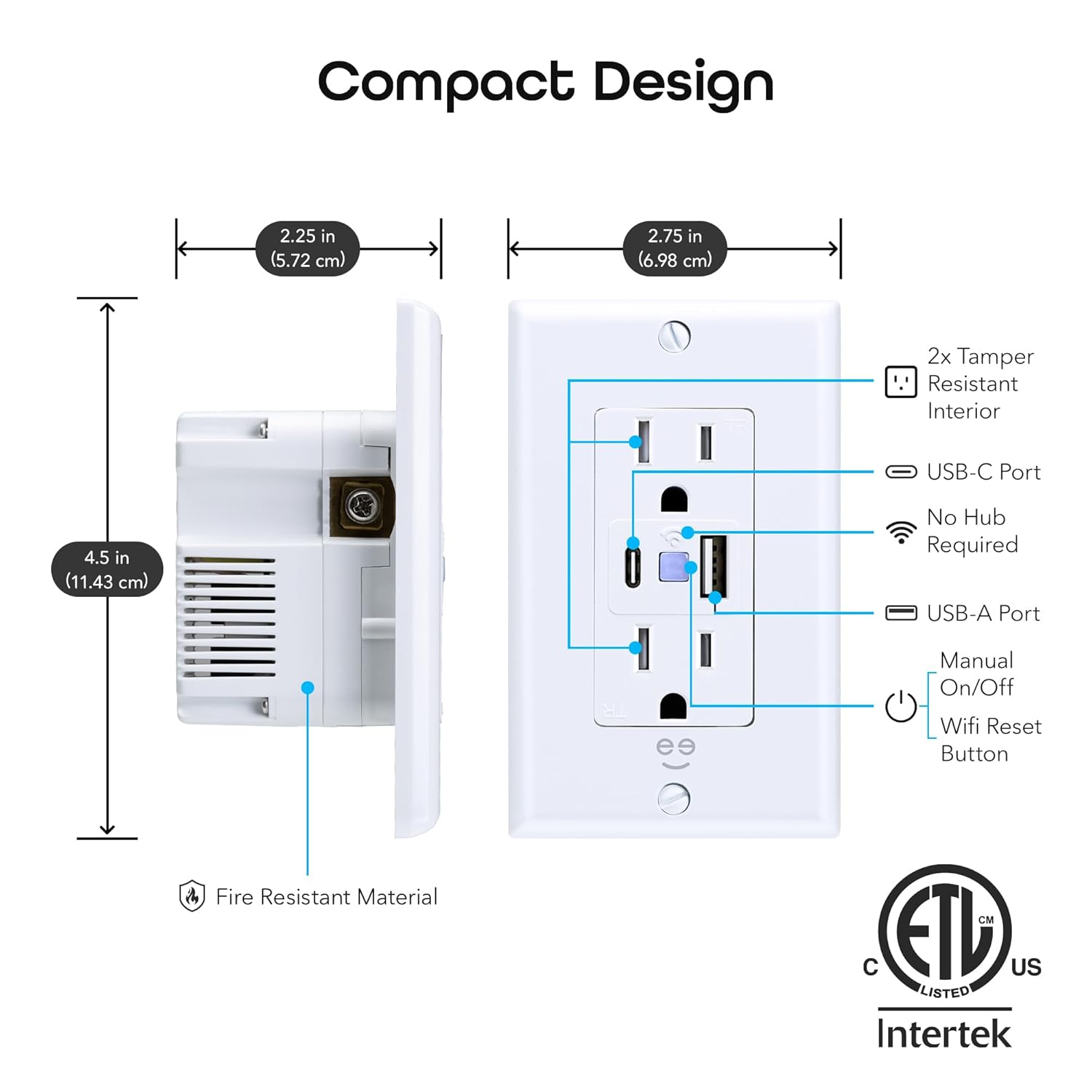
Image: A detailed diagram illustrating the compact design and key components of the Geeni Smart Outlet, including its dimensions, USB ports, manual on/off button, and Wi-Fi reset button.
Warranty and Support
Geeni products typically come with a manufacturer's warranty. For specific warranty details and to register your product, please visit the official Geeni website or contact their customer support.
Customer Support: For technical assistance, troubleshooting, or warranty claims, please refer to the contact information provided on the Geeni website or within the Geeni app.
Online Resources: Visit the Geeni Store on Amazon for more product information and updates.
Ask a question about this manual
Ask about setup, troubleshooting, compatibility, parts, safety, or missing instructions. Manuals+ will review the question and use this page’s manual context to help answer it.