
1. Introduction
This manual provides essential information for the safe and efficient use of your Motorola Razr 60 Ultra smartphone. Please read this guide thoroughly before operating your device to ensure optimal performance and longevity. The Motorola Razr 60 Ultra is a foldable smartphone designed for advanced mobile computing and communication.
2. What's in the Box
Verify that all items are present in your product packaging:
- Motorola Razr 60 Ultra Smartphone
- USB Cable
- Phone Case
- SIM Ejector Tool
3. Device Overview
The Motorola Razr 60 Ultra features an iconic foldable design with premium materials and advanced technology.
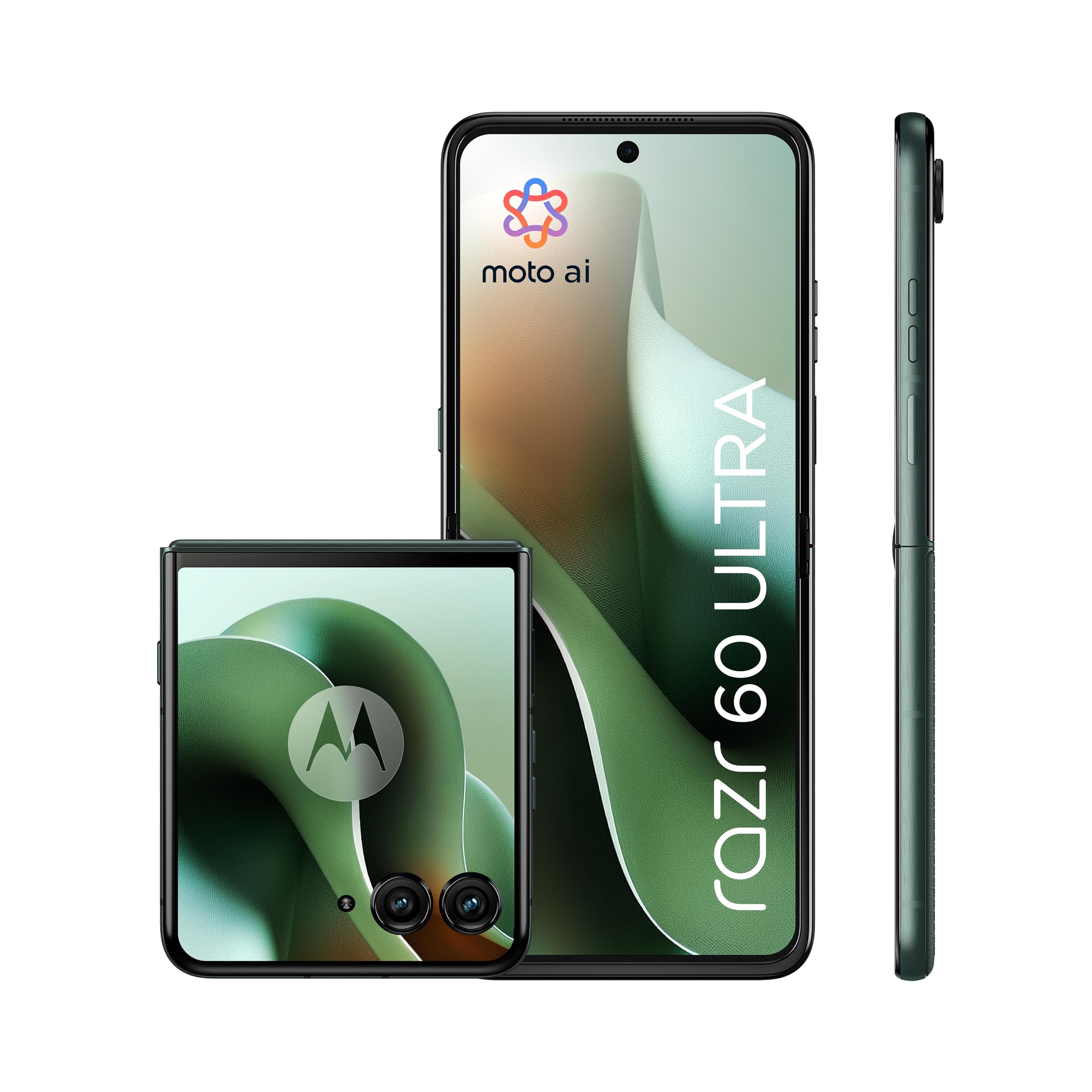
Figure 3.1: Motorola Razr 60 Ultra, folded view.
3.1 Displays
- External Display: A 4.0-inch pOLED display with up to 165Hz refresh rate, allowing access to functions without unfolding the phone.
- Internal Display: A 7.0-inch Super HD pOLED display with 165Hz refresh rate, Dolby Vision, and HDR10+ for an immersive visual experience.

Figure 3.2: External display functionality.

Figure 3.3: Internal display view.
3.2 Design and Durability
The device features a high-quality Alcantara finish and a durable titanium hinge. It is rated IP48 for dust and water resistance.

Figure 3.4: Design elements and durability features.
4. Setup
4.1 Inserting the SIM Card
- Locate the SIM card tray on the side of the device.
- Insert the SIM ejector tool into the small hole next to the tray and press gently until the tray pops out.
- Place your Nano SIM card(s) into the tray with the gold contacts facing down. This device supports Dual SIM.
- Carefully push the tray back into the slot until it clicks into place.
4.2 Initial Power-On and Setup
- Press and hold the Power button until the Motorola logo appears.
- Follow the on-screen prompts to select your language, connect to a Wi-Fi network, and set up your Google account.
- You will be guided through setting up security features such as fingerprint recognition and a screen lock (PIN, pattern, or password).
5. Operating Your Device
5.1 Basic Navigation
- Unfolding/Folding: Gently unfold the device to access the main internal display. Fold it to use the external display for quick interactions.
- External Display Usage: The 4.0-inch external display allows you to check notifications, control media, take quick photos, and interact with certain apps without opening the phone.
5.2 Moto AI Features
Your Motorola Razr 60 Ultra is enhanced with Moto AI, offering intelligent assistance and optimized performance. This includes features like Google Gemini for content creation and personalized smartphone experiences.

Figure 5.1: Interacting with Moto AI (Google Gemini) on the external display.
5.3 Quick Gestures
- Quick Capture: Twist your wrist twice quickly to open the camera from any screen.
- Fast Flashlight: Make two chopping motions with your phone to turn the flashlight on or off.
6. Camera Features
The Motorola Razr 60 Ultra is equipped with a versatile camera system for high-quality photography and videography.

Figure 6.1: Overview of the camera system.
- Dual Rear Cameras: Two 50MP sensors, including a main camera with OIS (Optical Image Stabilization) and an ultrawide/macro lens.
- Front Camera: A 50MP selfie camera with Quad Pixel technology for enhanced low-light performance.
- Moto AI Integration: Utilizes AI for improved image processing, dynamic range, and detail capture, even in challenging lighting conditions.
- Flex View & Camcorder: Use the foldable design to position the phone for unique shooting angles and hands-free video recording.
7. Battery and Charging
The device is powered by a 4700mAh battery, supporting multiple charging methods.

Figure 7.1: Battery and charging capabilities.
- Battery Capacity: 4700 Milliamper-hour (mAh).
- TurboPower Charging: Supports ultra-fast 68W wired charging, providing significant power in minutes.
- Wireless Charging: Supports 30W wireless charging.
- Reverse Wireless Charging: Capable of 5W reverse wireless charging to power compatible accessories.
- Average Battery Life: Up to 36 hours of usage on a single charge, depending on usage patterns.
8. Performance
The Motorola Razr 60 Ultra delivers robust performance for demanding applications and multitasking.

Figure 8.1: Performance specifications.
- Processor: Qualcomm Snapdragon 8 Elite, providing high-speed processing and intelligent performance.
- RAM: 16GB installed RAM for smooth multitasking.
- Internal Storage: 512GB of internal memory for applications, media, and files.
- Operating System: Android 15.0, offering the latest features and security updates.
- Connectivity: Supports 5G for fast downloads and seamless streaming.
9. Maintenance and Care
9.1 Cleaning Your Device
- Use a soft, lint-free cloth to clean the screen and body of the phone.
- Avoid using harsh chemicals or abrasive materials, which can damage the finish or screen.
- For stubborn smudges, lightly dampen the cloth with water or a screen-specific cleaner.
9.2 Screen Care for Foldable Display
- Avoid pressing hard on the screen, especially near the crease.
- Keep the screen free from sharp objects or debris when folding the device.
- Do not apply screen protectors not specifically designed for foldable displays.
9.3 Water and Dust Resistance
The device has an IP48 rating, indicating resistance to dust and splashes. It is not designed for submersion in water. Avoid exposing the device to pressurized water or liquids.
9.4 Software Updates
Regularly check for and install software updates to ensure your device has the latest features, security patches, and performance improvements. You can usually find this option in the device's Settings menu under "System" or "Software Update."
10. Troubleshooting
10.1 Common Issues and Solutions
- Device not turning on: Ensure the battery is charged. Connect the device to the charger for at least 15 minutes, then try powering it on.
- Screen unresponsive: Restart the device by pressing and holding the Power button for about 10-15 seconds until it reboots.
- Battery draining quickly: Check background app usage, reduce screen brightness, disable unnecessary features like GPS or Bluetooth when not in use. Ensure software is up to date.
- Connectivity issues (Wi-Fi/5G): Toggle Wi-Fi or mobile data off and on. Restart the device. For Wi-Fi, try forgetting the network and reconnecting.
- Apps crashing: Clear the cache and data for the problematic app in Settings > Apps. If the issue persists, uninstall and reinstall the app.
10.2 Factory Reset
If persistent software issues occur, a factory reset may be necessary. Warning: This will erase all data on your device. Back up important data before proceeding. Navigate to Settings > System > Reset options > Erase all data (factory reset).
11. Specifications
Key technical specifications for the Motorola Razr 60 Ultra:
| Feature | Specification |
|---|---|
| Brand | Motorola |
| Model Name | Razr 60 Ultra |
| Operating System | Android 15.0 |
| Processor Type | Qualcomm Snapdragon 8 Elite |
| CPU Speed | 4320 MHz |
| Installed RAM | 16 GB |
| Data Storage Capacity | 512 GB |
| Main Screen Size | 7.0 Inches |
| External Screen Size | 4.0 Inches |
| Screen Type | pOLED |
| Refresh Rate | 165 Hz |
| Battery Capacity | 4700 mAh |
| Fast Charging | 68W TurboPower |
| Wireless Charging | 30W |
| Reverse Wireless Charging | 5W |
| Rear Camera Resolution | 50 MP (Main) + 50 MP (Ultrawide/Macro) |
| Front Camera Resolution | 50 MP |
| SIM Card Slots | Dual SIM |
| Connectivity Technology | 5G, GSM, LTE, Wi-Fi |
| Water Resistance Level | IP48 (Water Resistant) |
| Biometric Identification | Fingerprint Recognition |
| Item Weight | 200 Grams |
| Item Dimensions | 17.1 x 0.7 x 7.4 cm (unfolded) |
12. Warranty and Support
12.1 Product Warranty
The Motorola Razr 60 Ultra comes with a 2-year manufacturer's warranty. This warranty covers defects in materials and workmanship under normal use. Please retain your proof of purchase for warranty claims.
12.2 Spare Parts Availability
Spare parts for this device are available for a duration of 3 years within the EU, ensuring long-term support for repairs and maintenance.
12.3 Customer Support
For further assistance, technical support, or warranty claims, please visit the official Motorola support website or contact their customer service. Refer to the documentation included with your device for specific contact details in your region.
You can also visit the Motorola store on Amazon for additional product information and support resources: Motorola Store


