
Bwine F7GIM 6K
Bwine F7GIM Pro Drone User Manual
Model: F7GIM 6K | Brand: Bwine
1. Introduction and Overview
This manual provides comprehensive instructions for the safe operation, setup, maintenance, and troubleshooting of your Bwine F7GIM Pro Drone. Please read this manual thoroughly before operating the drone to ensure optimal performance and safety.
The Bwine F7GIM Pro Drone features a groundbreaking industrial aesthetic design with a 3D laser-etched texture and bold orange propeller accents. It is equipped with a 6K Ultra HD camera and a 3-axis brushless gimbal for professional imaging.

Image: The Bwine F7GIM Pro Drone with its remote controller, two batteries, charging cables, spare propellers, and a portable carrying case.
2. What's in the Box
Verify that all components are present in the package before proceeding with setup.
- 1 × Bwine F7GIM Professional Drone with Gimbal Camera
- 1 × Rechargeable Smart Remote Controller
- 2 × High-Capacity Intelligent Batteries (Up to 35 minutes flight time each)
- 1 × Military-Grade Shockproof Carrying Case (Water & Dust Resistant)
- 4 × Quick-Release Spare Propellers
- Charging Cable (USB-C Fast Charging)
- Screwdriver & Maintenance Screw Set
- Illustrated User Manual (this document)
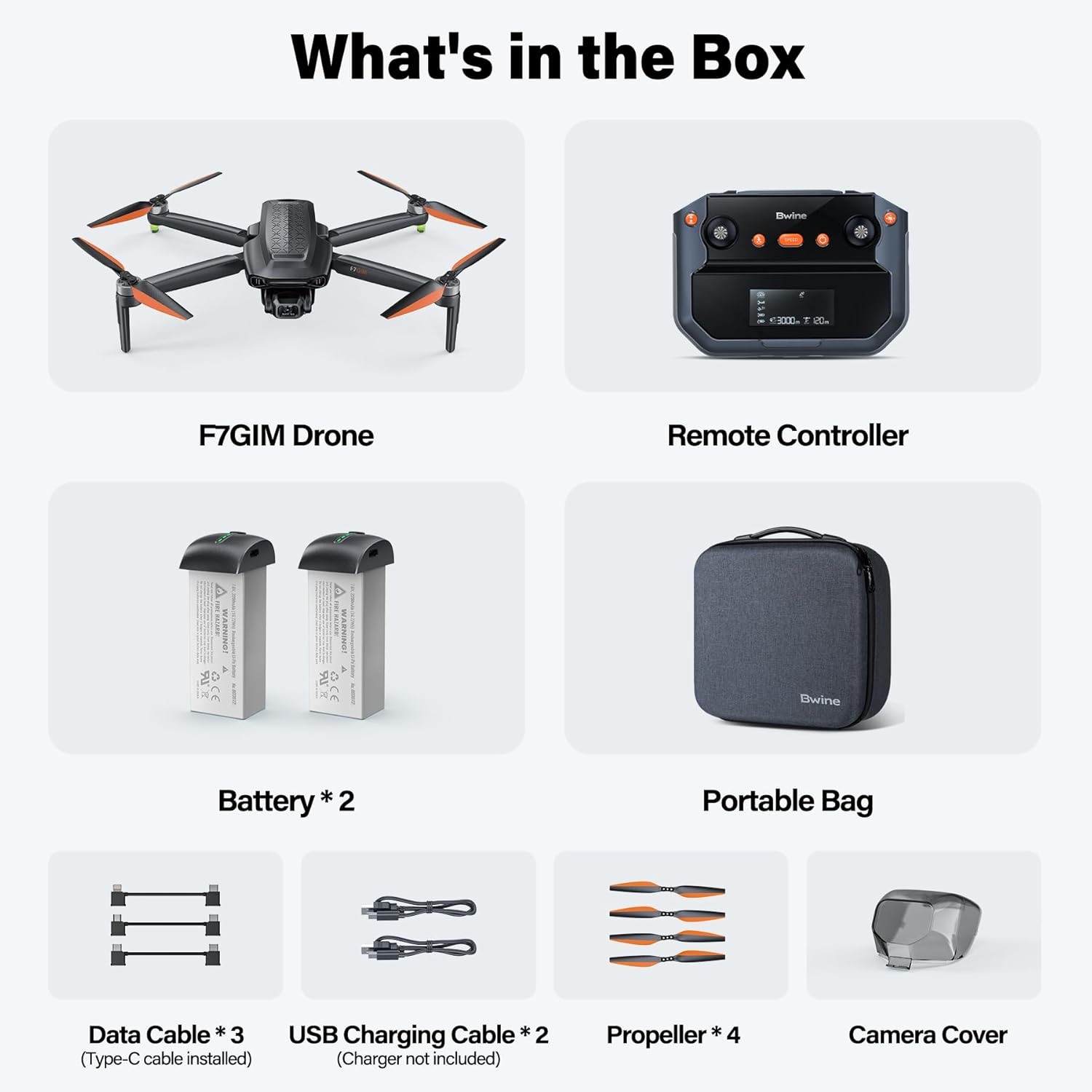
Image: Visual representation of all items included in the Bwine F7GIM Pro Drone package.
3. Setup Guide
3.1 Battery Charging
Before first use, fully charge both the drone batteries and the remote controller. Connect the provided USB-C charging cable to a compatible charger (sold separately). The batteries have a capacity of 3200 Amp Hours, providing up to 35 minutes of flight time each.

Image: Two Bwine F7GIM Pro Drone batteries connected to a charger, illustrating the charging process.
3.2 Propeller Installation
Attach the quick-release propellers to the drone's motors. Ensure each propeller is securely fastened according to the markings (e.g., A and B) on the propellers and motor arms. Refer to the included illustrated user manual for detailed steps.
3.3 Connecting to the Remote Controller and App
The Bwine F7GIM Pro Drone utilizes advanced digital image transmission technology, eliminating the need for Wi-Fi for connection.
- Download the latest version of the Bwine Mini App on your smartphone or tablet.
- Power on the drone and the remote controller.
- Connect your smartphone/tablet to the remote controller using the provided data cable. This wired connection ensures instant, real-time, and interference-free transmission.
- Follow the on-screen prompts in the Bwine Mini App for initial calibration and pairing.

Image: A user holding the Bwine remote controller with a smartphone attached, demonstrating the wired connection for advanced digital transmission.
4. Operating Instructions
4.1 Pre-Flight Checklist
- Ensure all batteries (drone and controller) are fully charged.
- Check that propellers are securely attached and undamaged.
- Verify the camera gimbal is free from obstructions.
- Perform compass calibration as instructed by the app in an open area away from magnetic interference.
- Ensure sufficient GPS signal before takeoff for stable flight and return-to-home functionality.
4.2 Basic Flight Controls
The Bwine F7GIM Pro is designed to be user-friendly for all skill levels.
- One-Button Takeoff/Landing: Simplifies initial flight and safe return.
- Intelligent Novice Mode: Automatically activates height limit protection for new pilots, reducing operational anxiety.
- TOF + GPS Dual Protection: Six high-precision sensors and millimeter-wave radar enhance low-altitude stability by 55%.

Image: The Bwine F7GIM Pro Drone demonstrating its TOF + GPS dual protection system, hovering stably above a landing pad.
4.3 Advanced Flight Modes (GPS Smart Modes)
Utilize the Bwine Mini App to access and activate various intelligent flight modes for cinematic shots:
- Cruise Control: Maintains a set speed and direction.
- Follow Me: The drone automatically follows the subject (user with controller).
- Orbit Flight: The drone circles a designated point of interest.
- Waypoint Planning: Plan a custom flight path by setting multiple waypoints on the map.
- Intelligent Return-to-Home: Automatically returns the drone to its takeoff point when battery is low or signal is lost.

Image: The Bwine F7GIM Pro Drone executing an orbit flight around a person on a bicycle, showcasing its intelligent flight capabilities.
4.4 Camera Operation
The drone's 6K UHD camera with a 3-axis brushless gimbal provides stable and high-quality aerial footage.
- 6K Photos: Capture ultra-clear still images.
- 4K/30fps Video: Record smooth, detailed video footage.
- 3-Axis Brushless Gimbal: Ensures dynamic stability, even in challenging conditions, for shake-free footage.
- Night Mode 2.0: Reduces noise by 70% in low-light conditions, allowing for clear night photography and videography.
- 5X Digital Dolly Zoom: Zoom in and out to capture distant subjects with clarity.

Image: Close-up view of the Bwine F7GIM Pro Drone's 6K Ultra HD camera, highlighting its capability for high-resolution aerial shooting.
5. Maintenance
Regular maintenance ensures the longevity and optimal performance of your Bwine F7GIM Pro Drone.
- Propellers: Inspect propellers for cracks, bends, or damage before each flight. Replace damaged propellers immediately using the provided spare set.
- Motors: Keep motors free from dust and debris. Ensure they spin freely.
- Gimbal and Camera: Gently clean the camera lens with a soft, lint-free cloth. Ensure the gimbal moves freely and is not obstructed.
- Batteries: Store batteries in a cool, dry place. Do not overcharge or over-discharge. If storing for extended periods, charge them to approximately 50-60%.
- Drone Body: Wipe the drone body with a clean, damp cloth to remove dirt. Avoid using harsh chemicals.
6. Troubleshooting
If you encounter issues with your Bwine F7GIM Pro Drone, refer to the following common troubleshooting tips. For more complex problems, contact customer support.
- Drone not powering on: Ensure batteries are fully charged and correctly inserted.
- No video feed: Check the wired connection between the remote controller and your smartphone. Ensure the Bwine Mini App is open and updated.
- Unstable flight: Perform compass calibration in an open area. Check for damaged propellers. Ensure you are flying in an environment with good GPS signal.
- Drone not responding to controls: Re-pair the remote controller with the drone. Check battery levels of both the drone and controller.
Bwine offers 5 professional guidance videos to assist with setup and operation. These can be accessed via the Bwine Mini App or the official Bwine website.
7. Specifications
| Feature | Detail |
|---|---|
| Brand | Bwine |
| Model Name | F7GIM |
| Color | Dark Gray |
| Video Capture Resolution | 4K@30fps |
| Connectivity Technology | Digital Transmission (No Wi-Fi needed) |
| Skill Level | All (Beginner - Professional) |
| Item Weight | 357 Grams (12.6 ounces) |
| Battery Capacity | 3200 Amp Hours |
| Video Capture Format | MP4 |
| Control Type | Remote Control |
| Maximum Range | 3 Kilometers (10,000ft) |
| Material | Plastic, Carbon Fiber |
| Product Dimensions | 6.5"L x 3.54"W x 2.56"H |
| FAA Compliance | Built-in FAA-compliant Remote ID |
8. Warranty and Support
Bwine is committed to providing excellent customer service and support for your F7GIM Pro Drone.
- Lifetime Drone Warranty: Enjoy peace of mind with a lifetime warranty on your drone.
- Firmware Upgrades: Benefit from continuous improvements and new features through firmware upgrades.
- 24/7 Bilingual Support: Contact Bwine support via APP, email, or phone for assistance. Response time is typically less than 15 minutes.
- Contact Information:
- Tel: +1 (619) 614-7960
- Email: Bwinedrone@gmail.com
For more information and to explore other Bwine products, visit the official Bwine Store: Bwine Store on Amazon.
Related documentsF7GIM 6K


Ask a question about this manual
Ask about setup, troubleshooting, compatibility, parts, safety, or missing instructions. Manuals+ will review the question and use this page’s manual context to help answer it.