
1. Introduction
Thank you for choosing the MTAKYA 5-in-1 Wireless CarPlay and Android Auto Adapter. This device is designed to convert your car's original wired CarPlay system into a wireless one, offering seamless integration with both Apple CarPlay and Android Auto. Additionally, it provides built-in access to popular streaming services like Netflix and YouTube, along with support for offline media playback via TF card or USB disk. This manual will guide you through the setup, operation, and maintenance of your new adapter to ensure an optimal user experience.

Figure 1: MTAKYA 5-in-1 Wireless CarPlay and Android Auto Adapter and its interface.
2. Key Features
- Wireless CarPlay & Android Auto: Converts wired CarPlay to wireless, supporting both Apple CarPlay and Android Auto in one device for cable-free convenience.
- Streaming Video Experience: Built-in Netflix and YouTube for in-car entertainment.
- Offline Media Playback: Integrated TF card and USB slot for playing videos or music offline (TF card support up to 256GB).
- Stable Connectivity: Features powerful 2.4GHz Bluetooth and 5.8GHz WIFI modules for quick and automatic phone connection.
- Plug and Play: Simple setup, connecting in 10-15 seconds without extra drives or apps.
- Full CarPlay Functionality Retention: Supports original car control methods including voice control, steering wheel control, touch screen control, and knob operation.
- Compact Design: Lightweight and stylish, designed to be easily carried and placed without obstructing view.

Figure 2: Enjoy streaming video with built-in Netflix and YouTube.

Figure 3: Offline media playback via TF card or USB disk.
3. Setup Guide
Follow these steps to set up your MTAKYA Wireless CarPlay & Android Auto Adapter:
- Connect the Adapter: Plug the AI Box into your car's USB port. Ensure your car has factory wired CarPlay.
- Access Car Screen: On your car's screen, click the "CarPlay/Android Auto" option.
- Pair Your Phone: On your smartphone, open the Wi-Fi and Bluetooth settings. Select "Pair" and "Allow" when prompted to connect to the adapter.
- Start Wireless Connection: Wait for the wireless CarPlay or Android Auto to start. This typically takes 10-15 seconds for the first connection. Subsequent connections will be automatic.
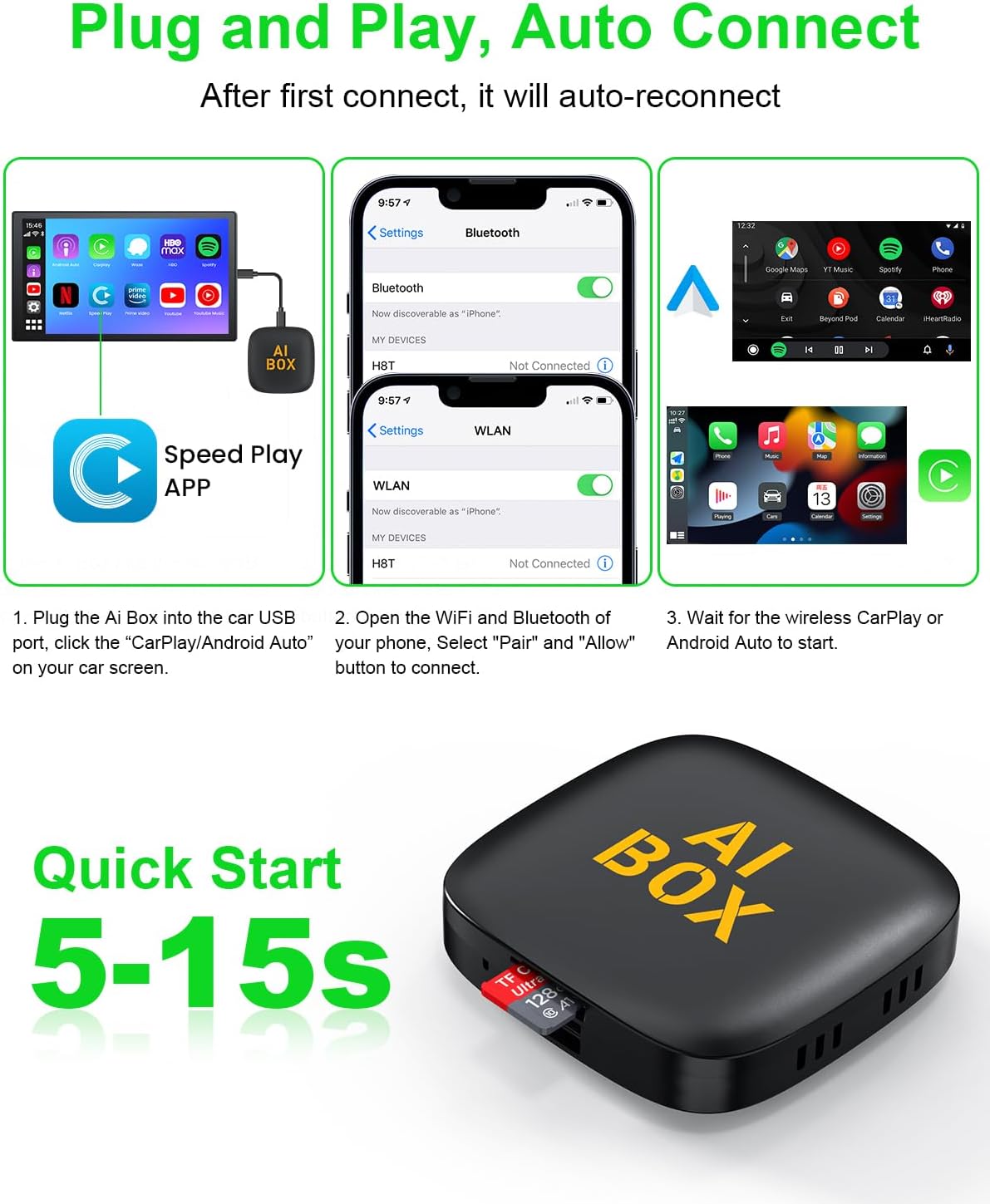
Figure 4: Quick start guide for connecting the adapter.
4. Operating Instructions
Once connected, the adapter allows you to utilize your car's existing controls for a seamless experience.
4.1 Using Wireless CarPlay/Android Auto
- Your car's display will mirror your phone's CarPlay or Android Auto interface.
- Navigate through apps, make calls, send messages, and use navigation directly from your car's screen.
- Control Methods: The adapter fully supports your car's original control methods:
- Voice Control: Use your car's built-in voice assistant (e.g., Siri, Google Assistant) for hands-free operation.
- Steering Wheel Control: Use the buttons on your steering wheel to control audio playback, calls, and navigation.
- Touch Screen Control: Interact directly with the car's touch screen.
- OEM Knob Operation: If your car has a control knob, it will function as usual for menu navigation.
4.2 Using Streaming Services (Netflix/YouTube)
- The adapter has Netflix and YouTube pre-installed. Access these apps from the main interface.
- An internet connection (via Wi-Fi hotspot from your phone or a separate Wi-Fi source) is required for streaming.
- Note: You can connect to either Apple CarPlay/Android Auto OR streaming services like YouTube/Netflix, but not both simultaneously.
4.3 Offline Media Playback
- Insert a TF card or USB disk containing media files (videos, music) into the adapter's designated slot.
- Access the media player application on the adapter's interface to browse and play your offline content.
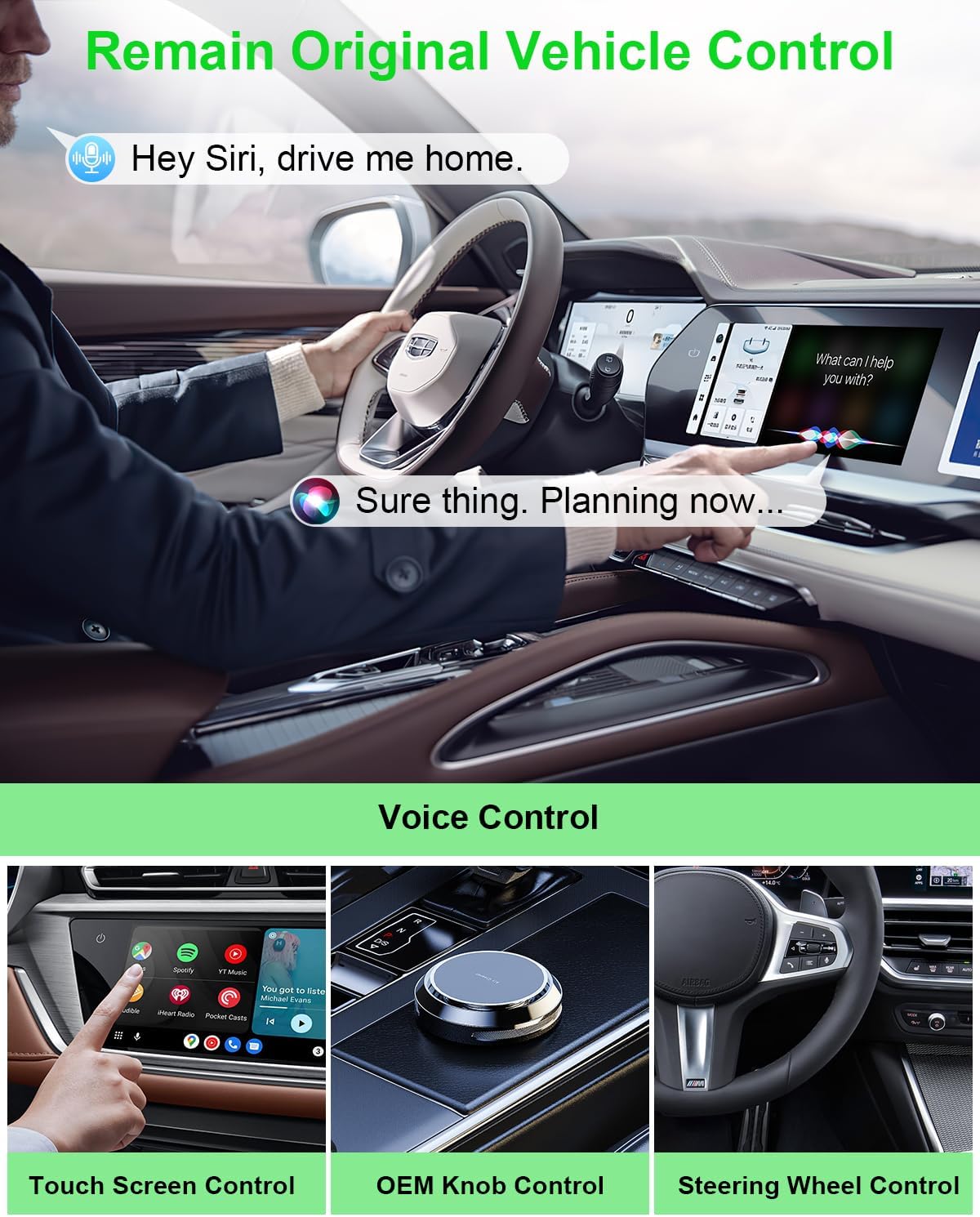
Figure 5: Retain original vehicle control methods.
5. Compatibility
The MTAKYA Wireless CarPlay & Android Auto Adapter is designed for wide compatibility:
- Compatible Cars: Suitable for more than 800 car models manufactured after 2016 that come with factory wired CarPlay.
- Incompatible Cars: Not compatible with BMW or Tesla vehicles. Also, not compatible with cars that have built-in wireless CarPlay or cars without a touch screen.
- Compatible Phones:
- Apple CarPlay: Supports iPhones with iOS version 10.0 and above.
- Android Auto: Supports Android phones with Android 11.0 and above.

Figure 6: Wide compatibility with various car models and phone OS versions.
6. Specifications
| Feature | Detail |
|---|---|
| Product Dimensions | 3.98 x 3.39 x 0.71 inches (80 x 50 x 12 mm) |
| Item Weight | 2.85 ounces |
| Model Number | A11 |
| Android Version | Android 13.0 |
| System Storage | 2GB LPDDR3X RAM + 16GB eMMC ROM |
| Memory Card Support | TF Card/U Disk (up to 256GB) |
| Bluetooth Version | BLE 5.0 |
| Wi-Fi | 2.4G WIFI, 5.8GHz WIFI |
| Supported Functions | Wireless CarPlay, Wireless Android Auto, Wired Android Auto, Netflix, YouTube |
| Remote Control | BT Remote control (if applicable) |
| Interface | Type-C/USB A |
| Resolution | 1080p (Video Output Resolution: 1920x1080) |
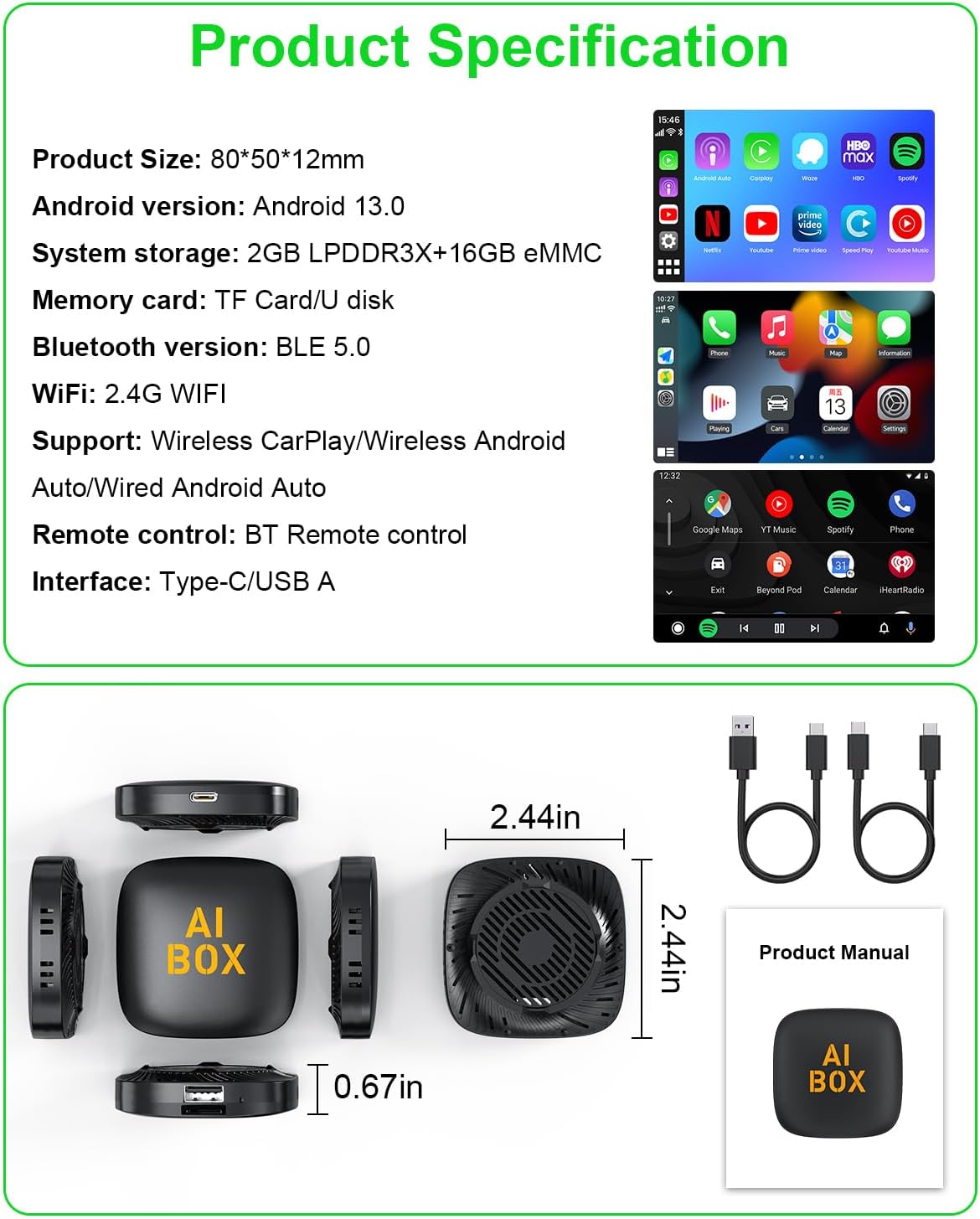
Figure 7: Product dimensions and interface overview.
7. Maintenance
To ensure the longevity and optimal performance of your adapter, follow these simple maintenance guidelines:
- Cleaning: Use a soft, dry cloth to clean the exterior of the device. Avoid using liquid cleaners or abrasive materials.
- Storage: Store the adapter in a cool, dry place away from direct sunlight and extreme temperatures.
- Handling: Handle the device with care. Avoid dropping it or subjecting it to strong impacts.
- Connectivity: Ensure cables are connected securely to prevent intermittent disconnections.
8. Troubleshooting
If you encounter issues with your MTAKYA adapter, please refer to the following common solutions:
- No Connection/Frequent Disconnections:
- Ensure your car has factory wired CarPlay and is compatible (post-2016 models, not BMW/Tesla).
- Verify your phone's Wi-Fi and Bluetooth are enabled and correctly paired with the adapter.
- Check the USB cable connection between the adapter and your car. Try a different USB port if available.
- Restart your car's infotainment system and your phone.
- Ensure your phone's operating system is up to date (iOS 10.0+ or Android 11.0+).
- Netflix/YouTube Not Working:
- Confirm you have an active internet connection (Wi-Fi hotspot) for the adapter.
- Remember that streaming services cannot be used simultaneously with CarPlay/Android Auto. Switch modes as needed.
- Check if the apps require updates.
- Slow Performance/Lag:
- Ensure a strong Wi-Fi signal for streaming.
- Close unnecessary background applications on your phone.
- The adapter may take a few seconds to fully boot up after car ignition.
- No Audio:
- Check the volume levels on both your car's system and your phone.
- Ensure the car's audio input is set to the correct source (e.g., USB, CarPlay/Android Auto).
9. Warranty and Customer Support
Your MTAKYA CarPlay Ai Box comes with 24 months of worry-free after-sales customer service.
If you have any questions, require further assistance, or encounter issues not covered in this manual, please do not hesitate to contact our customer support team. You can reach us through Amazon's messaging system, and we commit to replying within 24 hours to provide a satisfactory solution.