
1. Introduction
Thank you for choosing the flymory Open Ear F1 Swimming Bone Conduction Headphones. These headphones are designed for active lifestyles, offering bone conduction technology, IPX8 waterproofing, and a built-in 32GB MP3 player. This manual provides essential information for proper setup, operation, and maintenance to ensure optimal performance and longevity of your device.
2. Package Contents
Please check the package for the following items:
- flymory Open Ear F1 Bone Conduction Headphones
- Magnetic Charging Cable
- USB-A to USB-C Adapter
- Swimming Earplugs (with case)
- Silicone Adjustment Band
- Storage Pouch
- User Manual

Image: The flymory Open Ear F1 headphones, magnetic charging cable, USB adapter, swimming earplugs, silicone band, and storage pouch are neatly arranged in their packaging.
3. Product Features
- Bone Conduction Technology: Delivers sound through your cheekbones, keeping your ears open to ambient sounds for safety.
- IPX8 Waterproof Rating: Designed for water sports, submersible up to 2 meters for 1 hour. Features a nano-hydrophobic coating for chlorine protection.
- Dual Mode (Bluetooth & MP3): Seamlessly switch between Bluetooth 5.3 for wireless connectivity and a built-in 32GB MP3 player for offline music.
- Long Battery Life: Up to 7-8 hours of continuous playback on a single charge (at 60% volume).
- Built-in 32GB Memory: Store over 8,000 songs in MP3, WAV, FLAC, or AAC formats for use without a phone.
- Comfortable & Secure Fit: Ergonomic, silicone-wrapped design ensures comfort and stability during intense activities.

Image: An illustration highlighting the main features of the headphones, including Bluetooth V5.3, Bone Conduction, IP68 Waterproof, 7H Playtime, 32GB MP3 Mode, Premium Sound, Better Secure Fit, and Silicone Wrapped design.

Image: A woman in a swimming pool wearing the headphones, with text indicating 'IP68 waterproof' and its suitability for continuous play in MP3 mode for 6-7 hours.
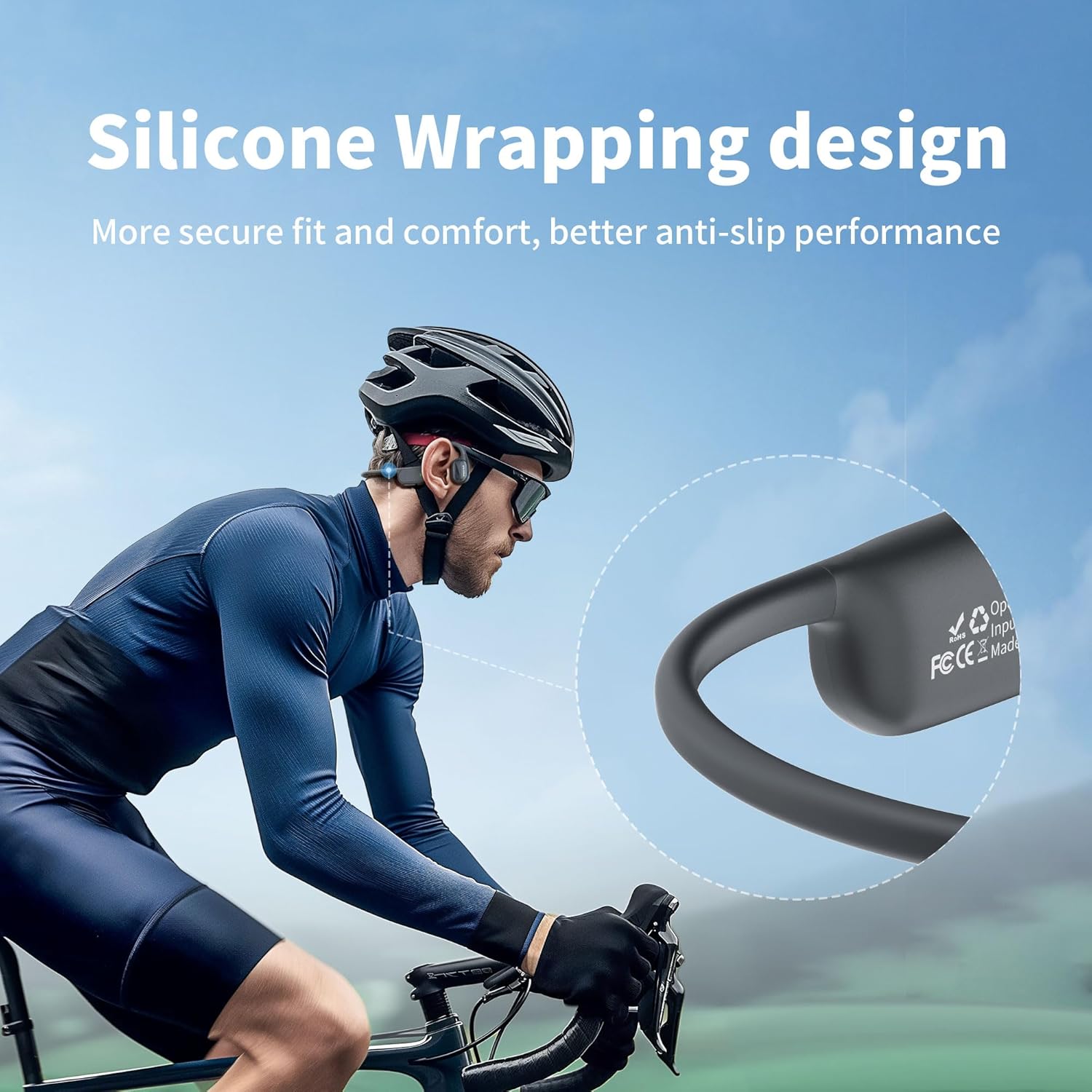
Image: A woman in water wearing the headphones, with an overlay of a '32GB Memory card' icon and text explaining that the built-in 32GB memory can store approximately 8,000 songs and supports MP3, FLAC, WMA, AAC, WAV, APE, and M4A formats.
4. Controls and Indicators
The headphones feature intuitive controls for easy operation:

Image: A close-up diagram of the headphone's control panel, showing the Multi-Function Button (MFB), volume/track buttons, and the magnetic charging port.
- Multi-Function Button (MFB):
- Power On/Off: Press and hold for 3 seconds.
- Switch BT/MP3 Mode: Double click.
- Answer/End a Call: Click once.
- Reject a Call: Double click.
- Play/Pause Music: Click once.
- Activate Voice Command: Quick triple click.
- Volume Up / Next Track Button:
- Volume Up: Click once.
- Next Track: Press and hold for 3 seconds.
- Volume Down / Previous Track Button:
- Volume Down: Click once.
- Previous Track: Press and hold for 3 seconds.
- Magnetic Charging Port: For charging the device and transferring data.
5. Setup
5.1. Initial Charging
Before first use, fully charge your headphones. Connect the magnetic charging cable to the charging port on the headphones and plug the USB end into a power source (e.g., computer USB port or wall adapter). A full charge takes approximately 2 hours. The LED indicator will show charging status.

Image: A detailed view of the magnetic charging port on the headphones, showing the connection points for the charging cable.
5.2. Bluetooth Pairing
- Ensure the headphones are powered off.
- Press and hold the MFB until the LED indicator flashes red and blue, indicating pairing mode.
- On your device (smartphone, tablet, etc.), enable Bluetooth and search for available devices.
- Select "Open Ear F1" from the list. Once connected, the LED indicator will turn solid blue.
5.3. Loading MP3 Files
To use the built-in MP3 player, connect the headphones to your computer using the magnetic charging cable. The headphones will appear as a removable drive. Drag and drop your desired audio files (MP3, WAV, FLAC, AAC) into the drive folder. Safely eject the device after transferring files.
6. Operating Instructions
6.1. Switching Modes
Double-click the MFB to switch between Bluetooth mode and MP3 player mode.
6.2. Bluetooth Mode
In Bluetooth mode, the headphones connect wirelessly to your paired device. You can control music playback and calls using the headphone buttons. The Bluetooth range is approximately 10 meters. Note: Bluetooth connectivity is not supported underwater.
6.3. MP3 Player Mode
In MP3 mode, the headphones play audio directly from their internal 32GB storage. This mode is ideal for swimming or other activities where a Bluetooth connection is not feasible or desired. Use the volume/track buttons to navigate your music.
6.4. Call Functions
When connected via Bluetooth, you can manage phone calls:
- Answer/End Call: Click the MFB once.
- Reject Call: Double-click the MFB.
- Activate Voice Command: Quick triple-click the MFB.
6.5. Using for Swimming
For the best audio experience while swimming, it is recommended to use the included earplugs. This helps to block out water noise and enhance the bone conduction sound quality.

Image: A swimmer wearing the flymory Open Ear F1 headphones and earplugs in a pool, demonstrating proper use for underwater listening.
Video: Official demonstration of the flymory Swimming Bone Conduction Headphones, showcasing their waterproof design and comfortable fit for various activities, including swimming.
7. Maintenance
7.1. Cleaning
After use, especially after swimming or intense workouts, rinse the headphones with fresh water to remove any chlorine, salt, or sweat. Wipe them dry with a soft cloth. Do not use harsh chemicals or abrasive materials for cleaning.
7.2. Storage
Store the headphones in a cool, dry place away from direct sunlight and extreme temperatures. Use the provided storage pouch to protect them from dust and scratches when not in use.
8. Troubleshooting
- No Power: Ensure the headphones are fully charged. Connect to the charger and check the LED indicator.
- Cannot Pair via Bluetooth: Make sure the headphones are in pairing mode (flashing red and blue LED). Turn off and on your device's Bluetooth. Ensure the headphones are not connected to another device.
- No Sound: Check the volume level on both the headphones and your connected device. Ensure the correct mode (Bluetooth or MP3) is selected.
- Poor Sound Quality Underwater: Ensure you are using the included earplugs. Water can interfere with sound transmission, and earplugs help to optimize the bone conduction experience.
- Files Not Transferring: Ensure the headphones are properly connected to your computer and recognized as a removable drive. Check file formats for compatibility (MP3, WAV, FLAC, AAC).
9. Specifications
| Feature | Detail |
|---|---|
| Model Name | Open Ear F1 |
| Brand | flymory |
| Connectivity Technology | Wireless (Bluetooth) |
| Wireless Communication Technology | Bluetooth 5.3 |
| Bluetooth Range | 10 Meters |
| Audio Driver Type | Bone Conduction Driver |
| Water Resistance Level | IPX8 Waterproof |
| Built-in Memory | 32GB |
| Supported Audio Formats | MP3, WAV, FLAC, AAC |
| Battery Life | 7-8 Hours (at 60% volume) |
| Charging Time | 2 Hours |
| Material | Silicone |
| Item Weight | 120 Grams (approx. 4.2 ounces) |
| Control Method | Push Button |
10. Warranty and Support
The flymory Open Ear F1 headphones come with a standard manufacturer's warranty. For detailed warranty information, product support, or service inquiries, please refer to the official flymory website or contact their customer service directly. Keep your purchase receipt for warranty claims.