
1. Introduction
This manual provides detailed instructions for the ANNKE H500 3K PoE Security Camera System. This system includes an 8-channel Network Video Recorder (NVR) with a 3TB Hard Disk Drive (HDD) and four 6MP Power over Ethernet (PoE) cameras. It is designed for reliable surveillance with features like 3K resolution, color night vision, and human/vehicle detection. Please read this manual thoroughly before installation and operation to ensure proper use and optimal performance.
2. Package Contents
Verify that all items listed below are included in your package. If any items are missing or damaged, please contact ANNKE customer support.
- 1 x 8-Channel 6MP NVR with 3TB HDD
- 4 x 8MP PoE Cameras
- 2 x 30m Ethernet Cables
- 2 x 18m Ethernet Cables
- 1 x USB Mouse
- 1 x Power Adapter for NVR
- 1 x 1.8m HDMI Cable
- 1 x User Manual for NVR
- 1 x Wall Sticker
- 4 x Screws for camera mounting
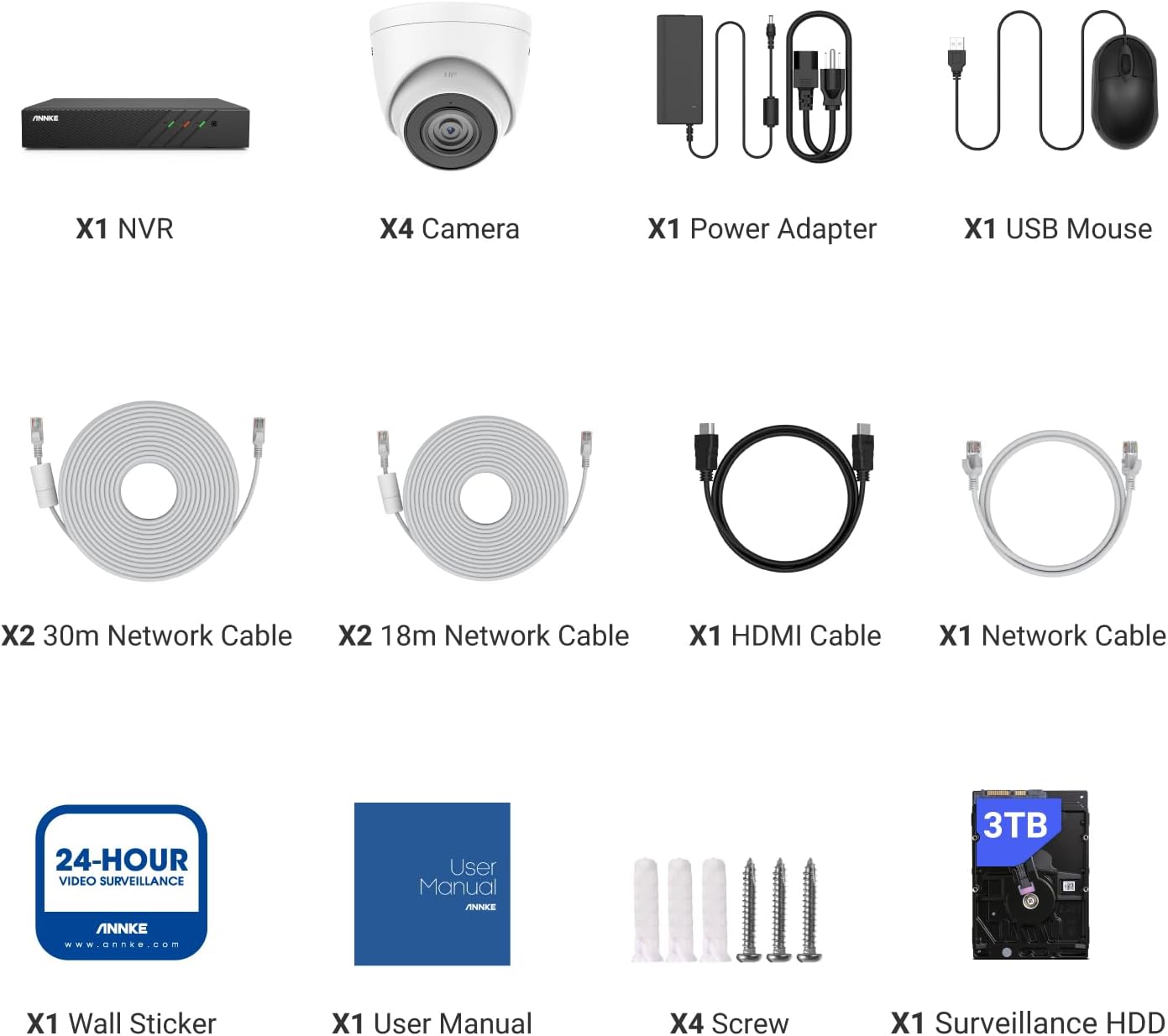
Figure 2.1: System Package Contents
3. Setup
3.1 Connecting the NVR and Cameras
The ANNKE H500 system utilizes Power over Ethernet (PoE) technology for simplified installation. Each camera connects to the NVR using a single Ethernet cable, which transmits both power and video data.
- Positioning the NVR: Place the NVR in a secure, dry, and well-ventilated location, preferably near your internet router and a power outlet.
- Connecting Cameras: Connect each PoE camera to an available PoE port on the back of the NVR using the provided Ethernet cables. The NVR will automatically power the cameras and establish a video connection.
- Connecting to a Monitor: Connect the NVR to a monitor or TV using the provided HDMI cable for local viewing and configuration.
- Connecting to Network: Connect the NVR's LAN port to your router using an Ethernet cable to enable remote access and network features.
- Connecting USB Mouse: Plug the USB mouse into one of the NVR's USB ports for navigation and control.
- Powering On: Connect the NVR power adapter to the NVR and then to a power outlet. The system will boot up automatically.

Figure 3.1: PoE System Connection Diagram
3.2 Initial Configuration
Upon first boot, the NVR will guide you through an initial setup wizard. This typically includes setting a password, configuring network settings, and formatting the hard drive. Follow the on-screen prompts.
4. Operating Instructions
4.1 Live View and Recording
Once the system is set up, you can view live camera feeds on your connected monitor. The NVR is pre-installed with a 3TB HDD for continuous recording. You can configure recording schedules and motion detection settings via the NVR's interface.

Figure 4.1: 3K Resolution Detail
4.2 Human & Vehicle Detection 2.0
The system features advanced Human & Vehicle Detection 2.0, which intelligently distinguishes between human and vehicle movements and other objects. This reduces false alarms and ensures you receive relevant notifications.

Figure 4.2: Human & Vehicle Detection in Action
4.3 Day & Night Vision
The cameras provide clear video footage both day and night. With 120 dB WDR (Wide Dynamic Range) and 3D DNR (Digital Noise Reduction) optimization, the system delivers balanced images in varying light conditions. The cameras also feature color night vision for enhanced detail in low-light environments.

Figure 4.3: Day and Starlight Color Night Vision Comparison
4.4 Remote Access via ANNKE Vision App
Monitor your property from anywhere using the free ANNKE Vision app, available for Android and iOS devices. The app allows you to view live feeds, play back recorded footage, receive motion alerts, and manage system settings remotely.
- Download the App: Search for "ANNKE Vision" in the App Store (iOS) or Google Play Store (Android) and install it.
- Register an Account: Create a new account or log in with an existing one.
- Add Device: Follow the in-app instructions to add your NVR by scanning the QR code or manually entering the device ID.
- View and Control: Once added, you can access live views, playback, and receive push notifications on your smartphone.
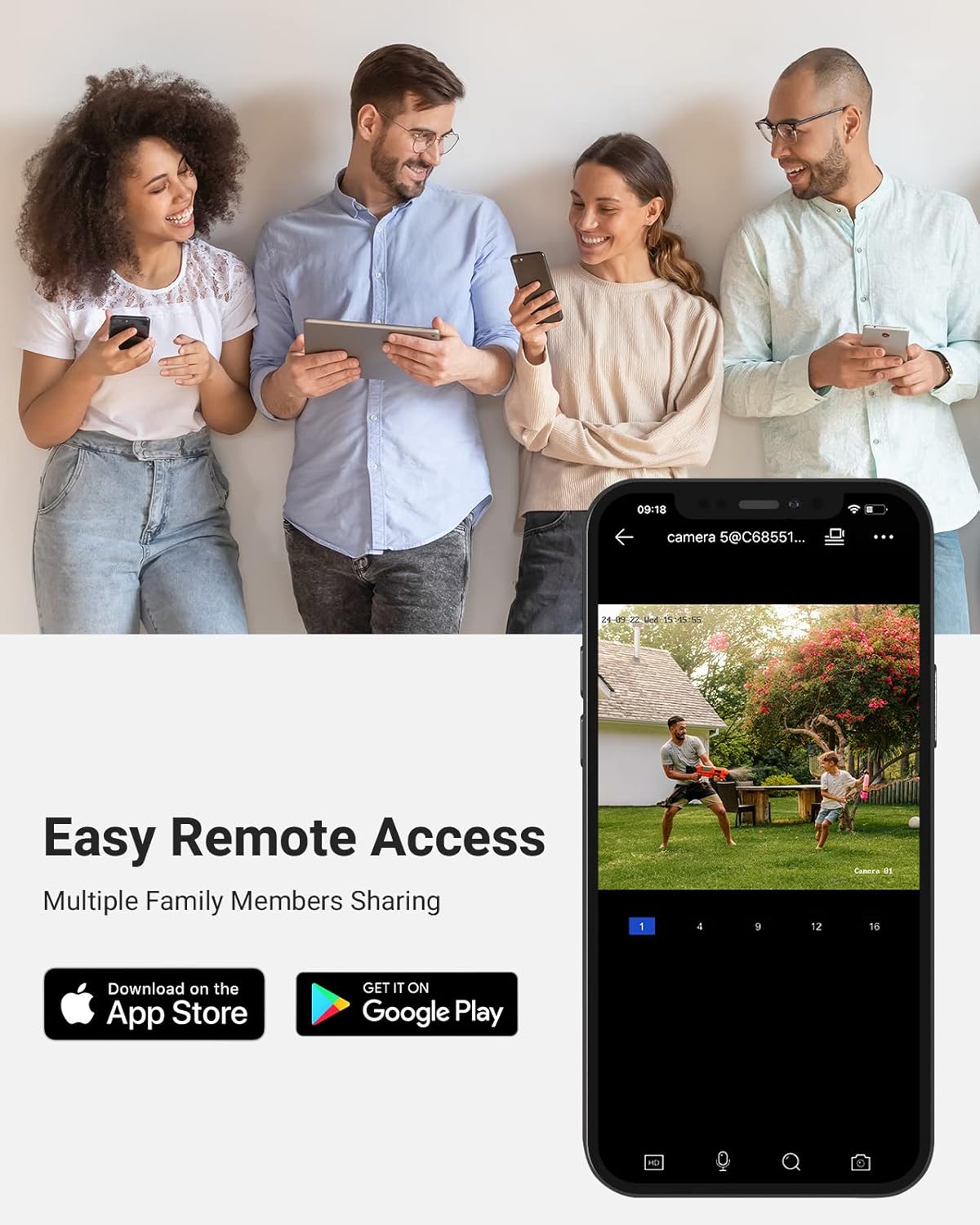
Figure 4.4: Remote Access with ANNKE Vision App
4.5 Built-in Microphone
Each camera is equipped with a built-in microphone, allowing for simultaneous video and audio recording. This provides additional context and evidence for surveillance footage.
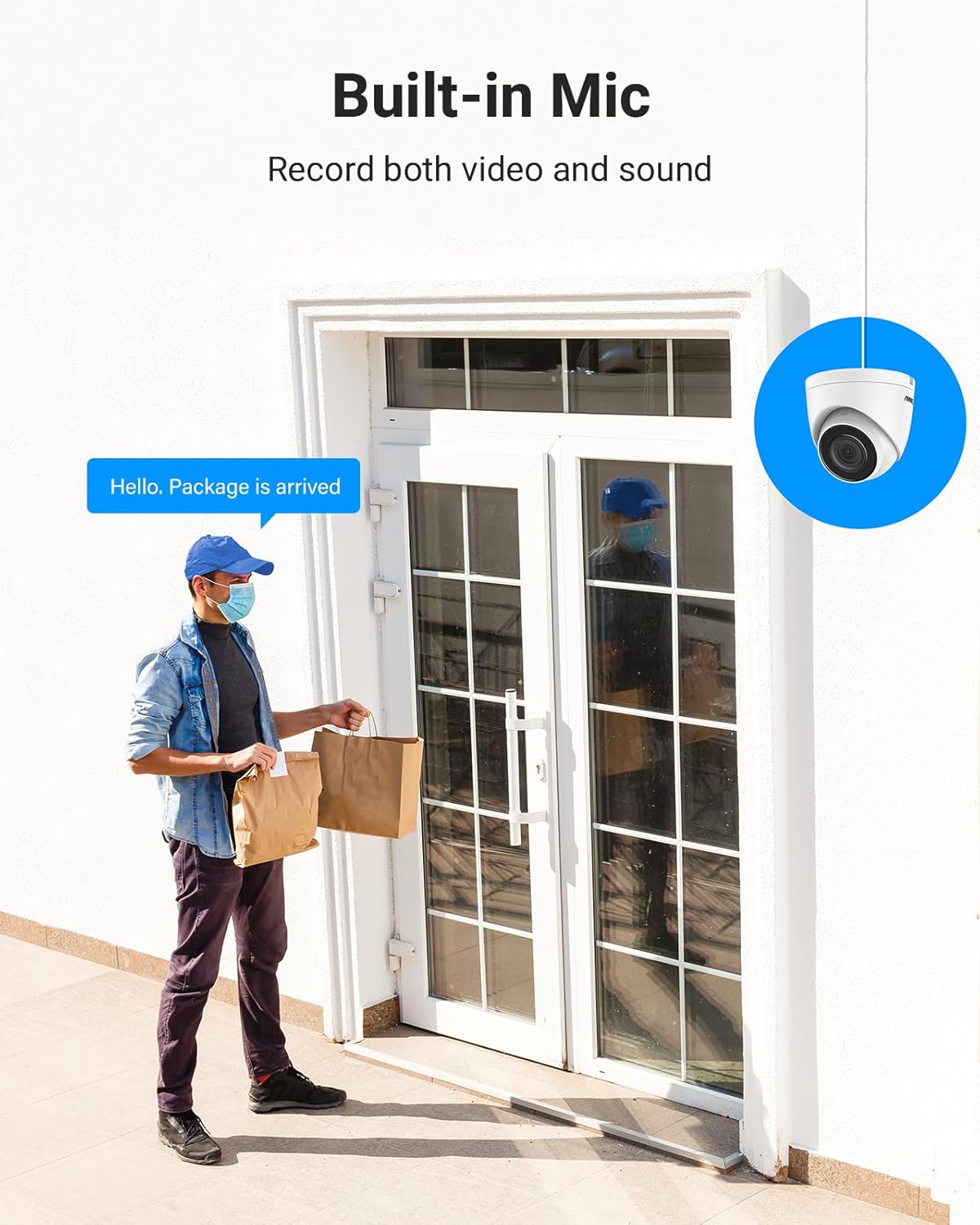
Figure 4.5: Built-in Microphone for Audio Recording
5. Maintenance
5.1 Weather Resistance
The cameras are IP67-rated, ensuring they are weatherproof and can withstand various outdoor conditions, including extreme temperatures from -30°C (-22°F) to 60°C (140°F).

Figure 5.1: All-Weatherproof IP67 Design
5.2 Cleaning and Care
- Regularly wipe the camera lenses with a soft, damp cloth to remove dust and dirt. Avoid abrasive cleaners.
- Ensure the NVR is kept in a clean, dry environment and free from obstructions to ventilation.
- Periodically check cable connections for security and integrity.
5.3 Firmware Updates
Check the ANNKE official website periodically for firmware updates to ensure your system has the latest features and security enhancements. Follow the instructions provided with the firmware update carefully.
6. Troubleshooting
If you encounter issues with your ANNKE H500 system, refer to the following common troubleshooting steps:
- No Video Output: Ensure the NVR is powered on, the monitor is connected correctly via HDMI, and the monitor input source is selected correctly. Check that cameras are properly connected to the NVR's PoE ports.
- No Remote Access: Verify the NVR is connected to your router and has internet access. Check network settings on the NVR and ensure the ANNKE Vision app is correctly configured and the device is added.
- Recording Issues: Confirm the 3TB HDD is properly installed and formatted. Check recording schedules and motion detection settings on the NVR.
- Poor Image Quality: Clean camera lenses. Ensure cameras are securely mounted and not obstructed. Check network cable integrity.
- System Not Responding: Try restarting the NVR by disconnecting and reconnecting the power adapter.
For further assistance, please contact ANNKE customer support.
7. Specifications
| Feature | Specification |
|---|---|
| Brand | ANNKE |
| Model Number | N98PBL-51DS |
| Connectivity Technology | Wired (PoE) |
| Video Capture Resolution | 3K (3072*1728) |
| Number of Channels | 8 |
| Memory Storage Capacity (NVR) | 3 TB HDD (Up to 6TB capacity supported) |
| Camera Resolution | 6MP (Cameras are 8MP in product description, but 6MP NVR is mentioned. Clarifying based on NVR spec) |
| Lens | 2.8mm (Wide Angle) / 4mm (from description) |
| Video Compression | H.265+/H.265/H.264+/H.264 |
| Night Vision Distance | Up to 100 ft/30 m |
| Weatherproof Rating | IP67 |
| Operating Temperature (Camera) | -30 °C ~ 60 °C (-22 °F ~ 140 °F) |
| Special Features | Easy to Install, Human & Vehicle Detection, Waterproof, Color Night Vision, Built-in Mic, 120 dB WDR, 3D DNR |
8. Warranty and Support
ANNKE products typically come with a manufacturer's warranty. Please refer to the warranty card included in your package or visit the official ANNKE website for detailed warranty terms and conditions.
For technical support, product inquiries, or warranty claims, please contact ANNKE customer service through their official website or the contact information provided in your product documentation.
You can also visit the ANNKE Store on Amazon for more product information and support resources.


