
1. Introduction
The UGREEN Revodok Pro 314 is a versatile 14-in-1 USB C docking station designed to expand the connectivity of your laptop. It provides multiple ports for external displays, high-speed data transfer, network connectivity, and power delivery, transforming your laptop into a comprehensive workstation.
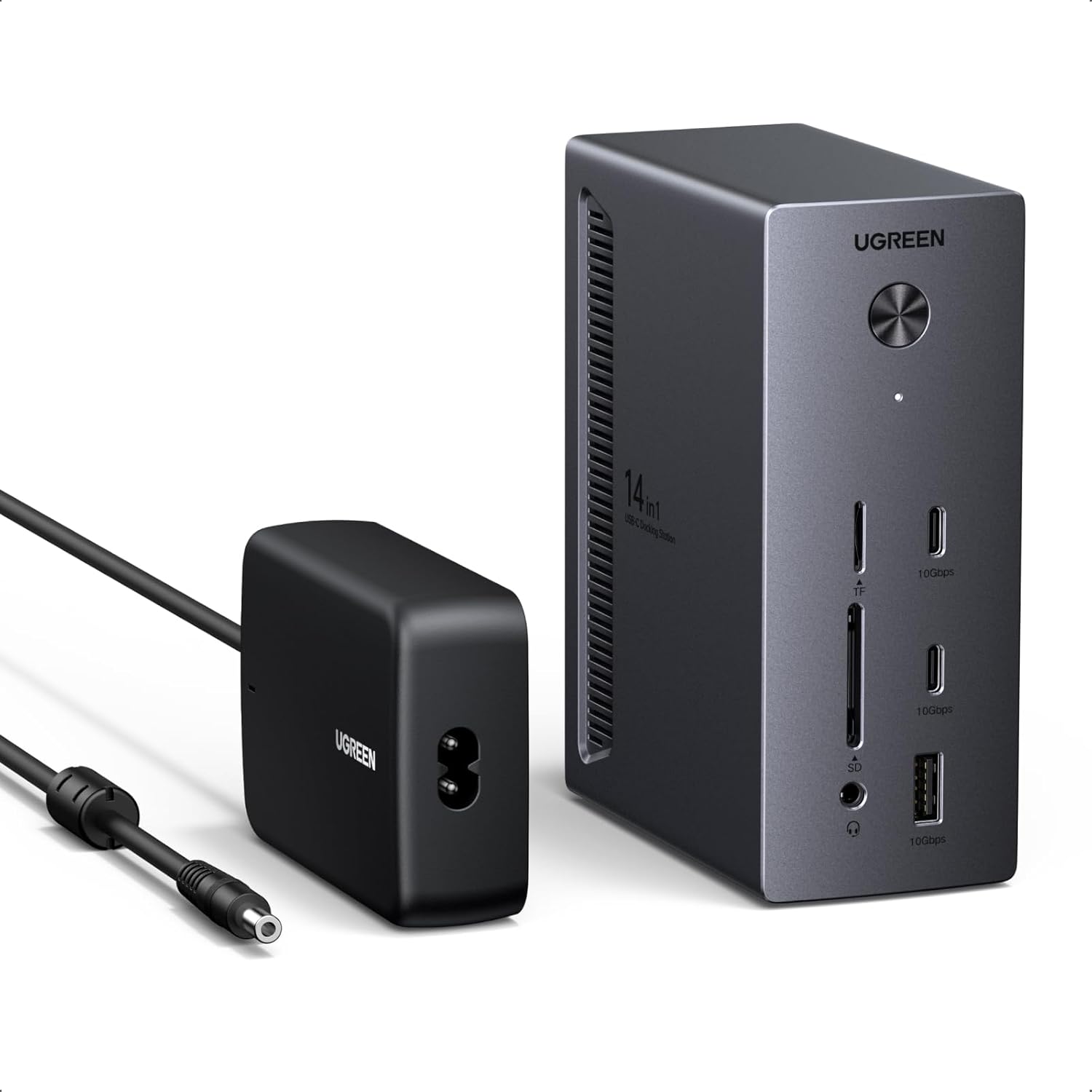
Image 1.1: UGREEN Revodok Pro 314 Docking Station and its power adapter.
2. Package Contents
Please verify that all items are present in the package:
- UGREEN Revodok Pro USB-C Docking Station
- 140W Power Adapter
- Power Cord (US, EU, UK Plugs)
- USB-C to USB-C Cable (3ft)
- User Manual

Image 2.1: All components included in the UGREEN Revodok Pro 314 package.
3. Product Overview
The Revodok Pro 314 features a comprehensive array of ports for enhanced connectivity.

Image 3.1: Detailed view of the UGREEN Revodok Pro 314 ports and their functions.
Front Panel Ports:
- Power Button: To turn the docking station on or off.
- USB-A (10Gbps): For high-speed data transfer.
- 2x USB-C (10Gbps): For high-speed data transfer. Note: These ports are for data transfer only and do not support display or charging.
- SD 3.0 (170MB/s): For standard SD card access.
- TF 3.0 (170MB/s): For microSD card access.
- Audio (Combo Audio Jack): For headphones or headsets with a 3.5mm connector.
Rear Panel Ports:
- DC-IN (24V): Power input from the included 140W power adapter.
- USB-C Upstream Port (100W Max): Connects to your laptop for power delivery and data.
- DP (DisplayPort 1.4, 4K@120Hz): For connecting a DisplayPort monitor.
- 2x HDMI 2.0 (4K@60Hz): For connecting HDMI monitors.
- Ethernet (Gigabit): For wired network connection.
- 2x USB-A (5Gbps): For connecting USB peripherals.
- USB-C PD (27W Output): For charging devices. Note: This port is for charging only.
4. Setup Instructions
- Connect Power: Plug the 140W power adapter into the DC-IN port (24V) on the rear of the docking station. Connect the power cord to the adapter and then to a wall outlet.
- Connect to Laptop: Use the provided USB-C to USB-C cable to connect the docking station's USB-C Upstream Port (100W Max) to a compatible USB-C port on your laptop. Ensure your laptop's USB-C port supports Power Delivery and DisplayPort Alt Mode for full functionality.
- Connect Displays: Connect your external monitors to the DisplayPort (DP) and HDMI ports on the rear of the docking station using appropriate cables.
- Connect Peripherals: Connect your USB devices (keyboard, mouse, external drives), SD/TF cards, and Ethernet cable to the corresponding ports on the docking station.
- Power On: Press the power button on the front of the docking station. The indicator light will illuminate.
The docking station supports both horizontal and vertical placement. Ensure proper ventilation regardless of orientation.

Image 4.1: The docking station can be positioned horizontally or vertically.
5. Operating Instructions
5.1 Multi-Display Configuration
The Revodok Pro 314 supports connecting up to three external monitors. The maximum resolution and refresh rates depend on your laptop's USB-C port capabilities (e.g., DisplayPort 1.4 with DSC).

Image 5.1: Example of a triple monitor setup using the docking station.
Windows Multi-Display Modes:
Windows laptops typically support extended display modes, allowing different content on each connected monitor (laptop screen + up to 3 external monitors).
macOS Multi-Display Limitations:
For macOS devices, external monitors will display identical content (mirror mode or SST). Extended display with different content on multiple external monitors is not supported by this docking station for macOS.

Image 5.2: Visual representation of multi-display capabilities for Windows and macOS.
Supported Monitor Resolutions (for USB-C Laptops Supporting DP 1.4):
| Item | DP | HDMI 1 | HDMI 2 |
|---|---|---|---|
| Single Monitor | 8K@30Hz / 4K@120Hz | / | / |
| / | 4K@60Hz | / | |
| / | / | 4K@60Hz | |
| Dual Monitors | 4K@60Hz | 4K@60Hz | / |
| 4K@60Hz | / | 4K@60Hz | |
| / | 4K@60Hz | 4K@60Hz | |
| Triple Monitors | 4K@60Hz + 4K@60Hz + 4K@30Hz | ||
5.2 Power Delivery
The docking station provides up to 100W Power Delivery to your laptop via the USB-C Upstream Port. Additionally, a dedicated 27W USB-C PD port is available for charging other devices like smartphones.
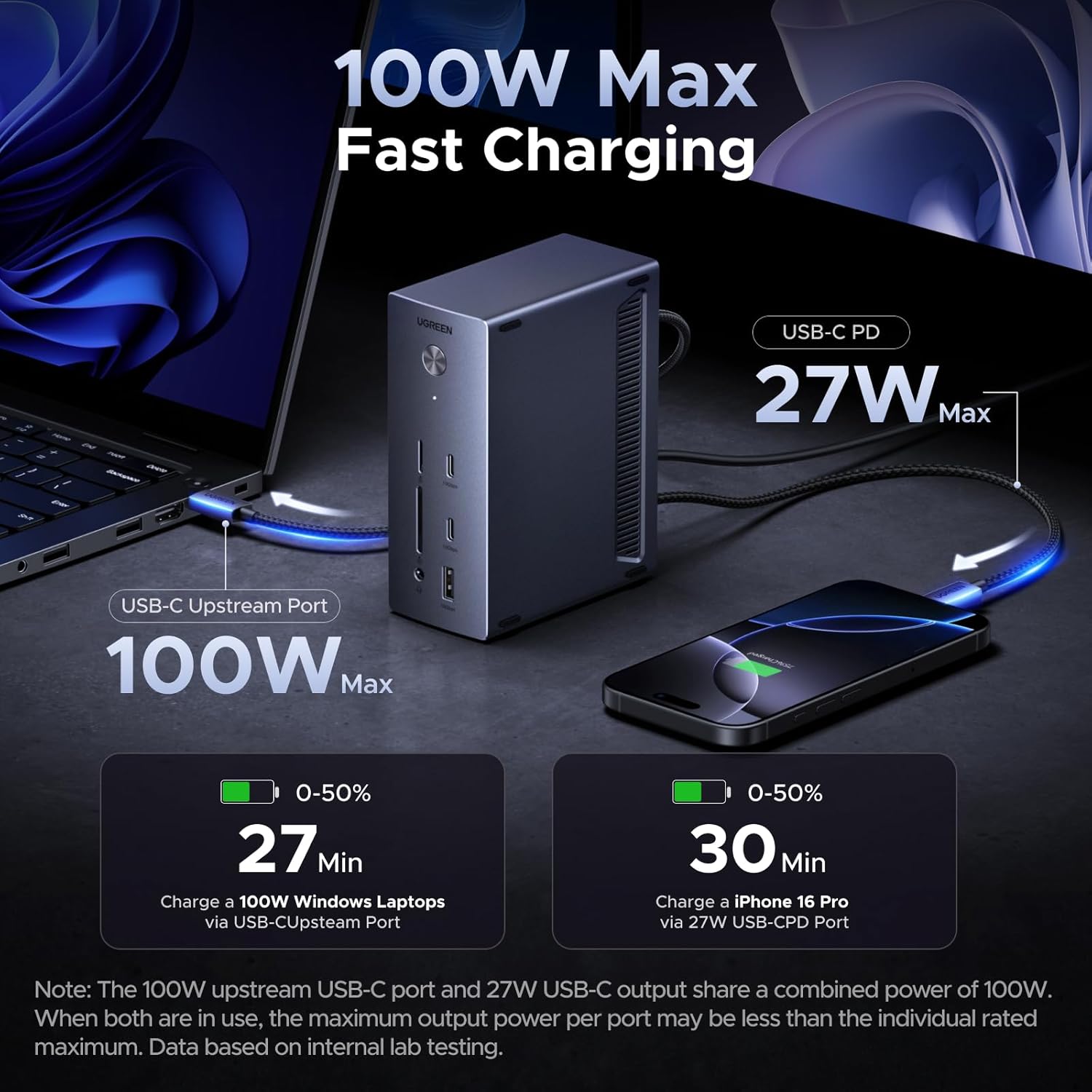
Image 5.3: Power delivery capabilities for laptop and mobile devices.
The 100W upstream USB-C port and 27W USB-C output share a combined power of 100W. When both are in use, the maximum output power per port may be less than the individual rated maximum.
5.3 Data Transfer
Utilize the 10Gbps USB-C and USB-A ports for rapid data transfer, ideal for large files and external storage devices. The SD/TF card readers support speeds up to 170MB/s.

Image 5.4: Data transfer speed comparison for USB 3.2 and USB 3.0.
6. Compatibility
The UGREEN Revodok Pro 314 is optimized for Windows laptops (Windows 10/11) and compatible with devices featuring Thunderbolt 5/4/3 or Full-Feature USB-C ports. Popular compatible models include Dell, HP, Lenovo, and ASUS laptops.
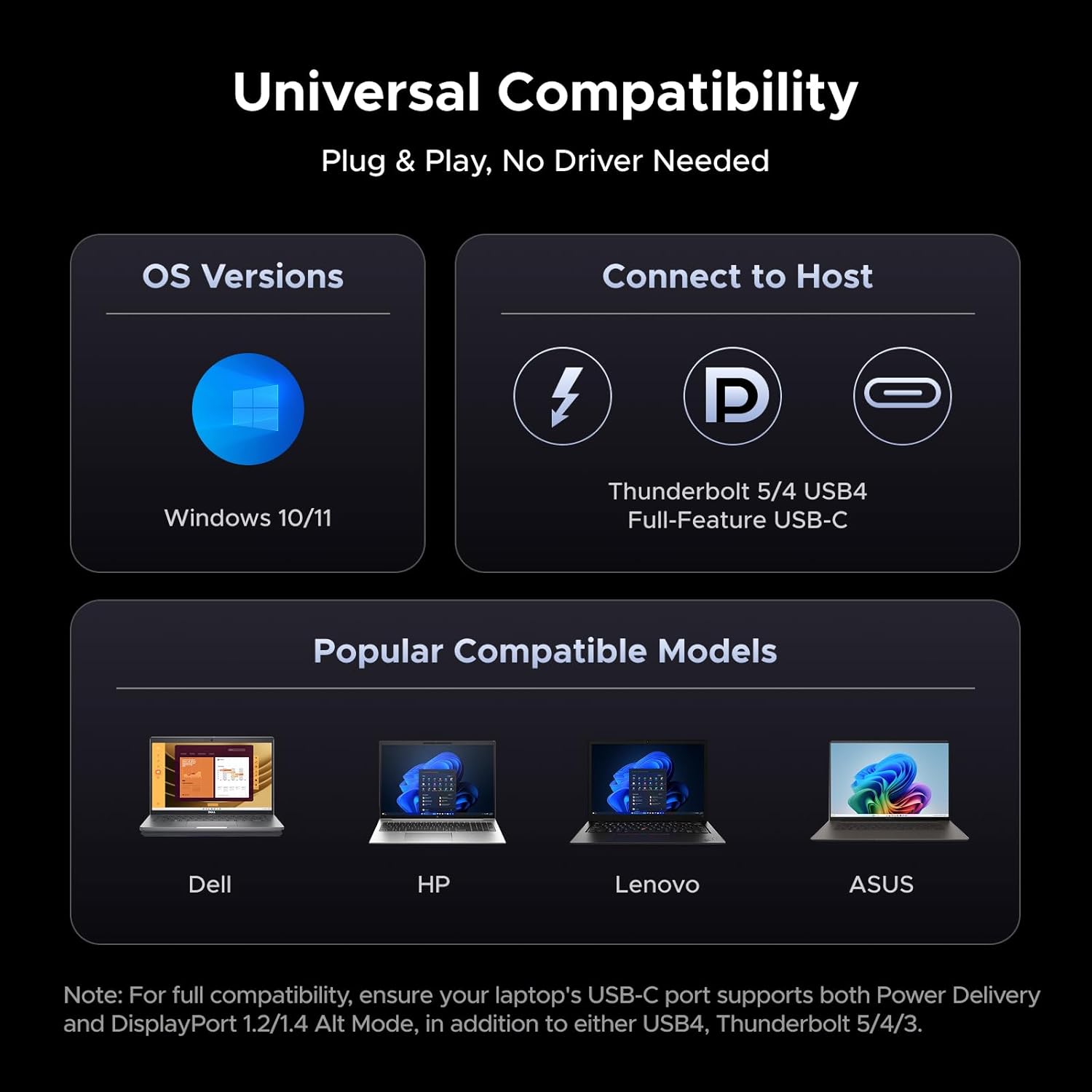
Image 6.1: Universal USB-C compatibility details.
For full compatibility, ensure your laptop's USB-C port supports both Power Delivery and DisplayPort 1.2/1.4 Alt Mode, in addition to either USB4, Thunderbolt 5/4/3.
7. Maintenance
- Keep the docking station away from water, fire, and high temperatures.
- Avoid dropping or subjecting the device to strong impacts.
- Clean the device with a soft, dry cloth. Do not use liquid or aerosol cleaners.
- Ensure adequate ventilation around the docking station to prevent overheating.
8. Troubleshooting
- No Display Output:
- Ensure your laptop's USB-C port supports DisplayPort Alt Mode.
- Check all cable connections (USB-C to laptop, HDMI/DP to monitors).
- Verify that the docking station is powered on.
- Update your laptop's graphics drivers.
- For macOS, remember that external monitors will mirror the display.
- No Power Delivery to Laptop:
- Ensure the 140W power adapter is correctly connected to the docking station and a power outlet.
- Verify your laptop's USB-C port supports Power Delivery.
- If charging multiple devices, the power output may be distributed, potentially reducing the charge speed to your laptop.
- USB Ports Not Functioning:
- Ensure the docking station is properly connected to your laptop.
- Try connecting the USB device directly to your laptop to confirm it's working.
- Some USB-C ports on the front are data-only and do not support charging or display.
- Ethernet Connection Issues:
- Check the Ethernet cable connection to both the docking station and your router/modem.
- Ensure your laptop's network drivers are up to date.
9. Specifications
| Feature | Detail |
|---|---|
| Model Number | CM843 |
| Ports | 14 (2x HDMI, 1x DisplayPort, 1x Gigabit Ethernet, 1x USB-C Upstream, 1x USB-C PD 27W, 2x USB-C 10Gbps, 1x USB-A 10Gbps, 2x USB-A 5Gbps, 1x SD, 1x TF, 1x 3.5mm Audio) |
| Video Output | 1x DisplayPort 1.4 (8K@30Hz / 4K@120Hz), 2x HDMI 2.0 (4K@60Hz) |
| Multi-Monitor Support | Triple Display (Windows), Mirror Display (macOS) |
| Power Delivery | Upstream 100W Max, Downstream 27W Max |
| Data Transfer Speed | USB 10Gbps, SD/TF 170MB/s |
| Ethernet | Gigabit (1000Mbps) |
| Dimensions | 125mm (H) x 96mm (W) x 50mm (D) (approx.) |
| Weight | 3.41 pounds (approx.) |
| Compatibility | Windows 10/11, Thunderbolt 5/4/3, Full-Feature USB-C (DP Alt Mode & PD) |
10. Warranty and Support
UGREEN products typically come with a standard manufacturer's warranty. For specific warranty details, product support, or technical assistance, please refer to the warranty card included in your package or visit the official UGREEN website. You can also contact UGREEN customer service directly.
Online Support: www.ugreen.com


