
Introduction
The Desview A5 is a versatile 5.5-inch touch screen camera field monitor designed to enhance your filmmaking and photography experience. It features a vibrant Full HD 1920x1080 IPS panel with 600nits brightness, ensuring clear and color-accurate visuals in various lighting conditions. Supporting 4K/60Hz HDMI 2.0 input and output, this monitor provides real-time monitoring and advanced tools like HDR, waveform, histogram, and custom 3D LUT support for precise exposure and color control. Its lightweight design and flexible power options make it suitable for both studio and on-location use.
What's in the Box
Upon unboxing your Desview A5 monitor, please ensure all the following items are present:
- 1x Desview A5 Monitor
- 1x Monitor Mount
- 1x Sunshade
- 1x HDMI Cable
- 1x Micro HDMI Cable
- 1x U disk (for LUTs)
- 1x Installation Tool
- 1x Dust Cloth
- 1x User Manual
- 1x Carry Case

Setup
Mounting the Monitor
Attach the included monitor mount to the 1/4" screw hole located on the bottom or side of the Desview A5 monitor. Secure the mount firmly using the installation tool. Then, attach the monitor to your camera's cold shoe mount or any compatible rig.

Connecting HDMI Cables
Connect your camera's HDMI output to the HDMI-IN port on the Desview A5 monitor using the provided HDMI or Micro HDMI cable. If you need to output the video signal to another monitor, use the HDMI-OUT port.
Powering the Monitor
The Desview A5 offers multiple power options:
- NP-F Series Batteries: Insert a compatible NP-F series battery (NP-F550/F750/F970) into the battery compartment on the back of the monitor. (Battery not included).
- Type-C Input: Connect a Type-C cable to the Type-C port for power.
- DC 12V Input: Use a DC 12V power adapter (not included) with the DC-IN port.

Operating the Monitor
Touch Screen & Control Knob
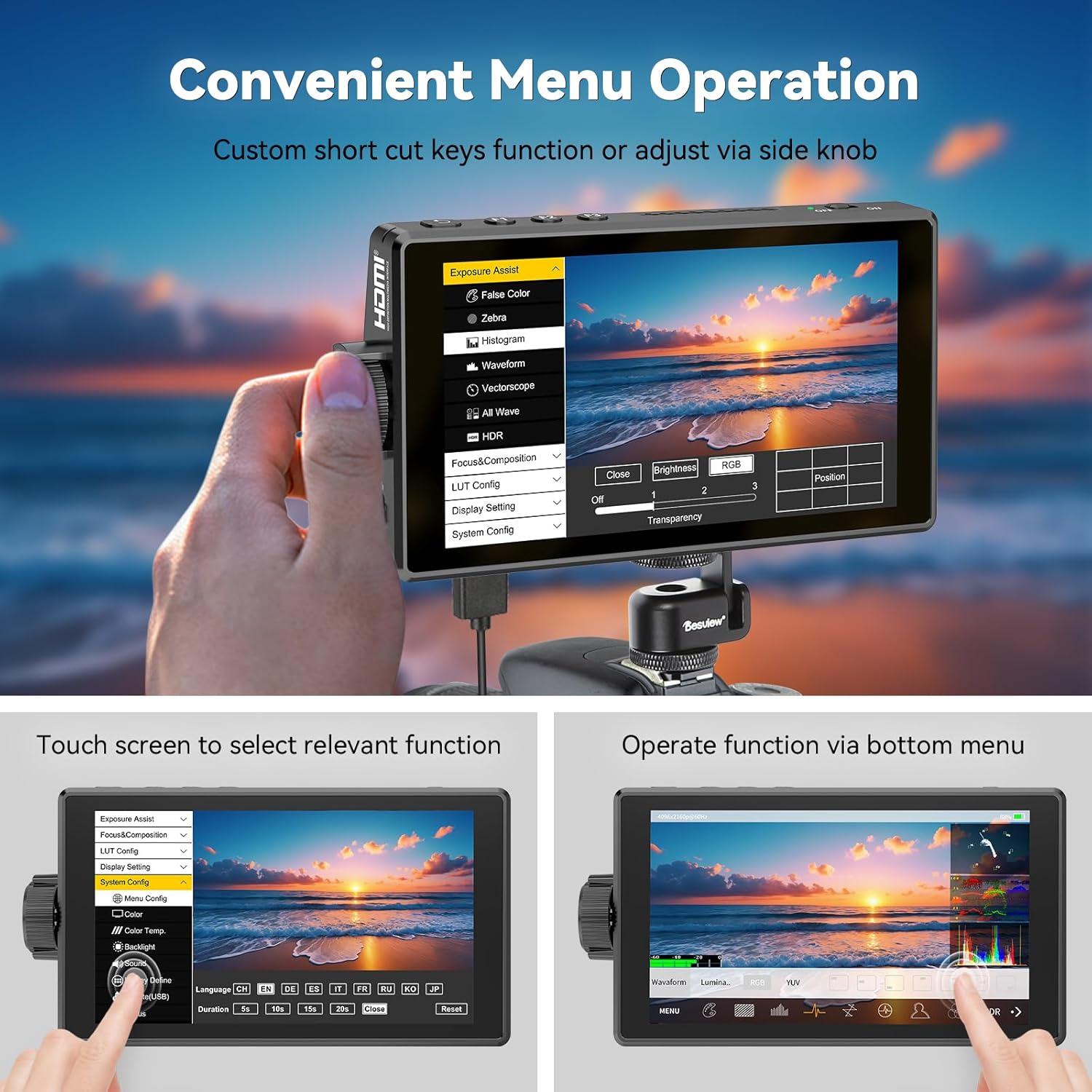
The Desview A5 features a responsive touch screen for intuitive menu navigation. You can also use the side scroll knob to adjust settings. User-customizable shortcut keys (F1, F2, F3) are available for quick access to frequently used functions. A touch-lock key prevents accidental changes during filming.

Advanced Monitoring Tools
The monitor includes a suite of professional tools to assist with accurate exposure and focus:
- HDR: High Dynamic Range support for improved contrast and color.
- Waveform: Visual representation of video signal luminance.
- Histogram: Displays the tonal distribution of your image.
- Focus Peaking: Highlights in-focus areas for precise manual focusing.
- False Color: Helps in setting correct exposure levels.
- Zebra: Indicates overexposed areas.
- Vectorscope: Analyzes color saturation and hue.
- Grid Lines: Assists with composition.
- Audio Meters: Monitors audio input levels.
- Safe Area & Mark Ratio: Ensures content is within broadcast-safe zones.

Custom 3D LUT Support
The Desview A5 allows you to upload custom 3D LUTs (Look Up Tables) via the included U disk. This feature is invaluable for on-set color grading, enabling you to preview your footage with desired color profiles for a cinematic look.

Display Settings
Adjust various display settings to suit your needs, including aspect ratio, display flip, zoom, pixel-to-pixel mapping, HV delay, freeze frame, and anamorphic de-squeeze.
Maintenance
To ensure the longevity and optimal performance of your Desview A5 monitor, follow these maintenance guidelines:
- Cleaning: Use the provided dust cloth to gently wipe the screen and body of the monitor. Avoid using harsh chemicals or abrasive materials.
- Storage: When not in use, store the monitor in its carry case to protect it from dust, scratches, and impacts.
- Sunshade: Utilize the detachable sunshade to protect the screen from direct sunlight and reduce glare, especially during outdoor shoots.

Troubleshooting
If you encounter any issues with your Desview A5 monitor, please refer to the following common troubleshooting steps:
- No Signal: Ensure all HDMI cables are securely connected to both the camera and the monitor. Verify that your camera's HDMI output is enabled and configured correctly.
- No Power: Check the battery level or power connection. Ensure the power source is providing adequate voltage (e.g., fully charged NP-F battery, correct DC adapter).
- Screen Flickering/Distortion: Try a different HDMI cable or adjust the resolution settings on your camera. Ensure the monitor's firmware is up to date.
- Touch Screen Unresponsive: Check if the touch-lock function is enabled. Disable it if necessary. Restart the monitor.
For persistent issues, please consult the detailed user manual or contact Desview customer support.
Specifications
| Feature | Specification |
|---|---|
| Brand | Desview |
| Model Number | A5 |
| Screen Size | 5.5 Inches |
| Resolution | FHD 1080p (1920x1080 Pixels) |
| Brightness | 600 candela_per_square_meter |
| Contrast Ratio | 1400:1 |
| Viewing Angle | 178 Degrees |
| Display Type | IPS |
| HDMI Input/Output | 4K/60Hz HDMI 2.0 |
| Power Options | Type-C, NP-F Series Batteries, DC 12V Input |
| Item Dimensions (D x W x H) | 1"D x 5.7"W x 3.2"H |
| Weight | 340 grams (approximate) |
| Additional Features | Touchscreen, Side Knob Navigation, User-customizable shortcut keys, HDR, 3D LUT Support, Waveform, Histogram, Focus Peaking |
Warranty and Support
The Desview A5 Touch Screen Camera Field Monitor comes with a 1-year warranty. For technical support, warranty claims, or any product-related inquiries, please contact Desview customer service through their official website or the retailer where the product was purchased. Please retain your proof of purchase for warranty validation.


