Introduction
This manual provides detailed instructions for the RSHTECH 12-in-1 USB C Hub Docking Station. This versatile multiport adapter is designed to expand the connectivity of your USB-C or Thunderbolt-enabled laptop, offering triple display output, high-speed data transfer, and power delivery capabilities.
Key Features
- 12-in-1 Connectivity: Equipped with 2x 4K@60Hz HDMI, 1x 4K@60Hz DisplayPort (DP), 3x 10Gbps USB 3.2 Gen 2 ports, 2x 5Gbps USB 3.0 ports, 100W Power Delivery, Gigabit Ethernet, and SD/TF card slots.
- Triple 4K Monitor Support: Connect up to three external displays simultaneously via Dual HDMI and DisplayPort, supporting 4K@60Hz resolution for crisp and lag-free visuals.
- High-Speed Data Transfer: Features USB-A 3.2 and USB-C 3.2 ports with speeds up to 10Gbps, and USB-A 3.0 ports up to 5Gbps, enabling rapid transfer of large files.
- Power Delivery (PD): Supports 100W power input with 85W output to charge your laptop while using the hub, ensuring continuous operation.
- Gigabit Ethernet: Provides a stable and reliable wired network connection up to 1Gbps/1000Mbps.
- SD/TF Card Readers: Integrated card readers for convenient and instant photo/video transfers.
- Premium Aluminum Alloy Housing: Designed for excellent heat dissipation, reliability, sturdiness, and anti-fingerprint properties.
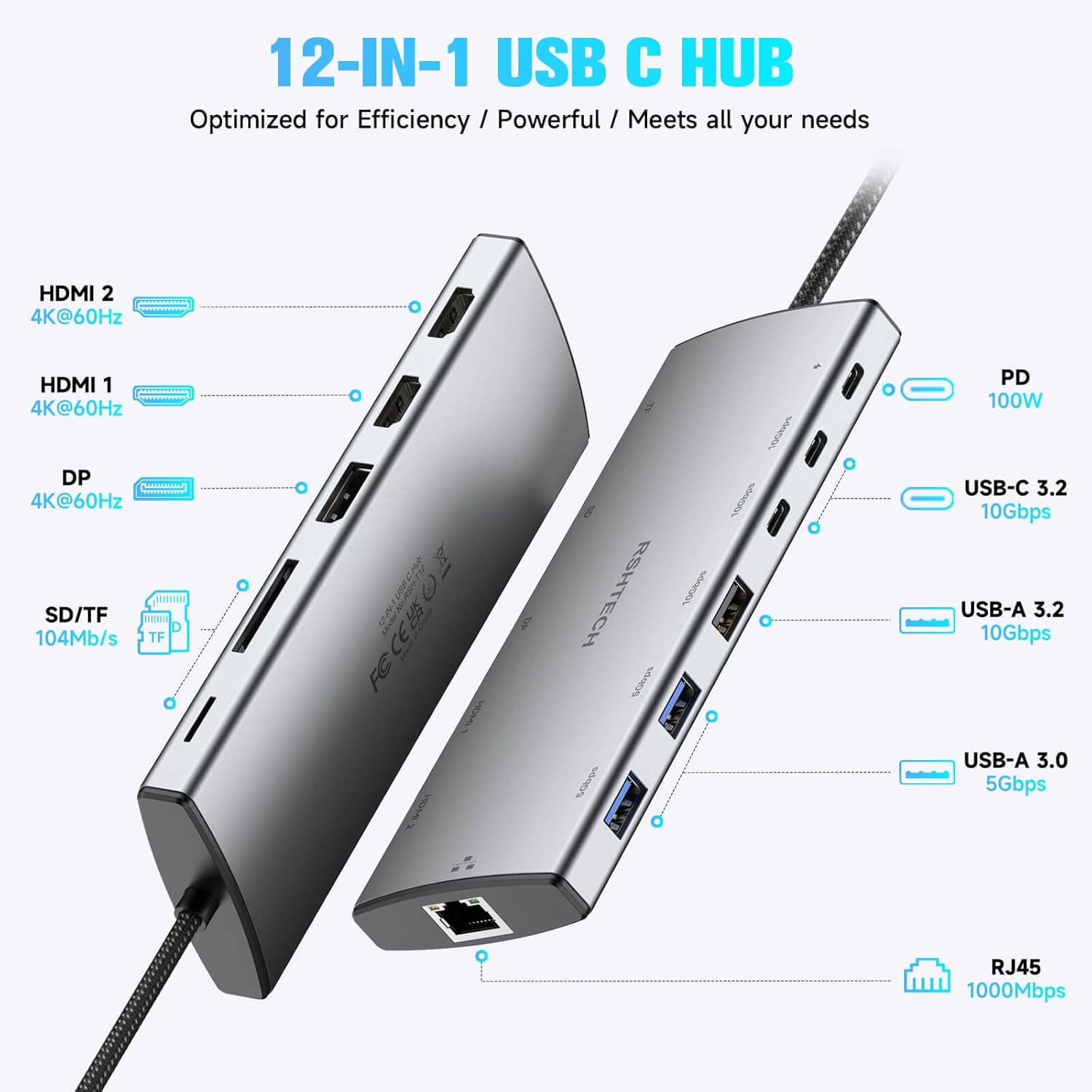
Image: Overview of the RSHTECH 12-in-1 USB C Hub, highlighting its various ports and their functions, including PD, USB-C 3.2, USB-A 3.2, USB-A 3.0, RJ45, HDMI, DP, and SD/TF slots.
Package Contents
The package should contain the following items:
- RSHTECH 12-in-1 USB C Hub Docking Station (Model: RSH-T12HD)
- User Manual
- Warranty Card

Image: The RSHTECH USB C Hub displayed with various cables, memory cards, and USB drives, illustrating its comprehensive connectivity options.
Setup Instructions
- Connect to Host Device: Plug the integrated USB-C cable of the RSHTECH hub into a compatible USB-C or Thunderbolt port on your laptop or host device. Ensure your device's USB-C port supports Thunderbolt or DisplayPort Alternate Mode for video output functionality.
- Power Connection (Optional but Recommended): For stable performance, especially when connecting multiple devices or external displays, connect your laptop's original USB-C power adapter (up to 100W) to the PD (Power Delivery) port on the hub. The hub will provide up to 85W output to your laptop.
- Connect Peripherals:
- Displays: Connect your HDMI monitors to the HDMI 1 and HDMI 2 ports, and your DisplayPort monitor to the DP port.
- USB Devices: Plug in your USB-A (5Gbps or 10Gbps) and USB-C (10Gbps) peripherals such as keyboards, mice, flash drives, external SSDs/HDDs, printers, or phones.
- Network: Connect an Ethernet cable to the RJ45 Gigabit Ethernet port for a stable wired internet connection.
- Memory Cards: Insert SD or TF cards into the respective slots for data transfer.
- Driver Installation: The RSHTECH USB C Hub is plug-and-play and typically does not require additional driver installation for most operating systems. Your system should automatically detect and configure the connected devices.

Image: The RSHTECH USB C Hub connected to a laptop, demonstrating power input (100W), power output (85W), Gigabit Ethernet connection, and SD/TF card access.
Operating Modes and Display Configurations
Display Modes
The hub supports various display configurations depending on your operating system:
- Windows OS:
- Single Display: Up to 4K@60Hz via DP, HDMI 1, or HDMI 2.
- Dual Displays: Up to 4K@60Hz on both displays (e.g., DP + HDMI 1, or HDMI 1 + HDMI 2).
- Triple Displays: When 3 monitors are connected, any 2 ports can output 4K@60Hz, while the remaining one can maintain 4K@30Hz.
- Mac OS:
- Single/Dual/Triple Displays: All connected displays can output 4K@60Hz.
Note: Video output requires your device’s USB-C port to support Thunderbolt or DisplayPort Alternate Mode.

Image: A laptop connected to three external 4K monitors via the RSHTECH USB C Hub, demonstrating a multi-display setup for enhanced productivity.

Image: A visual comparison of multiple display modes supported by the RSHTECH USB C Hub for both Windows and Mac OS, showing various monitor arrangements.
Data Transfer
Utilize the high-speed USB ports for efficient data transfer:
- USB 3.2 Gen 2 (10Gbps): Connect compatible devices to the 3x USB 3.2 Gen 2 ports (2x USB-C, 1x USB-A) for blazing-fast data transfer speeds, ideal for large files and external storage.
- USB 3.0 (5Gbps): Use the 2x USB 3.0 ports for standard USB peripherals.
- SD/TF Card Slots: Transfer photos and videos directly from your memory cards at speeds up to 104MB/s.
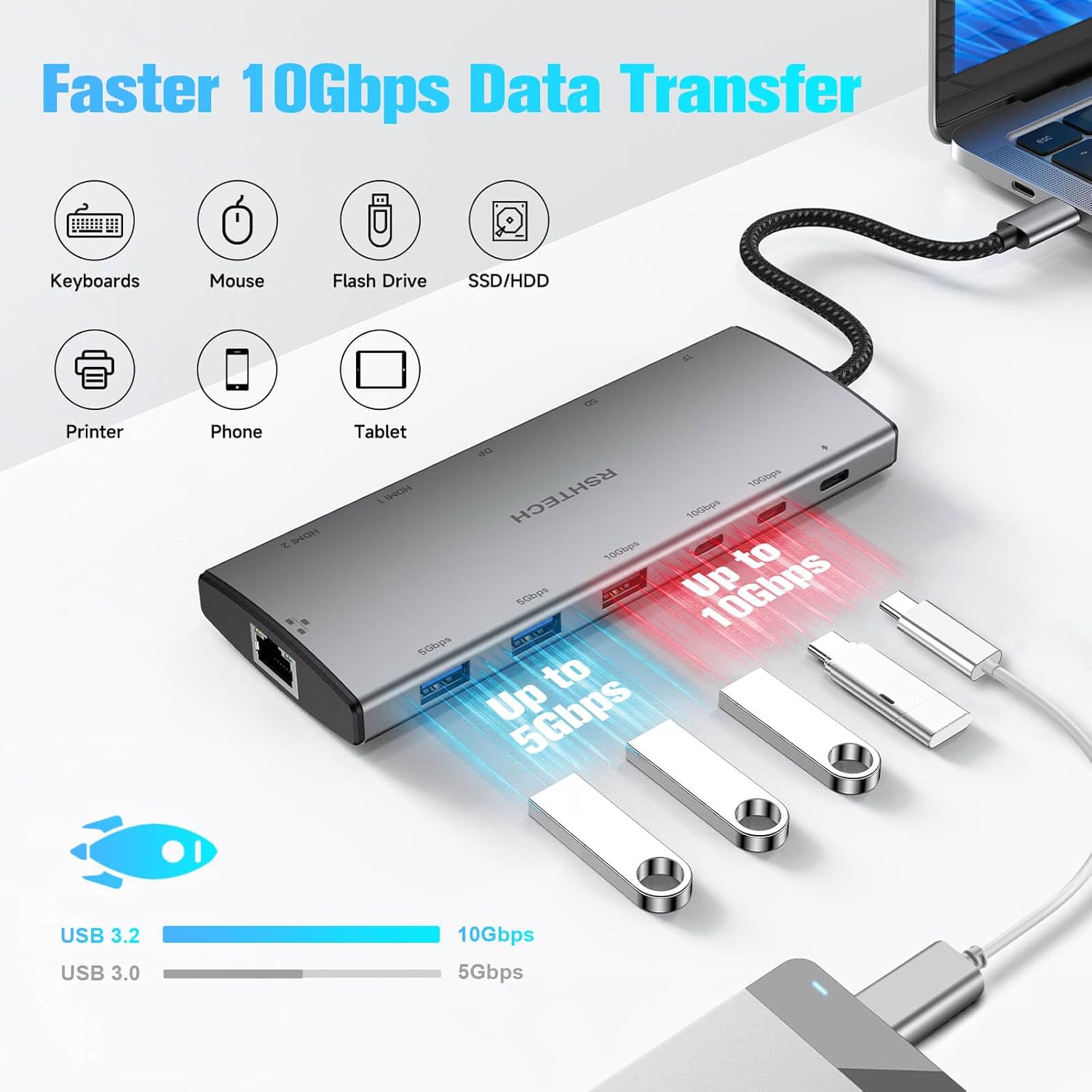
Image: The RSHTECH USB C Hub illustrating its 10Gbps and 5Gbps data transfer capabilities with various connected devices like keyboards, mice, flash drives, SSDs/HDDs, printers, phones, and tablets.
Specifications
| Feature | Detail |
|---|---|
| Model Number | RSH-T12HD |
| Dimensions | 7.87 x 3.43 x 0.83 inches |
| Item Weight | 5.9 ounces |
| Hardware Interface | USB, USB Type C, Ethernet, HDMI |
| USB Ports | 3x USB 3.2 Gen 2 (10Gbps), 2x USB 3.0 (5Gbps) |
| Video Output | 2x HDMI (4K@60Hz), 1x DisplayPort (4K@60Hz) |
| Power Delivery | 100W Input, 85W Output (15W for hub usage) |
| Ethernet | Gigabit Ethernet (1000Mbps) |
| Card Reader | SD/TF (104MB/s) |
| Compatible Devices | MacBook Pro/Air, Chromebooks, iPad Pro (USB-C), Dell, HP, Lenovo, Surface, Samsung, Digital Cameras, Gaming Consoles, Laptops, Desktops, Hard Disk Drive |
Troubleshooting
- No Display Output:
- Ensure your host device's USB-C port supports Thunderbolt or DisplayPort Alternate Mode.
- Check all cable connections (USB-C from hub to laptop, HDMI/DP from hub to monitor).
- Try connecting one monitor at a time to isolate the issue.
- Verify monitor input settings are correct.
- Slow Data Transfer Speeds:
- Ensure you are using the correct 10Gbps ports for high-speed devices.
- Check the specifications of your connected device and cable to ensure they support the desired speeds.
- For SD/TF cards, ensure the card itself supports high read/write speeds.
- Charging Issues:
- Ensure your power adapter connected to the PD port is sufficient (up to 100W recommended).
- Verify the USB-C cable used for power delivery is rated for the appropriate wattage.
- Intermittent Connectivity:
- Disconnect and reconnect the hub from your host device.
- Ensure the hub is placed on a stable surface and not subject to excessive movement.
- Avoid overloading the hub with too many power-hungry devices without external power.
Warranty and Support
RSHTECH products typically come with a standard warranty. Please refer to the included warranty card for specific terms and conditions, including warranty duration and registration details. For technical support, product inquiries, or warranty claims, please contact RSHTECH customer service through the contact information provided on the warranty card or the official RSHTECH website.
You may also visit the official RSHTECH store on Amazon for more information and support: RSHTECH Amazon Store


