
JUNJIEUNVO YYK-Q16 PRO
JUNJIEUNVO Q30 Bluetooth Earphones User Manual
Model: YYK-Q16 PRO
1. Introduction
Thank you for choosing the JUNJIEUNVO Q30 Bluetooth Earphones. These earphones are designed to provide a superior audio experience with advanced features such as an intelligent color touch screen, Active Noise Cancellation (ANC), and Environmental Noise Cancellation (ENC). This manual will guide you through the setup, operation, and maintenance of your new earphones.
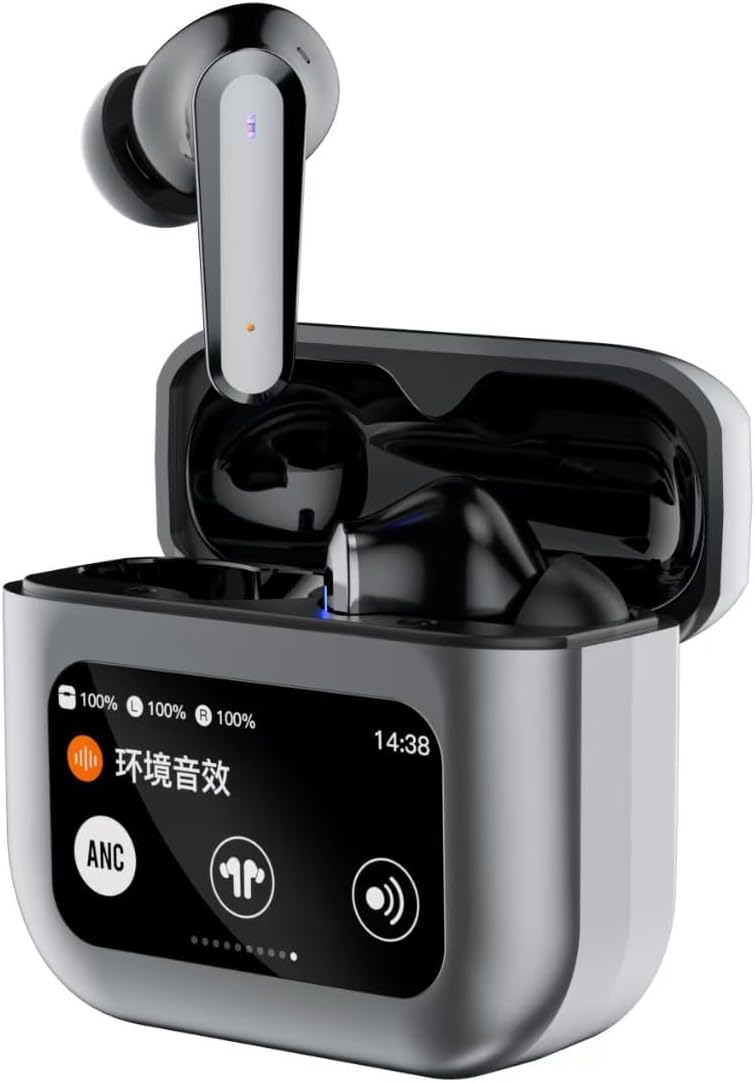
Image 1.1: JUNJIEUNVO Q30 Bluetooth Earphones in their charging case, showcasing the intelligent color touch screen.
2. Package Contents
Please check the package for the following items:
- JUNJIEUNVO Q30 Bluetooth Earphones (Left and Right)
- Charging Case with Intelligent Color Touch Screen
- USB Charging Cable
- User Manual
- Multiple Sizes of Ear Tips (S, M, L)
3. Important Safety Information
- Do not disassemble or modify the earphones or charging case.
- Keep the device away from extreme temperatures, humidity, and liquids.
- Avoid prolonged exposure to high volume levels to prevent hearing damage.
- Use only the provided charging cable or a certified equivalent.
- Dispose of the device and its battery responsibly according to local regulations.
4. Setup
4.1. Charging the Earphones and Case
Before first use, fully charge the earphones and the charging case.
- Connect the USB charging cable to the charging port on the case and to a power source.
- The touch screen on the case will display the charging status.
- Place the earphones into the charging case. They will begin charging automatically.
- A full charge typically takes approximately 1.5 hours.
4.2. Bluetooth Pairing
To connect your earphones to a device:
- Ensure the earphones are charged and inside the charging case.
- Open the charging case lid. The earphones will automatically enter pairing mode.
- On your device (smartphone, tablet, etc.), enable Bluetooth.
- Search for available Bluetooth devices and select "Q30" from the list.
- Once connected, the earphones will indicate successful pairing, and the touch screen on the case may show connection status.
4.3. Wearing the Earphones
For optimal sound quality and comfort, choose the ear tips that best fit your ears. Insert the earphones gently into your ear canal and rotate them slightly until they feel secure and comfortable.

Image 4.1: Illustration of proper earphone fit for comfort and sound.
5. Operating Instructions
5.1. Power On/Off
- Power On: Open the charging case lid, or take the earphones out of the case. They will power on automatically.
- Power Off: Place the earphones back into the charging case and close the lid. They will power off automatically.
5.2. Touch Controls (Earbuds)
The earphones feature touch-sensitive areas for various functions:
- Play/Pause: Single tap on either earbud.
- Next Track: Double tap on the right earbud.
- Previous Track: Double tap on the left earbud.
- Answer/End Call: Single tap on either earbud.
- Reject Call: Press and hold either earbud for 2 seconds.
- Activate Voice Assistant: Triple tap on either earbud.
- Switch ANC/ENC Modes: Press and hold the left earbud for 2 seconds to cycle through ANC On, Transparency Mode, and ANC Off.
5.3. Intelligent Color Touch Screen Functions (Charging Case)
The charging case features a full-color touch screen for advanced control and settings. Swipe left or right to navigate through the menus.

Image 5.1: Overview of the intelligent color touch screen functions on the charging case.
- Music Control: Play, pause, skip tracks directly from the screen.
- Volume Adjustment: Control the playback volume.
- Equalizer: Select from preset equalizer modes or customize your sound profile.
- Pattern Selection (Mode Select): Choose different audio modes, such as gaming or movie mode.
- Lock Wallpaper: Customize the screen background.
- Time Setting: Adjust the device's time.
- Screen Brightness: Adjust the display brightness.
- Flashlight Function: Activate a small flashlight feature.
- Language: Change the display language.
- Find Earphone: Locate misplaced earbuds by emitting a sound.
- Camera Function: Remotely trigger your phone's camera shutter.
- Voice Call: Initiate or manage voice calls.
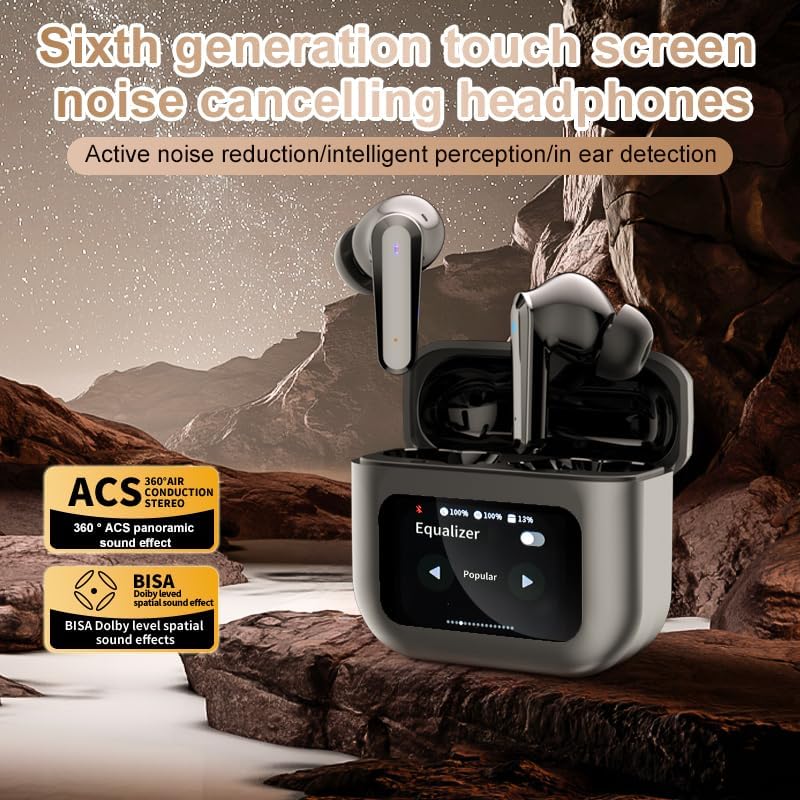
Image 5.2: The touch screen displaying equalizer settings for audio customization.
5.4. Active Noise Cancellation (ANC) and Environmental Noise Cancellation (ENC)
The Q30 earphones feature both ANC for reducing ambient noise and ENC for clear call quality.
- ANC: Reduces external low-frequency noise, ideal for travel or noisy environments. Activate via earbud touch control or the charging case screen.
- Transparency Mode: Allows you to hear your surroundings without removing the earphones. Cycle through modes using the earbud touch control.
- ENC: Enhances voice clarity during calls by filtering out background noise from your microphone. This feature is automatically active during calls.

Image 5.3: The touch screen interface for selecting various modes, including noise cancellation options.
6. Maintenance
6.1. Cleaning
- Gently wipe the earphones and charging case with a soft, dry, lint-free cloth.
- Do not use abrasive cleaners, alcohol, or chemical solvents.
- Clean the ear tips regularly with a damp cloth and allow them to dry completely before reattaching.
- Ensure charging contacts on both earphones and case are clean and free of debris.
6.2. Storage
- When not in use, store the earphones in their charging case to protect them and keep them charged.
- Store in a cool, dry place, away from direct sunlight and extreme temperatures.
7. Troubleshooting
| Problem | Possible Cause | Solution |
|---|---|---|
| Earphones not pairing | Earphones not in pairing mode; Bluetooth off on device; out of range. | Ensure earphones are in pairing mode (open case lid). Turn Bluetooth on your device. Move device closer to earphones. |
| No sound from earphones | Volume too low; earphones not connected; media paused. | Increase volume on device and earphones. Reconnect earphones. Check if media is playing. |
| One earphone has no sound | Low battery; connection issue. | Place both earphones back in the case, close, then reopen to reset connection. Ensure both are charged. |
| Charging case not charging | Faulty cable; power source issue. | Try a different USB cable and power adapter. Ensure connections are secure. |
| Touch screen unresponsive | Temporary software glitch. | Restart the case by closing and reopening it, or allow the battery to drain and recharge. |
8. Specifications
| Feature | Detail |
|---|---|
| Model Name | YYK-Q16 PRO (Q30) |
| Bluetooth Version | V5.4 + EDR |
| Chip | Blue Flood |
| Supported Protocols | AVRCP V1.6, A2DP V1.3, HFP V1.7, Simultaneous LE and BR / EDR |
| Noise Control | Active Noise Cancellation (ANC), Environmental Noise Cancellation (ENC) |
| Playback Time | Approximately 8 hours (at 80% volume) |
| Standby Time | 80 hours |
| Charging Time | Approximately 1.5 hours |
| Wireless Distance | 10 meters |
| Headphone Battery Capacity | 40mAh |
| Charging Case Battery Capacity | 500mAh |
| Waterproof Rating | IPX5 (Earphones) |
| Impedance | 32 Ohm |
| UPC | 884613749491 |
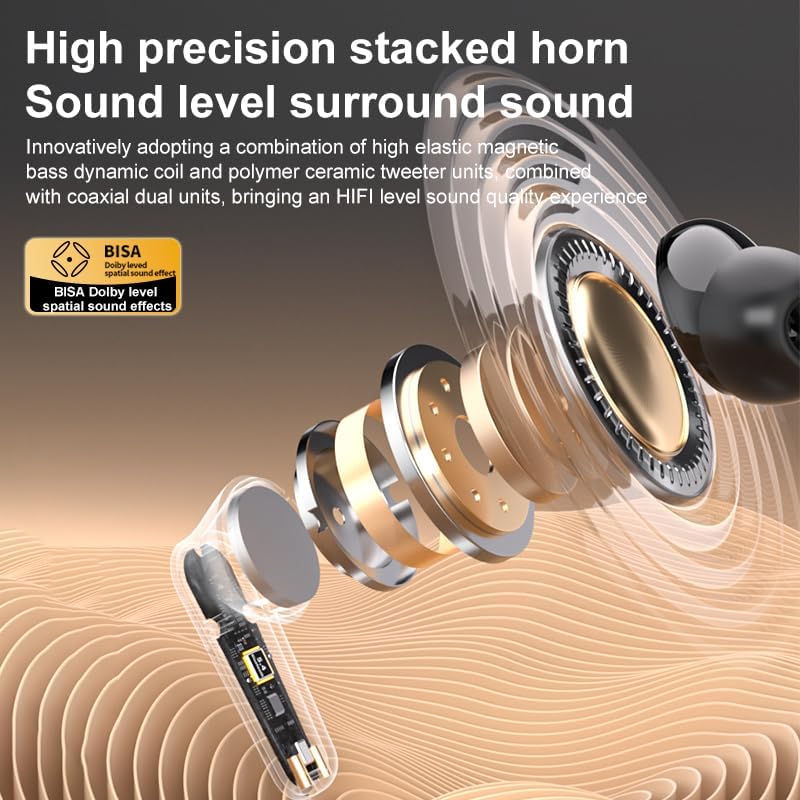
Image 8.1: Detailed view of the high-precision stacked horn and internal components for sound delivery.
9. Warranty and Support
For warranty information or technical support, please refer to the warranty card included with your product or contact the manufacturer directly. Please have your model number (YYK-Q16 PRO) and purchase details ready when contacting support.
Manufacturer: UNVO
Ask a question about this manual
Ask about setup, troubleshooting, compatibility, parts, safety, or missing instructions. Manuals+ will review the question and use this page’s manual context to help answer it.