
1. Introduction
Thank you for choosing the Roinvou 4+64G Car Radio. This manual provides detailed instructions for installation, operation, and maintenance of your new car multimedia system. Please read this manual thoroughly before use to ensure proper functionality and safety.
This 9-inch 2 DIN car radio features an Android system with 4GB RAM and 64GB internal storage, offering a stable and fluid user experience. Key features include wireless CarPlay, Android Auto, MirrorLink, built-in Wi-Fi, GPS navigation, Bluetooth, FM/RDS radio, a 32-band equalizer, and support for steering wheel controls and a rear view camera.

Image 1.1: Roinvou Car Radio and Included Accessories
2. Setup and Installation
2.1. Package Contents
Before installation, please verify that all components are present:
- Roinvou Car Radio for Opel Astra H 2004-2008 / Zafira B 2005-2015
- Power Cable
- CANBUS Decoder
- RCA Cable
- Rear Camera Input Cable
- GPS Antenna
- Dual USB Cable
- Rear View Camera
- External Microphone
- Installation Accessories & Tool
2.2. Compatibility Check
This unit is specifically designed for Opel Astra H (2004-2008) and Opel Zafira B (2005-2015) vehicles. Ensure your vehicle's dashboard matches the installation images provided.

Image 2.1: Before and After Installation in Compatible Opel Vehicles
2.3. Wiring Connections
Refer to the wiring diagram for correct connections. It is recommended to have professional installation for optimal performance and safety.
- Power Cable: Connect the main power harness to your vehicle's wiring.
- CANBUS Decoder: Connect the CANBUS decoder to enable steering wheel controls and other vehicle-specific functions. Ensure it is connected before powering on the unit.
- RCA Cables: For external audio/video devices.
- USB Cables: For connecting USB devices or for wired CarPlay/Android Auto (if applicable).
- GPS Antenna: Mount the GPS antenna in a location with a clear view of the sky for accurate navigation.
- External Microphone: Connect the external microphone for improved call quality.

Image 2.2: Connection Reference and Package List
2.4. Rear View Camera Installation
The included AHD rear view camera provides a 170° ultra-wide angle and good night vision. Connect the camera as follows:
- Connect the camera's video output to the 'CAM IN' port on the car radio.
- Connect the camera's power cable (red wire) to the reversing lamp's positive terminal.
- Connect the camera's ground wire (black wire) to a suitable ground point.
- Important: The reverse input cable must be plugged in even if the reverse camera is not being used. Otherwise, it may affect Bluetooth and Wi-Fi signal reception.

Image 2.3: Reversing Camera and CANBUS Wiring Diagram
2.5. Steering Wheel Control (SWC)
The unit supports steering wheel controls for safe and convenient operation while driving.
- With CANBUS Decoder: Connect the CANBUS before powering on. Navigate to Apps > Settings > Factory Settings (password: 8888/8317) > Vehicle > Automotive type to configure SWC. Select the brand and model year of your CANBUS decoder.
- Without CANBUS Decoder: Connect the steering wheel control wires (Key1/Key2) in the power cable to the corresponding port of your original car. Then, go to "Steering Wheel Key" manual match to activate the button functions.

Image 2.4: Steering Wheel Control Setup
3. Operating Instructions
3.1. Wireless CarPlay & Android Auto
Connect your smartphone wirelessly to access navigation, calls, media playback, and other functions via voice control. This feature supports most popular applications.

Image 3.1: Wireless CarPlay and Android Auto Interface
3.2. MirrorLink Function
MirrorLink allows you to project your smartphone screen (Android and iOS) onto the car radio display via Wi-Fi, enabling you to enjoy videos and other content on a larger screen.
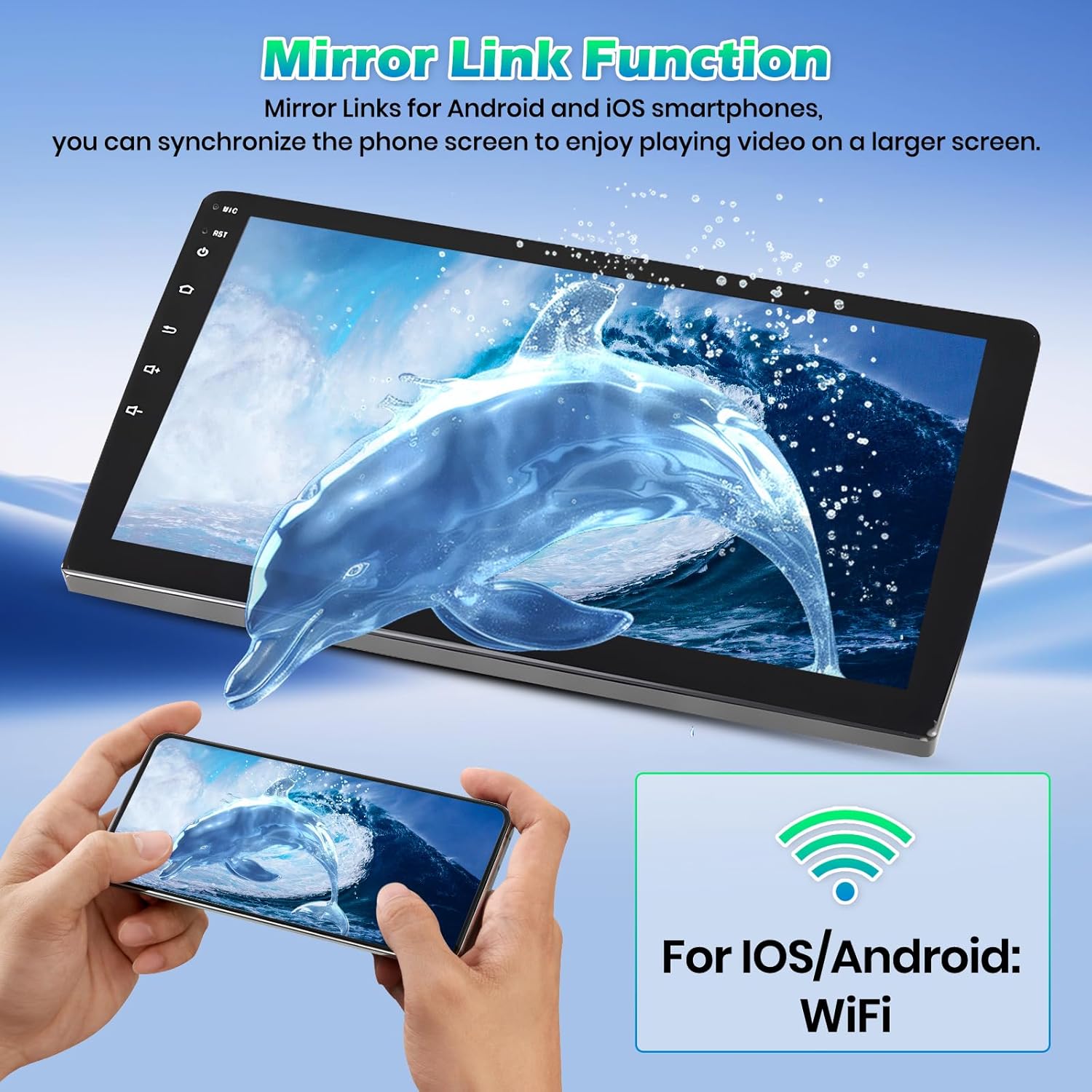
Image 3.2: MirrorLink Functionality
3.3. Wi-Fi, GPS, and Bluetooth
- Wi-Fi: Connect to a Wi-Fi network to use online maps, stream videos, browse the internet, and download applications.
- GPS: Supports online navigation with real-time updates and offline map mode. You can download offline maps directly from the Play Store.
- Bluetooth: Integrated Bluetooth ensures hands-free calling and seamless music streaming with high-quality audio codecs.

Image 3.3: GPS Navigation and Wi-Fi Connectivity
3.4. FM/RDS Radio & 32-Band Equalizer
- FM/RDS: Enjoy clear radio signals and view station information, music tracks, and traffic news directly on the screen.
- 32-Band EQ: Precisely adjust audio frequencies to optimize sound according to your preferences, with options for powerful bass (50Hz), clear mids (1kHz), and detailed treble (15kHz).

Image 3.4: Bluetooth, FM/RDS Radio, and 32-Band EQ Interfaces
3.5. Split Screen Function & UI Themes
The split-screen mode allows you to use two applications simultaneously. The unit also offers various customizable user interfaces (UI themes) to personalize your experience.

Image 3.5: Split Screen Function and UI Themes
4. Maintenance
To ensure the longevity and optimal performance of your Roinvou car radio, follow these general maintenance guidelines:
- Cleaning: Use a soft, dry cloth to clean the screen and exterior. Avoid abrasive cleaners or solvents that could damage the surface.
- Software Updates: Periodically check for software updates to ensure you have the latest features and bug fixes. Updates can usually be found through the system settings or the manufacturer's website.
- Environmental Conditions: Avoid exposing the unit to extreme temperatures, direct sunlight for prolonged periods, or excessive moisture.
- Cable Connections: Ensure all cables are securely connected. Loose connections can lead to intermittent issues.
5. Troubleshooting
If you encounter issues with your Roinvou car radio, refer to the following common problems and solutions:
| Problem | Possible Cause | Solution |
|---|---|---|
| Unit does not power on | Loose power connection, blown fuse, incorrect wiring. | Check power cable connections. Inspect vehicle fuses. Verify wiring against the diagram. |
| No sound | Volume too low, mute activated, incorrect speaker wiring, audio settings. | Increase volume. Check if mute is active. Verify speaker connections. Adjust audio settings in the EQ. |
| GPS signal lost or inaccurate | GPS antenna obstructed or improperly installed, no internet connection for online maps. | Ensure GPS antenna has a clear view of the sky. Check antenna connection. Connect to Wi-Fi for online maps or download offline maps. |
| Bluetooth not connecting | Bluetooth off on device or radio, device not discoverable, interference. | Ensure Bluetooth is enabled on both devices. Make device discoverable. Try restarting both devices. |
| Steering wheel controls not working | CANBUS not connected/configured, SWC wires incorrectly connected, incorrect SWC settings. | Verify CANBUS connection and configuration in factory settings. Check SWC wire connections. Perform manual SWC key mapping if no CANBUS. |
| Rear camera not displaying | Camera power issue, video cable loose, reverse trigger not connected. | Check camera power and ground connections. Ensure video cable is securely connected. Verify reverse trigger wire is connected to the reverse light. |
If the problem persists after attempting these solutions, please contact Roinvou customer support for further assistance.
6. Product Specifications
| Feature | Specification |
|---|---|
| Brand | Roinvou |
| Model Number | A7342A3662H1MI2EU31D |
| Compatible Vehicles | Opel Astra H (2004-2008), Opel Zafira B (2005-2015) |
| Operating System | Android |
| RAM | 4GB |
| Internal Storage | 64GB |
| Display | 9-inch 2.5D Touch Screen |
| Connectivity | Wi-Fi, Bluetooth, FM RDS |
| Special Functions | Wireless CarPlay, Android Auto, Mirror Link, 32-Band EQ, GPS, UI Customization, Steering Wheel Control (SWC), Touch Screen |
| Audio Output Mode | APE/FLAC/WAV/MP3/WMA |
| Speaker Surround Sound Channel Configuration | 4 |
| Electrical Power | 45 Watts |
| Video Encoding | MKV/RMVB/AVI/MP4/MDV |
| Product Dimensions | 26 x 16 x 7 cm |
| Product Weight | 1.42 kg |
7. Warranty Information
Roinvou products are designed for quality and innovation. For specific warranty details, please refer to the warranty card included with your product or contact Roinvou customer support. Generally, products are covered against manufacturing defects for a specified period from the date of purchase. Keep your proof of purchase for any warranty claims.
8. Customer Support
If you have any questions regarding product compatibility before purchase, or encounter issues during installation and use, our support team is available to assist you. Good communication helps resolve problems efficiently.
- Pre-purchase inquiries: If you have questions about compatibility, please send photos of your car's dashboard to our support team.
- Installation & Usage Support: For assistance with installation or operation, please reach out to us.

Image 8.1: Roinvou Customer Service Information
You can contact our customer service team via email at roinvouservices@163.com or through the seller contact option on the Amazon product page.


