
MCY KCH101
MCY USB C Hub - 10-in-1 Laptop Docking Station
Model: KCH101
Introduction
The MCY USB C Hub is a versatile 10-in-1 multiport adapter designed to expand the connectivity of your USB-C enabled laptop, tablet, or smartphone. This docking station provides comprehensive port expansion, including dual HDMI outputs for multi-monitor setups, high-speed data transfer ports, power delivery, Ethernet connectivity, and a card reader, enhancing productivity and convenience for various computing needs.
Product Overview
The MCY USB C Hub (Model KCH101) integrates multiple essential ports into a compact and portable design. It features:
- 1 x HDMI 1 Port: Supports up to 8K resolution.
- 1 x HDMI 2 Port: Supports up to 4K@60Hz resolution.
- 2 x USB-A 3.0 Ports: 5Gbps data transfer speed.
- 2 x USB-C Data Ports: 5Gbps data transfer speed.
- 1 x USB-C PD Charging Port: Up to 100W Power Delivery pass-through.
- 1 x SD Card Reader: Supports various SD card formats.
- 1 x TF (MicroSD) Card Reader: Supports various MicroSD card formats.
- 1 x RJ45 Ethernet Port: Supports 10/100/1000Mbps network speeds.

Figure 1: Overview of the MCY USB C Hub's 10-in-1 versatile extension ports.
Setup Guide
- Verify Host Device Compatibility: Ensure your computer's USB-C port supports audio and video transmission (DisplayPort Alternate Mode) and Power Delivery. This is typically indicated by a Thunderbolt 3/4 or USB 4.0 logo next to the USB-C port.
- Connect the Hub: Plug the integrated USB-C cable of the MCY Hub into an available USB-C port on your laptop or compatible device.
- Connect Power (Optional but Recommended): For stable operation and to charge your host device, connect your laptop's original power adapter or a compatible USB-C PD charger (up to 100W) to the USB-C PD input port on the hub.

Figure 2: Connecting the MCY USB C Hub for power delivery.
- Connect Peripherals:
- Monitors: Connect HDMI cables from your monitors to the HDMI 1 (8K) and HDMI 2 (4K) ports on the hub.
- USB Devices: Plug in USB-A or USB-C peripherals (e.g., mouse, keyboard, external hard drive) into the corresponding data ports.
- Ethernet: Connect an Ethernet cable from your router/modem to the RJ45 port on the hub.
- Memory Cards: Insert SD or TF cards into the respective card reader slots.
- System Recognition: Your operating system should automatically detect and configure the connected devices. No drivers are typically required for basic functionality (Plug and Play).
Operating Instructions
Dual Display Configuration
The MCY USB C Hub supports both mirror and extend modes for dual displays. Performance and resolution capabilities vary by operating system and DisplayPort (DP) protocol version of your host device.
| Operating System | Windows | macOS | ||
|---|---|---|---|---|
| Display Standard | DP1.2 | DP1.4 | DP1.2 | DP1.4 |
| Resolution | Single: 4K@30Hz Dual: 4K@30Hz | Single: 4K@120Hz / 4K@60Hz (Mirror Mode) 8K@30Hz / 4K@60Hz (Extend Mode) Dual: 4K@60Hz | Single: 4K@30Hz Dual: 4K@30Hz (Only Mirror Mode) | Single: 4K@60Hz Dual: 4K@60Hz (Only Mirror Mode) |
Note for macOS Users: For macOS, the display on both external monitors will be identical in extend mode. True extended display with different content on each external monitor is not supported due to macOS limitations with MST (Multi-Stream Transport) via a single Thunderbolt/USB-C port for multiple external displays.
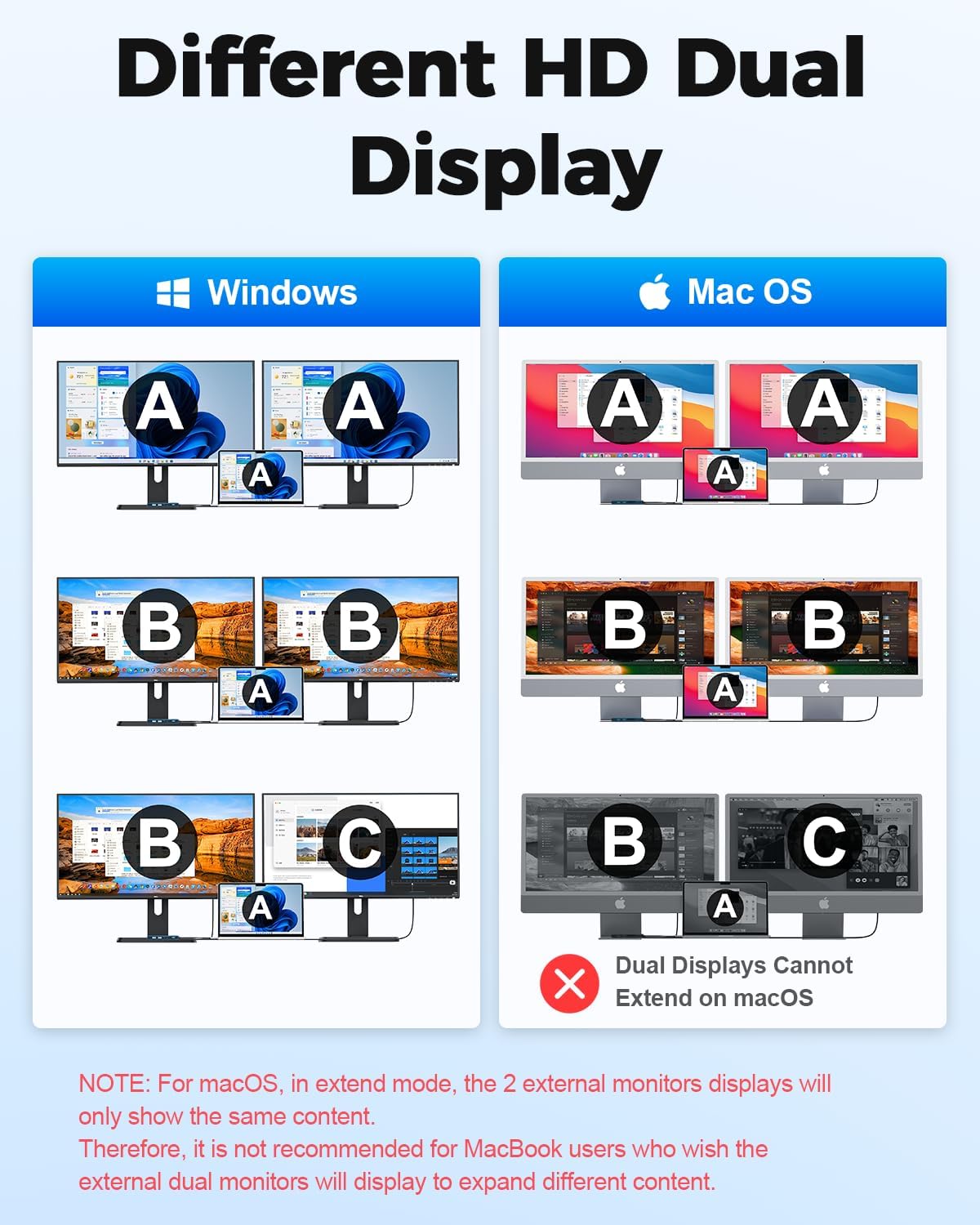
Figure 3: Different HD Dual Display configurations for Windows and macOS.
Power Delivery (PD)
The USB-C PD port supports up to 100W pass-through charging. This allows you to power your laptop while using the hub, ensuring stable operation even with multiple peripherals connected. The actual charging wattage delivered to your laptop will be slightly less than the input due to power consumption by the hub itself.
High-Speed Data Transfer
The 2 USB-A 3.0 ports and 2 USB-C data ports support data transfer speeds of up to 5Gbps, enabling quick transfer of large files, such as 1GB movies in 3-5 seconds. This is ideal for connecting external hard drives, USB flash drives, and other high-bandwidth peripherals.

Figure 4: High-speed data transfer via USB 3.0 and USB-C data ports.
Ethernet Connectivity
The integrated RJ45 Ethernet port provides a stable and fast wired network connection up to 1000Mbps (Gigabit Ethernet). This is beneficial for online gaming, video conferencing, and large file downloads where a reliable connection is crucial.

Figure 5: Fast and stable Ethernet connection.
SD/TF Card Reader
The built-in SD and TF (MicroSD) card readers support data transfer speeds up to 25MB/s. This allows for quick access to photos and videos from cameras and other devices. Note that SD and TF cards cannot be read simultaneously.
Compatibility
The MCY USB C Hub is designed for broad compatibility with various USB-C and Thunderbolt 3/4 enabled devices and operating systems.
Compatible Devices:
- MacBook Pro, MacBook Air, Dell XPS, Pixelbook
- Asus, Xiaomi, Lenovo, HP, Razer computers
- Samsung S10/S10+, S20, S21, iPhone 15 and 16 series
- Android phones and tablets that support Type-C interface video and data output
- Steam Deck, Nintendo Switch, ROG Ally, PS5 (for display output where supported)
Compatible Systems:
- Windows
- macOS
- iPadOS
- ChromeOS
- UNIX
- LINUX

Figure 6: Wide compatibility with various USB-C host devices and operating systems.
Specifications
| Feature | Detail |
|---|---|
| Model Number | KCH101 |
| Dimensions | 6.15 x 3.25 x 0.7 inches |
| Item Weight | 3.2 ounces |
| HDMI 1 Output | Up to 8K@30Hz (requires DP1.4 protocol PC support; Mac systems only support 4K) |
| HDMI 2 Output | Up to 4K@60Hz |
| USB-A 3.0 Ports | 2 ports, 5Gbps data transfer |
| USB-C Data Ports | 2 ports, 5Gbps data transfer |
| USB-C PD Charging | Up to 100W pass-through |
| Ethernet Port | RJ45, 10/100/1000Mbps |
| Card Reader | SD/TF (MicroSD), up to 25MB/s (cannot read simultaneously) |
| Material | Aluminum alloy (based on customer reviews) |
| Color | Blue |
Troubleshooting
- No Display Output:
- Ensure your host device's USB-C port supports DisplayPort Alternate Mode.
- Check that HDMI cables are securely connected to both the hub and the monitors.
- Verify monitor input settings are correctly selected (e.g., HDMI 1, HDMI 2).
- Try connecting one monitor at a time to isolate the issue.
- Restart your computer.
- Intermittent Connection/Flickering Display:
- Ensure the hub is receiving sufficient power, especially when connecting multiple power-hungry devices. Connect a PD charger to the hub.
- Check for loose connections.
- Reduce the number of connected peripherals to see if it resolves the issue.
- Slow Data Transfer Speeds:
- Ensure you are using USB 3.0 compatible devices and cables.
- Verify that the connected device itself is capable of 5Gbps speeds.
- Ethernet Not Working:
- Check the Ethernet cable connection to both the hub and your router/modem.
- Verify network settings on your computer.
- Restart your router/modem and computer.
- SD/TF Card Not Detected:
- Ensure the card is fully inserted into the correct slot.
- Remember that SD and TF cards cannot be read simultaneously. Remove one if both are inserted.
- Test the card directly on your computer if possible, or try a different card.
Maintenance
- Cleaning: Use a soft, dry cloth to clean the surface of the hub. Avoid liquid cleaners or abrasive materials.
- Storage: Store the hub in a cool, dry place away from direct sunlight and extreme temperatures.
- Handling: Avoid dropping the device or subjecting it to strong impacts. Do not attempt to disassemble the hub.
- Cable Care: Do not bend or pull the integrated USB-C cable excessively to prevent damage.
Warranty and Support
MCY provides the following support for this product:
- 30-Day Money-Back Guarantee: For 30 days after the date of purchase, you may return your undamaged MCY product for a full refund for any reason.
- 18-Month Quality-Related Issues: For 18 months after the date of purchase, MCY will take care of all quality-related issues with a replacement or full refund.
For customer service and support, please contact: jiejielss@outlook.com
Related documentsKCH101


Ask a question about this manual
Ask about setup, troubleshooting, compatibility, parts, safety, or missing instructions. Manuals+ will review the question and use this page’s manual context to help answer it.