
1. Introduction
Thank you for choosing the MCY KCH101 USB C Hub. This 10-in-1 multiport adapter is designed to expand the connectivity of your USB-C enabled devices, offering dual monitor support, high-speed data transfer, power delivery, and network connectivity. Please read this manual carefully to ensure proper setup and operation.
2. Product Features
The MCY KCH101 USB C Hub provides a comprehensive solution for your connectivity needs:
- Dual HDMI Output: Supports single 8K@30Hz or dual 4K@60Hz display configurations for extended or mirrored modes.
- High-Speed Data Transfer: Two USB-A 3.0 ports and two USB-C data ports (5Gbps) for rapid file transfers.
- Power Delivery (PD 100W): Fast charging for your laptop, tablet, or phone while using other ports.
- Gigabit Ethernet: Provides a stable and fast 1000Mbps wired network connection.
- SD/TF Card Reader: Supports SD and TF cards with speeds up to 25MB/s for convenient photo and data transfer.
2.1 Port Overview

Figure 2.1: Overview of the MCY KCH101 USB C Hub ports, including USB-C 3.0, SD/TF card reader, USB-A 3.0, RJ45 Ethernet, USB-C PD, and HDMI ports.
- 1. USB-C Data Port (5Gbps): Connect USB-C peripherals for data transfer.
- 2. SD/TF Card Reader: Insert SD or TF (Micro SD) cards for data access. Note: SD and TF cards cannot be read simultaneously.
- 3. USB-A 3.0 Ports (5Gbps): Connect USB-A devices like external drives, keyboards, or mice.
- 4. RJ45 Ethernet Port (10/100/1000Mbps): For wired network connection.
- 5. USB-C PD (Power Delivery) Port (100W): Connect your laptop's power adapter to charge your device through the hub.
- 6. HDMI1 Port (8K@30Hz): Connect to a display for up to 8K resolution. Requires DP1.4 protocol support from your PC.
- 7. HDMI2 Port (4K@60Hz): Connect to a display for up to 4K resolution.
2.2 Display Resolution and Modes
The hub supports various display configurations depending on your operating system and DP protocol version:
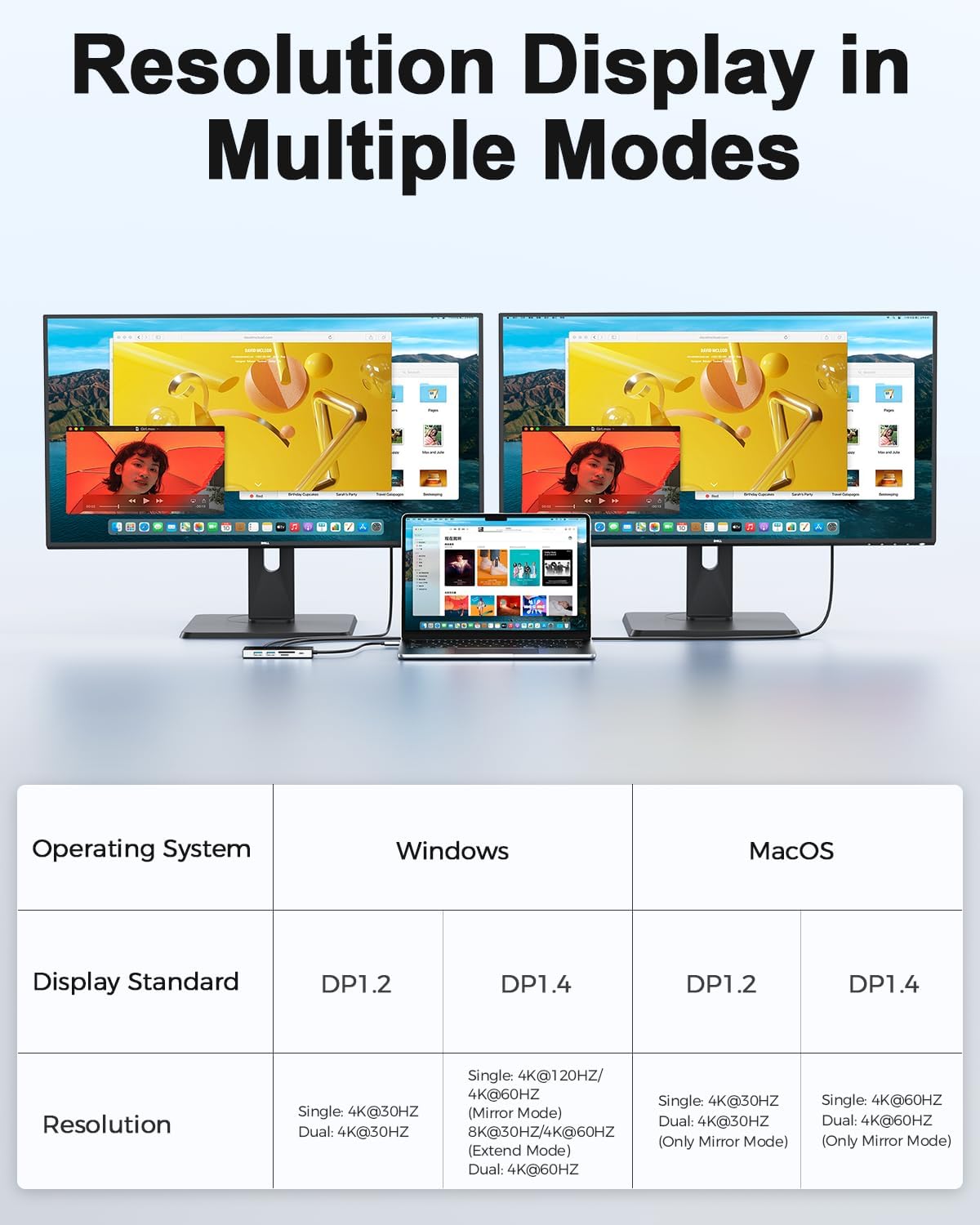
Figure 2.2: Resolution Display in Multiple Modes. This table details the supported resolutions for single and dual monitor setups on Windows and macOS, based on DP1.2 and DP1.4 protocols.
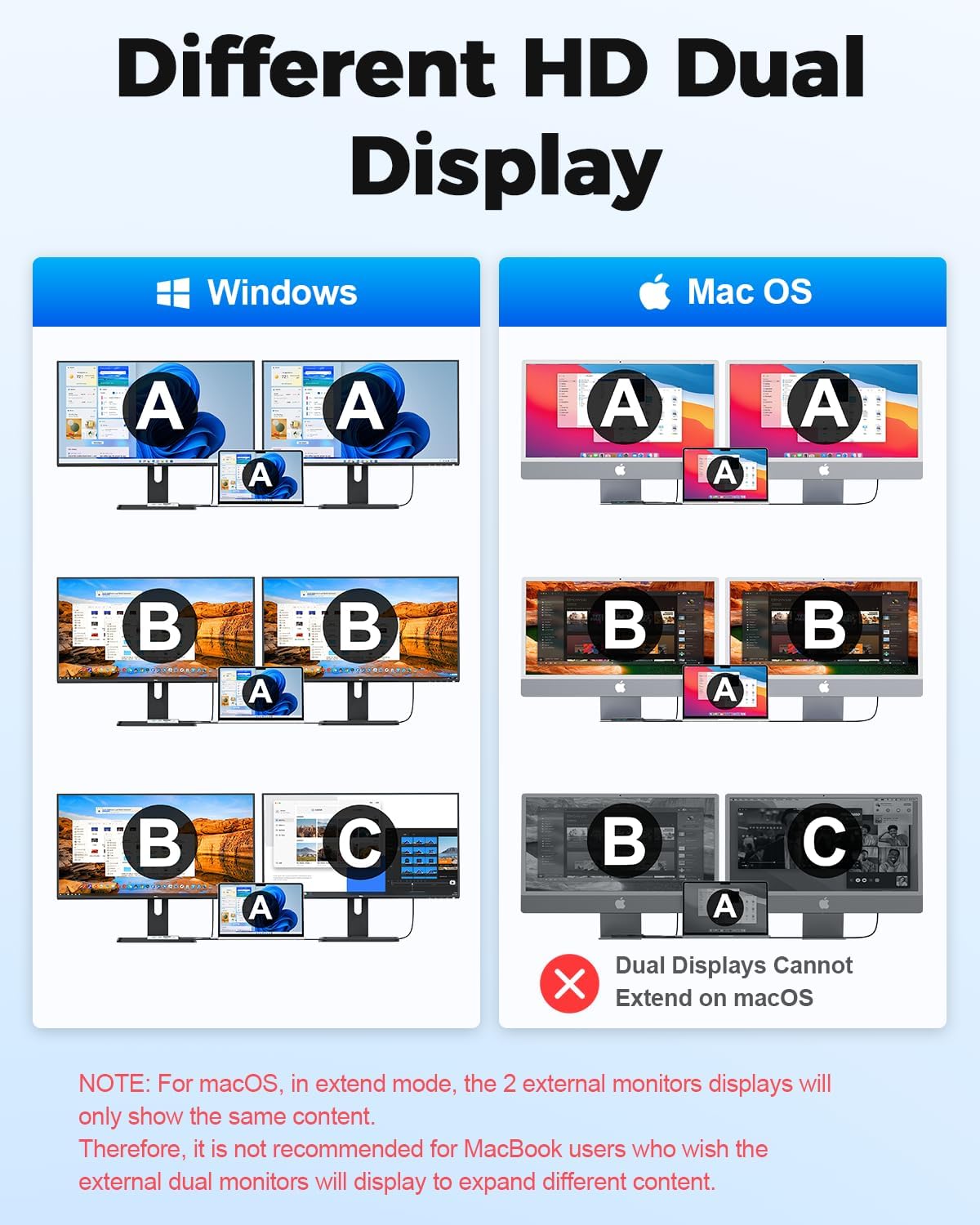
Figure 2.3: Different HD Dual Display configurations. This image shows how displays can be mirrored or extended on Windows and macOS. Note: For macOS, external monitors will display identical content in extend mode.
- Windows: Supports single 8K@30Hz (with DP1.4) or dual 4K@60Hz in both mirror and extend modes.
- macOS: Supports single 4K@60Hz or dual 4K@60Hz in mirror mode. In extend mode, both external monitors will display identical content.
Important: Before purchasing, ensure your computer's USB-C port supports audio and video transmission (DP Alt Mode, e.g., USB 4.0/Thunderbolt 3/Thunderbolt 4).
2.3 Power Delivery

Figure 2.4: PD 100W Max. The hub supports up to 100W Power Delivery, allowing you to charge your laptop while using the hub's other functions. An intelligent chip helps dissipate heat for stable operation.
The USB Type-C 100W PD charging port allows you to quickly charge your laptop, tablet, or phone. This ensures your device remains powered even when the hub is fully loaded with connected peripherals.
2.4 Data Transfer

Figure 2.5: Transfer Files in Seconds. The hub's USB-A 3.0 and USB-C 3.0 ports support 5Gbps data transfer speeds, enabling quick transfer of large files. The SD/TF card reader supports up to 25MB/s.
Equipped with 2 USB-A 3.0 ports and 2 USB-C 3.0 data ports, the hub supports data transfer speeds of up to 5Gbps, allowing you to transfer 1GB movies in 3-5 seconds. The integrated SD/TF card reader supports speeds up to 25MB/s, ideal for photographers and video editors.
2.5 Ethernet Connectivity

Figure 2.6: Fast and Stable Ethernet. The RJ45 Ethernet port supports 10Mbps, 100Mbps, and 1000Mbps connections, providing a reliable and fast wired internet experience.
The 1000Mbps Ethernet port provides a stable and fast wired network connection, crucial for efficient work, large file transfers, or uninterrupted online gaming.
2.6 Universal Compatibility

Figure 2.7: Wide Compatibility. The MCY KCH101 is compatible with a broad range of USB-C and Thunderbolt 3/4 devices, including MacBooks, Dell XPS, HP, Lenovo, Asus, Xiaomi, Razer computers, Samsung S series, iPhone 15/16, Steam Deck, Nintendo Switch, ROG Ally, and PS5. It supports Windows, macOS, ChromeOS, UNIX, and LINUX systems.
The MCY KCH101 is plug-and-play compatible with most USB-C and Thunderbolt 3/4 devices, including laptops from Apple (MacBook), Dell (XPS), HP, Lenovo, Asus, Xiaomi, Razer, and various smartphones and tablets (Samsung S series, iPhone 15/16, Android). It supports Windows, macOS, ChromeOS, UNIX, and LINUX operating systems.
3. Setup Guide
Follow these steps to set up your MCY KCH101 USB C Hub:
- Connect to Host Device: Plug the integrated USB-C cable of the MCY KCH101 hub into an available USB-C port on your laptop, tablet, or smartphone. Ensure your device's USB-C port supports DP Alt Mode for video output.
- Connect Power (Optional but Recommended): For stable operation and charging your host device, connect your laptop's original USB-C power adapter to the USB-C PD (Power Delivery) port on the hub.
- Connect Displays:
- For single display: Connect your monitor to either the HDMI1 (8K) or HDMI2 (4K) port using an HDMI cable.
- For dual displays: Connect your first monitor to HDMI1 and your second to HDMI2.
- Connect Peripherals:
- USB Devices: Plug your USB-A devices (keyboard, mouse, external hard drive) into the USB-A 3.0 ports. Connect USB-C peripherals to the USB-C data ports.
- Ethernet: Connect an Ethernet cable from your router or modem to the RJ45 port on the hub for a wired internet connection.
- SD/TF Cards: Insert your SD or TF (Micro SD) cards into the corresponding slots for data access.
- Verify Connection: Your host device should automatically detect the hub and connected peripherals. No drivers are typically required for most operating systems (Plug and Play).
4. Operating Instructions
Once set up, operating the MCY KCH101 USB C Hub is straightforward:
- Using HDMI Outputs:
- Extend Mode: Allows you to have different content on each external display (Windows only for truly independent extended displays).
- Mirror Mode: Duplicates your primary display onto the external monitors.
- Adjust resolution and refresh rates via your operating system's display settings.
- Data Transfer: Simply plug in your USB drives, external hard drives, or memory cards. They will appear as removable storage devices on your computer.
- Charging: Connect your laptop's power adapter to the PD port. The hub will pass through power to your laptop while powering its own functions.
- Network Connection: The Ethernet port provides a stable wired connection. If you experience issues, ensure your network cable is securely connected and your computer's network settings are configured for a wired connection.
5. Troubleshooting
If you encounter issues with your MCY KCH101 USB C Hub, please refer to the following common problems and solutions:
| Problem | Possible Cause / Solution |
|---|---|
| No display output / Flickering screen |
|
| USB devices not recognized |
|
| Slow data transfer speeds |
|
| Ethernet connection unstable or not working |
|
| Hub feels warm during use |
|
6. Maintenance
To ensure the longevity and optimal performance of your MCY KCH101 USB C Hub:
- Cleaning: Use a soft, dry cloth to clean the surface of the hub. Avoid using liquid cleaners or aerosols.
- Storage: Store the hub in a cool, dry place away from direct sunlight and extreme temperatures.
- Handling: Avoid dropping or subjecting the hub to strong impacts. Do not attempt to disassemble or modify the device.
- Power: Always use a compatible power adapter for the PD port.
7. Specifications
| Feature | Detail |
|---|---|
| Model Number | KCH101 |
| Dimensions | 6.1 x 3.27 x 0.75 inches |
| Weight | 3.52 ounces |
| HDMI 1 Output | Up to 8K@30Hz (requires DP1.4) |
| HDMI 2 Output | Up to 4K@60Hz |
| USB-A 3.0 Ports | 2 (5Gbps data transfer) |
| USB-C Data Ports | 2 (5Gbps data transfer) |
| USB-C PD Port | 1 (Up to 100W Power Delivery) |
| Ethernet Port | RJ45 (10/100/1000Mbps) |
| Card Reader | SD/TF (up to 25MB/s, cannot read simultaneously) |
| Compatible OS | Windows, macOS, ChromeOS, UNIX, LINUX |
| Manufacturer | Shenzhen HongTian Electronics Co.,Ltd. |
| Country of Origin | China |
8. Warranty and Support
MCY is committed to providing high-quality products and excellent customer service.
- 30-Day Money-Back Guarantee: For 30 days after the date of purchase, you may return your undamaged MCY product for a full refund for any reason.
- 18-Month Quality-Related Issues: For 18 months after the date of purchase, MCY will take care of all quality-related issues with a replacement or full refund.
- Customer Service: For any inquiries or support, please contact us at jiejielss@outlook.com.


